
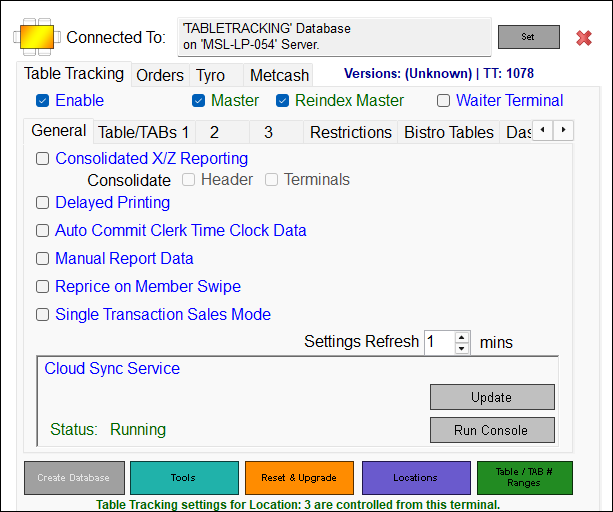
To access, select the Table Tracking menu option in Device Settings. Used to configure the Table Tracking feature to the venue's requirements.
Subjects ▲ ▼
About ▲ ▼
What Is New? ▲ ▼
- In v10.80+
- The Single Transaction Sales Mode option is enabled by default for all new Table Tracking configurations.
- For existing Tracking Tracking configurations, the daily code will be required when enabling the Single Transaction Sales Mode option.
- Resetting & Upgrading the Table Tracking database, in Back Office or in Touch POS, will enable the Single Transaction Sales Mode option for one location. This will be logged.
- Items/Products ordered in different Locations for a TAB/Table (regardless the number of times a Table was opened/closed), will be reported in the Location where they were ordered, when the Single Transaction Sales Mode option is enabled.
- Reports that have been optimised to support the Single Transaction Sales Mode are:
- Group Sales by Location (SAL015)
- Group Sales by Location Pivot (SAL017)
- Location Summary (QIS003)
- Location/Group Summary (QIS004)
- PLU Sales by Discount Type (SAL025)
- PLU Sales by Location (SAL026)
- PLU Sales by Location (Landscape)(SAL067)
- PLU Sales by Price Level (SAL029)
- Table Audit (SLA028)
- Table Invoice (SAL040)
- Z Reports will still report the media in the correct Location
What Is Required? ▲ ▼
- Swiftpos v10+
- Please ensure the Table Tracking database has been backed up before changing any of the settings.
What To Consider? ▲ ▼
- Tables/Tabs
- Small Sites:
- If the requirement is to keep Tables/TABs open for more than one day, then we would recommend that Accounts are used instead. This will ensure that all the orders/sales are accounted for, and the SOH is updated in the Back Office. At any time, an Account summary (using the Account Print Back (#47) POS Key) can be printed and looks very much like a TAB/Table bill. Sometimes Vvenue's don't want to bother with TABs or with assigning different ranges of Tables/TABs to different Locations. However, they still want to be able to decrement SOH and report on orders/sales in the different Locations but still allow Customers to move freely between Locations (for example, between Bar and Restaurant) without having to continually do TAB/Table Transfers.
- Small Sites:
Notes ...
The Single Transaction Sales Mode option must NOT be selected in order to report on orders/sales hourly and by the different Locations.
- Tables/Tabs continued ...
- Small Sites continued ...
- Assign all your Tables/TABs to a single Location. This would normally be the Location that uses Tables/TABs the most.
- Ensure that the Tables/TABs are visible in all other Locations where you want them to be visible.
- Enable Consolidated X and Z Reporting to make balancing easier, however this is optional.
- Allow committing with Open Tables/TABs - Configuring the settings via Report Settings, allows Tables/TABs to be left open at the end of the night when end of day reports are produced. Leaving Tables/TABs open over long periods of time make it difficult to do end of day balancing. However, some sites insist on working this way. The recommendation is to charge the TAB/Table off to an account in the Swiftpos Back Office so it can be dealt with at a later date. This makes it easier to do end of day balancing as all Tables/TABs are closed when end of day reports are run.
- Small Sites continued ...
- Waiter Mode - This feature allows the Tables to be finalised using a Finalise POS Key on the current Touch POS (Waiter) device. Otherwise, the only choice available is to charge items to a Table or TAB. This setting is device specific and not Location specific. This means that the Keyboard Layout used in Touch POS can also be used for a Touch POS Waiter devices, avoiding the requirement of staff needing to learn multiple keyboards. To use this feature a Waiter POS Terminal licence will need to be purchased.
When Is It Used? ▲ ▼
Used to configure the Table Tracking feature to the venue's requirements.
Sections ▲ ▼
Header Section ▲ ▼

- Connected To - Select the Set option to open the Connect to Server screen and configure the SQL Server Connection to establish a connection to the Table Tracking database. If the Table Tracking database is local then enter 127.0.0.1 as the server name.
Notes ...
A Table Tracking connection is NOT always required. For example, a small cafe using Table Tents would have no need for one. Instead, use of the Hold / Recall Sale (#20) POS Key can be made. When KVS, Consolidated Reporting, Available Servings, Tables or TABs etc. are being used then a connection is required.
- Versions: SQL Server & TT - Displays the current version of both the SQL Server and Table Tracking database.
Tabs Section ▲ ▼
Table Tracking Tab ▲ ▼
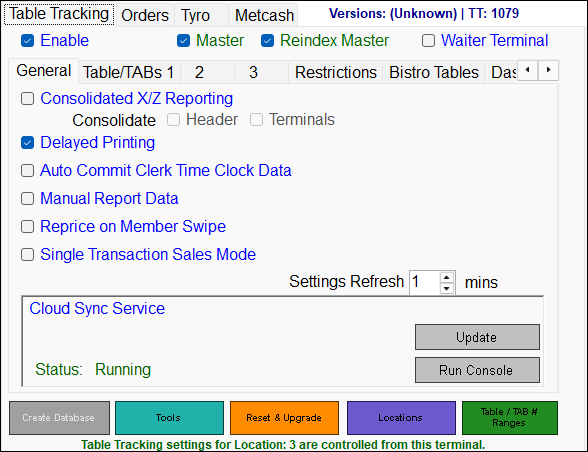
Sections ▲ ▼

- Enable - Select to enable Table Tracking for the selected Location.
- Master - Select to ensure the current Touch POS device is the designated Master device in the current Location. The Master device handles data updates to the Table Tracking database and is also the device at which Z reports should be generated when consolidated reporting is enabled.
Notes ...
If there are multiple Locations making use of Table Tracking features, then each one must have a designated Master device. This is also a requirement for Menu Boards. Also, when this option is selected and Table Tracking is enabled, and the Prompt for Cash Drawer Assignment option is selected (in Fast Clerks mode), then the Reports > Report Options > Cash Off by Cash Drawer option will be accessible to select/unselect.
- Reindex Master - Select to ensure that the current Touch POS device is set as the Reindex Master. This option is only useful to those sites that have multiple Locations, make use of a single Table Tracking database, have multiple Table Tracking Master devices, and make use of Raffle Tickets. To avoid deadlocks occurring, on restart of the Touch POS devices, when Raffles are reindexed, select one of the Touch POS devices to be the Reindex Master.
- Waiter Terminal - Select to ensure that the Touch POS device is set to Waiter Mode. This will ensure that no orders/sales can be finalised from device.
-
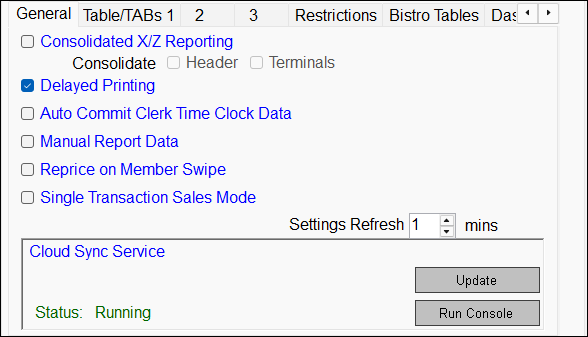
Consolidated X/Z reporting - Select to ensure X reports run from each of the Touch POS devices are consolidated into one Z report for all Touch POS devices. If this option was NOT selected, then X and Z reporting will need to be performed at each Touch POS device. It is still possible to view reports on any Touch POS device with consolidation enabled and it is also highly recommended that it be used when Table Tracking is in use.
Notes ...
Covers will not show with this setting enabled. Also, this option will be disabled when the Cash Off by Cash Drawer option is selected.
- Consolidated X/Z reporting continued ...
- Header - This consolidates the headers when using Consolidated Reporting.
Notes ...
This option is only enabled if the Enable Consolidated X and Z reporting is selected.
- Consolidated X/Z reporting continued ...
Notes ...
This option is only enabled if the Enable Consolidated X and Z reporting is selected.
- Consolidated X/Z reporting continued ...
Once selected, X reports will need to be run at all Touch POS devices in order for them to be to be consolidated at the Master device when the Z report is run. The reason for this, is that the Master device is not aware of which Touch POS devices are still in use or not. Running the X reports at each of the Touch POS devices indicates they are closed and not in use and are available for consolidation when the Z report is run at the Master device. This means Touch POS devices that are still in use will NOT get locked by the Z report.
For example, a venue with 2 Locations, say a Restaurant and a Bar, and where the Restaurant closes at 9pm and the Bar closes at midnight. X reports would be run at all the Restaurant Touch POS devices at close (9pm) and then also at all Bar Touch POS devices at close (midnight). Once all X reports have been done then the Z report is run at the Master device, which gathers all the X reads and consolidates them into the Z report. If the Z report was done when the Restaurant closed it would lock all the Bar Touch POS devices as well.
- Delayed Printing - Select to enable delayed printing. This ensures the Master device monitors Tables for items that have been marked for delayed printing. Refer HERE for more information.
- Auto Commit Clerk Time Clock Data - Select to ensure that Clerk time clocking data is committed automatically and sent to Back Office.
Notes ...
When this option is selected, the Preview Time Clock Data (#145) POS Key is not required, as Clerk time clocking data does not require committing. Also, the entry of Shift Notes will NOT be possible.
- Manual Report Data - Select to enable this feature, which is primarily for sites that use Table Tracking and have an unreliable wireless network, causing frequent connection loss to the Table Tracking database. Refer HERE for more information.
- Reprice on Member Swipe - Select to ensure that all Table Items are repriced, when a Customer/Member is added to the Table.
Notes ...
Selecting this option may result in Happy Hour pricing, already applied to items/products, being removed when the Member is added to the order/sale.
- Single Transaction Sales Mode - Refer HERE for more information.
Notes ...
This option cannot be changed if Tables are currently open. It must be done at the end of the day after the Z Reports have been completed.
- Selected - No matter which Location the TAB/Table orders/sales are rung up in, the complete orders/sales transaction is attributed to the Touch POS device where the order/sale was finalised. This works OK in a venue with a single Location but not suitable for multi-Location venues that do stock control by Location and report on orders/sales in different Locations running TABs etc. You also lose hourly reporting in this mode. Also, you cannot take deposits for Phone Orders with this mode of operation. Refer HERE for more information.
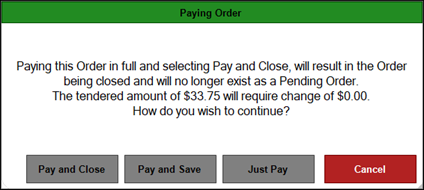
- Unselected - NO LONGER SUPPORTED as of v10.77+. This option should always remain selected. If unselected, from v10.77+ a warning prompt is displayed. For example:
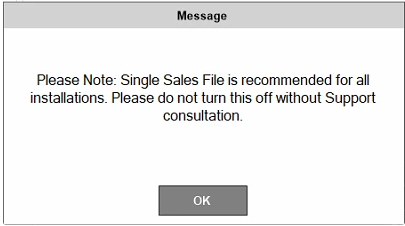
When unselected, TAB/Table orders/sales are split into separate transactions for Back Office to process. If orders/sales are rung up in different Locations from where they are paid for then you will see the Table Charge Media displayed on the daily Z reports to balance off the Table charges and payments from different Touch POS devices. Behaviour and reporting with the Single Transaction Sales Mode option unselected may continue to change as required and should not be relied on for future workflows.
Notes ...
If you enable this feature, you will not get consecutive receipt numbers in the Swiftpos Back Office because all the transactions from multiple Touch POS devices are consolidated into a single order/sale. Without Single Transaction Sales Mode option selected, every time you open a Table or add items to a Table, etc., this will consume a receipt number. These receipt numbers will not get sent back to Swiftpos Back Office until the Table is finalised. These receipt numbers will then return with the correct Date/Time from when they were consumed.
- Settings Refresh - T.b.a.
Cloud Sync Service Section

Displays the current status of the Cloud Sync Service and provides access to the Update and Run Console options.
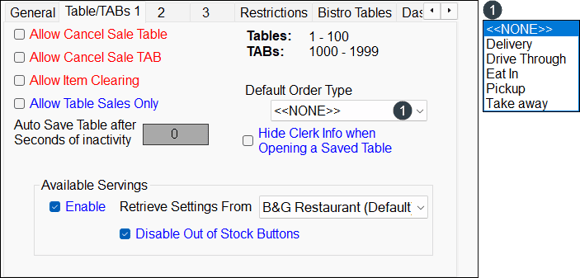
- Allow Cancel of Bistro Sale - Select to allow a Table order/sale to be cancelled.
Notes ...
This can be overridden so that it is restricted to Manager's only. To do this ensure the Override Table Cancel Sale Lockout option is selected in the Security menu option of Touch Settings.
- Allow Cancel Sale TAB - Select to allow a TAB order/sale to be cancelled.
Notes ...
This can be overridden so that it is restricted to Manager's only. To do this ensure the Override Table Cancel Sale Lockout option is selected in the Security menu option of Touch Settings.
- Allow Item Clearing - Select to allow items/products to be cleared off a TAB/Table. If selected, then use the Credit Item (#2) POS Key to remove an item from a TAB/Table. To distinguish items credited using this feature from other credited items refer to Reason Codes.
Notes ...
This can be security password controlled so that it is restricted to Manager's only.
- Allow Table Sales Only - Select to ensure that prior to adding an item/product to an order/sale, a Table has to have been already opened. If not, an appropriate prompt will be displayed to enforce this.
Notes ...
Transfers In/Out to other Locations or Phone/Web orders will not be able to be done when this feature is selected.
- Auto Save Table after Seconds of inactivity - This option enables Tables to be saved automatically after a specified period of inactivity. To turn this feature off simply set the auto save value to 0 seconds. This feature should be used if you have staff that are leaving tables open on their waiter stations. If the table is not closed, then it is not possible to open the table from another Touch POS device. It is recommended to ensure this is set to 45 seconds.
- Tables - Displays the current Table # range as configured by the Table / TABs # Ranges option.
- TABs - Displays the current TAB # range as configured by the Table / TABs # Ranges option.
- Default Order Type - Select from the drop- down list one of the order types.
Notes ...
Normally set to Eat In, this will ensure the order type is defaulted to Eat In whenever a Table order is made. The default order type can always be modified later (when using Table First Mode) by making use of the Order Type (#19) POS Key. Table Last Mode will always use the default order type selected here. Also, a default order type can be set for all order/sales. HERE.
- Hide Clerk Info when Opening a Saved Table - Select this to exclude Touch POS operator related information (number and name) from being inserted into the sales grid whenever a saved Table is opened.
Available Servings Section
- Enable - Select to enable the Available Servings feature and display the Available Servings quantity on preconfigured Product POS Key(s) that have the Check Available Servings setting selected. The Available Servings feature stores all of it's data within the Table Tracking database.
Notes ...
If Orderaway and/or Touchmini are being used, then when Available Servings is enabled here, then in the Location selected in the Retrieve Setting From setting below, then the Turn on quantity checks option will need to be enabled in Orderaway and/or on each Touchmini device within the same Location.
- Enable continued ...
- Retrieve Settings From - Select from the drop-down list the Location from which the Available Servings quantity will be retrieved and then be displayed on the Product POS Key(s) in Touch. The default is the current Location.
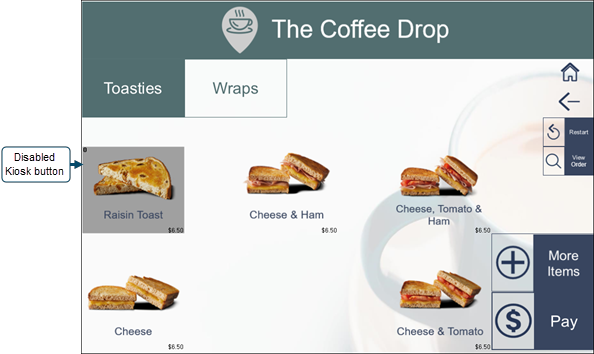
- Disable Out of Stock Buttons - Select to ensure that when Available Servings quantity of zero has been reached the Kiosk option for that item is disabled.
Notes ...
This only applies to Product POS Keys that have the Check Available Servings option selected and are also included in a Kiosk 1 or 2 style Keyboard. An example of a disabled Kiosk option is:
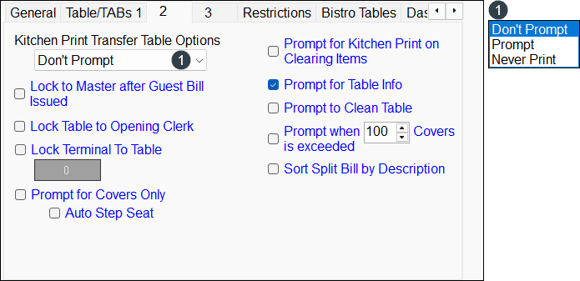
- Kitchen Print Transfer Table Options - Select from the drop-down list one of the following options for Table Transfers:
- Don't Prompt - Select to ensure a Kitchen Print of the Transfer is always printed in the Kitchen. This is the default option.
- Prompt - Select to ensure Touch POS operators are prompted to confirm whether a Kitchen Print of the Transfer is to be printed in the Kitchen.
- Never Print - Select to ensure a Kitchen Print is never printed.
- Lock to Master after Guest Bill Issued - Select to ensure the Table is locked to the Master device once the Guest Bill has been issued.
- Lock Table to Opening Clerk - Select to ensure only the Touch POS operator that initially opened the Table will be able to re-open the Table. Any other Touch POS operator will require the entering of the details of an authorised Touch POS operator. Once the correct details are added, a prompt will be displayed to switch the Table to the new Touch POS operator, so next time, they can open the Table without requiring authorisation.
- Lock Terminal To Table - Select the Table number for this device to be locked to. Key points:
- Checked requires the Table number to be selected to which the current device is to be locked to. Checked also means Table Last Mode can only be used.
- Unchecked the Lock To Table number returns to zero.
- If the master device has lock to master after guest bill printed, and they do a guest bill, you cannot add more items from the non-master, if this feature is enabled, that order/sale will be cancelled.
- Table orders/sales can only be finalised at Touch POS devices in this Location that do not have this setting checked.
- Prompt for Covers Only - Select to prompt the Touch POS operator to enter a number of covers whenever a Table is created.
Notes ...
If both the Prompt for Table Info and the Prompt for Covers Only options are selected, then Touch POS will default to the Prompt for Table Info option.
- Prompt for Covers Only continued ...
- Auto Step Seat - Select to ensure that the Auto Stepping through Seats feature is enabled. This feature is primarily designed for fine dining Restaurants to enable the quick allocation of Seats. The Course (#585), Previous Seat (#586) and Next Seat (#587) POS Keys are also available as part of this feature.
Notes ...
This option will only be enabled if the Prompt for Covers Only option is selected.
- Prompt for Kitchen Print on Clearing Items - Select to ensure the Kitchen is notified whenever items are cleared from a Table order.
- Prompt for Table Info - Select to invoke the Table info screen whenever a new Table is created. The Table info screen allows covers, booking information and credit limits to be set against the Table.
- Prompt for Table Clean Mode - Select to ensure a prompt is displayed to place the Table into clean mode.
- Prompt when X Covers is exceeded - Select to warn Touch POS operators when an entered Covers exceeds the X limit specified. if covers over the specified limit are to be added to a table. Assists in avoiding too large Covers from being entered.
- Sort Split Bill by Description - Select to sort the split bill screen alphabetically by item/product description.
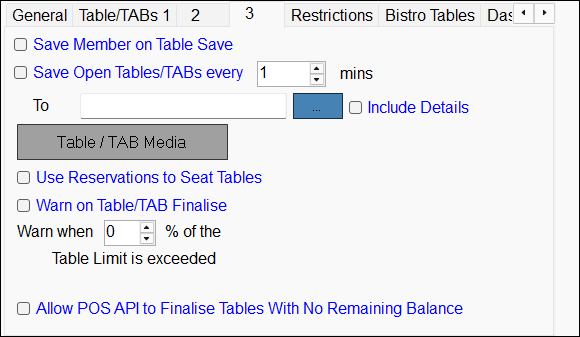
- Save Member to Table - Select to determine whether a Customer/Member on a Table is returned on subsequent openings of the same Table before the order/sale is finalised. If you choose not to add the Customer/Member to the Table when the purchases are made, then you can use the Subtotal (#300) POS Key to change to member's pricing prior to finalisation.
Notes ...
If Table Last Mode is used with a Table that has a member saved, it will NOT save the items to the Table at Member Price. Table First Mode should be used. To get items saved via Table Last Mode to re-price at the end, the Clerk will need to either re-lookup the member at the end OR use the Subtotal key with Apply Price Level setting set. Warning that doing either will potentially remove Happy Hour pricing which might have been applicable when the products were added to the Table.
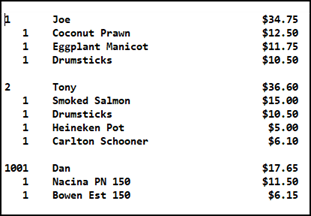
- Save Open Tables/TABs every X mins - Select to ensure a text file is generated, that contains data related to all currently open Tables/TABS. This is used to enable the saving of all open Tables/TABs. The saved information can be used to recover lost data as a result of a system failure. The data saved will need to be re-entered, where appropriate, once the system is available again. Once configured a .TXT file will be generated at the frequency set and written to the selected path. The file will be named as follows: TableReport_T3 - Restaurant.txt. Where T3 - Restaurant is the name of the Touch POS device.
- X mins - Displays/Set the frequency in minutes that a file is to be generated.
- To - Displays/Select the Location to which the file will be written.
- Include Details - Select to ensure that the file generated will include a breakdown of all items.
Example
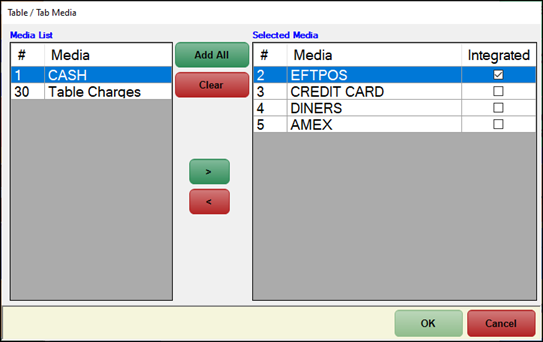
- Table / TAB Media - Select to open the Table / TAB Media screen (below) to restrict the Media available for selection taking Payments for a TAB/Table.
 |
|
Select from the Media List of available Medias (left hand side) to add to the list of Selected Media (right hand side) to restrict the Media available for selection when taking deposits/payments for Limits applying to TABs/Tables |
Notes ...
Select the Integrated option opposite the appropriate Media to ensure that it is flagged as an EFTPOS Media and thus will require EFTPOS authorisation. Also, the text (Integrated) will appear to the left of the Media name in the Finalise Sale prompt when finalising a TAB/Table Deposit/Payment.
- Use Reservations to Seat Tables - Select to ensure Tables can only be opened from within Reservations.
- Warn on TAB/Table Finalise - Select to avoid Clerk/Staff from accidentally pressing the Cash POS Key and finalising an order/sale, when in fact it should have been saved to a Table. This feature will alert the Touch POS operator prior to finalising to a payment Media.
- Warn when X % of the Table Limit is exceeded - Displays/Enter the percentage value of the Table Limit, that once exceeded will result in a Warning being displayed to the Touch POS operator. This is to ensure a Touch POS operators can bring this to the attention of Customers/Members. For example, if a value of 80 (%) is entered against a Table that has a Table Limit of $100.00, then when the total value of orders placed against the Table exceeds $80.00, a Warning prompt will be displayed.
- Allow POS API to Finalise Tables With No Remaining Balance - Select to ensure the POS API automatically finalise and close Tables when payment is received in full for the outstanding balance.
Notes ...
This option may also be considered when Touchmini's Table service option is in use at a venue.
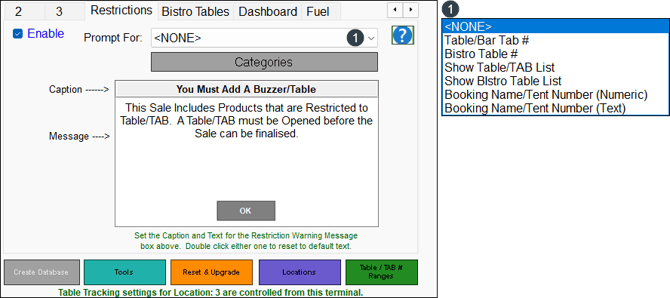
- Enable - Select to ensure that a Table is selected prior to finalising an order/sale where any items/products from the selected Categories (see Categories below), are in the order/sale. items/products that are not in the selected Categories, can be added to an order/sale without a Table being selected. This does not limit the items placed on a Table. For example, any food orders/sales would require a Table, but drink orders/sales would not require a Table. This feature was designed for a Bar Touch POS device where they order 2 drinks and a Burger which will force the food orders onto a table number. You would not use this feature in a Bistro area because all orders are on tables anyway. This feature is not compatible with KVS when in Journal Mode.
- Prompt For - Select from the drop-down list one of the following to select what happens when restricted items are detected on finalising an order/sale.
- <NONE> - Select to prompt the Message Box only.
- Table/Bar Tab# - Select to prompt the Message Box, followed by a numeric Keypad to enter the Table/ TAB #.
- Bistro Table # - Select to prompt the Message Box, followed by a numeric Keypad to enter the Bistro Table #.
- Show TAB/Table List - Select to prompt the Message Box, followed by the TAB/Table list.
- Show Bistro Table List - Select to prompt the Message Box, followed by the Bistro Table list.
- Booking Name/Tent Number (Numeric) - Select to prompt the Message Box, followed by a numeric Keypad to enter the Booking Name/Tent Number.
- Booking Name/Tent Number (Text) - Select to prompt the Message Box, followed by a full Keyboard to enter the Booking Name/Tent Number.
- Prompt For - Select from the drop-down list one of the following to select what happens when restricted items are detected on finalising an order/sale.
- Categories - Select to open the Table Restrictions Categories screen to select the Categories of items/products requiring a Table when added to an order/sale.
- Message Box Prompt
-
- Caption - Displays/Enter the caption for the Message Box prompt.
- Message - Displays/Enter the message for the Message Box prompt.
-
Once enabled and an item/product is sold that is in one of the restricted Categories selected, the Message Box prompt will be displayed. Select OK to open the Open TABs/Tables for All Clerks screen to either add or open a TAB/Table for the restricted items/products.
Notes ...
If instead a Bistro Table is required to be opened, then cancel out of the Open Tables/TABs for All Clerks screen and add or open a Bistro Table.
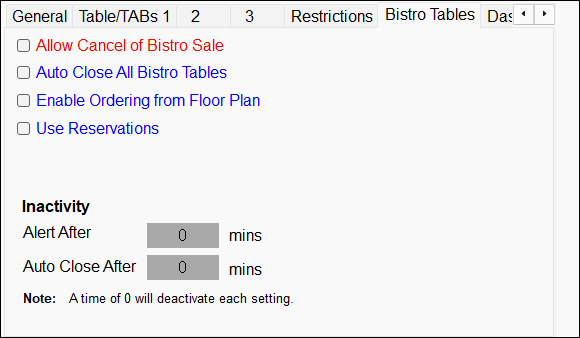
- Allow Cancel of Bistro Sale - Select to allow a Bistro Table order/sale to be cancelled.
Notes ...
This can be overridden so that it is restricted to Manager's only. To do this ensure the Override Table Cancel Sale Lockout option is selected in the Security menu option of Touch Settings.
- Alert Inactivity After X mins - Displays/Set the time in minutes for a Bistro Table to not have any activity. The B displayed in the Status Info of the Touch Toolbar will change to an orange B, alerting the operator that Bistro Tables may need attending.
- Auto Close All Bistro Tables - Select to ensure Bistro Tables are automatically closed when the order goes to the kitchen. It is recommended to deselect this feature when using Reservations. As then, the Bistro Table will only be closed when the guests have left, and the Table has been cleared.
- Enable ordering from Floor Plan - Select to use Bistro Tables in Floor Plan Display.
- Use Reservations - Select to ensure Bistro Tables can only be opened from within Reservations. Refer to the Bistro Mode Only option for more information.
- Inactivity:
- Alert After - Displays/Set the time in minutes that must elapse before an inactivity alert is generated. A time of zero minutes will ensure NO inactivity alert is generated.
- Auto Close After - Displays/Set the time in minutes that must elapse before the Bistro Table is closed. A time of zero minutes will ensure NO Bistro Tables are automatically closed.
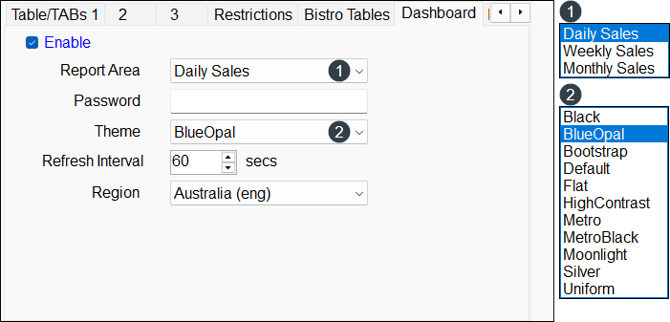
Refer HERE for more information.
- Enable - Select to enable.
- Report Area - Select from the drop-down list one to match the reporting level that is required. The Daily Sales option is is normally the End of Shift or End of Day Report resetting.
- Password - Set to limit other staff members from being able to view the web page without the correct password.
- Theme - Select from the drop-down list the preferred theme (colour scheme) for the Dashboard.
- Refresh Interval - Displays/Set the interval in seconds between updates.
- Region - Select from the drop-down list the appropriate Region.
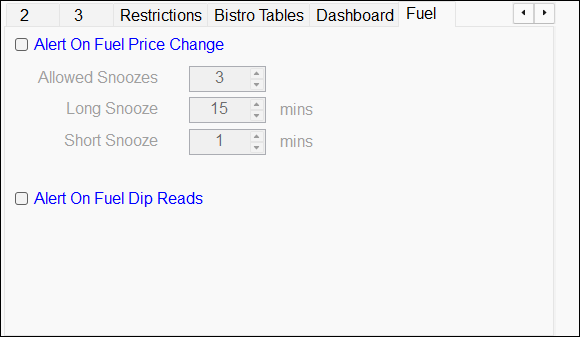
Used to enable the alerting of Clerks/Staff to the fact that Fuel Prices have changed in the Back Office.
- Alert on Fuel Price Change - Select to enable.
- Allowed Snoozes - Displays/Enter the number of times the Touch POS operator is allowed to snooze the alert. After which the alert is displayed repeatedly at the Short Snooze interval set.
- Long Snooze - Displays/Set the time in minutes that is required to elapse before the Fuel Price Change alert is displayed again after the Touch POS operator has elected to snooze the first alert.
- Short Snooze - Displays/Set the time in minutes that is required to elapse before the Fuel Price Change alert is displayed.
- Alert On Fuel Dip Reads - To be continued ...
Orders Tab ▲ ▼
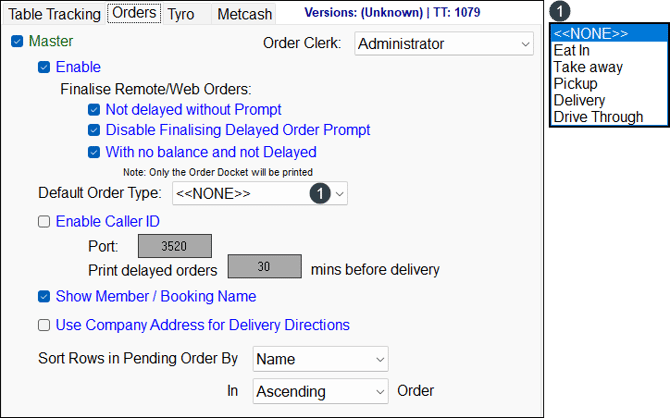
Used to configure the settings for Phone/Web orders.
- Master - Select to ensure the current Touch POS device is the designated Master device for orders in the current Location.
- Master continued ...
- Finalise Remote/Web orders continued ...
- Disable Finalising Delayed Order Prompt - Select to ensure the Finalising a Delayed Order prompt is not displayed.
- With no balance & not Delayed - This setting will print any orders that come in with no delay and are fully paid. These orders will not appear in the "orders" at Touch.
- Finalise Remote/Web orders continued ...
Notes ...
There will be no receipt for these orders. You can print a receipt if required from Review Transactions.
- Master continued ...
- Default Order Type - Select from the drop-down list one of the Order Types.
-
Enable Caller ID - Select to enable.
- Port - Displays/Set the Port number for the Caller ID Peripheral.
- Print delayed orders xx mins delivery - Displays/Enter the average time in minutes to cater for the preparation of orders prior to Pickup/Delivery. If for example, the time here is set to 30 minutes, then 30 minutes prior to the Pickup/Delivery Date-Time, the order will be printed at the Kitchen printer triggering the preparation of the order. If more time is required for an individual order, then the Kitchen Docket can be printed manually by selecting the Print option.
Notes ...
To ensure orders are printed immediately (regardless of the delay time) once an order is saved, enter a minutes value of -1 here.
- Master continued ...
- Enable Caller ID continued ...
- Show Member / Booking Name - Select to ensure both names are displayed in the Phone / Web Orders screen. If not selected, by default the Booking Name will be displayed.
- Use Company Address for Delivery Directions - Select to ensure the Address recorded against Locations, Venues (Location Groups) and Registration (Swiftpos Rego) are used, in that order, to determine the directions that will be displayed when the Google Maps option is selected, in the Directions column of the Phone / Web Orders screen.
- Sort Rows in Pending Order By - Select from the drop-down lists to change the way orders are listed in the Phone / Web Orders screen
- Enable Caller ID continued ...
Tyro Tab ▲ ▼
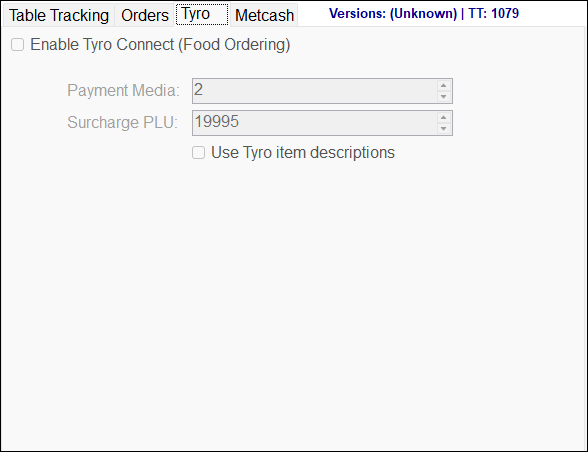
Refer HERE for more configuration options.
-
Payment Media - Select the Payment Media to be used.
-
Surcharge PLU - Select the PLU to be used for Tyro Connect surcharges.
Metcash Tab ▲ ▼
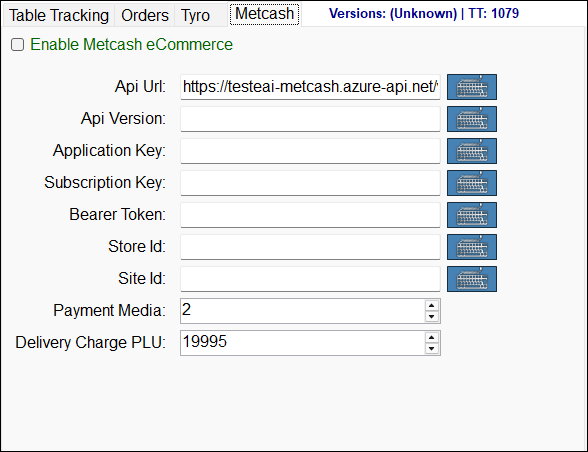
Used to configure the Metcash eCommerce (Shop My Local) settings required to ensure the successful placing of orders by Customer via a Metcash Web Store. In conjunction with the settings configured here, attention will also need to be given to configuration of the settings required in the Service Monitor HERE.
-
Enable Metcash eCommerce - Select to enable.
-
API URL - Enter the URL details provided.
-
Application Key - Displays/Enter the key provided.
-
Subscription Key - Displays/Enter the key provided.
-
Bearer Token - Displays/Enter the token provided.
-
Store ID - Displays/Enter the your Store's ID.
-
Site ID - Displays/Enter the your Site's ID.
-
Payment Media - Displays/Enter the payment Media ID.
-
Delivery Charge PLU - Displays/Enter the PLU of the Delivery Charge product.

- Create Database - Select to create a Table Tracking Database. This option is only enabled when no Connection Setup is configured.
- Tools - Select to login with a Master password and open the Table Tracking Tools Menu.
- Reset & Upgrade - Select to reset the Table Tracking database and upgrade it to the latest version.
Notes ...
The following prompt will be displayed if it is detected that the database is already been upgraded by another Touch POS device.
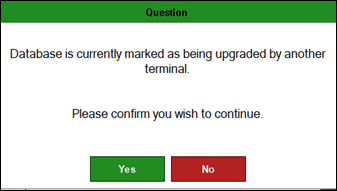
- Locations - Select to open the Table Tracking Locations screen and select the Locations.
- Table / TAB # Ranges - Select to open the Table / TAB # Ranges screen and set the TAB/Table Numbers.
End of article ▲