
Subjects ▲ ▼
About ▲ ▼
What To Consider? ▲ ▼
- When configuring security for Order Kiosks, ensure authorisation to all features/functions have been unchecked to ensure patrons do not gain access to unauthorised Touch POS features/functions.
- To ensure changes to authorisations are activated in Touch POS, make sure a full update is sent to all Touch POS devices.
Screens ▲ ▼
Security Screen ▲ ▼
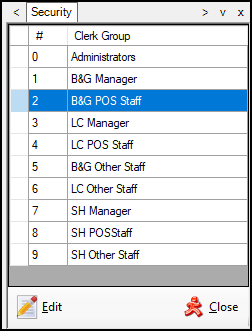
To access, select the Security option in the Device Settings menu. Used to select one of the Clerk Groups listed and edit it with the aim of granting/withdrawing the groups authorisation access to Touch POS functions/options. Security can also be configured for individual POS Keys HERE.
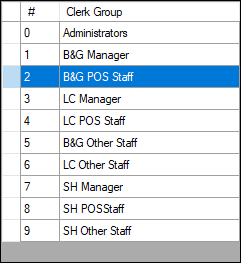
Lists the Clerk Groups that have been configured HERE.

- Edit - Select to open the Clerk Security Items screen and edit the selected Clerk Group's authorisations.
- Close - Select to exit.
End of article ▲