

This provides an overview of the Clerk Clock In/Out (#605) POS Key.
Subjects ▲ ▼
About ▲ ▼
What Is Required? ▲ ▼
- Swiftpos v10+
What To Consider? ▲ ▼
- If required, access to this POS Key can be restricted by the Clerk Security feature.
- This POS Key is NOT required if the Live Clerk Timeclock option is selected.
- Until the manager on duty commits/approves all the shift entries that have been recorded by Clerks/Staff, then none of them will appear in the Clerk Time Clock screen in the Back Office.
Notes...
If incomplete shift entries are committed in Touch, they will have to be manually edited in the Back Office via the Clerk Time Clock screen, as they will no longer be available in Touch once they are committed. For incomplete shifts to be committed, the Allow Committing of Incomplete Shifts option will need to be selected.
When Is It Used? ▲ ▼
Used to preview uncommitted/unapproved shift data of all Clerks/Staff that have Clocked In/Out at a Touch terminal, and still needs to be committed, and doing so be sent to Back Office, .
Refer HERE/Out for more information.
How To? ▲ ▼
GET STARTED? ▲ ▼
- Review About and ensure the steps outlined HERE are addressed.
- In Keyboard Designer, ensure the Preview Time Clock Data (#145) POS Key is added to a Layout.
- Ensure it is given an appropriate Caption. For example, Preview Time Clock Data.
- Select the More Settings option to display the Settings screen and configure the POS Key as required.
- Once configured, ensure a Full Update is sent to all the Touch terminals that will be using the POS Key. Refer HERE for more information.
Screens ▲ ▼
Settings ▲ ▼
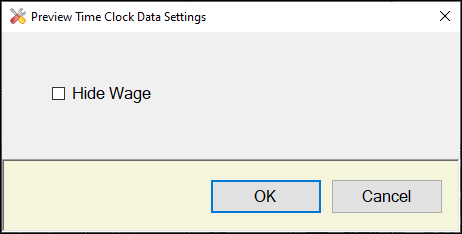
To access, select the More Settings option in Keyboard Designer. Used to configure the settings for this POS Key.
- Hide Wage - Select to ensure the Wage column is hidden when the Clock In/Out Review screen is displayed.
End of article ▲