
This outlines How To Create A Phone Order in Touch using the New Order (#25) POS Key.
How To? ▲ ▼
Phone orders can be created in Touch for:
How To Create A Phone Order For Casual Customers/Guests? ▲ ▼
Phone orders for casual customers/guests are very often created in one of two ways. These are:
-
Using A Classification - This option allows for the details of each new casual customer/guest to be captured and created as a new Member Record in Back Office.
- Using A Pseudo-Table - This option allows for the minimum details (for example, contact name and number) of each new casual customer/guest to be captured and associated with the phone order (pseudo-table), without creating a Member Record in Back Office.
Notes ...
The advantage of using this option is that the details of casual customers/guests are captured and can possibly be used in a marketing campaign in the future. The disadvantage is that it can cause unnecessary bloating of the Member Records in Back Office.
To configure, do as follows:
-
In Back Office:
-
Create a Classification to be used to assign all guest type customers to. For example, Casual Customer/Guest.
- Ensure the Classification has an extended Paid To Date value set. For example, 31/12/2050.
- Ensure a Full Update is sent to all the Touch terminals that will be taking phone orders. Refer HERE for more information.
-
- In Touch:
- In the Orders tab of the Table Tracking settings:
- Ensure the <<NONE>> option is selected in the Default Order Type drop-down list. This will ensure Touch operators can choose the type of order at the time the order is placed.
- In the Add/Edit Member tab of the Customers settings
- Ensure the options in the New Phone Order section are configured as is appropriate for the Venue. If no options are selected, then by default, the First Name and Mobile field will be displayed.
- Ensure the Casual Customer/Guest Classification created above is selected in the Primary Classification drop-down list.
- Save the changes and exit the settings screen.
- In the Orders tab of the Table Tracking settings:
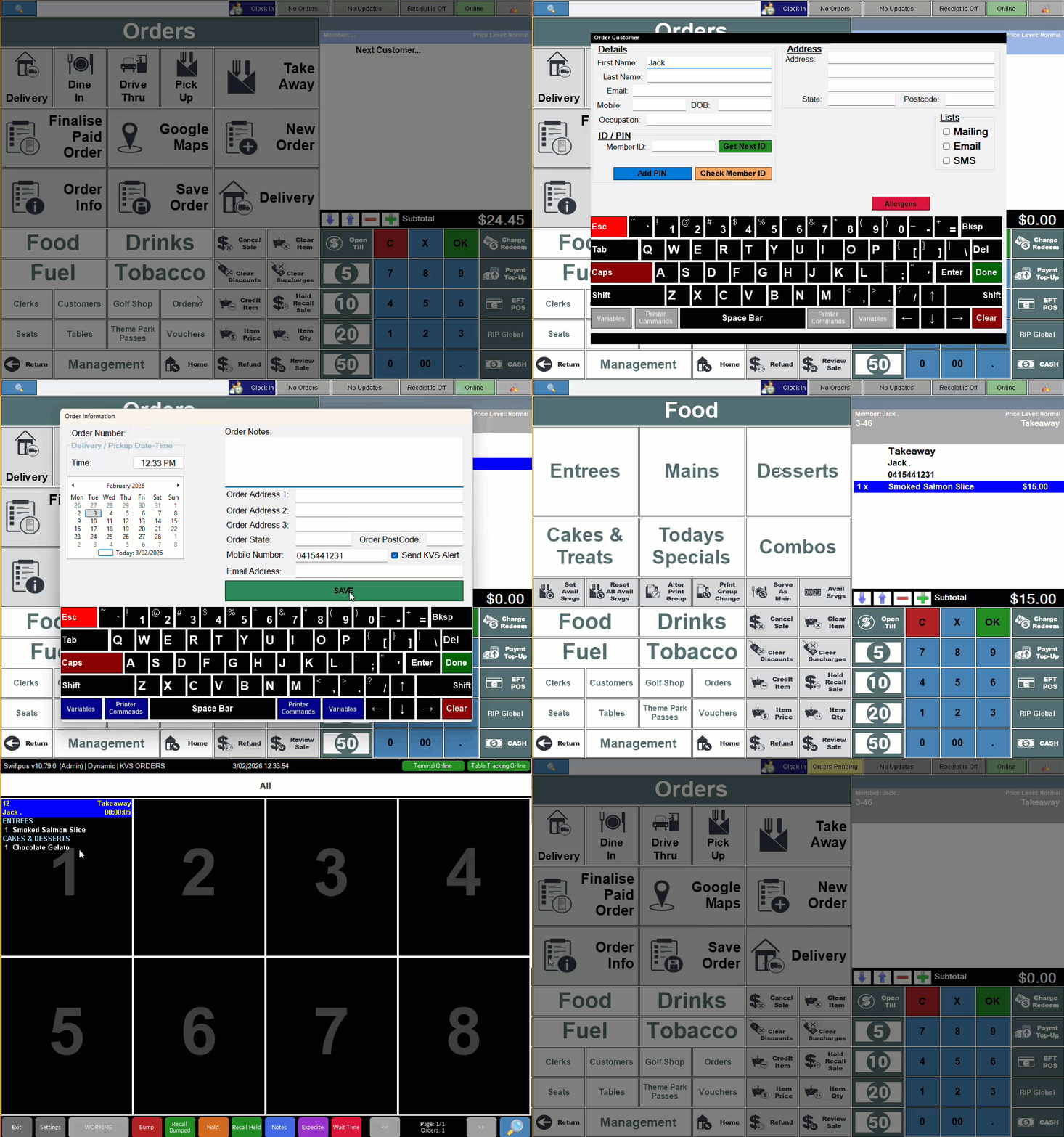
To take a phone order, do as follows:
-
- Select the New Order (#25) POS Key to open the Customer Search screen.
- Select the New option to open the Order Customer screen.
- Enter the details required for the new Member. For example, First Name and Mobile.
- Select the Done option to save the changes and open the New Order prompt.
- Select the Takeaway option to open the Order Information screen.
- Add the order information required to ensure order is processed smoothly. For example, the time the order will be picked up.
- Select the Save option to save the information added.
- Select the items/products being ordered to add to the order.
- Select the Save Order (#26) POS Key to save the order.
- The order will be sent to the kitchen for preparation depending on the pick up time selected in the Order Information screen above, and the Print delayed orders XX mins before delivery value configured in the Orders tab of the Table Tracking settings.
- The Orders option in the Toolbar will be highlighted, alerting Touch operators that there are orders pending.
It entails a pseudo-Table range to be created. Each Table in the range can then be assigned to each phone order placed with the Venue. This enables the capturing of the casual customer's/guest's name and number without creating a Member Record in Back Office.
Notes ...
For those instances when more details (for example, email address) need to be captured, this can be achieved by making use of the New Customer (#68) POS Key to capture their details and add them as a new Member Record in Back Office, and then the Customer (#102) POS Key to add them to the Table.
Also, to delay phone (pseudo-table) orders being sent to the kitchen, use of the Delay Print (#21) POS Key may need to be considered, as this option does not present Touch operators with an Order Information screen in which a pick up time can be selected.
To configure, do as follows:
-
In Touch:
- Ensure the existing Table / Tab # Ranges in the Location is extended to cater for a pseudo-Table range. For example, if the current Table range was 1 - 50, then extend this to say 100, to allow Tables 51 - 100 to act as pseudo-Tables to be allocated to each new phone order.
- Ensure the Prompt For Table Info option is selected in the Table/TABs 2 tab of the Table Tracking settings, to allow for the entry of the customer's/guest's contact name and number.
- Save the changes.
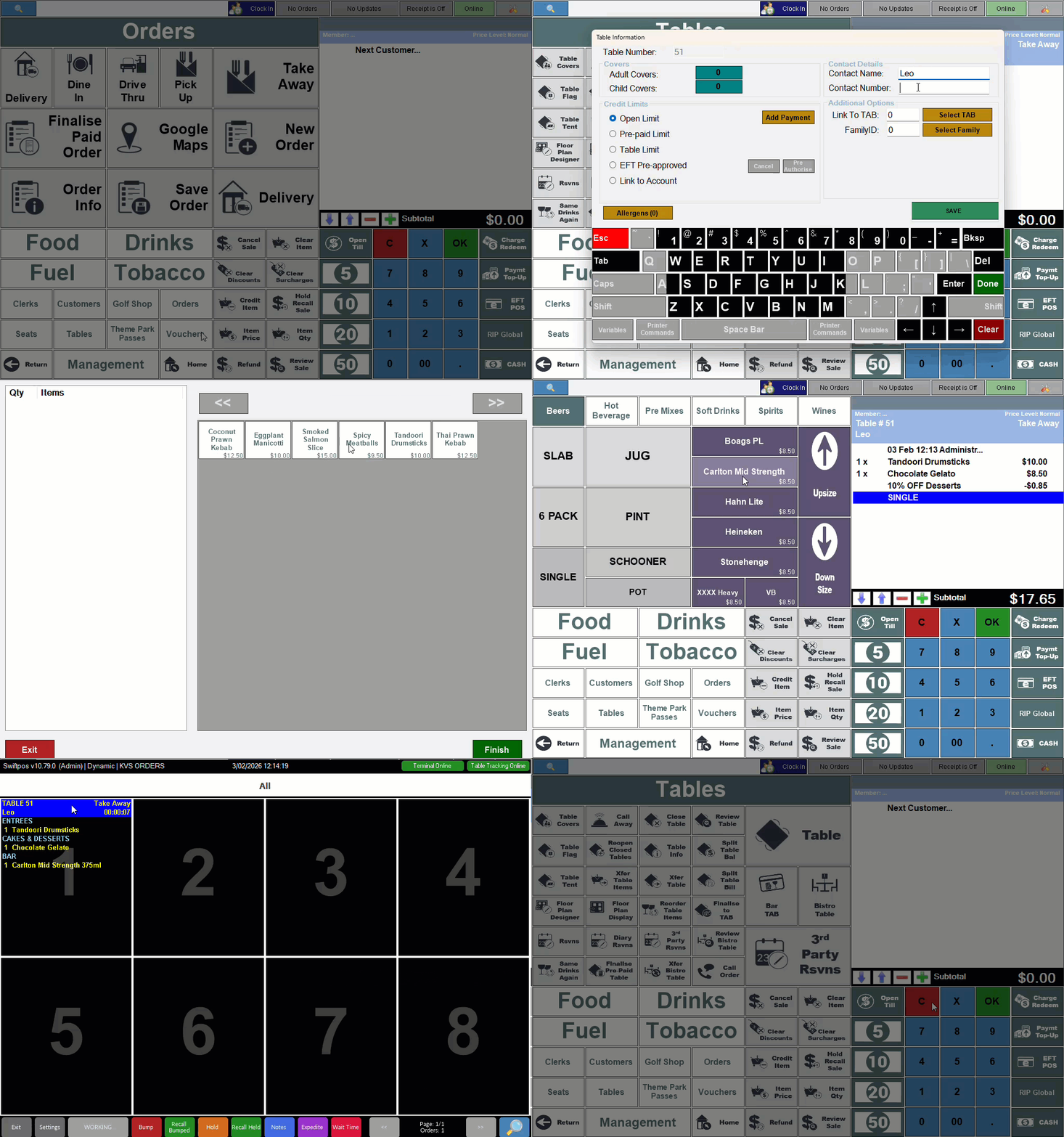
To take a phone order, do as follows:
-
In Touch:
- Select the Order Type (#19) POS Key that has the Takeaway option selected in the Order Type drop-down list. This will ensure kitchen staff are notified the order is a Takeaway order.
- Enter the number of a Table in the range of 51 - 100 that is as yet not allocated. Use the Table (#30) POS Key to identify which Tables are currently allocated to phone orders.
- Select the Table (#30) POS Key to open the Table Information screen.
- Enter the casual customer's/guest's contact name and number.
- Select Save to save the changes and exit the screen.
- Select the items/products being ordered to add to the Table.
- If required, consider using the Delay Print (#21) POS Key at this point to delay the order being sent to the kitchen.
- Select the Table (#30) POS Key again to save the Table.
- If the Delay Print (#21) POS Key was not used above, the order will be sent immediately to the kitchen for preparation.
- The Table will remain open until the casual customer/guest pays for the order, after which the Table can be re-allocated to the next phone order.
How To Create A Phone Order For Existing Or New Members? ▲ ▼
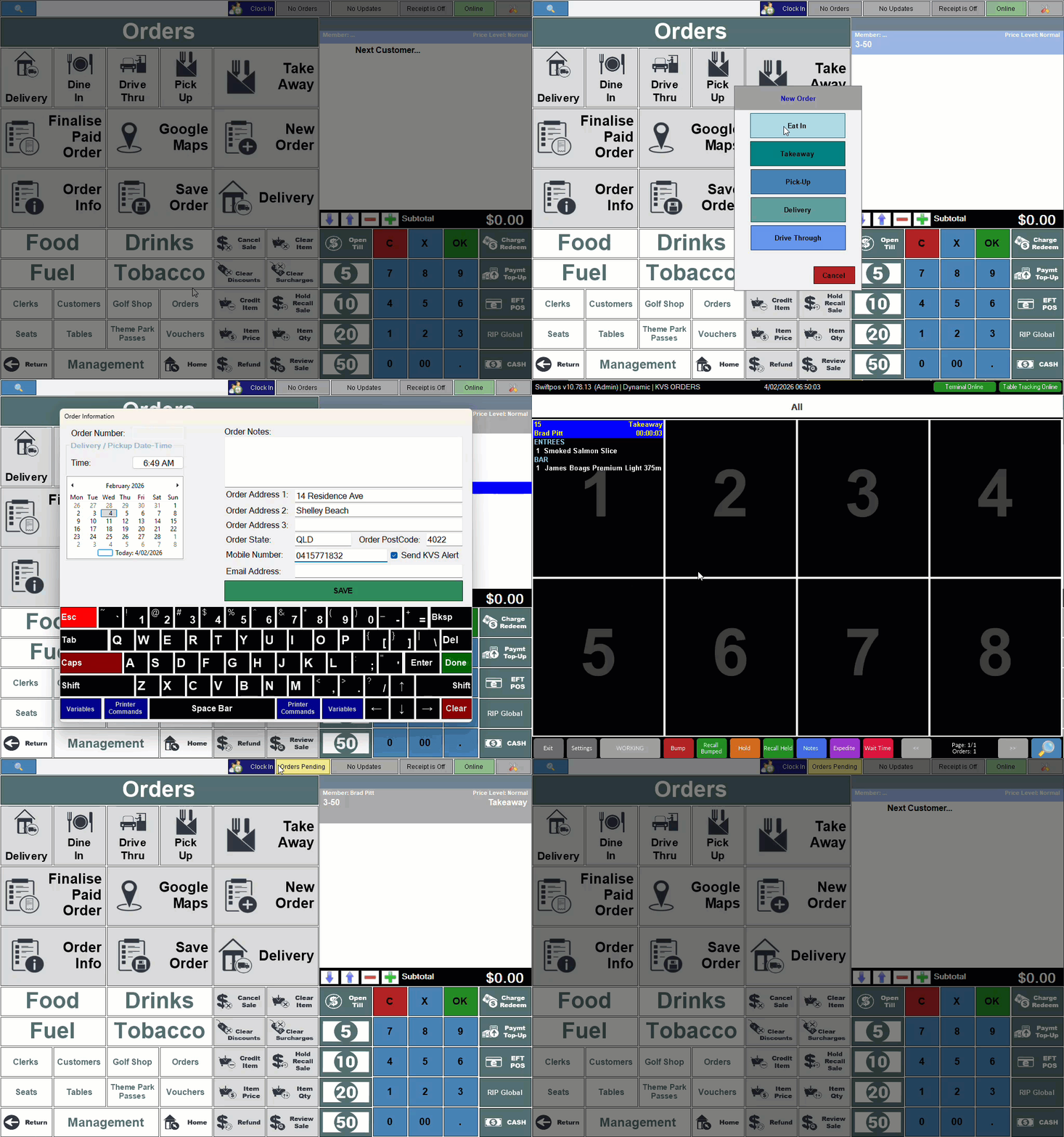
- Select the New Order (#25) POS Key to open the Customer Search screen.
- For an Existing Member:
- Locate and select the Member. To do this:
- Select the Done option in the Keyboard section to populate the grid.
- Locate and highlight the Member (row) in the grid for which the order is being created and select the Edit option to open the Customer Details screen.
- Confirm the details are still up to date.
- Select the Done option to save the changes and open the New Order prompt.
- Select the Takeaway option to open the Last Recall prompt.
- Select either the Recall or Cancel option to open the New Order prompt.
- Select the Takeaway option to open the Order Information screen.
- Locate and select the Member. To do this:
-
-
- Add the order information required to ensure order is processed smoothly. For example, the time the order will be picked up.
- Select the Save option to save the information added.
- Select the items/products being ordered to add to the order.
- Select the Save Order (#26) POS Key to save the order.
- The Orders option in the Toolbar will be highlighted, alerting Touch operators that there are orders pending.
-
-
- For New Members:
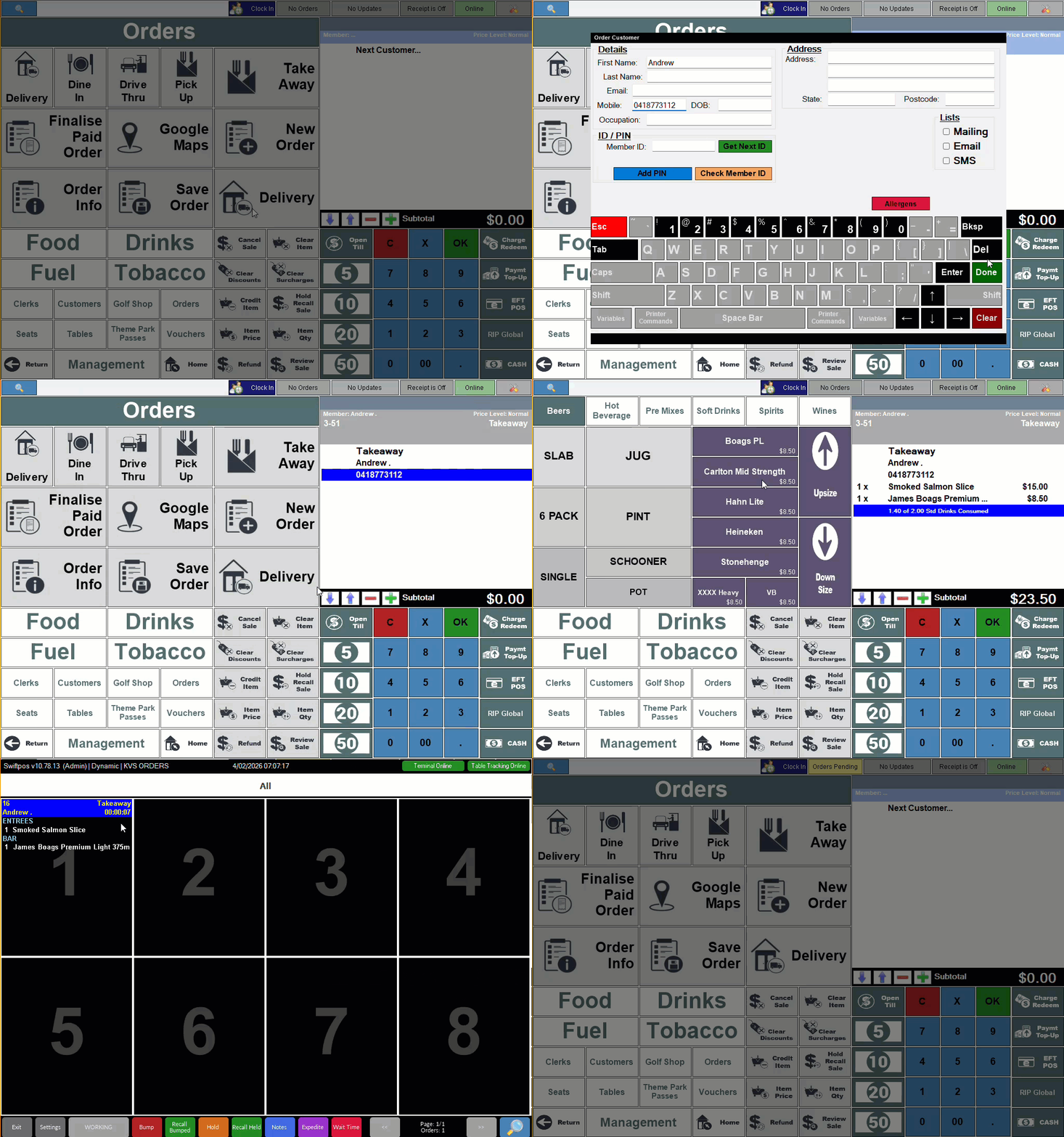
- Select the New option to open the Order Customer screen.
- Enter the details required for the new Member.
- Select the Done option to save the changes and open the New Order prompt.
- Select the Takeaway option to open the Order Information screen.
- For New Members:
-
-
- Add the order information required to ensure order is processed smoothly. For example, the time the order will be picked up.
- Select the Save option to save the information added.
- Select the items/products being ordered to add to the order.
- Select the Save Order (#26) POS Key to save the order.
- The Orders option in the Toolbar will be highlighted, alerting Touch operators that there are orders pending.
-
End of article ▲