
To access, select the Sales Screen option in the Terminal Settings menu. Used to customise the sales grid in Touch.
Subjects ▲ ▼
About ▲ ▼
What Is Required? ▲ ▼
- Swiftpos v10+
- Please ensure the Table Tracking database has been backed up before changing any of the settings.
When Is It Used? ▲ ▼
Used to customise the sales grid in Touch.
Tabs ▲ ▼
Sales Grid Tab ▲ ▼
-
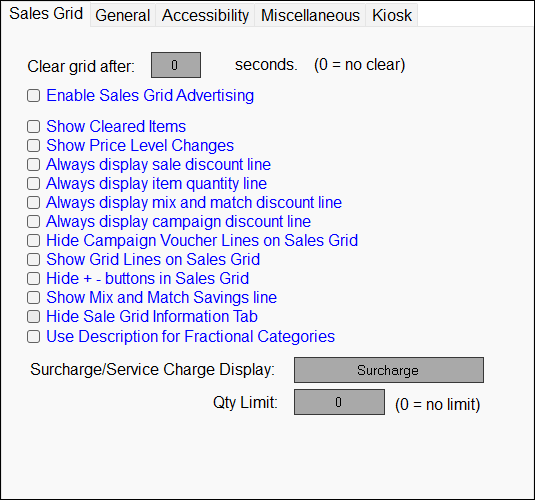
Clear grid after x seconds - Displays/Set the time in seconds of inactivity after which the sales grid will be cleared of any previous sales.
Notes ...
This will NOT be applied while an order/sale is in progress. A setting of 0 will ensure the sales grid is NOT cleared.
- Clear grid after x seconds continued...
- This also applies to the Clerk Login screen when Floor Plans are being displayed. Refer HERE for more information.
- Enable Sales Grid Advertising - Select to enable sales grid Advertising.
Notes ...
The Swiftpos Connect service controls all media files.
-
Show Cleared Items - Select to indicate cleared items in the sales grid with text [CLEAR].
-
Show Price Level Changes - Select to enable.
-
Always display sale discount line - Select to enable.
-
Always display item quantity line - Select to display the current quantity of items in the sale.
-
Always display mix n match discount line - Select to enable
-
Always display campaign discount Line - Select to enable.
-
Hide Campaign Voucher Lines on Sales Grid - Select to hide Campaign voucher information from the appearing in the sales grid and on the Customer Facing Display in Touch.
-
Show Grid Lines on Sales Grid - Select to enable.
-
Hide + - buttons in Sales Grid - Select to hide.
-
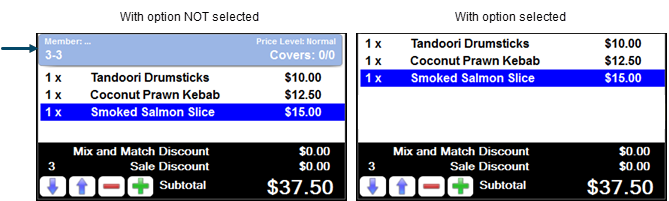
Hide Sale Grid Information Tab - Select to hide the Information tab at the top of the sales grid.
-
Use Description for Fractional Categories - Select to ensure a description is, displayed in the sales grid when a price embedded barcode is scanned, and also printed on receipts.
Notes ...
This option for weighted items/products now overrides what is set against the Order Printer peripheral. It will also, override the Print using Short Description option if selected against the Order Printer peripheral.
-
Surcharge/Service Charge Display - Select to customise the description displayed in the sales grid for surcharges/service charges.
- Qty Limit - Sets the Product Qty Limit to stop large numbers accidentally triggering Products.
General Tab ▲ ▼
-
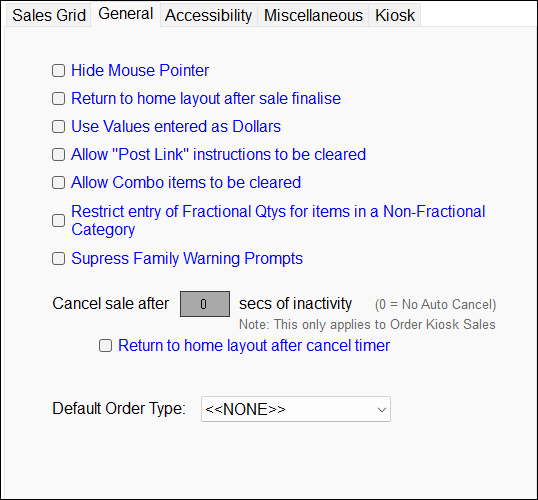
Hide Mouse Pointer - Select to hide the mouse pointer.
IMPORTANT
This option should ONLY be selected with touch screens. With non-touch screens, once the mouse pointer is hidden, it will be very difficult to get it back.
-
Return to Home screen after Sale - Select to ensure the Home layout is displayed once an order/sale is completed. Useful when the No Clerk Login Required option is selected.
-
Use Values entered as Dollars - Select to ensure the decimal place does not have to be entered unless cents are required to be entered. This option is recommended.
-
Allow "Post Link" instructions to be cleared - Select to clear post link instructions.
-
Restrict entry of Fractional Qtys for items in a Non-Fractional Category - Select to restrict entry of fractional quantities when selling items/products that are assigned to a Categories that have NOT been flagged as Fractional. For example, when selected a value of 0.5 for a VB schooner will not be allowed to be entered when selling a shandy.
-
Cancel sale after xx secs of inactivity - Displays/Enter the number of seconds of inactivity that are required to lapse before the current order/sale is cancelled. The text 'AUTO CANCEL' appears in the sales grid when this occurs.
Notes ...
Enter a value of 0 to ensure the order/sale is not cancelled automatically. This option applies to all Touch keyboard types.
-
Cancel sale after xx secs of inactivity continued ...
- When using Order Kiosks, the following countdown prompt will be displayed prior to the current Order being cancelled:
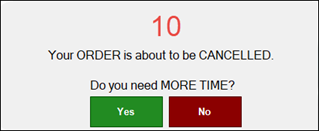
When this prompt is displayed, the Customer/Member has 10 seconds to respond. If no response is given or the No option is selected, the current Order will be cancelled, and focus will be returned to the Home layout.
-
Return to home Layout after cancel timer - Select to ensure the Home layout is displayed when the Cancel sale after xx secs of inactivity time has elapsed. This option mainly applies to Kiosks.
- Default Order Type - Select from the drop-down list one of the following:
-
<<None>
-
Eat In
-
Take Away
-
Pickup
-
Delivery
-
Drive Through
-
Notes ...
Alternatively, this can be selected in Touch by configuring Order Type (#19) POS Keys for each of the order types applicable to the Venue. Also, a default Order Type can also be set for Tables. This can be configured HERE.
Accessibility Tab ▲ ▼
-
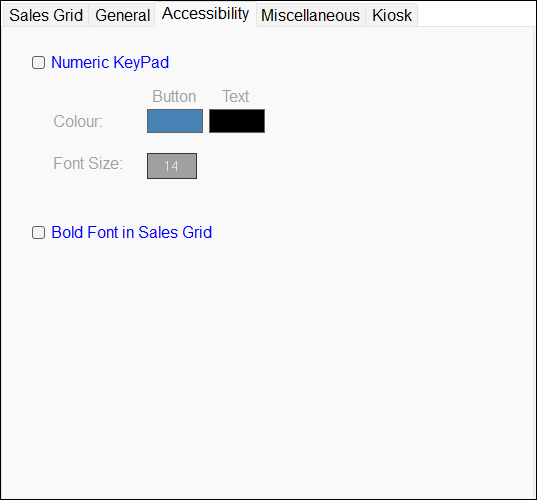
Numeric Pad - Select to change the display of the Numeric Pad by changing the following:
Notes ...
If the command line switch /L is being used to set the screen position/size of the Touch screen when invoking Touch, then consideration will need to be given to the font size being used here.
- Bold Font in Sales Grid - Selected ensures all text appearing in the sales grid is in bold font.
-
Fast Clerk Font Size - Select to open a numeric keypad to set/enter the desired font size when displaying Clerk/Staff Member names on Fast Clerk (#111) POS Keys.
Miscellaneous Tab ▲ ▼
-
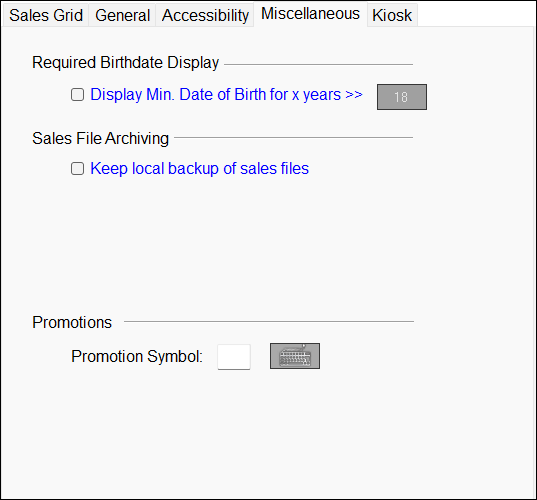
Require Birthdate Display
- Display Min. Date of Birth for x years - Select to display the minimum date of birth to assist in the checking of customer IDs. Select the numeric field button and enter the mi minimum age.

-
Sales Archiving
- Keep local backup of sales files - Select to keep a local copy of all sales files in the Sent Folder.
Notes ...
DO NOT activate this option unless instructed to do so by a support technician. A special activation code will be required to activate this feature.
-
Promotions
-
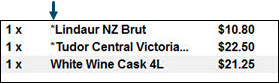
Promotion Symbol - Select the keyboard icon to enter a symbol that will prefix those items that are currently in the sale, and which are associated with Mix n Matches, Specials and/or Promotions. For example:
-
Kiosk Tab ▲ ▼
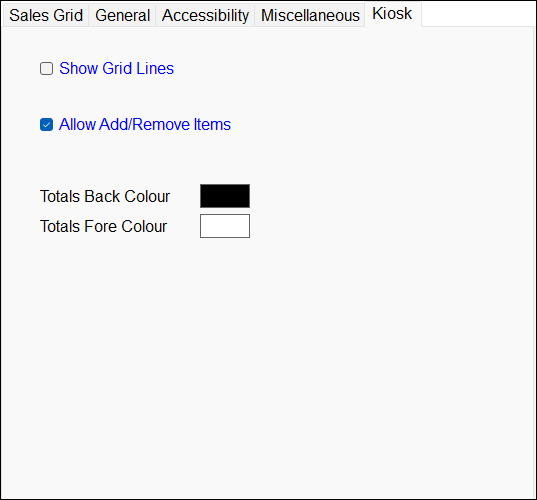
- Show Grid Lines - To be continued ...
- Allow Add/Remove Items - To be continued ...
- Totals Back Colour - Select to display a colour selection prompt to select the background colour for the Totals.
-
Totals Font Colour - Select to display a colour selection prompt to select the font colour for the Totals.
End of article ▲