
This provides an overview of Product POS Keys in Touch.
Subjects ▲ ▼
About ▲ ▼
What Is Required? ▲ ▼
- Swiftpos v10+
- Ensure this POS Key is added to the appropriate Keyboard Layout using the Designer. Refer HERE for more information.
What To Consider? ▲ ▼
- If required, access to this POS Key can be restricted by the Clerk Security feature.
When Is It Used? ▲ ▼
Used to configure anyone of the following to a POS Key:
- Items/Products.
- Open Priced Items/Products - Used to order/sell an item/product with an open price. That is, the price is entered in Touch when the item/product is added to the sales grid.
- Member Loyalty Points PLU 19991 - The Category for PLU 19991 has Points Per $ and the Member Classification Multiplier is >=1.
- Scale PLU - Reading "02" and "20" pre-packaged barcodes.
- String PLU - Enables the entering of textual information as well as entering barcodes.
- System PLUs
How To? ▲ ▼
How To GET STARTED? ▲ ▼
- Review About and ensure the steps outlined HERE are addressed.
- In Keyboard Designer, select the Product option in the Link Type drop-down list to add a Product as a POS Key that has been added to a Layout.
- Ensure it is given an appropriate Caption. For example, Fish of the Day.
- Select the More Settings option to display the Settings screen.
- Configure the POS Key by selecting the options available HERE.
- Once configured, ensure a Full Update is sent to all the Touch terminals that will be using the POS Key. Refer HERE for more information.
How To Use This POS Key? ▲ ▼
In Touch, do as follows:
- Select the Product POS Key (for example, Fish of the Day) to add it to the sales grid.
- Complete the order/sale by adding more items/products to the sales grid.
- Complete the order/sale.
Screens ▲ ▼
Settings Screen ▲ ▼
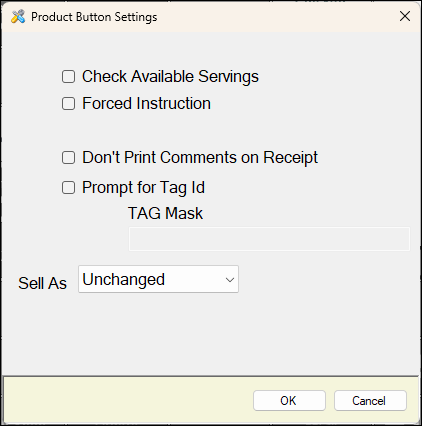
To access, select the More Settings option in Keyboard Designer. Used to configure items/products as POS Keys.
- Check Available Servings - Select to enable available servings for the item/product. This will ensure that prior to selling the item/product a check is done to confirm enough servings are available for it to be served. This does however require the Available Servings to be set against the Product initially. Refer HERE for more information.
Notes ...
For Available Servings to work, ensure the Enable Available Servings setting is selected in the Table Tracking Settings.
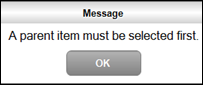
- Forced Instruction - Select to ensure the item/product can only be ordered/sold as an instruction and therefore requires a parent item/product to be ordered/sold first. For example, to order/sell a Serve of Fries (which is normally ordered/sold as a separate item/product) as a side to a main meal. Then when this option is selected and a Serve of Fries is ordered/sold without having selected a main meal before, the following prompt will be displayed:
- Don't Print Comments on Receipt - Select to ensure comments entered, are not printed on receipts. This will only happen when the item/product ordered/sold is a String PLU with a zero value and this option is selected.
- Prompt for Tag Id - Select to ensure prompting for a Tag ID. This feature was originally designed to integrate with the use of VAST Turnstiles to provide feedback of Customer/Member use of theme park rides.
- Sell As - This option is only enabled when the Forced Instruction option above is NOT selected. Select to order/sell the item/product as an instruction. An example of this is a Serve of Fries that is normally order/sold as a separate item/product for say $9.00. It maybe that a patron also requests a main meal with a Serve of Fries as a side dish. On your options menu you would also show the Serve of Fries but change it to an instruction item/product, so that it would remain with the main meal previously ordered/sold.
End of article ▲