
Screens ▲ ▼
Phone / Web Orders Screen ▲ ▼
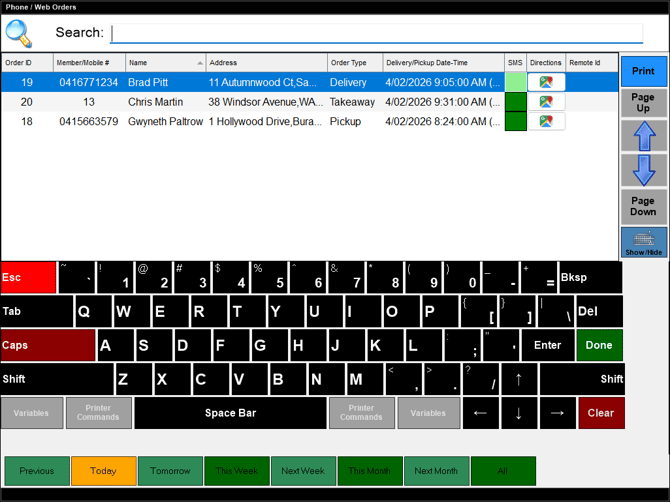
To access, select the Pending Orders option in the Toolbar. Used to recall/view orders that are currently still open. That is, they have, as yet not been finalised. Once finalised, orders will no longer be listed here.
Sections ▲ ▼

Enter the full/partial text of any one of the details listed in the columns in the grid to locate the order. For example, enter the full/partial name of the patron.
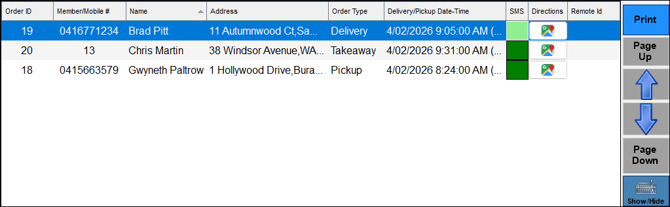
Lists the orders returned as a result of the filters selected in the search section or by the options selected in the footer section. Lists their Order ID, Member/Mobile #, Name, Address, Order Type, SMS, Directions and Remote ID.
Notes ...
Printed orders will display with a (P) suffixed to the Delivery/Pickup Date-Time.
Noteworthy
- Member/Mobile # - Displays the patron's Mobile Number if available otherwise their Member number is displayed.
- SMS - Select to send an SMS text to the patron. Usually used to notify patrons when their order is ready. Once selected, the Touch operator will be prompted to confirm/enter the Mobile number as well as the text to be sent.
Notes ...
In order for SMS's to be sent, the Touch Terminal SMS settings must be configured in advance and tested.
- Directions - Select the icon to display the directions to the patron's address in Google Maps.
Notes ...
The following must be configured in order for this option to function as expected:
The Use Company Address for Delivery Directions option must be selected.
The Location must have address details recorded against it. Refer HERE to access.
- Remote ID - Displays the Web order number, otherwise displays a value of -1 when no order number is associated with the order.
- Print - Select to open the Print Orders screen.

- Options - Select the appropriate Period option displayed in the footer section to display all outstanding orders for that period.
- All - Select to list all outstanding orders.
End of article ▲