
Subjects ▲ ▼
About ▲ ▼
When Is It Used? ▲ ▼
Used to configure the following:
-
Medias - Used to configure payment Medias to be used in Touch.
-
Price Levels - Used to define Price Levels which can then be used across all Locations and Venues (Location Groups).
-
Reporting Media
Screens ▲ ▼
Price Level & Media Set-up Screen ▲ ▼
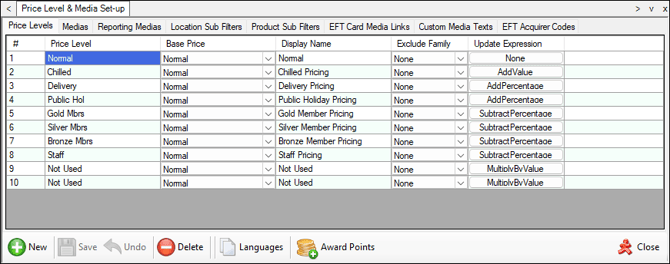
To access, select the Price Level & Media Set-up option in the Administration menu in Back Office.
Tabs ▲ ▼
- Price Levels
- Medias
- Reporting Medias
- Location Sub Filters
- Product Sub Filters
- EFT Card Media Links
- Custom Media Texts
Price Levels Tab ▲ ▼
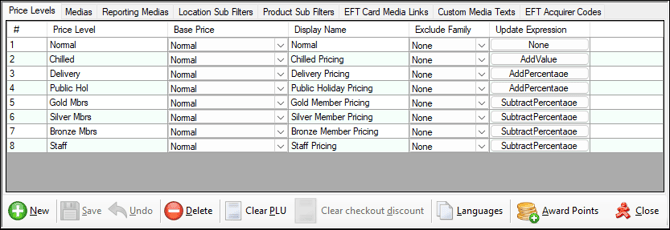
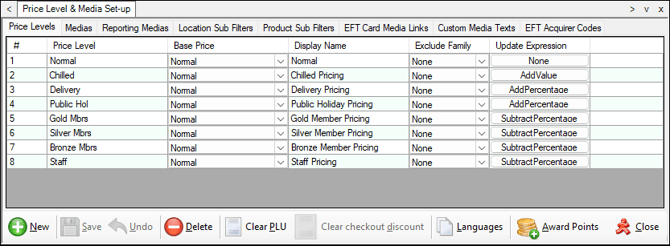
Used to define Price Levels which can then be used across all Locations and Venues (Location Groups). There is no limit to the number of Price Levels that can be defined. It is, however, much smarter practice to minimise the amount of Price Levels used to help reduce the amount of maintenance required to manage retail pricing.
Swiftpos Back Office has 10 Price Levels installed by default. To change any of these simply select the Price Level field and enter a new name. Each Location Group (Venue) can be assigned between 10 and 50 Price Levels and of those, between 1 and 4 can be assigned to Locations belonging to the Location Group (Venue).
In practice, you generally assign 4-10 price levels per Venue and if you have 50 venues you would have 200-500 price levels.
Sections ▲ ▼
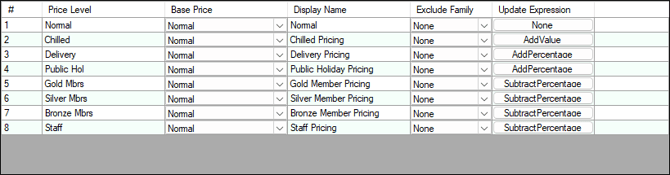
- # - Displays the Price Level Number
- Price Level - Displays/Enter the name of the Price Level.
- Base Price - Used as a reference when calculating prices in the price change wizard as well as a reference when a value is set for the update expression.
- Display Name - Used to display an alternate name for the selected Price Level at the Swiftpos Touch terminal.
- Exclude Family - Select from the drop down list the Family of Products for which the application of the selected Update Expression will not apply.
- Update Expression - Select to open the Price Wizard. This feature allows a Price Level to automatically be calculated by applying the selected Update Expression based on another Price Level. When configured correctly it could be possible to change just one Price Level and have all other Price Levels update automatically based on the selected Update Expressions. Refer HERE for examples. An example would be to have Members Pricing to be 10% less than non-Members pricing with rounding to the nearest 10 cents. This would exclude the Family of Products where there were as no Member discounts applicable. Another example would be Retail sites where all stores sell Products at the same pricing with local pricing being applied to just a small group of Products that were Location sensitive. (like Fuel).

- New - Select to add a row.
- Save - Select to save changes.
- Undo - Select to undo changes made.
- Delete - Select to delete the selected row.
- Languages - Select to open the Alternate Languages screen to translate to an alternate language.
- Award Points - Select to open the Media Award Points screen to select the Media that will award Points to Members, when used in a Phone/Web order. By default, all Media are selected.
- Close - Select to exit.
Medias Tab ▲ ▼
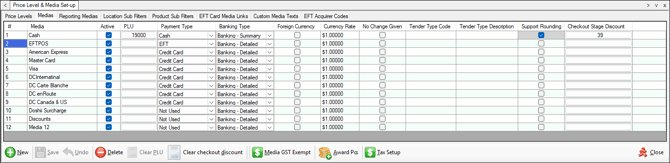
Used to configure payment Medias to be used in Touch. Once changes have been saved these will be sent to Touch terminals with the next full update. Refer HERE for sales reports by Media. Refer HERE to configure the Medias to be reported on.
Notes ...
Media numbers that can be added are limited to the number ranges 1 to 89 and 1001 to 1500. Also, the following is recommended:
-
Ensure the Media Cash is assigned to the Media number 1. This will ensure that over tendering will reduce the amount of Cash in the drawer.
-
Media 30 is reserved for Table Charges when the Table Tracking is being used. This is to ensure Table charges can be recorded against it. The default name for Media 30 is Table Charge.
-
When using Integrated EFTPOS, make sure that a Media number used falls within the number ranges outlined above, NOT including Media 1 and 30.
-
Once a new Media has been added, it is recommended to run the General Check and ensure the Media option is selected in the Other section of the Check tab.
Sections ▲ ▼
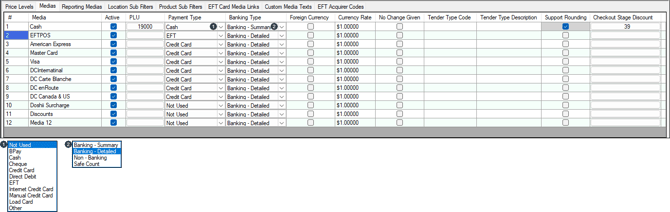
Lists the Media currently configured for Swiftpos along with their # (Media number), Media (description), Active indicator, PLU (for Cash Off Declarations in Touch as well as for EFTPOS merchant fees/surcharges/tips), Payment Type, Foreign Currency indicator, Currency Rate, No Change Given indicator, Tender Type Code, Tender Type Description, Support Rounding and Checkout Stage Discount.
- # - Displays the Media number.
Notes ...
Media 30 is reserved for Table Charges when the Table Tracking is being used. This is to ensure Table charges can be recorded against it. The default name for Media 30 is Table Charge.
- Media - Displays/Enter the description of the Media.
- Active - Select to ensure the selected Media is active/inactive.
- PLU - Select to open the Search Products screen and select the PLU to be used for Cash Off Declarations in Touch as well as for EFTPOS merchant fees/surcharges/tips. Refer HERE for EFTPOS peripheral information. For Cash Off Declarations to work, PLUs must be created that match the Media names (the PLU number is not important). For example:
| PLU | PLU Description |
| 18000 | Cash |
| 18001 | EFTPOS |
- PLU continued ...
- Once the PLUs have been created, assign them to the Medias.
- Payment Type - Select from the drop-down list the appropriate type.
- Banking Type - Select from the drop-down list the appropriate option. The Bank Type is used as a reference when calculating prices in the Price Change Wizard, as well as a reference when a value is set for the Update Expression.
- Foreign Currency - Select to enforce the conversion of the amount to be tendered in Foreign Currency using the selected Media by the Currency Rate. When selected, a Enter Tender Amount prompt will be displayed each time the selected Media is used.
- Currency Rate - Displays/Enter the conversion Rate for the Foreign Currency. For example, enter $1 AUD is worth $0.89 US, so $1 US is worth $1.12 AUD. Enter the AUD Value or the exchange rate for the country that you are in. Do Not enter the $0.89c.
- No Change Given - Select to ensure that when a sale is finalised in Touch terminal using the Media with this option selected, then no change will be given.
Notes ...
This option CANNOT be selected for the Cash Media.
- Tender Type Code - Displays/Enter the TMR SAP Code that equates to the Swiftpos Media used in the payment of an invoice/sale. This is used to compose the value of the Assignment Number when exporting using the SAP Export interface. For example, 002 for the CASH Media.
- Tender Type Description - Displays/Enter the description for the Tender Type Code entered above.
- Support Rounding - Select to ensure rounding is supported.
- Checkout Stage Discount - Select to select the Discount from the drop-down list, that is configured for the selected Media. For example, 2% Off for CASH Payments. Refer HERE for more information.

- New - Select to create.
- Save - Select to save changes.
- Undo - Select to undo changes made.
- Delete - Select to delete the selected row.
- Clear PLU - Select to delete the value in the PLU column from the selected row.
- Clear Checkout Stage Discount - Select to delete the Discount ID in the Checkout Stage Discount column from the selected row.
Notes ...
Once a Checkout Stage Discount has been cleared, to clear another one, exit the screen and reopen it to clear the next one.
- Media GST Exempt - Select to open the Media GST Exempt screen to configure those Medias that are to be considered exempt from GST.
Notes ...
This feature only applies to Australian based Venues.
- Award Points - Select to open the Media Award Points screen to ensure Member Loyalty Points are awarded when a sale is finalised using the selected Media.
Notes ...
Points will NOT be awarded as a result of a sale that has been finalised fully or partially to a media that does not have this option selected. So, in short if a sale is finalised to two media, namely partly to Cash (which has Award Points selected) and to EFTPOS (which does not have Award Points selected), then in this case, no points will be awarded to the Customer/Member.
- Tax Setup - Select to open the Tax Setup screen.
- Close - Select to exit the screen.
Reporting Medias Tab ▲ ▼
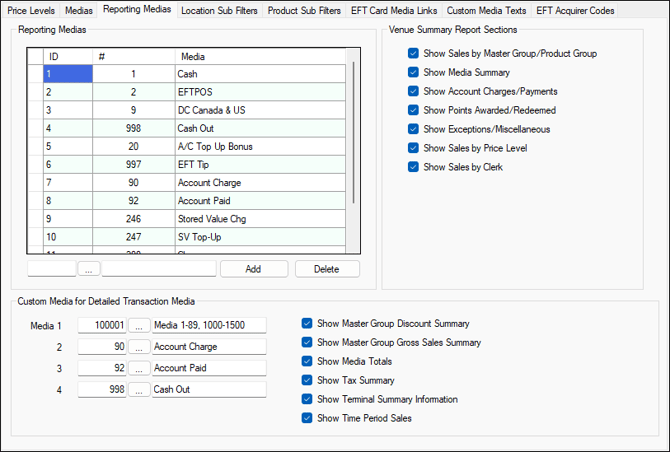
Used to customise the Media used in reporting.
Sections ▲ ▼
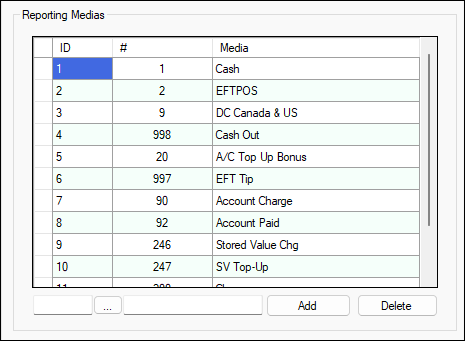
Used to select the Medias that will be used in reporting. Select the Add option to add new Media.
Notes ...
There is a limit to the number of Medias that can be added. When this limit is exceeded, the following message will be displayed.
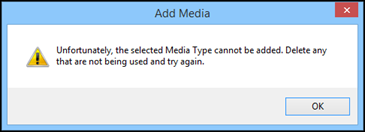
Select the Delete option to deleted Media from appearing in the grid. Medias listed will be reported on in various Swiftpos reports. For example:
Venue Summary Report Sections Section ▲ ▼
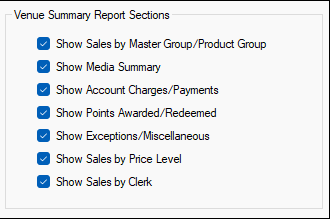
Used to configure the Venue Summary (SAL063) report by selecting/unselecting the option listed.
Custom Media For Detailed Transaction Media Section ▲ ▼
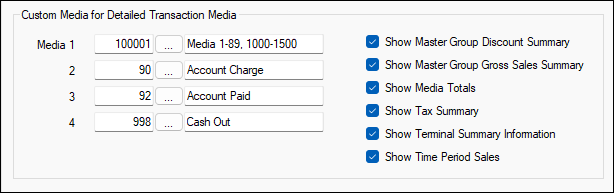
Used to select the Medias that will be reported on in the Detailed Transaction Media report and configure the report by selecting/unselecting the option listed on the right-hand side of the section.
Location Sub Filters Tab ▲ ▼
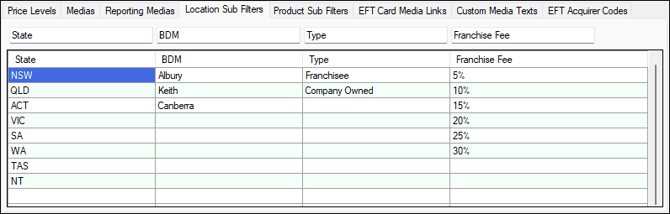
Used to define Location Sub Filters which can then be used to filter reports. Each Location can be assigned one Sub filter value from each of the 4 Sub Filters. This allows the reporting of data based on grouping (using Sub filters) similar Locations across multiple Venues (Location Groups).

Displays/Enter the column heading names to be given to the Location Sub Filters. Be aware the heading names displayed/entered here will appear on various screens throughout Back Office. For example, the Location Full Edit screen.
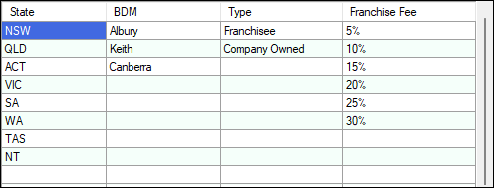
Displays/Enter the Sub Filter values to be used for filtering reports. Each Sub Filter can have up to 36 values.
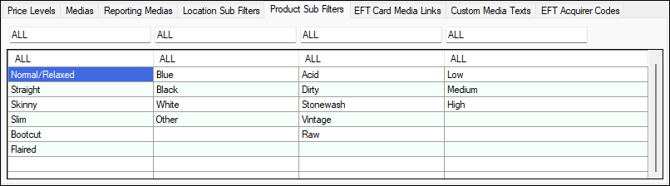
Used to define Product Sub Filters which allows the specification of different parts of a Product, to then be used to ultimately create a range of Products. This feature was designed with the clothing retail market in mind. For example, for the selling of jeans, it may be necessary to specify them by Style, Colour, Wash and Rise. However, it can also be used in other markets. For example, in a Bottle Shop, Sub Filters could be created for every possible combination of UDL cans, 4 packs and/or cartons and their individual flavours, etc.
Notes ...
It is important to create the Sub Filters in an appropriate order, so as to ensure that the PLU's that are assigned to new Products are in sequential order. For example, if Sub Filters with Headings are created for Style, Size and Colour then the PLU's will be grouped firstly by Style, then Size and then Colour.
Sections ▲ ▼

Displays/Enter the heading name to be given to the Product Sub Filters. Be aware the names displayed/entered here will appear in the Product Creation Wizard.
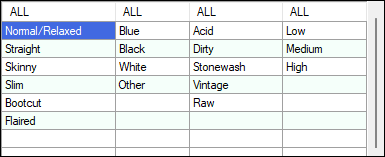
Displays/Enter the Sub Filter values to be used for filtering reports. Each Sub Filter can have up to 36 values.
EFT Card Media Links Tab ▲ ▼
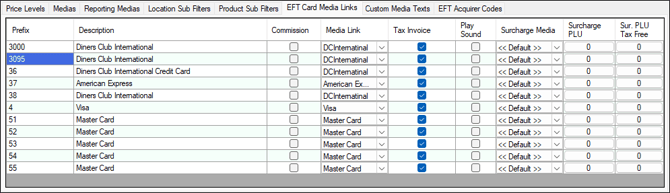
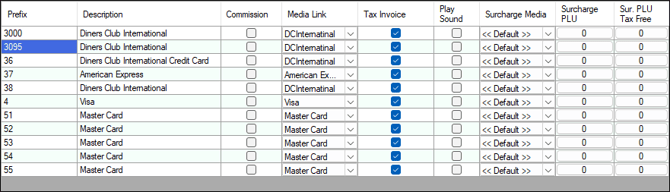
Used to link EFT Cards used in payments to Media for reporting purposes. EFT Card Media Links can provide card-specific recording mappings. Where configured, the first matching card prefix or card type can override:
- Card Surcharge PLU.
- Tax-free surcharge PLU.
- Surcharge Media.
Linking is achieved as follows:
- In general, the first 4 characters of the Card Numbers used in a payment are returned by EFT providers, however this can be up to 10 characters. Swiftpos uses these characters to identify (using the prefixes listed in the grid) the type of Card used and then links it to the appropriate Swiftpos Media. For example, the returned Card Number of 54############## would normally be identified as MasterCard. Hence, the Card Numbers returned and those needing to be reported on, must be listed and configured in the grid.
- The exception being Tyro. Tyro returns only the last 4 characters. For example, ############5100. To handle this, when Swiftpos cannot identify the Card Type (using the prefixes listed in the grid) based on the Card Numbers returned, it will then instead retrieve the Card Type from the Card data returned and search the grid below (using the prefixes listed) to locate the Card Type and then link it to the appropriate Swiftpos Media. Hence, the Card Types returned by Tyro and those needing to be reported on, must be listed and configured in the grid.
Sections ▲ ▼
-
Prefix - Displays/Enter either one of the following:
- The first characters (up to 10) of the Card number returned by EFT Providers that are used to identify the Type of Card for payment. For example, 54 for MasterCard.
- In the case of Tyro, enter the Card Type. For example, refer to the list below as an example.
- EFTPOS
- Visa
- MasterCard
- American Express
- Diners Club
-
-
-
For a complete list contact Tyro.
-
-
-
Description - Displays/Enter an appropriate description for the EFTPOS Card being linked.
Notes ...
In the case of EFT33 - Linkly (Food and Bev) the description is returned from HERE, depending on the Prefix entered.
- Commission - Select to ensure that the Commission percentage/CPL setup here is applied.
- Media Link - Select from the drop down list the Media Payment Type to which the entered Prefix will be linked.
Notes ...
Media Payment Types will have to configured HERE in order to be able to select them in the Media Link column drop down list.
- Tax Invoice - Select to ensure that a Tax Invoice is always printed.
- Play Sound - Select to ensure the EFTPOS.wav named sound file is played whenever an EFTPOS card is swiped, that has the associated Prefix. The sound file must be located in the C:\SwiftPOSTouch\Folders\Media Files folder and named as EFTPOS.wav. If the Media Files folder does not exist, then one will need to be created.
Notes ...
If PC EFTPOS is being used, a Master Card option exists in the Virtual PINPAD. It uses the prefix 53. See the highlighted entry in the above screenshot as an example of the required entry.
Notes ...
The options below, if configured, will override any surcharge settings set against the Peripheral in Touch.
-
Surcharge Media - Select from the drop down list the Media to which the surcharge will be applied.
-
Surcharge PLU - Select to open the Products search screen to select the Product/PLU to assign to the surcharge imposed by the merchant that includes GST.
-
Surcharge PLU Tax Free - Select to open the Products search screen to select the Product/PLU to assign to the surcharge imposed by the merchant that excludes GST.
Custom Media Texts Tab ▲ ▼
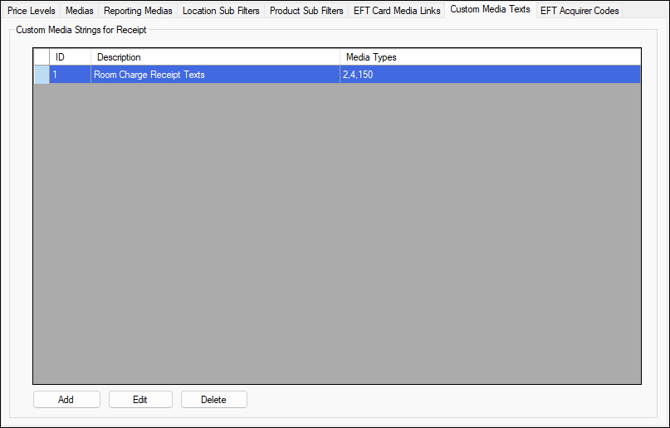
Used to add/edit/delete Custom Media Texts for the purpose of managing texts that are printed on Receipts. This feature was originally designed to provide the ability for Customers to add their signature, as an act of approving the Room charges itemised on their Receipts. Below is an example of a Receipt with Custom Media Texts printed.
Sections ▲ ▼
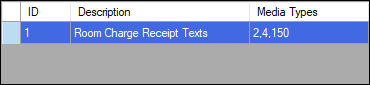
- ID - Displays ID numbers of the Custom Media Texts currently configured.
- Description - Displays the description of the Custom Media Texts currently configured.
- Media Numbers - Displays the Media Types assigned to the Custom Media Texts currently configured.

- Add - Select open the Add Media Texts screen to add a new Media Text.
- Edit - Select open the Edit Media Texts screen to edit a then selected Media Text.
- Delete - Select to delete the selected Media Text.
EFT Acquirer Codes Tab ▲ ▼
End of article ▲