
Subjects ▲ ▼
About? ▲ ▼
What Is It? ▲ ▼
The Swiftpos Services Monitor application monitors all the services that are running with Swiftpos. Effectively, it is a service that monitors all other services and has the ability to restart them if they were to stop for any reason.
What Is Required? ▲ ▼
- Venues require a Swiftpos registration.
What To Consider? ▲ ▼
- The Swiftpos Services Monitor must be running to support the triggering of Happy Hours and Specials/Promotions.
- To use Windows Clustering, High Availability Group SQL or Mirroring then an advanced version of Microsoft SQL Server will be needed to manage this.
How To? ▲ ▼
Screens? ▲ ▼
Options And Settings Screen ▲ ▼
Notes ...
Any changes to settings will require the Service Monitor service to be stopped/started, to ensure they are taken into effect.
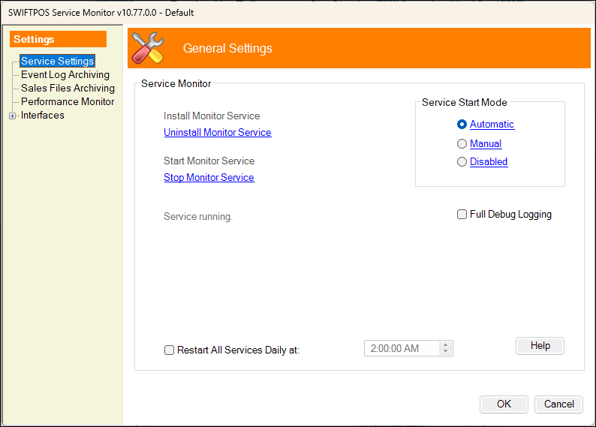
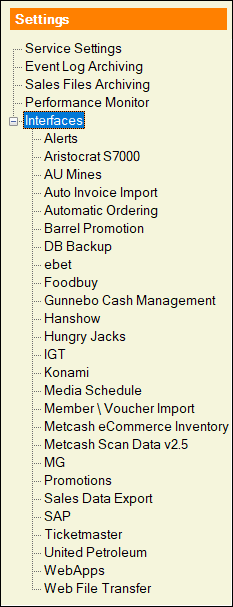
To access refer HERE. Used to configure the general settings for the Service Monitor and to Install/Uninstall, Start/Stop the service.
Event Log Archiving Menu Option ▲ ▼
-
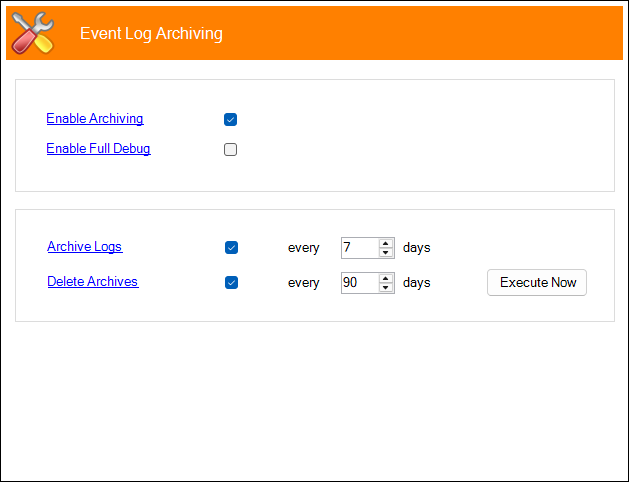
Enable Archiving - Select to enable automatic archiving of Event Logs. Once enabled set the frequency in days to archive and delete logs.
Notes ...
Once the Service Monitor service is started and archiving is enabled, checks will be done every 15 minutes for Logs to be archived.
-
Enable Full Debug - Select to enable.
Notes ...
This should only be enabled when recommended.
-
Archive Logs - Select to ensure automatic archiving of logs and set the frequency in days.
-
Delete Archives - Select to ensure automatic deleting of logs and set the frequency in days.
-
Execute Now - Select to archive and/or delete the logs to the number of days provided if automatic archiving is not enabled.
General Settings Menu Option ▲ ▼
Sections
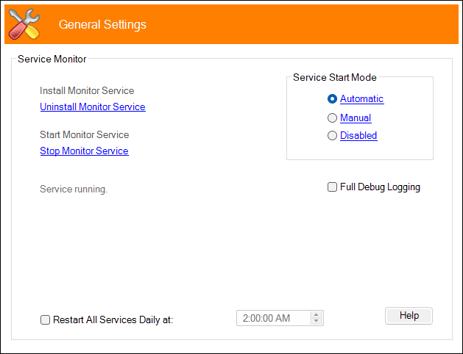
- Install/Uninstall Monitor Service - Select to install/uninstall.
- Start/Stop Monitor Service - Select Start/Stop the Service. The Service will need to be restarted if any changes to the settings have been made.
- Full Debugging Logging - Select to enable. This should only be enabled when recommended.
- Restart All Services Daily at - Select to enable and then set the time when the restart is required to occur.
Service Start Mode Section ▲ ▼
- Service Start Mode - Select from the drop-down list one of the following:
- Automatic - By default this will be set to automatic. Each time the PC starts, then the Service will start automatically. The software update process will automatically stop the Service and restart it after the update.
- Manual - Select to ensure the Swiftpos Services Monitor is manually started/stopped.
- Disabled - Select to disable the Swiftpos Services Monitor.
Performance Monitor Menu Option ▲ ▼
-
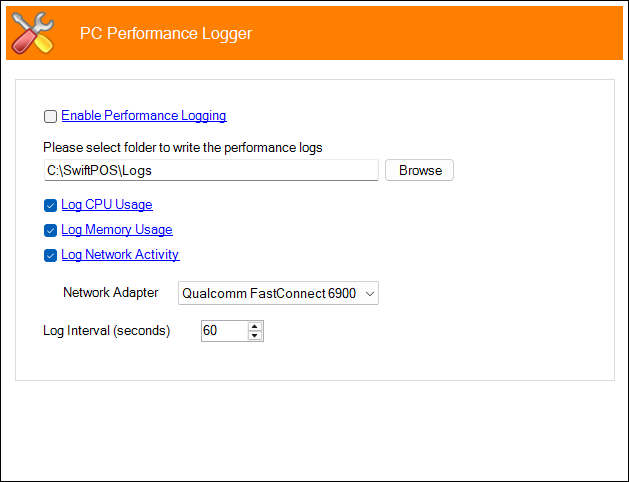
Enable Performance Logging - Select to enable and thereby log information into a CSV file so that the last 7 days of log files can be analysed. The log files are created for each day using the yyyymmdd file format of Year, Month, Day. For example, Log_20140515.csv. The following provides an example of the content of the log information captured:
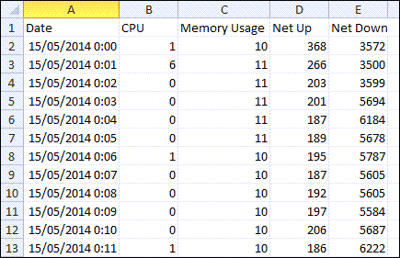
The data is broken down to show the CPU usage, the Memory Usage and the Network activity for the specific network card.
Open the Performance Monitor to see more detailed information in real time or Benchmark the Swiftpos Touch terminal.
Sales Archiving Menu Option ▲ ▼
-
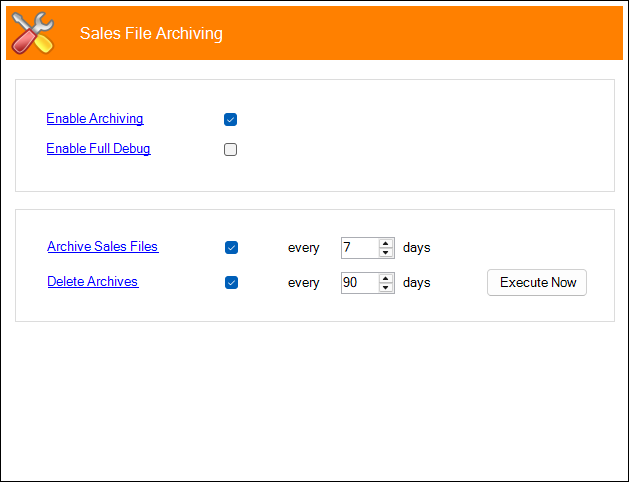
Enable Archiving - Select to enable automatic archiving of Event Sales Files. Once enabled set the frequency in days to archive and delete Sales Files.
Notes ...
Once the Service Monitor service is started and archiving is enabled, checks will be done every 15 minutes for Sales to be archived.
-
Enable Full Debug - Select to enable. Note : This should only be enabled when recommended.
-
Archive Sales Files - Select to ensure automatic archiving of Sales Files and set the frequency in days.
-
Delete Archives - Select to ensure automatic deleting of Sales Files and set the frequency in days.
-
Execute Now - Select to archive and/or delete the Sales Files to the number of days provided if automatic archiving is not enabled.
Service Monitor Menu ▲ ▼
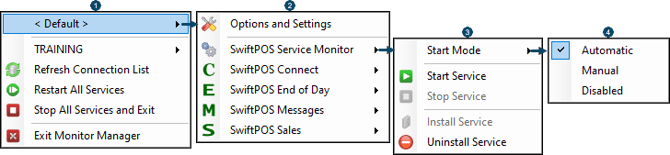
- Right click on the database (<Default>) currently connected to, to access the Option and Settings menu.
- Select
- Options and Settings to access the General Settings screen.
- Select one of the Services listed to open the Services menu.
- Select
- Start Mode to select from the Start options available.
- Select either Start Service, Stop Service, Install Service or Uninstall Service.
- Select either Automatic, Manual or Disabled to set the Start Mode for the Service selected.
3rd Party Integrations ▲ ▼
IMPORTANT
Stop/Start the Service Monitor to ensure any changes made, to the configuration of any of the interfaces listed below, will take effect.
Lists the Service Monitor 3rd Party Integrations.
- Alerts
- Aristocrat S7000
- AU Mines
- Auto Invoice Import
- Automatic Ordering
- Barrel Promotion
- DB Backup
- eBet
- Foodbuy
- Gunnebo Cash Management
- Hanshow
- Hungry Jacks
- IGT
- Konami
- Media Schedule
- Member / Voucher Import
- Metcash eCommerce
- Metcash Scan Data v2.5
- MG (Max Gaming)
- Sales Data Export
- SAP
- Ticketmaster
- United Petroleum
- Web Apps
- Web File Transfer
End of article ▲