
|
|
|
|
|
This provides an overview of the Order Type (#19) POS Key.
Subjects ▲ ▼
About ▲ ▼
What Is Required? ▲ ▼
- Swiftpos v10+
What To Consider? ▲ ▼
- If required, access to this POS Key can be restricted by the Clerk Security feature.
- By default the Order Type selected when configuring the Order Type (#19) POS Key will be used to print on Order, Kitchen and Floor dockets. However, if a Caption is provided when configuring the POS Key, then that will be used instead.
|
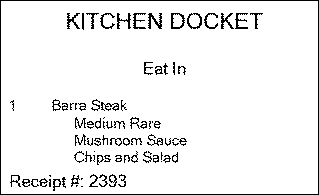
Example of an Eat In order type printed on a Kitchen Docket using the {ORDER TYPE} print variable
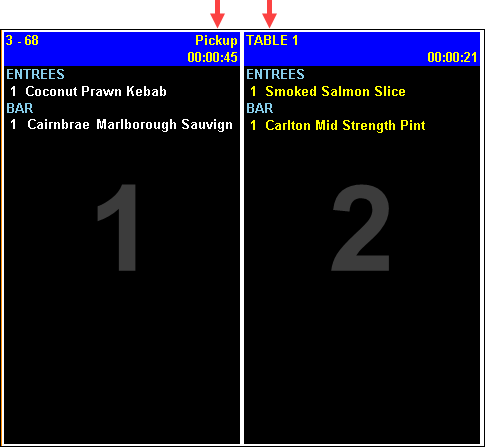
Example of a Pick Up order type and a Table order displayed on a KVS screen
Likewise, Captions such as INSIDE or OUTSIDE or GAMING ROOM for a Eat In order type configured POS Key can be used to facilitate the delivery of orders to different dining areas by wait staff. |
Notes ...
The {ORDER TYPE} print variable will need to be used when configuring the dockets. For example:
- Multiples of this POS Keys can be added to a keyboard, and each can be preset to a specific Order Type. For example, Delivery, Dine In, Drive Thru and/or Pick Up.
- Default Order Types:
- For Table orders associated with sales in a restaurant, then the default would be set to Eat In (Dine In). This would be set in Table Tracking settings, HERE.
- For all other orders/sales, the default can be set HERE to a specific order type. For example, Pick Up. However, if an order/sale is associated with a Table, then the default set HERE will take precedence.
- Delivery Charges/Fees:
- An order/sale that is to be delivered to an address may incur a delivery fee. Refer HERE more information.
When Is It Used? ▲ ▼
Used to ensure the type of order (for example, Delivery, Dine In, Pick Up, Take Away, etc) can be printed on Order, Kitchen and Floor dockets or displayed on KVS screens, to advise kitchen staff and wait staff as to what type of order must be prepared and served. The POS Key's Caption will be used as the text that will be displayed/printed. For example:
How To? ▲ ▼
GET STARTED? ▲ ▼
- Review About and ensure the steps outlined HERE are addressed.
- In Keyboard Designer, ensure the Order Type (#19) POS Key has been added to a Layout.
- Ensure it is given an appropriate Caption. For example, Delivery, Dine In, Pick Up or Takeaway,
- Select the More Settings option to display the Settings screen and configure the POS Key as required.
- Once configured, ensure a Full Update is sent to all the Touch terminals that will be using the POS Key. Refer HERE for more information.
How To Use This POS Key? ▲ ▼
- In Touch, select the Order Type (#19) POS Key with the appropriate Caption. For example, Pick Up
- Add items/products to an order/sale.
- Finalise the order/sale.
- The Caption of the Order Type (#19) POS Key that was selected above will be printed on the Kitchen Docket or displayed on the KVS screen. Refer HERE for an example.
Screens ▲ ▼
Settings Screen ▲ ▼
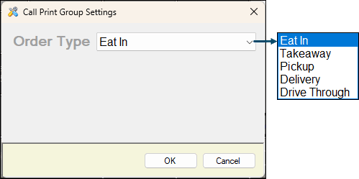
To access, select the More Settings option in Keyboard Designer. Used to configure the settings for the POS Key. Once selected the configuration options specific to the type selected will be displayed.
-
Order Type - Select from the drop-down list one of the types of orders available.
-
Eat In
-
Takeaway
-
Pickup
-
Delivery
-
Drive Through
-
Note ...
The Caption associated with the POS Key will need to reflect the order type selected. For example, if the Delivery order type was selected, then the caption would possibly be, Delivery.
Also, when the Order Type (#19) POS Key is added to a layout, the Caption associated with the POS Key is sent to the Kitchen Printer and/or KVS. So, Captions like INSIDE or OUTSIDE or GAMING ROOM can be used for POS Keys, configured with the Eat In order type selected, to facilitate delivering of orders to different dining areas by wait staff.
End of article ▲