
 |
 |
 |
This provides an overview of the Table (#30) POS Key.
Subjects ▲ ▼
About ▲ ▼
What Is Required? ▲ ▼
- Ensure this POS Key is added to the appropriate Keyboard Layout using the Designer. Refer HERE for more information.
What Is Supported? ▲ ▼
- Bistro Tables - Refer HERE for more information.
- TABS - Refer HERE for more information.
- TABLES - Refer HERE for more information.
What To Consider? ▲ ▼
- If required, access to this POS Key can be restricted by the Clerk Security feature.
- Multiple Table# POS Keys can be added to a Keyboard Layout to cater for Bistro Tables, TABs and Tables if necessary. For examples of various configurations for this POS Key refer HERE.
- If Tables or TABs need to be open for more than one day, then it is recommended to use Accounts rather than TABs or Tables. This way, all the orders/sales are accounted for, and the stock on hand is updated in the Back Office. At any time, an Account summary can be printed from Touch. It looks very much like a Table or TAB bill with the amount owing visible.
- To record orders/sales and decrement stock on hand from the different Locations then ensure the Single Transaction Sales Mode option is not selected. Refer HERE for more information.
- Bistro Tables/TABs/Tables are saved and held in the Table Tracking database until the Bistro Table/TAB/Table has been fully paid for or charged to an Account. This allows the Bistro Table/TAB/Table to be recalled (opened) at any time and items added to it or individual items to be finalised, prior to the whole Bistro Table/TAB/Table being finalised.
- What are the differences between Tables and TABs?
- There are a number of differences between Tables and TABs which are important to know when deciding which one or both are needed in a specific Business/Venue.
-
The table shown below lists a number of Table Tracking features and whether these can be used with either Tables/TABs or both. The Table (#30) POS Key can be used for TABs as well. TABs are best used when the Customer's ID has been verified and a deposit or credit card has been taken off the Customer and is only returned when they their TAB has been paid. This allows Customers to move between Bars and Restaurants without fear of bills not being paid.
FEATURE TABLES TABS Apply A Credit Limit Yes Yes Designate Colours No Yes Link To An Account Yes Yes Location Dependent Yes No* Merge Tables/TABs Yes No Restrict Products By Family Yes Yes Split Bill/Balance Yes Yes Transfer Tables/TABs Yes No * Can be used across Locations. To transfer TABs from the Bar to the Restaurant, it is recommended to use Table number ranges in the Bars and Restaurants and just transfer the TAB to the Restaurant Table.
- Refer HERE for more information.
When Is It Used? ▲ ▼
Used to display/open a Bistro Table/TAB/Table in order to execute further actions against it. Refer HERE for more information.
Examples ▲ ▼
Here are some configurations that may come in handy when setting up this POS Key. For:
How To? ▲ ▼
GET STARTED ? ▲ ▼
- Review About and ensure the steps outlined HERE are addressed.
- In Keyboard Designer, select the Table (#30) POS Key that has been added to a Layout.
- Ensure it is given an appropriate Caption. For example, Bistro Table, TAB or Table.
- Select the More Settings option to display the Settings screen.
- Configure the POS Key by selecting the options available HERE.
- Once configured, ensure a Full Update is sent to all the Touch terminals that will be using the POS Key. Refer HERE for more information.
Screens ▲ ▼
Settings Screen ▲ ▼
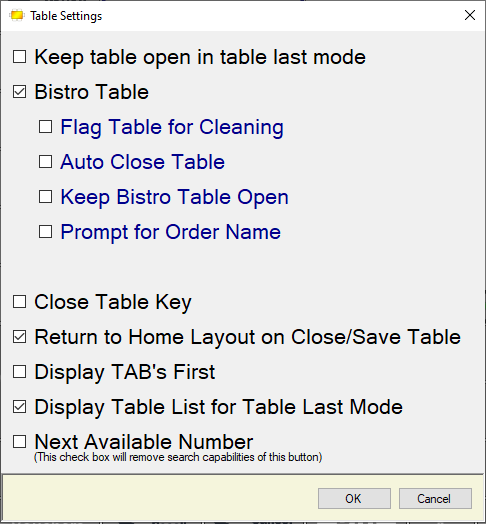
To access, select the More Settings option in Keyboard Designer. Used to configure the settings for the Table (#30) POS Key.
- Keep table open in table last mode - Select to ensure the Table/TAB is saved and remains in the sales grid when making use of Table Last Mode. This enables further items to be added to the Table/Tab. To clear it from the sales grid select the Table/TAB POS Key. If not selected, the Table/TAB will be saved and cleared from the sales grid when making use of Table Last Mode.
- Bistro Table - Select to ensure that the Table POS Key functions as a Bistro Table. It is recommended that the Caption option against the Table POS Key be set to Bistro Table, to reflect this. A Bistro Table is similar to a standard Table except that with each addition of items to the Table (usually by seat) requires that the items be paid for immediately or finalised to a TAB. After each order is completed, a prompt is displayed confirming if this is the last order for the Table. If Yes is selected, then the order will immediately be sent to the kitchen. Other Bistro Table related options are:
Notes ...
When the Log off when sale finalises option in the Clerks screen is selected, the Touch operator will be logged off after each order is completed.
- Bistro Table continued ...
- Keep Bistro Table Open - Select to keep the Bistro Table open after the current order is paid for, to ensure the next order for the Table can be taken. When prompted with Is this the LAST order for Bistro Table X? and No is selected in response, then the next order for the same Bistro Table can be taken immediately.
To always ensure a receipt is printed, make sure the Receipt is On option is selected in the top right-hand corner of the Touch screen. If the Receipt is Off option is displaying, then use the Print Receipt / Table Bill (#11) POS Key to print the Receipt.
- Bistro Table continued ...
- Prompt for Order Name - Select this to ensure the Touch operator is prompted for an order name when each order is placed against the Bistro Table.
- Close Table Key - Select to confiure this POS Key to be used to close a Table rather than having to do this via the Floor Plan Display.
- Return to Home Layout on Close/Save Table - Select to return to the home layout whenever a Bistro Table / Table is saved or finalised.
- Display TAB's First - Select to show TAB's initially when the Open Tables for All Clerks screen is displayed. If not selected then the Bistro/Standard Tables will be initially shown. Select to set a Table# POS Key to be used as a TAB POS Key rather than a Table# POS Key. When the TAB POS Key is selected at the swiftpos Touch terminal it will display all the TAB's that are currently open, avoiding the need to switch between Tables and TAB's using the POS Keys at the bottom left of the screen.
- Display Table List for Table Last Mode - Select to display the Open Tables/TABs for All Clerks screen to select a currently open Table/TAB when making use of Table Last mode. This makes table selection easier, as the table number does not have to be entered/remembered by Clerks/Staff Members.
- Next Available Number - Select to return the next available Bistro Table / Table / TAB number. When all available numbers have been allocated a message will be displayed notifying the Touch operator that there are no Tables / TABs left.
Notes...
Selecting the Next Available Number option while in a Table Last Mode operation will NOT return the next available Table number. Also, when used this option will effectively remove the ability of the Table (#30) POS Key to be used to search for a specific Table/Tab number.
End of article ▲