
This outlines the How To Send A Full/Partial Update To Touch POS Devices.
Subjects? ▲ ▼
About ▲ ▼
- What Is It?
- What Is Required?
- What Is Sent With A Full Update Vs Changes?
- What To Consider?
- When Is It Used?
What Is It? ▲ ▼
A full update is sent to a Touch POS device, it will contain a complete dataset for the Location, including recent changes. For a list of what a full update contains, refer HERE.
What Is Required? ▲ ▼
- Clerk/Staff Members have permission to request updates from Touch POS Devices.
- The Connect Service is running and the selected device is connected.
- A Keyboard already exists for the Location.
- For Member data or Supplier data, the matching global option is enabled (see conditions above).
What Is Sent With A Full Update vs Changes? ▲ ▼
|
FULL UPDATES INCLUDE |
PARTIAL UPDATES INCLUDE |
|
Items |
Items |
|
Actions |
Actions |
|
Allergens |
Barrel Promotion Designs |
|
Barrel Promotion Designs |
Card Media Links |
|
Campaigns |
Categories |
|
Card Media Links |
Classification Family Restrictions |
|
Categories |
Clerk Groups |
|
Category Languages |
Clerks |
|
Classification Family Restrictions |
Clerks Fingerprints |
|
Clerk Groups |
Connect Advanced Receipts |
|
Clerk Group Venues |
Connect Card Masks |
|
Clerk Roles |
Connect Peripherals |
|
Clerk Security |
Custom Reports |
|
Clerks |
Default Layout Changes |
|
Clerks Fingerprints |
Families |
|
Combo Link Items |
Fuel Kiosk Images |
|
Combo Product Prices |
Images |
|
Combo Product Sizes |
Locations |
|
Combo Rules |
Master Groups |
|
Connect Advanced Receipts |
Media Descriptions |
|
Connect Card Masks |
Member Types |
|
Connect Peripherals |
Print Groups |
|
Custom Reports |
Product Barcodes |
|
Default Layout Changes |
Product Families |
|
Device Settings |
Product Groups |
|
Devices |
Product Multi Supplier Codes |
|
Discounts |
Product Prices |
|
EFT Acquirers |
Products |
|
EFT Codes |
Promotions |
|
Events |
Raffle Designs |
|
Extra Touch Languages |
Raffles |
|
Families |
Suppliers |
|
Family Languages |
Taxes |
|
Fuel Kiosk Images |
Touch Keyboards |
|
Global Settings |
|
|
Image Table |
|
|
Inventory Group Languages |
|
|
Label Images |
|
|
Label Items |
|
|
Labels |
|
|
Languages |
|
|
Location Deposit Thresholds |
|
|
Locations |
|
|
Master Group Languages |
|
|
Master Groups |
|
|
Media Descriptions |
|
|
Media String Details |
|
|
Media String Headers |
|
|
Media Strings |
|
|
Member Card Images |
|
|
Member Card Items |
|
|
Member Cards |
|
|
Member Interest Groups |
|
|
Member Price Levels |
|
|
Member Types |
|
|
Members |
|
|
Mix n Matches |
|
|
Nutrition Information |
|
|
POS Devices |
|
|
Price Level Languages |
|
|
Price Level Names |
|
|
Print Group Languages |
|
|
Print Groups |
|
|
Product Allergens |
|
|
Product Barcodes |
|
|
Product Families |
|
|
Product Groups |
|
|
Product Languages |
|
|
Product Multi Supplier Codes |
|
|
Product Notes Languages |
|
|
Product Nutrition Information |
|
|
Product Offsets |
|
|
Product Prices |
|
|
Products |
|
|
Promotions |
|
|
Raffle Designs |
|
|
Raffles |
|
|
Reason Codes |
|
|
Sale Type Location Price Levels |
|
|
Sale Types |
|
|
Surcharges |
|
|
Suppliers |
|
|
Tax Categories |
|
|
Tax Price Levels |
|
|
Taxes |
|
|
Touch Keyboards |
|
|
Touch Keys Fixed Languages |
|
|
Touch Keys Free Languages |
|
|
Trading Periods |
|
|
VAS Product Links |
|
|
Vending Products |
|
|
Voucher Actions |
|
|
Voucher Designs |
|
|
Vouchers |
|
Refer HERE for a detailed list of the database tables sent.
What To Consider? ▲ ▼
-
A full update is larger and takes longer. Do not send it to every Touch POS device as a routine step when Partial Update covers the change.
- The following applies to both Partial and Full updates:
- Product Supplier Codes and Suppliers are left out when the Do not send Supplier based records option is selected.
- Members are included only when the Send Offline Member Update option is selected.
- Menu Board, KVS, KVS Pro and Web Apps devices DO NOT receive the updates sent. A full update for those devices sends menu board data only.
- Partial Updates is NOT available for KVS devices.
- Member Campaigns are included in a full update only when the database is at the required version.
- Reception devices also receive interactive kiosk and custom kiosk data on a full update. That is missing from the internal list.
-
A Partial update is sent when the Partial Update option is selected either HERE or HERE or when it is polled as a result of the Poll For Updates Every X Minutes option being configured.
When Is It Used? ▲ ▼
Used to send a full update to one or more selected Touch devices. Full updates are sent when:
- The change is listed in the FULL UPDATE INCLUDES column HERE. For example, Price Level Names, Mix n Matches, Languages, Clerk Security, Discounts, Surcharges, Reason Codes, Global Settings, Campaigns, Conbos, Events or Labels.
- Back Office displays a message that a full update is required (including after some security setting changes).
- A Touch POS device has moved Location. The next poll forces a full update for that device.
- Touch POS data looks incomplete or out of date and a normal Send Changes has not corrected it.
How To Send A Full/Partial Update To Touch POS Devices? ▲ ▼
In Back Office, do as follows:
-
Select the POS Devices option in the Device Settings menu, to open the POS Devices screen.
- A full update can be sent to:
- An Individual Device:
- Select the Touch POS Device in the grid and select either the Partial Update or the Full Update option from the footer section.
- Right select the Touch POS Device in the grid and select either the Partial update or the Send full update option from the Device Options pop-up menu.
- Multiple Devices:
- Select the Touch POS Devices in the grid that require the update. To select multiple devices in the grid, select the devices while holding down the Ctrl key. Select either the Partial Update or the Full Update option from the footer section.
- Select the Touch POS Devices in the grid that require the update. To select multiple devices in the grid, select the devices while holding down the Ctrl key. Right select and select either the Partial update or the Send full update option from the Device Options pop-up menu.
- An Individual Device:
- Once completed, a prompt will be displayed confirming the update has been sent. For example:
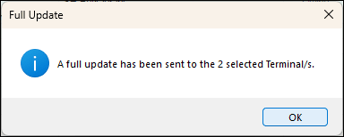
- Select OK to exit the prompt.
- Refer HERE for more information.
- The Touch POS devices apply the update when they next receive the file from Connect. A large update can take a short time to apply.
- A full update can also be requested from a Touch POS device by selecting the Request Full Update option.
End of article ▲