
IMPORTANT
The current recommendation when it comes to ordering and deliveries is:
-
Venues Implement the Swiftpos Orderaway solution to simplify and improve the ordering experience they offer to customers and patrons.
-
For delivery charges/fees, these can be configured HERE for Cloud based applications like Orderaway. Alternatively, Venues can make use of Doshii integration to handle deliveries, with direct connections to the likes of DoorDash, Uber Eats, etc.
This provides an overview of the New Order (#25) POS Key.
Subjects ▲ ▼
About ▲ ▼
What Is Required? ▲ ▼
- Swiftpos v10+
- Ensure Table Tracking has been enabled.
- Ensure that the Kitchen and Order printer settings and/or KVS are configured.
- The Swiftpos NetPOS service must be installed and running to ensure Customers/Members can be searched.
What To Consider? ▲ ▼
- If required, access to this POS Key can be restricted by the Clerk Security feature.
- Consideration should also be given to add the Save Order (#26), Order Info (#27) and Finalise Paid Order (#28) POS Keys to the appropriate Layout using the Keyboard Designer.
- Ensure the Print delayed orders xx mins delivery option is configured to ensure the order is sent to the kitchen in a timely fashion for preparation prior to delivery/pickup.
- Directions for delivery orders can be viewed in Google maps. Refer HERE for more information
- Directions to a Customer's/Member's address can be viewed in Google maps. Refer HERE for more information.
- Vouchers cannot be issued while taking phone/web orders.
-
Order payments are treated as Deposits and will be reported as deposit Media on X/Z Reports. Refer HERE for an example.
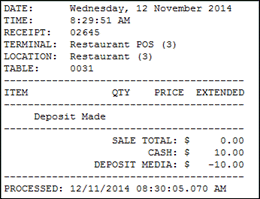
Example of a sale transaction for a deposit on an order
Notes ...
Deposits cannot be taken when the Single Transaction Sales Mode option is selected in Table Tracking.
When Is It Used? ▲ ▼
Generally, this POS Key is used when an order is placed by phone with a Venue and there is a requirement to capture the customer's/patron's details as well as other order related information.
How To? ▲ ▼
GET STARTED? ▲ ▼
- Review About and ensure the steps outlined HERE are addressed.
- In Keyboard Designer, ensure the New Order (#25) POS Key has been added to a Layout.
- Ensure it is given an appropriate Caption. For example, New Order.
- Once configured, ensure a Full Update is sent to all the Touch terminals that will be using the POS Key. Refer HERE for more information.
End of article ▲