
This provides a starting point for all things languages and in doing so explains how multiple alternate languages can be configured and supported, so that they are available throughout Swiftpos, to assist multi-lingual staff and patrons of a Venue to better negotiate the Swiftpos suite of products in their own language.
Subjects ▲ ▼
About ▲ ▼
What Is It? ▲ ▼
At its core, the support of multiple languages allows Venues to configure their Swiftpos offering to cater to the needs of staff and patrons when it comes to navigating the Swiftpos products in different languages. By default, the language of choice is English.
What Is Not Supported? ▲ ▼
- The Google Translate API is no longer supported.
What Is Required? ▲ ▼
- Swiftpos v10+
- Ensure the languages to be supported at the Venue are selected when updating the software by selecting the Supported Languages option in the Swiftpos Updater screen.
What Is Supported? ▲ ▼
- The languages that Swiftpos currently support are:
- English (Default)
- Arabic - Saudi Arabia
- Chinese
- Danish
- Dutch
- French
- German
- Greek
- Hindi
- Indonesian
- Italian
- Japanese
- Russian
- Spanish
When Is It Used? ▲ ▼
When Venues want to ensure the smooth operation of their business by providing different languages choices to staff and patrons when interacting with Swiftpos.
How To? ▲ ▼
How To GET STARTED? ▲ ▼
To support alternate languages in Swiftpos, do as follows:
- Review About and ensure the steps outlined HERE are addressed.
- Select Languages To Be Supported
- Configure Language Translations
- Configure Staff Language Preferences
Screens ▲ ▼
Listed below are screens in Swiftpos that support the languages feature.- Alternate Languages
- Graphical Printing - Receipts
- Language Support
- Languages - Back Office
- Languages - Touch
- Touch POS Devices
Alternate Languages Screen ▲ ▼
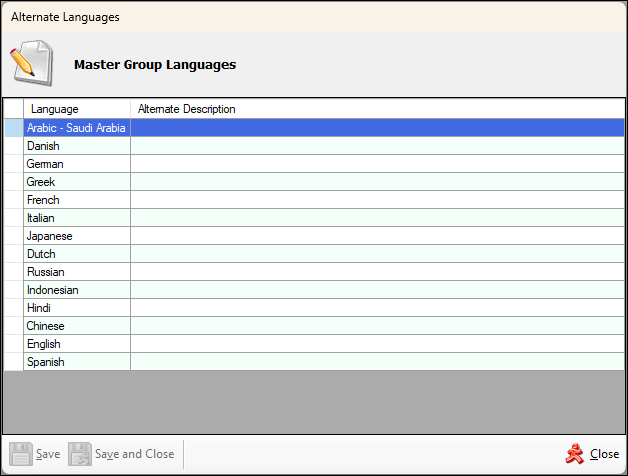
To access, select the Languages or Multi Languages option/tab in the various screens in Back Office. For example, the above screenshot was accessed by selecting the Multi Language option in the footer section of the Reporting Master Groups tab in the Category/Groups Setup screen. Used to view and edit the translations of text and software elements specific to Swiftpos. Some of these are:
- Back Office Tools menu
- Categories
- Clerks
- Families
- Graphical Printing for Floor Docket, Kitchen, Orders and Receipts
- Keyboard Designer - POS Key captions
- KVS Peripheral
- Price Levels
- Print Groups
- Product Descriptions
- Product Groups
- Product Ingredients
- Product Notes
- Master Groups
- Software Updater for new version and HERE for previous version
- Touch POS Devices
Header Section
Displays the software element that is being translated, as the heading. In the above screenshot the software element would be a Master Group. When invoked from other screens, the header will display the appropriate heading accordingly. For example, it may display the heading Price Level Languages or Product Notes Languages, etc.
Grid Section
- Language - List the languages that are currently supported.
- Alternate Description - Displays/Enter the translations opposite the appropriate languages for the text currently selected. In the screenshot above this would be the translation of the Master Group that is currently selected in the Reporting Master Groups tab.
Language Support Screen ▲ ▼
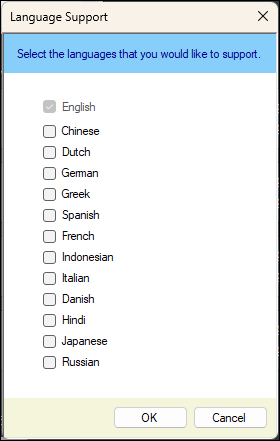
To access, select the Supported Languages option in the Swiftpos Updater screen. Used to select one or more languages that are to be supported.
Notes ...
Currently Spanish is the most comprehensively supported language in Swiftpos. The others are supported but that support is limited in it's application in Swiftpos.
Languages Screen - Back Office ▲ ▼
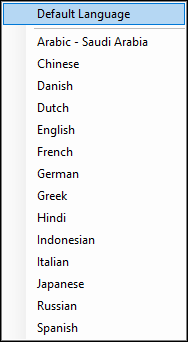
To access, select the Languages option in the Tools menu in Back Office. Used to change the language selection to one that is preferred by the current Back Office operator.
Notes ...
Depending on the staff member logging in, the language will automatically default to their preferred language. That preference can be configured HERE.
Language selection is only relevant if Swiftpos has been configured to support the language that has been selected here. Refer HERE for more information.
Languages Screen - Touch ▲ ▼
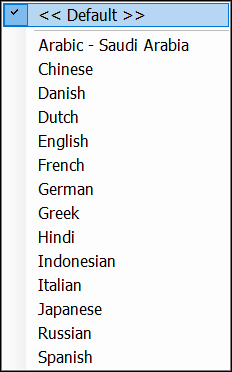
To access, select the Languages option in Touch. Refer HERE for more information. Used to change the language selection to one that is preferred by the current Touch operator.
Notes ...
Language selection is only relevant if Swiftpos has been configured to support alternate languages. Refer HERE for more information.
End of article ▲