

This outlines the How To Configure Staff Language Preferences. Refer HERE for more information.
How To? ▲ ▼
Swiftpos offers Venues the ability to configure the preferred language for staff members, thus ensuring thaey are able to navigate Swiftpos Products in their preferred language. To do this, do as follows:
- In Back Office:
- Select the Clerk's/Staff Member's preferred language from the Language drop-down list in the Clerk Full Edit screen. For example:
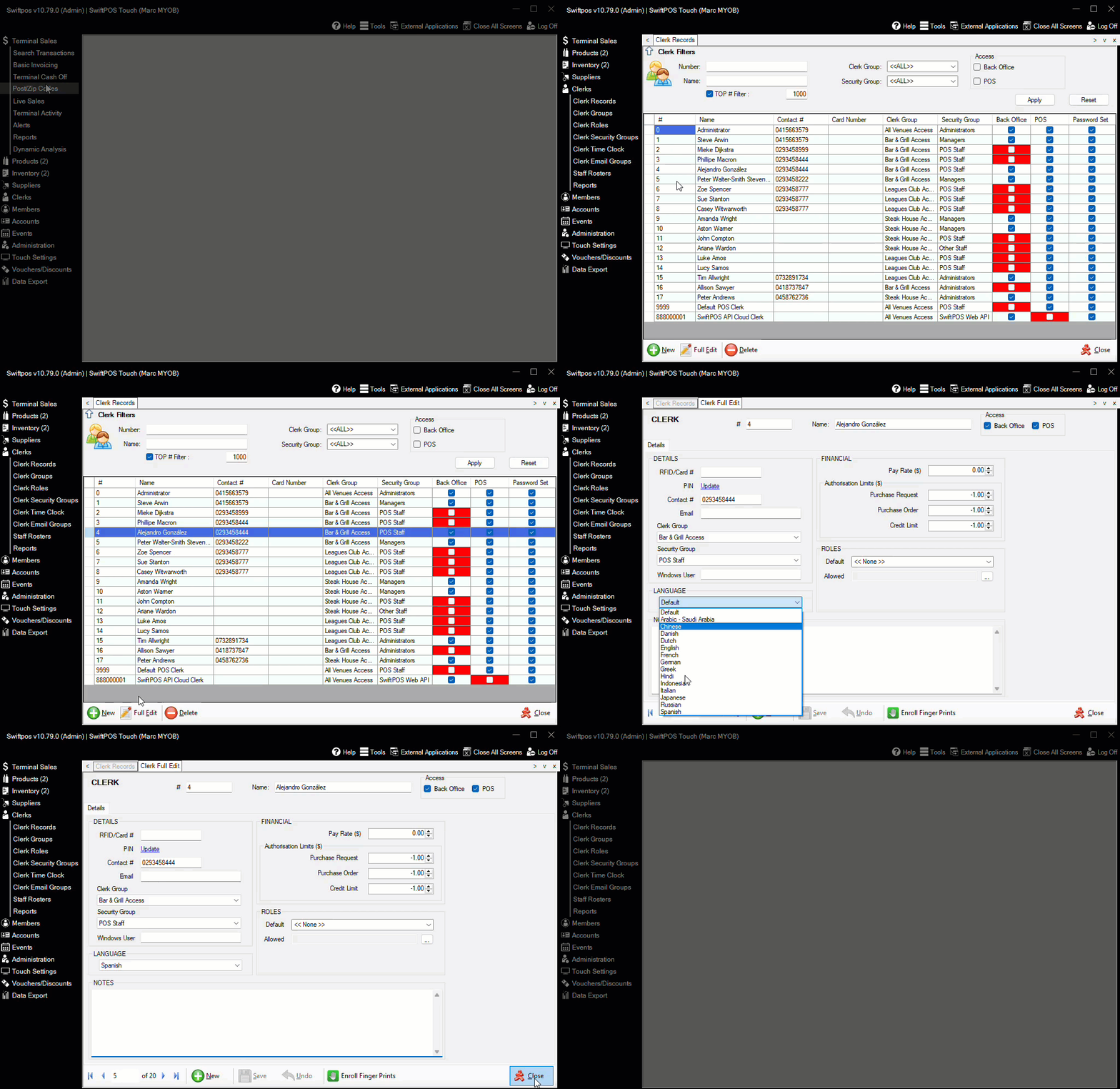
Example of Spanish being selected as the preferred language for a staff member
- In Back Office continued ...
- Once configured, ensure a Full Update is sent to all the Touch terminals. Refer HERE for more information.
- In Touch:
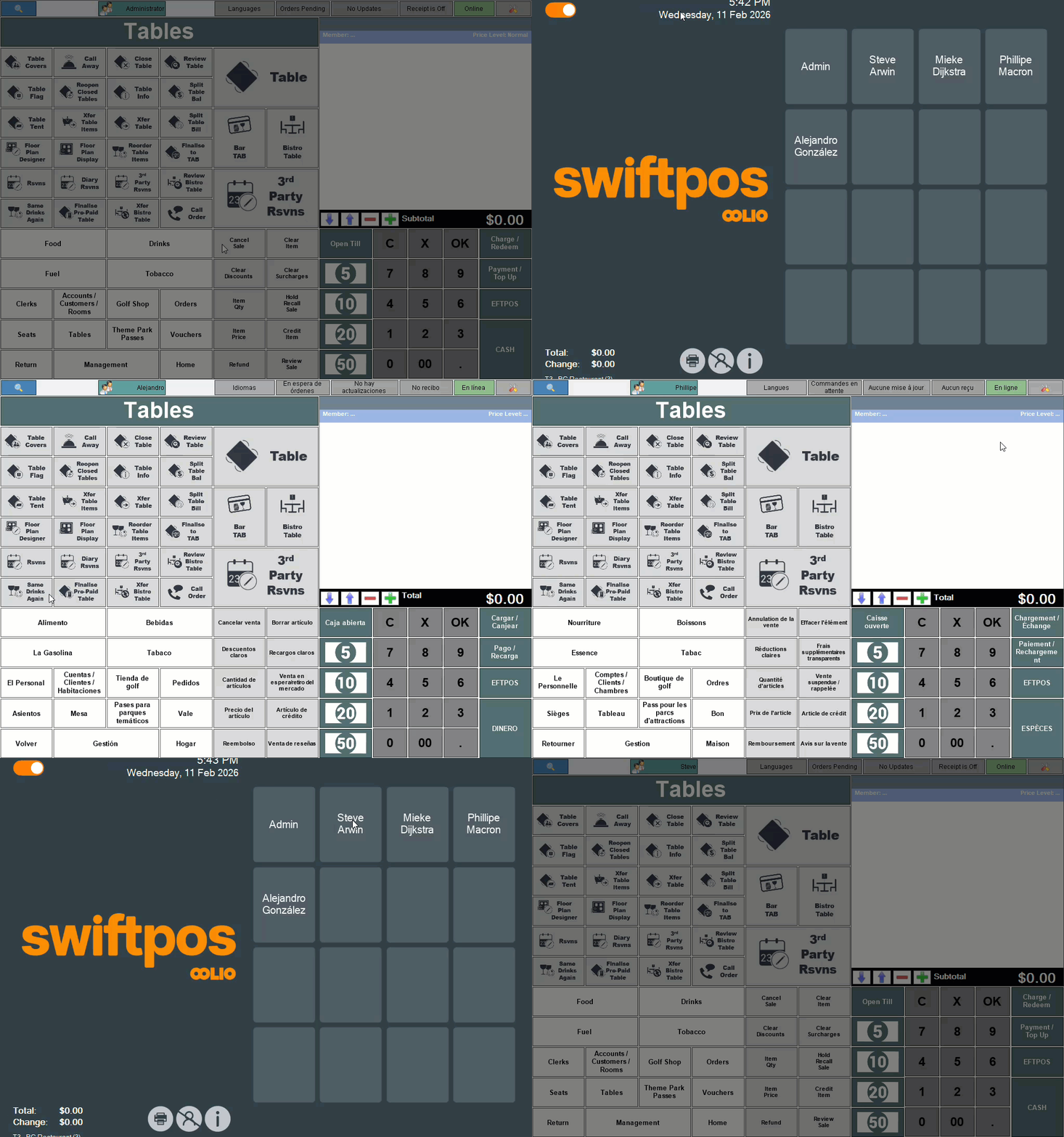
- Once the Full Update has been applied and the same staff member logs in, Touch will display in their preferred Language. Fo example:
End of article ▲