

This outlines the How To Select Languages To Be Supported in Swiftpos. Refer HERE for more information.
How To? ▲ ▼
To support the selection of alternate languages in Swiftpos Products by patrons/staff, languages files will need to be downloaded and installed to ensure the most up to date support of multiple languages. To do this, do as follows:
- Open the Swiftpos Updater. Refer HERE for more information.
- Ensure the version of Swiftpos the Venue is currently running is selected in the Select Version drop-down list.
- Select the Supported Languages option to display the Language Support screen.
- Select the languages the Venue will be supporting.
- Select OK to exit the screen.
- The selected languages will now be displayed to the right of the Supported Languages text in the Swiftpos Updater screen.
- Update Swiftpos as per normal.
- Once updated, open Back Office.
- Select one of the languages selected above from the Languages drop-down list in the Tools menu.
- Back Office should now display in the language selected. For example:
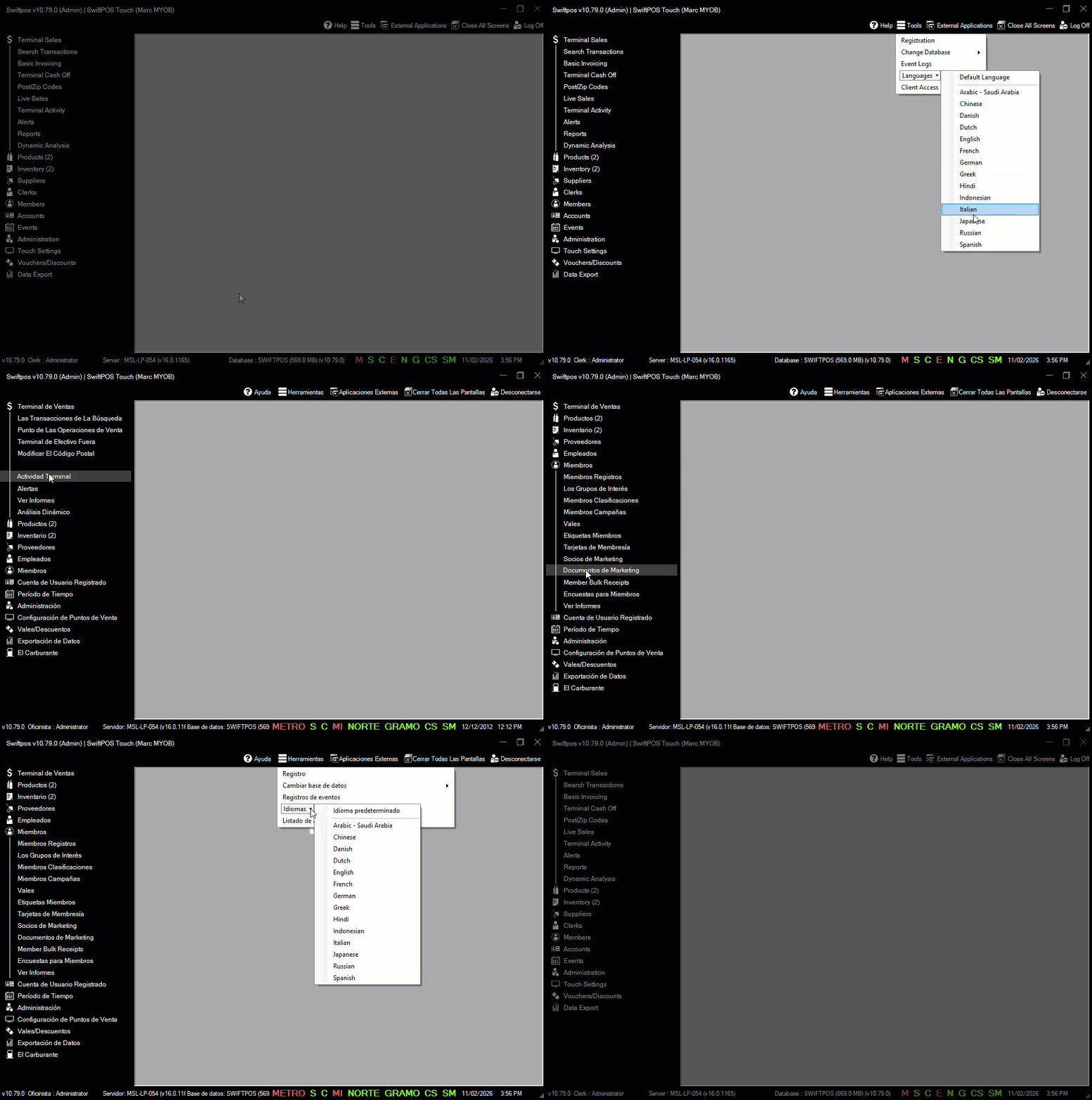
Example of Spanish being selected as a preferred language by the operator
Notes ...
For those languages NOT selected in the Language Support screen when updating Swiftpos as per above and then selected in the drop-down list in the Tools menu, Swiftpos will display in English by default.
End of article ▲