
Subjects ▲ ▼
About ▲ ▼
What Is Required? ▲ ▼
- Touch will need to be installed and operational.
- Ensure the Floor printer has been added as a peripheral to Touch. Refer HERE for more information.
What To Consider? ▲ ▼
- It is recommended that Venues with more than one Touch terminal, configure their printers in the Back Office HERE.
When Is It Used? ▲ ▼
Used to configure the printer settings for the printing of floor/pass dockets for wait staff at the pass. floor/pass dockets print in Table seat order, therefore making table service simpler. It is however common practice to print multiple copies of the kitchen docket (since they are also able to print seat numbers) and use the second copy as the floor/pass docket. Thus, avoiding the need for an extra Floor printer. Floor/Pass docket printing can also be done from the Kitchen Video.
Screens ▲ ▼
Floor printer Screen ▲ ▼
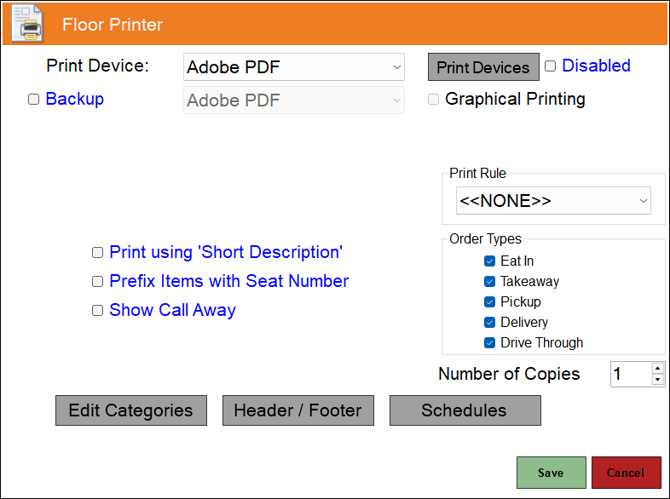
To access, select the Floor printer option from the Peripheral Type drop-down list in the Add New Peripheral screen, and then enter an appropriate Description for the peripheral being added (For example, Floor printer) and select OK. The above screen will then be displayed. Used to configure/manage/view Floor printers for Touch.
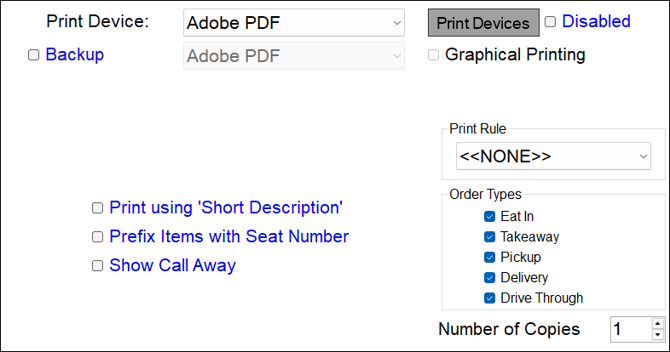
- Print Device - Select from the drop-down list the print device for printing floor/pass dockets.
- Printers - Select to open the Print Devices screen to configure the settings.
- Disabled - Toggle select to enable/disable the print device.
- Backup - Select from the drop-down list the print device to be designated as the backup print device. Refer HERE for more information.
- Graphical Printing - Select to ensure the print device is in graphical mode. This is mandatory if printing in languages other than English is required. Refer HERE for graphical and HERE for non-graphical printing.
- Synchronise With Back Office - Select from the drop-down list the Back Office option from which this print device will inherit it's settings. Any changes made to their settings in Back Office will automatically be applied when the Touch terminal receives an update. This option is only available to Windows Printers with the Graphical Printing option selected.
- Print using 'Short Description' - Select to ensure the item's/product's Short Description is printed.
- Prefix Items with Seat Number - Select to ensure the seat number is printed as a prefix to the item. Reduces the length of the docket.
- Show Call Away - Select to ensure call away dockets are printed at the floor print devices.
- Order Types - Select from the options available which Order Types can be printed.
Notes ...
If none are selected, then floor/pass dockets will NOT be printed. Please ensure an option is selected for delivery or pickup orders.
- Number of Copies - Displays/Set the number of copies required.

- Edit Categories - Select to open the Floor Printer Categories screen to select the Category that when sold will trigger the floor/pass docket to be printed. Refer to the Kitchen Printer Categories screen HERE for more information, as it functions in the same way.
- Header/Footer - Select to open the Header/Footer screen to configure floor/pass dockets. Refer HERE for graphical and HERE for non-graphical printing information. Header/Footers can also be configured for peripherals set up in the Back Office.
- Schedules - Select to open the Printer Schedules screen. Refer HERE for more information.
End of article ▲