
Subjects ▲ ▼
About ▲ ▼
What To Consider? ▲ ▼
- If the option is available to select either Windows or OPOS Printers, it is recommended to use of Windows Printer as they provide a greater range of functionality and flexibility. This is only applicable to Printers.
- It is recommended that RS232 (serial) printers be installed as a Windows printer. Refer HERE for more information.
- Recommended printers include an Epson TM88, Epson TM220, Samsung BIXOLON or compatible serial or USB Printers.
- If you want to use the Backup Printer feature that is built into Swiftpos Touch you need to use an Epson Windows Printer Driver for this to work.
- The Epson Windows printer driver is the only one that provides feedback that the printer is out of paper or off line.
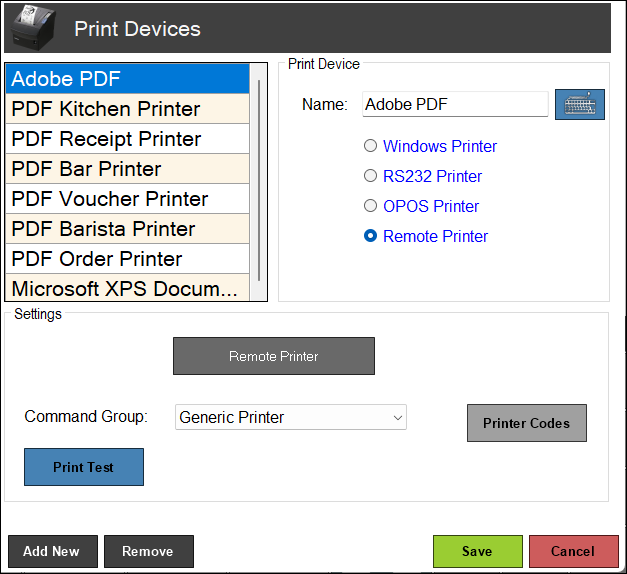
- If you don't have a specific driver, then use the Generic Text driver supplied with all versions of Windows. Using this driver, supports RS232 and Parallel printers as shared Windows printer. Graphical printing requires the printer specific driver to be installed to work correctly.
- If you don't have a specific driver, then use the Generic Text driver supplied with all versions of Windows. Using this driver, supports RS232 and Parallel printers as shared Windows printer. Graphical printing requires the printer specific driver to be installed to work correctly.
When Is It Used? ▲ ▼
Used to configure the printer settings for all printer Print Devices in Touch.
How To? ▲ ▼
Screens ▲ ▼
Print Devices Screen ▲ ▼
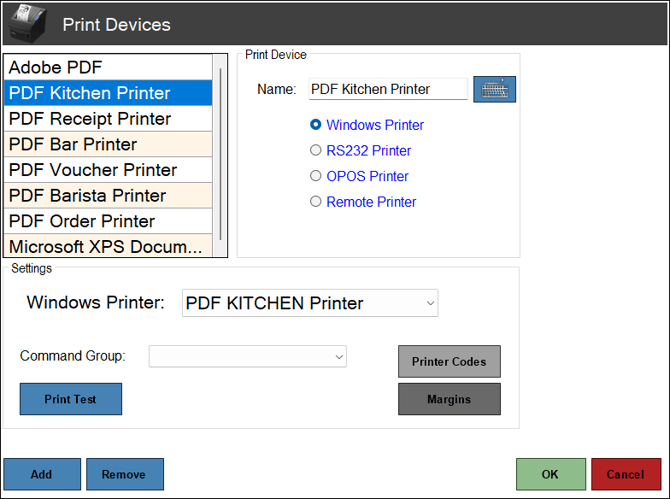
To access, select the Print Devices menu option in the Terminal Settings menu. Used to configure the settings for all Print Devices in Touch.
Sections ▲ ▼
Print Device Section ▲ ▼
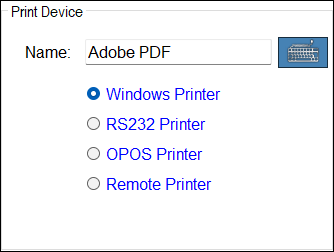
- Name - Displays/Enter the name for the Print Device.
- Type - Select from one of the following:
- Windows Printer - Recommended for all printing. Generally, this option is the most reliable.
- RS232 Printer - Recommended to use the Windows Printer option instead, even if a RS232 printer is being installed. The reason for this is that print jobs can be spooled if the print device runs out of paper, as well as being shared by other Swiftpos Touch terminals.
- OPOS Printer - Recommended to use the Windows Printer option instead. OPOS printing is limited in functionality and does not allow shared printing.
- Remote Printer - This is a legacy option and is NOT recommended for new printers. Use the Windows Printer option instead. Supports NON-graphical printing only. Graphical printing is NOT supported. Do NOT use on wireless networks or unreliable networks. This option relies on the Swiftpos to always be running for it to work and not just the Touch device. When selected the following message will be displayed:
Settings Section ▲ ▼
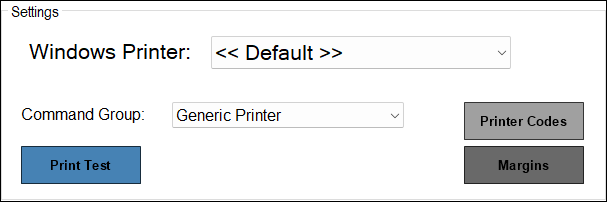
- Windows Printer - Select from the drop-down list one of the available printers.
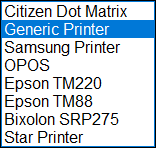
- Command Group - Select from the drop-down list one of the following:
- Printer Codes - Select to edit the Printer Codes for the selected Print Command Group. This is only for non-graphical printing where the print device is using the ESC/POS command set to do Double Height/Double Width printing.
- Print Test - Select to generate a test print.
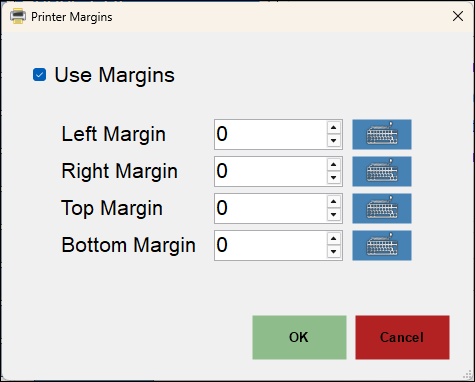
- Margins - Select to open the Printer Margins prompt to specify margin sizes.
End of article ▲