
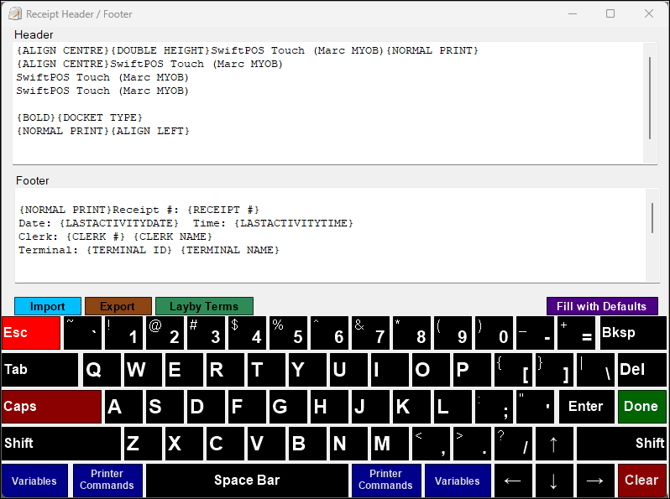
Accessed from various configuration screens in Touch. Used to configure the header/footer settings for Floor, Kitchen, Order and Receipt (Receipt Messages option) printers. The settings outlined in this article are only available when the graphical printing option has NOT been selected against the printer in Touch. Refer HERE for graphical mode information.
Subjects ▲ ▼
About ▲ ▼
What Is Required? ▲ ▼
- Swiftpos v10+
- Requires USB or Ethernet printers - We do not recommend RS232 because they are too slow.
What To Consider? ▲ ▼
-
There are two methods of printing namely, graphical and non-graphical. Refer HERE for more information.
- It is recommended that Venues with more than one Touch terminal, configure their printers in the Back Office HERE.
When Is It Used? ▲ ▼
Used to configure the header and footer options when printing dockets and receipts in non-graphical mode in Touch.
Examples ▲ ▼
Example 1
- Header - SAMFORD BAR & GRILL KITCHEN CUSTOMER ID: {CUSTOMER ID} CUSTOMER NAME: {CUSTOMER NAME} COVERS: {COVERS} TABLE NUMBER: {TABLE #}
- Footer - Thank you Receipt: {RECEIPT #} Date: {DATE} Time: {TIME} Clerk: {CLERK #} {CLERK NAME} POS: {TERMINAL ID} {TERMINAL NAME} {PARTIAL CUT}
Example 2
- Header - SAMFORD BAR & GRILL KITCHEN CUSTOMER ID: {CUSTOMER ID} CUSTOMER NAME: {CUSTOMER NAME} COVERS: {COVERS} TABLE NUMBER: {TABLE #}
- Footer - Thank you Receipt: {RECEIPT #} Date: {DATE} Time: {TIME} Clerk: {CLERK #} {CLERK NAME} POS: {TERMINAL ID} {TERMINAL NAME} {PARTIAL CUT}
Example 3
- Header - {ALIGN CENTRE}{PRINTER LOGO 1} {ALIGN CENTRE}{DOUBLE WIDTH}{BOLD}{RED PRINT}RETAIL DEMONSTRATION {NORMAL PRINT}{BOLD}ADDRESS LINE 1 {NORMAL PRINT}ADDRESS LINE 2 {NORMAL PRINT}ADDRESS LINE 3 {NORMAL PRINT}Ph.: 07-33518777 Fax:07-33518167 {DOUBLE WIDTH}TAX INVOICE {NORMAL PRINT}
- Footer - Thank you for your custom Date: {DATE} Time: {TIME} Receipt#: {RECEIPT #} Clerk: {CLERK NAME} POS: {TERMINAL ID} {TERMINAL NAME} {FULL CUT}
Sections ▲ ▼
Header Section ▲ ▼
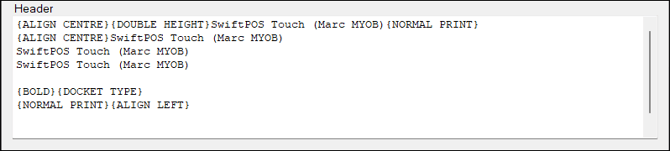
Used to configure the header section of printed dockets and receipts. Refer HERE for a complete list of items/print fields that can be used to configure the header.
Footer Section ▲ ▼
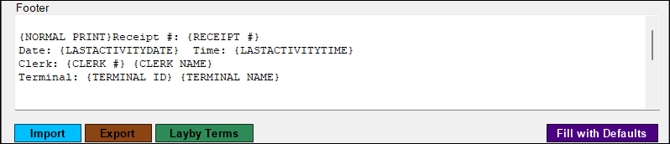
Used to configure the footer section of printed dockets and receipts. Refer HERE for a complete list of items/print fields that can be used to configure the footer.
- Import - Select to import, a pre exported header and footer (as an XML file).
- Export - Select to export the Header and Footer for later import (as an XML file).
- Layby Terms - Select to add terms and conditions relating to laybys that need to appear on printed dockets.
Notes ...
Don't forget to add the Lay-by Terms print command to the footer in order for the Terms to print.
- Fill with Defaults - Select to clear all items in the Header/Footer sections and then insert the default items. The defaults are determined based on the Venue's current Registration.
End of article ▲