
This outlines How To Schedule Printing in Touch.
When Is It Used? ▲ ▼
Used when Venues have multiple preparation areas (for example, upstairs/downstairs kitchens, cocktail stations, etc.) and need kitchen/order dockets to print on scheduled days/times.
Examples ▲ ▼
Upstairs/Downstairs Kitchen
- Scenario:
- Upstairs kitchen caters for a dinner service: between 17:00–22:00 daily.
- Upstairs kitchen closed at all otner times.
- Print Device Peripheral Configurations:
- Downstairs Print Device - No schedules configured (always prints).
- Upstairs Print Device - Schedule for dinner configured and enabled.
Cocktails Route Differently During Peak Times
- Scenario:
- During off peak times orders for cocktails print at the bar print device.
- During peak times orders for cocktails print at a dedicated cocktail station print device.
- Print Device Peripheral Configurations:
- Bar Print Device - Cocktail Category selected. No schedules configured (always prints).
- Cocktail Print Device - Cocktail Category selected. Schedules configured for peak times and enabled:
- Fri 15:00–22:00
- Sat/Sun 12:00–23:00
Dual Cook Line Kitchen with Peak Service Switching
- Scenario:
- 2 print devices are used to service 2 cooking and preparation lines in the kitchen.
- Food orders are taken from various Locations:
- Restaurant - Always prints to the cook line 1 print device. Not affected by scheduling or peak time switching.
- Sports bar - Prints to the cook line 1 print device during off peak times. Prints to the to the cook line 2 print device during peak times.
- Cafe - Prints to the cook line 1 print device during off peak times. Prints to the cook line 2 print device during peak times.
- Off Peak & Peak Times:
- Mon - Opening till closing - Off Peak
- Tue - Opening till closing - Off Peak
- Wed - Opening till 4pm - Off Peak
- Wed - 4pm till closing - Peak
- Thu - Opening till closing - Off Peak
- Fir - Opening till 4pm - Off Peak
- Fri - 4pm till closing - Peak
- Sat - Opening till closing - Peak
- Sun - Opening till closing - Peak
- Print Device Peripheral Configurations:
- Cooking Line 1 Print Device:
- No schedule configured, as this is the default print device.
- Cooking Line 2 Print Device:
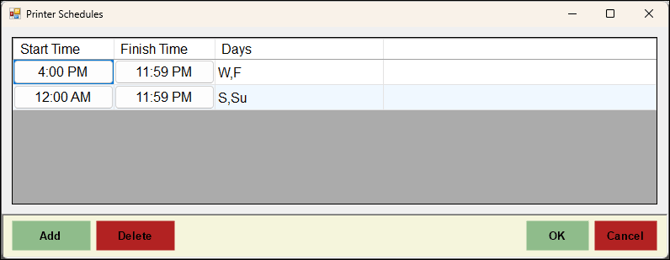
- Cooking Line 1 Print Device:
How To Add A Schedule For A Print Device? ▲ ▼
In Touch:
- Navigate to the Peripheral and Devices screen in Touch or the Peripherals screen in Back Office and locate the print device that is required to be scheduled.
- Select the print device and select Edit option to open the Kitchen Printer screen.
- Select the Schedules option in the footer section to open the Printer Schedules screen.
- Select the Add option in the footer section to add a row in the grid.
- Configure the Start and Finish times for the schedule, as well as selecting the days for which those times will be applied.
- Select OK to save the changes.
How To Delete A Print Device's Schedule? ▲ ▼
In Touch:
- Navigate to the Peripheral and Devices screen in Touch or the Peripherals screen in Back Office, and locate the print device for which the schedule is to be deleted.
- Select the print device and select Edit option to open the Kitchen Printer screen.
- Select the Schedules option in the footer section to open the Printer Schedules screen.
- Locate and select the schedule listed in the grid that is to be deleted.
- Select the Delete option in the footer section to add a row in the grid.
- Select OK to save the changes.
End of article ▲