
This provides an overview of the Print Receipt / Table Bill (#11) POS Key.
Subjects ▲ ▼
About ▲ ▼
What Is Required? ▲ ▼
- Swiftpos v10+
- Ensure this POS Key is added to the appropriate Keyboard Layout using the Designer. Refer HERE for more information.
What To Consider? ▲ ▼
- If required, access to this POS Key can be restricted by the Clerk Security feature.
- When printing a receipt, an attempt will be made to respect the Window’s region in Touch. The Clerk’s/Staff Member’s language setting will be ignored.
- If Language files ARE INSTALLED and:
- The Window’s region matches the installed language file, then it’ll print the receipt in the language as per the Window’s region setting in the Touch.
- If Language files are NOT INSTALLED:
- The Window’s region is set to something other than an English language, then it’ll print the receipt in English, as it does not have the language file available for translation.
- If Language files ARE INSTALLED and:
When Is It Used? ▲ ▼
Used to reprint the last receipt, print a Table/Guest Bill or print a quote for items/products currently in the sales grid. It can also be used to print a Table/Guest Bill by seat#.
How To GET STARTED? ▲ ▼
- Review About and ensure the steps outlined HERE are addressed.
- In Keyboard Designer, select the Print Receipt / Table Bill (#11) POS Key that has been added to a Layout.
- Ensure it is given an appropriate Caption. For example, Print Receipt.
- Select the More Settings option to display the Settings screen.
- Configure the POS Key by selecting the options available HERE.
- Once configured, ensure a Full Update is sent to all the Touch terminals that will be using the POS Key. Refer HERE for more information.
Screens ▲ ▼
Settings Screen ▲ ▼
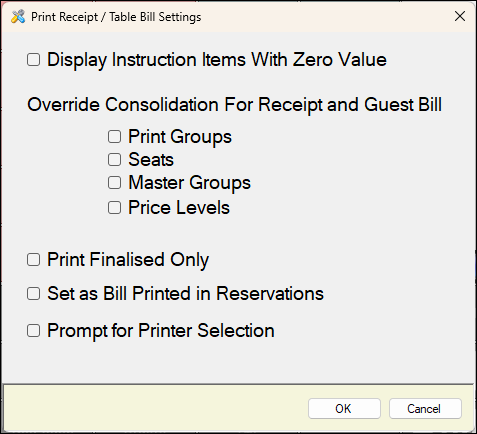
- Display Instruction Items With Zero Value - Select to ensure instructions with a value of zero are printed. By default, instructions with a value of $0.00 will not be printed on a receipt. This is to ensure instructions like Well Done or No Salt are printed.
- Override Consolidation For Receipt and Guest Bill - Select from the drop-down list either one of the following:
- Print Groups
- Seats - Select to print the Table/Guest Bill Seat #. Useful for large groups that need to work out what each person owes. Optionally an additional POS Key can be added and configured with the caption Print Bill by Seat# to do just that.
- Master Groups
- Price Levels
- Print Finalised Only - Select to restrict Clerks/Staff from printing Quotes.
End of article ▲