
This outlines the How To Display Floor Plans using the Floor Plan Display (#402) POS Key in Touch.
How To? ▲ ▼
How To Display Floor Plans? ▲ ▼
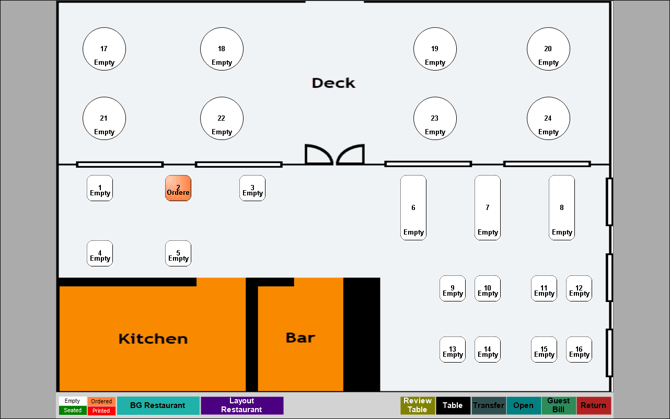
- In Touch, select the Floor Plan Display (#402) POS Key to display the Floor Plan as per the configuration of the POS Key. Refer HERE for more information. For example:
Footer Section
Functions

-
Review Table - Select and then select a table that is currently not empty to open the Table Review screen.
- Table - Select to open the Open Tables for All Clerks screen.
- Transfer - Select to initiate the transfer of items/tables from one table to another. Refer HERE for more information.
- Open - Select and then select a table to ensure it is opened in the sales grid in Touch. Once opened, the status of the Table will be Ordered.
- Guest Bill - Select to print a Table bill for the selected Table. Once printed, the status of the Table will be Printed.
- Return - Select to return exit the Floor Plan display and return to Touch.
Information

Displays the Location and the name of the Floor Plan Layout being displayed.
Legend
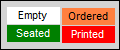
Displays the colours Tables are set to, depending on their status. Colours can be customised HERE.
End of article ▲