
Subjects ▲ ▼
About ▲ ▼
What To Consider? ▲ ▼
- Be aware that before uninstalling Swiftpos services, all services must be stopped. Also, if any changes are made to Venues, Locations, Categories or Taxes, then the services need to be restarted.
- If Back Office was NOT opened with Administrator rights, then the following prompt will be displayed:
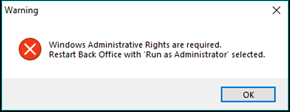
To avoid this, the Back Office application/shortcut can be set to always Run as Administrator. Refer HERE for more information. - All Swiftpos Services are recommended to be set to log on as an Administrator account.
- Services settings are stored in XML files and can be found at the location C:\ProgramData\Samford Software. For example, ConnectSettings.XML. If for some reason any one of the files have been corrupted or it is zero bytes in length, then the corrupted file(s) will need to be deleted and recreated to default values.
When Is It Used? ▲ ▼
Used to configure Swiftpos services settings and execute/start/stop services, as well as provide access to the Cloud Onboarding process.
Services are responsible for amongst other tasks, the processing of POS sales and the communications with Touch devices. This also includes ensuring updates are made available to Touch when changes made in Back Office. Each of the services can be started and stopped or run at different frequencies depending on the requirements of the site. Log files are created for each of the services, which can then be viewed using the Event Log Viewer.
The Cloud Onboarding process facilitates the establishment of a secure connection between Swiftpos and the Swiftpos Cloud infrastructure. Refer HERE for more information
How To? ▲ ▼
Screens ▲ ▼
Services Screen ▲ ▼
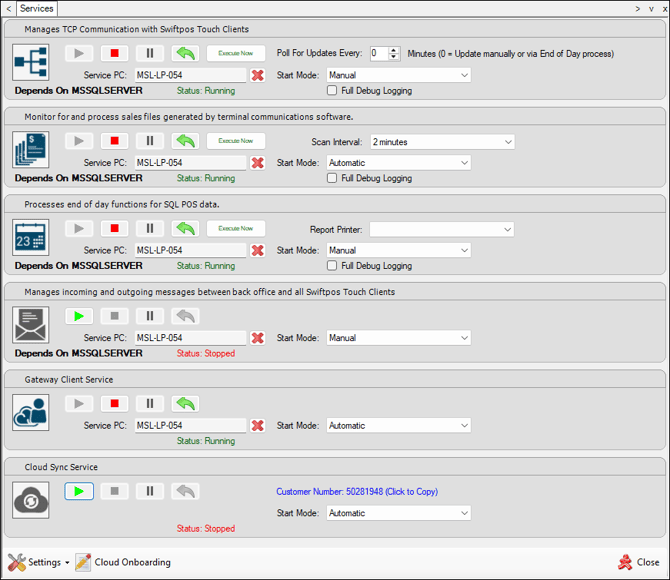
To access, select the Services option in the Administration menu in Back Office. Used to configure Swiftpos services settings and execute/start/stop services, as well as provide access to the Cloud Onboarding process.
Sections ▲ ▼
Services Section ▲ ▼
|
|
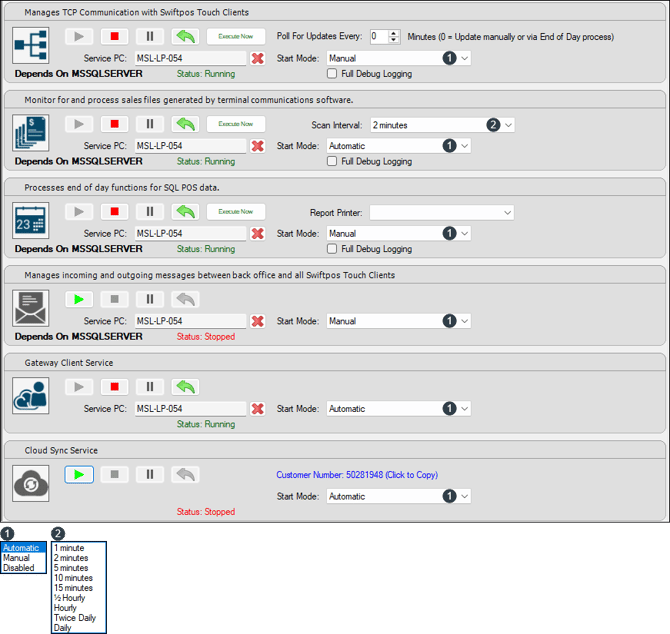
Service Icon - Select to install/uninstall the service. |
 |
Start - Select to start the service |
 |
Stop - Select to stop the service |
 |
Pause - Select to pause the service |
 |
Restart - Select to restart the service |
 |
Execute - Select to execute the service immediately |
| Poll For Updates Every X Minutes - Displays/Enter the polling interval in minutes to set how often Product and Price change information is sent to Touch. Recommended that this be set to zero. Given Happy Hours are now stored in Touch there is no requirement that this be set. |

Notes ...
Changing this setting will also automatically change the same setting HERE. Other settings relating to updates can be found in Global Preferences, Connect/Touch and End of Day settings.
Scan Interval - Select from the drop-down list the scan interval required. The interval selected determines the time between scanning for sales made in Touch.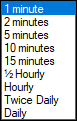 The scan interval selected for this service is entirely up to the Venue. Refer HERE for more information. |
|
| Service PC - Enter the name of the PC on which the service will run. Select X to remove the current setting and restart the service to reset the setting. | |
| Report Printer - Select from the drop-down list the default printer for this service. This needs to be selected before starting this service. | |
| Start Mode - Select from the drop-down list either Automatic, Manual or Disabled. | |
| Full Debug logging - Select to enable. |
Notes ...
This should only be enabled when recommended. Also, full debug logging on the Connect service will also create Network Trace Logs in "C:\ProgramData\Samford Software\Network Trace Logs\SwiftPOS Connect Service\xxxxx"
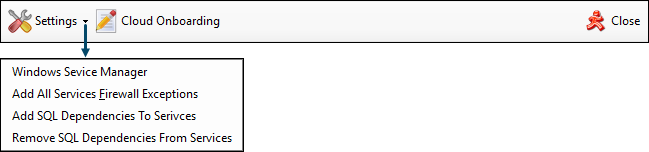
- Settings - Select from the drop-down list one of the following:
- Windows Service Manager - Select to open the Windows Services screen.
- Add All Services Firewall Exception List - Refer HERE for more information.
-
- Add SQL Dependencies To Services - Recommended to run this on all sites. Add a dependency on the Default SQL Instance (MSSQLSERVER) to delay the startup of Swiftpos services until SQL has started. If your Touch POS devices do not connect to the Back Office after a restart it is because the Swiftpos services are starting before SQL has started.
- Remove SQL Dependencies From Services - Remove the dependency on the Default SQL Instance (MSSQLSERVER) from the Swiftpos services.
- Cloud Onboarding - Select to initiate the Cloud Onboarding process.
- Close - Select to exit.
End of article ▲