
Subjects ▲ ▼
About ▲ ▼
What To Consider? ▲ ▼
- To ensure that Price Level based taxes work properly it is important to have Price Levels setup correctly against the Locations. This includes making sure that the default Price Level is set correctly.
- Any changes to the taxes will require the Sales Processing Service to be restarted and a full update sent to all Touch terminals to ensure that the changes take effect.
- Swiftpos calculates tax based on each sale item and then calculates the total tax applicable to the sale. This method is the most accurate method for calculating/reporting of tax.
- Tax Types - Swiftpos caters for up to a maximum of 4 taxes per Location with unlimited taxes over multiple Locations. It also supports the following multiple tax types. This could mean that potentially a Venue could have one tax of a certain type (namely, VAT) and up to 3 of another type (namely, USA), on the same Category of items/products. The following types of taxes are currently supported:
-
VAT (Conventional) - A VAT (Conventional) type tax is one that is included in the sale price of a item/product at the point of sale. Examples of this are:
- Australia - This tax type would apply to the GST.
- UK - This tax type would apply to the VAT Standard tax rate, as well as the Reduces and Zero rated.
- Example of the calculation of the VAT tax type:
The following provides an example of the calculation of the VAT type when included in the sale price:
- Tax Amount = (Sale Price * Tax Rate) / (1 + Tax Rate)
- For example, $9.09 = ($100.00 x 0.10) / (1 + 0.10)
Refer to Wine Equalisation Tax (WET) for more information.
-
Notes ...
it is recommended that ONLY ONE of this type (VAT) is ever assigned to one Category of items/products at any one time. Assigning multiple VAT type taxes to the same Category of items/products would mean a tax on a tax, which is NOT recommended.
- Tax Types continued ...
-
- USA - A USA style type tax is one that is added onto the sale price of a Product/Item at the point of sale. Examples of this are:
- Malaysia - Prices displayed on menus in restaurants do not include a GST tax, so the price of meals appears cheap. However, a GST (USA style tax) of 6% is added onto the sale at the point of sale.
- Other Countries - Another example, is countries that have a 15% VAT type tax on luxury items and a 6% VAT type tax on most other items. Both of these VAT type taxes are added to the sale price of a Product/Item at the point of sale.
- USA - A USA style type tax is one that is added onto the sale price of a Product/Item at the point of sale. Examples of this are:
When Is It Used? ▲ ▼
Used to configure the taxes that will be applicable for the Venue when items are sold. Typically, once a tax is configured, it would apply to all Price Levels. However, if this is NOT the case, then it is up to the Venue to ensure that each tax rate configured is assigned to at least one Price Level. Tax on purchased goods are set HERE for Supplier Invoice processing.
Screens ▲ ▼
Tax Edit Screen ▲ ▼
Sections ▲ ▼
Tax Section ▲ ▼

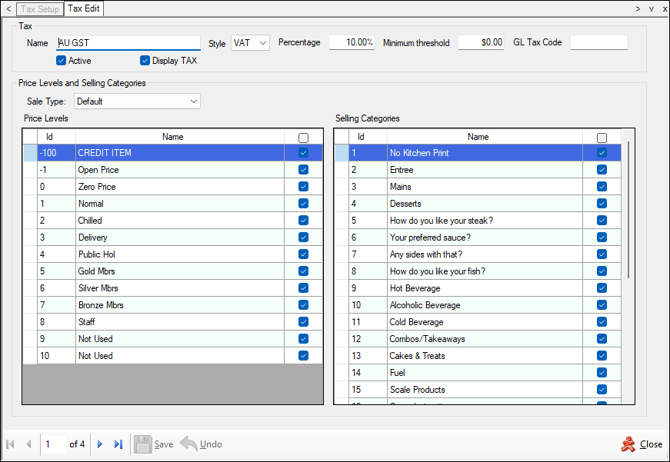
- Name - Displays/Enter the name of each tax. For example, GST, VAT, etc.
- Style - Select from the drop-down list either the VAT (Conventional) or USA options. Refer HERE for more information.
- Percentage - Displays/Enter the percentage of tax payable. For example, In Australia GST is paid at a rate of 10% and in New Zealand it is 15%.
Notes ...
The formatting of the number entered is dependent on the Windows Regional settings in Settings > Region > Additional date, time & regional settings > Region > Change date, time and number formats > Formats > Additional settings > No. of digits after decimal.
- Minimum Threshold - Displays/Enter the minimum sale value the selected tax can be applied to. For example, If the minimum threshold was set at $2 and a sale of $1.95 was made, the selected tax will not be applied.
- GL Tax Code - Displays/Enter the General Ledger tax code related for the selected tax.
- Active - Select to ensure the selected tax is active or not. If only one tax structure is being used, then ensure only one tax is active. Sites located in Australia and NZ should only have one tax selected as Active.
Notes ...
Do NOT enable multiple taxes to do tax free sales.
Price Levels and Selling Categories Section ▲ ▼
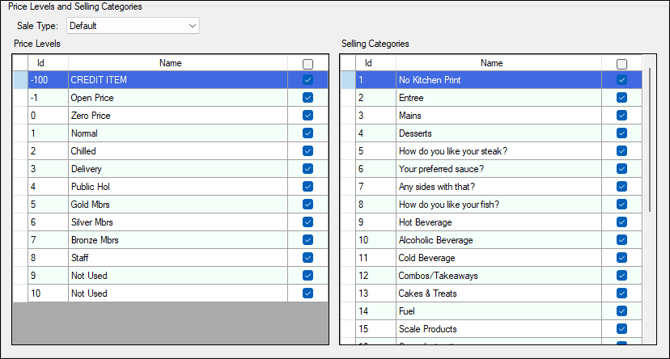
- Sale Type - Select from drop-down list the Sales Type. These are configured HERE.
Displays a list of the available Price Levels along with their ID, Name and a Select option (checkbox).
Noteworthy
- Select option (checkbox) - Select to assign the selected tax to the required Price Levels. For example, in the UK, they have a takeaway price that is VAT free. So, a change in Price Level will trigger a different tax calculation.
Selling Categories Section ▲ ▼
Displays a list of the available Categories along with their ID, Name and a Select option (checkbox).
Noteworthy
- Select option (checkbox) - Select to assign the selected tax to the required Categories.

- Save – Select to save the changes made.
- Undo – Select to undo changes made.
- Close - Select to exit.
Tax Setup Screen ▲ ▼
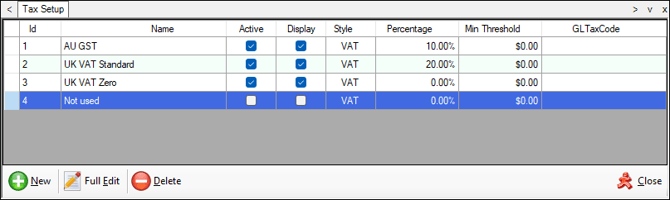
To access, select the Tax Setup option in the Administration menu in Back Office.
Sections ▲ ▼
Grid Section ▲ ▼

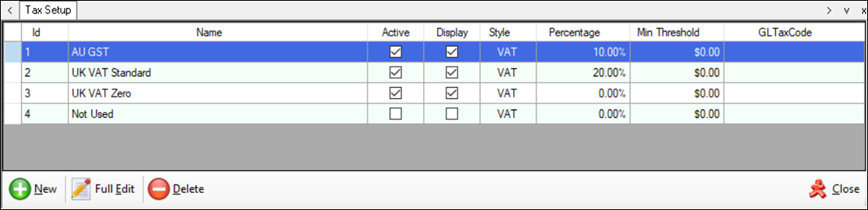
Lists the taxes along with their ID, Name, Active indicator, Display indicator, Style, Percentage, Min Threshold and GL Tax Code.
Footer Section ▲ ▼

- New - Select to add a new tax.
Notes ...
The minimum is 4 taxes. DO NOT add more taxes unless there is a requirement for more. For example, when configuring taxes for a Venue in the USA that requires Swiftpos to support more taxes as a result of their presence in multiple States.
- Full Edit – Select to open the Tax Edit screen to edit the selected tax.
- Delete - Select to delete the selected tax.
- Close - Select to exit.
End of article ▲