
Subjects ▲ ▼
Installation & Training ▲ ▼
- Installation - A guide for installing the complete suite of Swiftpos applications and any others required to support the operation of Swiftpos.
- Peripherals - Information to assist in the configuring and setting up all the Peripherals in Touch.
- Training - A guide on how to perform common functions throughout the suite of Swiftpos applications.
Keyboard Shortcuts ▲ ▼
The following keyboard shortcuts are available to enhance ease of use:
- F1 - Press to access the Swiftpos help.
- Ctrl>Ins - Press to add a new row of data to Back Office screens such as Inventory Adjustments, Inventory Transfers, Inventory Counts, Basic Invoicing etc.
- Ctrl>Del - Press to delete an existing row of data in Back Office screens such as Inventory Adjustments, Inventory Transfers, Inventory Counts, Basic Invoicing etc.
- Space - Press to select/unselect checkboxes in Back Office screens such as Categories, etc
- Esc - Press to exit the Report Preview screen and return to the Report Filter screen.
Screens ▲ ▼
Main Menu Screen ▲ ▼
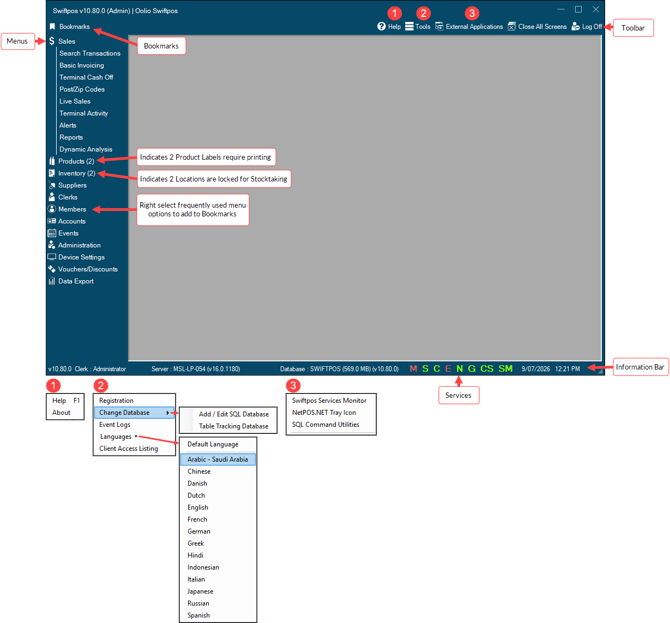
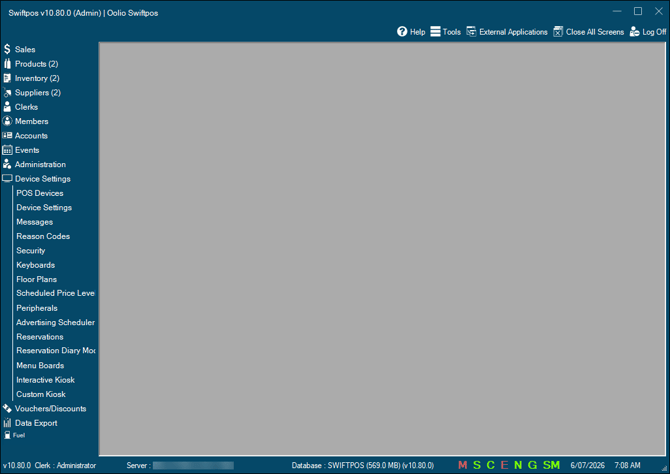
To access, start Swiftpos Back Office.
Sections ▲ ▼
Bookmarks Section ▲ ▼
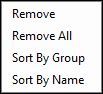
Select to display the currently bookmarked menu options. Menu options can be bookmarked by right selecting specific menu options and then selecting the Add to Bookmarks option. To remove/sort bookmarked items, right select on any of the items listed in the Bookmarks popup and select from the following:
Toolbar Section ▲ ▼

Menus
Information Bar Section ▲ ▼

The Information Bar contains important details that maybe requested from time to time by Swiftpos Support staff. The information provided here is as follows:
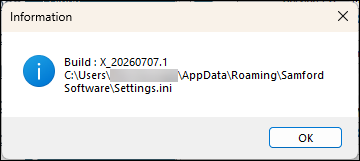
- Swiftpos Back Office Version - Displays the current version of Back Office software. Selecting on the version information will display an information prompt as follows:
- Clerk - Displays the Clerk/Staff Member that is currently logged in.
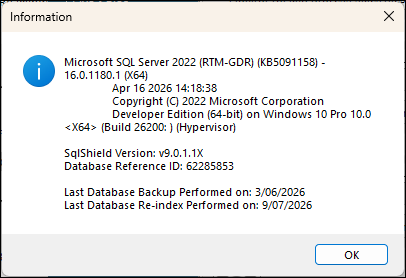
- Server - Displays the name and version of the SQL server that is currently connected. Selecting on the SQL server name and version will display an information prompt as follows:
Notes ...
If your current version of SQL is not supported, then this prompt will be displayed when initially opening Back Office. Also, the word Unsupported will display as the Server name.
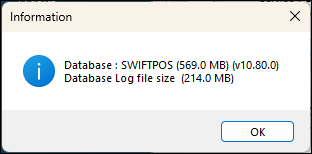
- Database - Displays the name and version of the SQL Database that is currently connected. Selecting on the SQL Database name and version will display an information prompt as follows:
- Services - Displays the Swiftpos services icons.

| The colour of the icons indicates their status. | |

Green - Indicates the service is running |
|
| The following icons depict the Swiftpos services |
|
| Indicator | Service |
 |
Messages |
 |
Salse Processing |
 |
Connect |
 |
End of Day |
 |
NetPOS |
 |
Gateway Client |
 |
Cloud Sync |
 |
Service Monitoring |
| Right select any one of the service Indicators to start/stop or execute the service. | |
Notes ...
If any of the above indicators are NOT visible (missing), that could mean either one of the following:
- Date and Time - Displays the current date and time.
Software Updates ▲ ▼
- Select the About option from the Help menu in the Toolbar in the Main Menu screen of Back Office to open the About screen.
- Select the Check for Web Updates option. To update all Touch POS devices at once then refer HERE.
Notes ...
The appropriate Clerk Group Permissions (as defined in Security Groups) must be assigned in order to use this feature.
End of article ▲