
Subjects ▲ ▼
About ▲ ▼
When Is It Used? ▲ ▼
Used to connect devices such as KVS, Menu Boards, Touch, Reception, Touchmini, Waiter, etc. used in conjunction with Touch to Back Office.
How To? ▲ ▼
- Send A Full Update To Touch Devices?
- Upgrade Touch Software For A Venue With A Large Number Of Remote Stores?
How To Upgrade Touch Software For A Venue With A Large Number Of Remote Stores? ▲ ▼
- Ensure Swiftpos Back Office is running the latest version. This is important and you should make sure that each of the Touch devices have received and done the software update)
- Once upgraded, navigate to the Touch Software Update Settings tab via the Tools option in the footer section. Change software version to the version to be updated to.
- Select the devices, go into Tools and select Trigger Software Update (this will send out a request to each of the Touch devices to go off to the web and get the software update).
Notes ...
It is very important that the Trigger Software Update option is selected from the POS Devices screen above.
Screens ▲ ▼
Add POS Devices Screen ▲ ▼
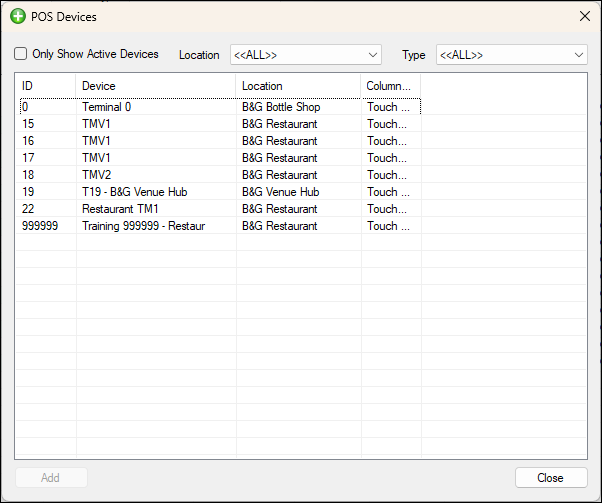
To access, select the Add option in the footer section of the POS Devices screen. Used to add devices to the POS Devices screen.
Sections ▲ ▼

- Only Show Active Devices - Select to display only active devices.
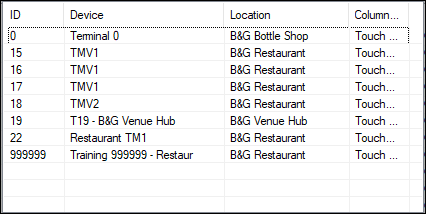
Lists the devices that are available but not currently in use. Displays their ID, Device name, Location and Type.

- Add - Select to add the selected device.
- Close - Select to exit.
Settings Screen ▲ ▼
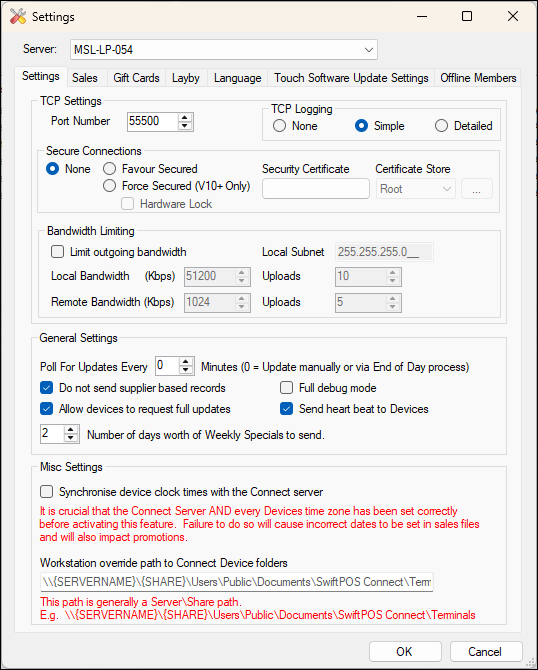
To access, select the Options option from the Tools menu. Used to configure the settings for the selected device.
Tabs ▲ ▼
Settings Tab ▲ ▼
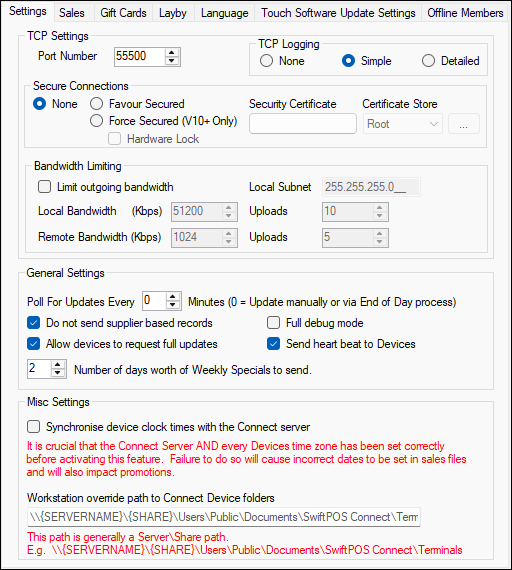
- Server - Select from the drop-down list the server to configure settings for. Default is the server currently running the Connect service.
TCP Settings Section

- Port Number - Displays/Enter the Port Number that matches the Port Number set at the Touch device. Default is 55500. The Port Number is used to establish a connection between the Touch device and Back Office.
Notes ...
Ports Numbers can be changed to meet site specific requirements. If changed the new Port Number will need to be enables by the site's firewalls. If connecting over the Internet then add this port number to the firewall/router so that the PC that is running Swiftpos Connect is visible from the Touch devices.
- TCP Logging - Select one of the options available to set the level of detail of TCP event logging required. This is written to the database to populate the TCP Event Log (ADM008) report.
Notes ...
It is recommended that a TCP Logging option is only selected when requested by Swiftpos support.
Secure Connections Section

Refer HERE
Bandwidth Limiting Section
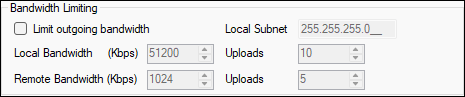
Notes ...
The above settings are suggested for large sites not using a VPN.
- Limit outgoing bandwidth - Select to limit the bandwidth and number of connections used to send files to Touch devices. This should only be used if you have a slow network / internet connection. The minimum bandwidth required is 64Kbps per device.
Notes ...
This setting should remain off unless you have remote Touch devices connecting via a VPN or Internet network.
- Local Subnet - This will limit to 255.255.255.0 unless this is changed. Anything outside the subnet is considered remote.
Local
- Bandwidth - Set this as high as possible for a Local network. Because a VPN will look like a local network then you may need to limit this to your VPN Internet speed.
- Uploads - Set this to something like 10-20 for a local network or limit for a VPN.
Remote
- Bandwidth - For 64kbs per Touch (minimum + overheads), you would need to set this to 1,000Kbs.
- Uploads - If you only had a 1Mbs upload speed from the server then the maximum recommended for Touch be would 5-10 uploads at the same time.
General Settings Section
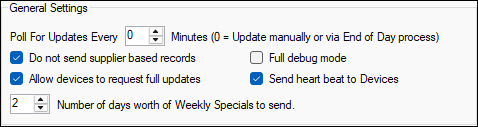
- Poll for Updates - Displays/Enter the polling interval in minutes to set how often Product and Price change information is sent to the Touch devices. Recommended that this be set to zero. Given Happy Hours are now stored at the Touch devices there is no requirement that this be set. Updates can be manually sent using the Send Changes/Full Update options.
Notes ...
Changing this setting will also automatically change the Poll For Every X Minutes Updates setting HERE. Other settings relating to updates can be found in Global Preferences and in End of Day options.
- Do not send Supplier based records - Select to not send Supplier based data to the Touch devices. Unless there is a requirement to enter Supplier Invoices at the Touch devices then it is recommended that this option is selected to reduce data being sent to Touch devices. To ensure Product cost changes (resulting from processing Supplier Invoices in Swiftpos Back Office) are sent to the Touch devices then a Full Update can be sent manually by using the Full Update option.
- Full Debug Mode - Select to enable.
Notes ...
This should only be enabled when recommended.
- Allow devices to request a Full Update - Select to allow Full Updates to be requested from the Touch devices. Unselect if Full Updates are managed from Head Office.
- Send heart beat to Devices - Select to ensure a Heart Beat signal is sent to Touch devices. Used to notify devices that the Connect service is alive and active.
Notes ...
It is recommended that this option is always selected. The Heartbeat is used to test if a connection between Touch and Connect is active. There are circumstances where the connection could be lost however both sides think the connection is alive. By testing we can manually disconnect either side to allow a new connection to take place in the time set. This process is run in a separate thread which will have no impact on operations of Touch.
Misc Settings Section
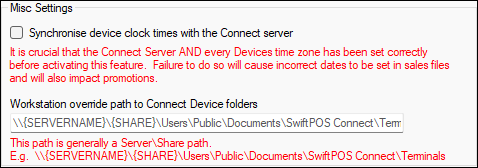
- Synchronise device Clock Times with the Connect Server - Select to ensure clock times are in kept in sync between Touch devices (including KVS and Reception) and the Swiftpos Connect service. For this feature to function correctly the following actions are necessary:
- Ensure the Send Heart Beat to Devices option above is selected.
- For Touch devices, ensure the Send Heart Beat to Connect option is selected in Touch.
- For KVS devices ensure:
- Ensure it is Run as administrator (by right clicking the Swiftpos.Kitchen.Video.exe application and selecting the Run as administrator option).
- The Send Heart Beat to Connect option in Swiftpos KVS > Settings > KVS Settings > Settings tab is selected.
- For Reception devices ensure:
- The Send Heart Beat to Connect option in the Swiftpos Reception > Options > General menu is selected.
- Number of days worth of Weekly Specials to send - Displays/Enter the number of days of weekly Specials/Promotions to send to the Touch devices in a Full Update. This can be between 2 and 28 days based on the start date of the Specials/Promotions.
Notes ...
If there are a lot of Specials/Promotions, then the more days selected, will increase the size of the updates to be sent as well as the time taken for the Touch devices to process the updates.
- Workstation override Path to Connect Device Folders - Enter an alternative path to override the default set for the Connect device folders.
Sales Tab ▲ ▼
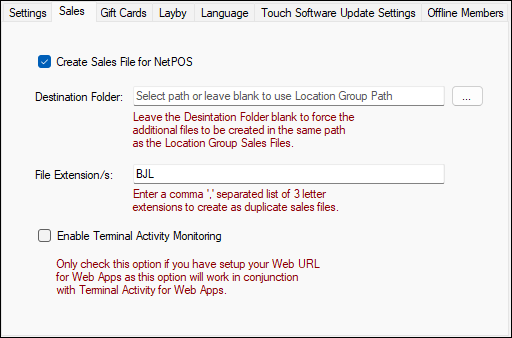
Used to configure settings for the creation of additional copies of the default sales files when running the NetPOS service to link to Gaming Systems and Loyalty. The default Swiftpos sales file uses the file extension AJL.
Notes ...
In Swiftpos Version 177 or higher, if the validation of Members/Accounts and the tracking of Loyalty Points is required then the NetPOS service must be running and the sales files with the extension BJL will need to be created.
- Create Sales File for NetPOS - Select to ensure NetPOS Sales (BJL) files are created.
Notes ...
This will ensure Points earned from sales at Touch devices, will update a Customer/Member's Current Points balance.
- File Extension/s - Displays/Enter the file extensions currently in use. Files with the extension BJL are reserved for the NetPOS service. If multiple sales files are required then enter BJL, CJL, DJL etc. Using this example, you would get 3 sales files in the Destination Folder for the Location/Group (Venue). The following file extensions are reserved for specific purposes:
- BJL - Used in conjunction with the validating of Members/Accounts and managing Loyalty Points. Also, if NetPOS is being used to interface to Gaming Systems then specify BJL to create a sales file with this extension. This file will then be read by the NetPOS service and sent to the Gaming and/or Front Office Systems. In large sites (with 100+ Touch devices) add the BJL file extension into the Location/Group (Venue) screen to ensure the effective downloading of Touch device sales to Back Office. If this is not done then effectively 100+ Touch device connections would be funnelled into a single sales file on the host server, creating timing issues.
- TJL - Used for turnstiles only and create sales files in a separate file format.
- Enable Sales Monitoring - Select to ensure that all sales are monitored for the purposes of providing device Sales Activity data that can be viewed via the Web Reports portal.
Gift Cards Tab ▲ ▼
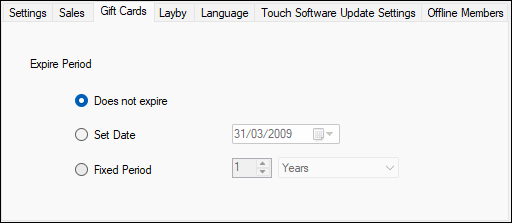
Used to set the expiration period for Gift Cards. When Gift Cards are created they can be set as valid for any period. When using Gift Cards, set the period before they expire.
- Expire Period - Select one of the following options:
- Does not expire
- Set Date
- Fixed Period
Notes ...
Gift Cards cannot be used with Members or Accounts. They are already using the Account Number for the Gift Card number. Recommend you use Stored Value Vouchers.
Layby Tab ▲ ▼
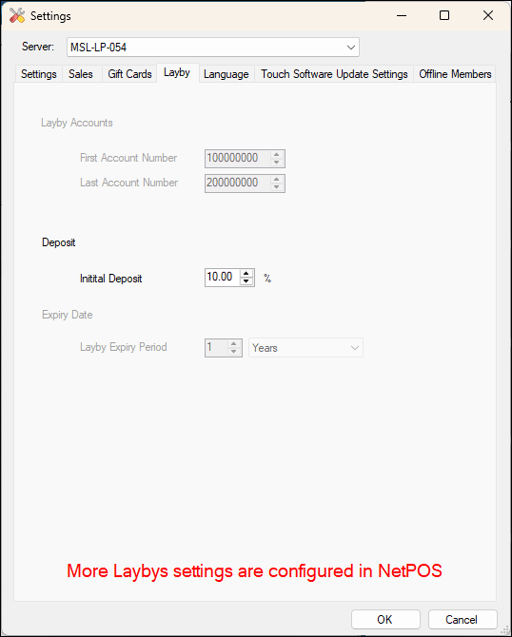
- Lay-by Accounts - These are set up as Accounts in the Swiftpos Back Office and are generally numbered between 100,000,000 and 200,000,000 which will be well clear of your normal Accounts.
- Deposit - Displays/Set the initial deposit as percentage, that is required when creating a new Lay-by.
- Layby Expiry Date - Displays/Set the expiry period from when the Lay-by was first created.
Refer HERE for more information.
Language Tab ▲ ▼
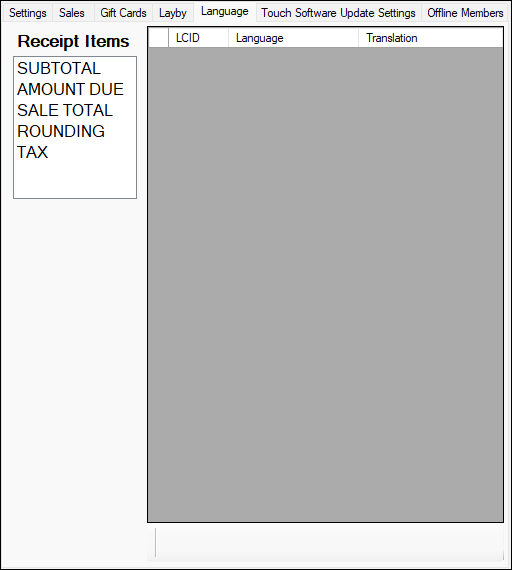
Used to edit/view translations of text printed on print peripherals (for example, Receipt Printer) into other languages. Once translations have been entered, these will then be used when printing in Touch if an alternate language is selected HERE.
- Receipt Items - Select the Receipt Item required to be translated, then enter the correct translation in the Translation column.
- Language - Displays/Enter the translations of text printed on print peripherals (for example, Receipt Printer) into other languages.
- Translation - Displays/Enter the translation the translation of the currently selected Receipt Item.
Notes ...
Ensure the Support Multiple Languages option is selected in Touch for this feature to take effect.
Touch Software Update Settings Tab ▲ ▼
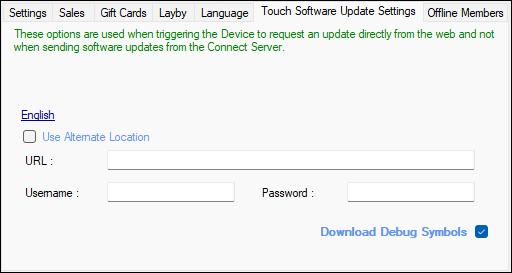
Used when triggering the Touch device to request an update directly from the web instead of sending software updates from the Connect service in Head Office. If you leave the settings blank, then it will automatically download the updates directly from the Swiftpos Web Site.
For example, a Venues has 50 Franchise stores connected to Head Office, and they want to update the software at each Touch device. Rather than sending 50 copies of the Touch software out from Head Office, they can instruct Touch to automatically download their updates from a server at the given URL. This is usually a much faster way of getting updates out to multiple stores.
- Use alternate Location - Select to use an alternate location to source the update.
- URL - Leave blank to get the updates directly from the Swiftpos hosted updates. This will be the current version that is posted on the Web site. If a large site wished to manage their own updates then enter the URL here for where the version of the update would be stored.
- User Name and Password - When hosting updates, then this information may be required.
Notes ...
If all Touch devices are located remotely, For example for a Franchise chain of 100 stores. Then a URL can be entered from where the Touch devices can retrieve their software updates. If this feature is NOT enabled, then all software updates will be sent out from the Head Office. While this works, it will take longer. It is much quicker for each store to download its updates directly from the Web rather than from the Head Office.
Refer HERE for more information.
Offline Members Tab ▲ ▼
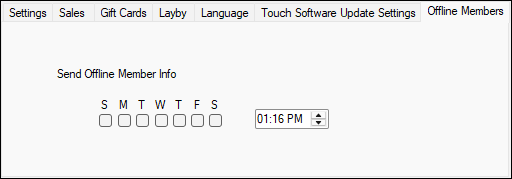
Used to ensure Member details are sent to the selected Touch device to ensure Members can still receive pricing and promotion benefits (based on their membership) when the NetPOS service is offline.
Notes ...
This option will need to be selected each time up to date Member details need to be sent to Touch devices. It is NOT an automatic process and will require this option to be selected in order to send the data manually.
POS Devices Screen ▲ ▼
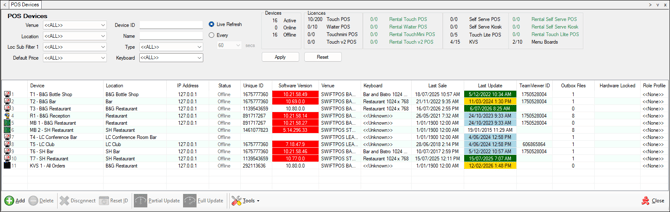
To access, select the POS Devices option in the Touch Setting menu in Back Office.
Sections ▲ ▼
Header Section ▲ ▼

Provides filters to limit the number of rows displayed in the grid section. Once all filters have been selected, select the Apply option to apply them. Otherwise, select the Reset option to clear all filter selections.
It also, displays statistics relating to the numbers of devices that are Active as well as those that are Online and Offline, as well as Licence (In Use/Available) information.
Noteworthy
- Live Refresh - Select to ensure the contents of the grid is refreshed automatically, whenever there is a change in the connection of any one of the devices listed.
- Every X secs - Select to ensure the contents of the grid is refreshed as per the interval (in seconds) selected from the drop-down list.
Grid Section ▲ ▼
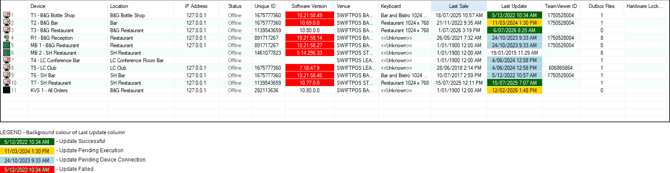
Lists the devices along with their Device, Location, IP Address, Status, Unique ID, Software Version, Venue, Keyboard, Last Sale, Last Update, Last Sale, Last Update, TeamViewer ID, Outbox Files and Hardware Locked.
Notes ...
Rows displayed in the grid can be sorted by toggle selecting the column headings. Select one or more devices in the grid and right click to access the options outlined HERE.
Noteworthy
- IP Address - Displays the last known address when the device was last connected to the Back Office.
- Outbox Files - Displays the number of Update files queued and pending processing at the device.
- Hardware Locked - Displays the text Locked when the devicehas made a connection using a Hardware Access Code.
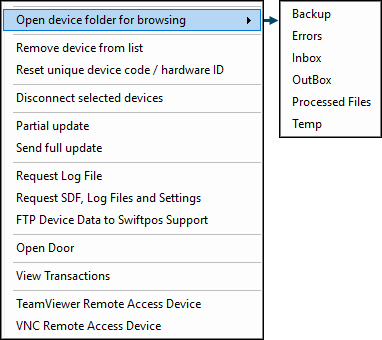
To access, right click on one or more devices listed in the grid section.
- Open device folder for browsing - Select or select a folder from the drop-down list to open.
- Remove device from list - Select to remove the selected device.
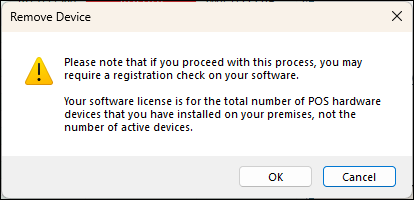
- Reset unique device code / hardware ID - Select to reset the Unique ID and connect. Used when changing devices, otherwise they will NOT connect.
Notes ...
If this is done more than twice a month, then your reseller will need to provide a Daily Code to allow this.
- Disconnect selected devices - Select to disconnect the selected device.
- Send Changes now - Select to send changes only to the selected device. Use to send the latest Product and pricing data.
- Send full update - Select to send a full update to the selected devices.
- FTP Device Data to Developers - Select to FTP the SDF, Logs and Settings of the selected devices to Swiftpos support for troubleshooting.
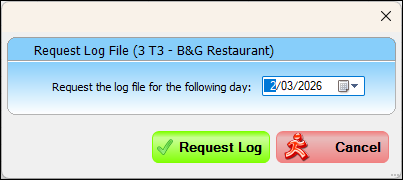
- Request Log File - Select to retrieve the log files from the selected devices so that they can be viewed using the Event Log Reader. Mostly used when requested by Swiftpos support for troubleshooting.
|
Select/Enter the date of the log file to be retrieved and select the Request Log option. Shortly after right click on the same device entry in the grid and select the Open device folder for browsing option and then open the Event Logs folder. This folder should now contain the .txt (log) file for the date requested. The log files can be viewed using the Event Log Reader. |
- Request SDF, Log Files and Settings - Select to retrieve the SDF database, Log files and Settings for the selected Touch device. Shortly after select the Open device folder for browsing option and then open the Event Logs folder. This folder should now contain the .txt (logs), .xml (settings) and .sdf (database) files for the date requested. The database is used to view Touch transactions using the View Transactions option and the log files can be viewed using the Event Log Reader. Generally used when requested by Swiftpos support for troubleshooting.
- Open Door - Select to open the Door Control popup screen to manually trigger opening a door.
- View Transactions - Select to open the Transaction Viewer screen to view transactions.
- TeamViewer Remote Access Device - Select to invoke TeamViewer to remotely access the selected device.
- VNC Remote Access Device - Select to invoke TightVNC to remotely access the selected device.
Footer Section ▲ ▼
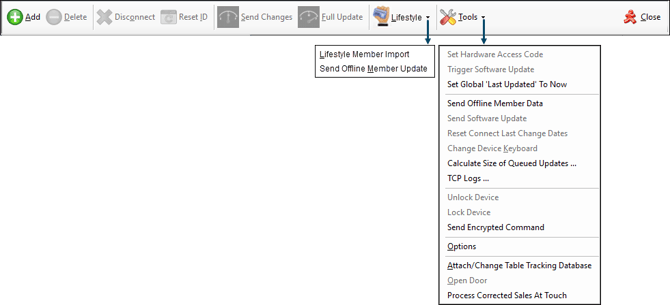
- Add - Select to open the Add POS Devices screen and add devices.
Notes ...
If a Touch device is not connected within 28 days, Touch will shut down every 10 minutes.
- Delete - Select to delete the selected device.
- Disconnect - Select to disconnect the selected device.
- Reset ID - Select to reset the Unique ID and connect. If changing Touch devices at a site, then reset the ID, otherwise they will not be able to connect.
- Send Changes - Select to send only changes to the selected Touch devices. For example, used to send the latest Product and Pricing data to Touch devices.
- Full Update - Select to send a full update to the selected Touch devices.
Notes ...
The update retrieves the Touch folder (not including settings) from the server and then sends that out to update all the Touch devices. This assumes the Touch software on the server has been updated. This is normally set up as a Training device with the ID of 999999.
- Lifestyle - Select from the drop-down list one of following:
- Lifestyle Member Import - Select to import Members as well as update existing Members and assign them to specific Interest Groups (Lifestyles).
- Send Offline Member Update - Select to send an update to selected devices.
Notes ...
This option will only be visible if the Venue is registered with a licence for the Lifestyle Module.
- Tools - Select one of the options from the Tools menu drop-down list.
- Close - Select to exit.
Tools Menu ▲ ▼
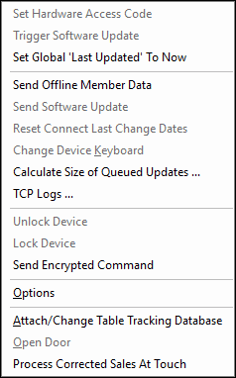
- Set Hardware Access Code - Select to open the Hardware Lock Code screen to set the Access Code required for Touch devices to establish a Locked connection with the Back Office.
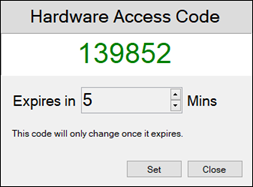
Used to set a Access Code which will remain valid for the specified duration in minutes. Any Touch device attempting to connect before the expiry period has lapsed, will be forced to enter the Access Code displayed in order to establish a connection to the Back Office. Touch devices that already have a connection established with the Back Office will be prompted to enter the Access Code.
- Trigger Software Update - (Force Full Update) Used to trigger software updates via the Internet to remote Touch devices.
- Set Global 'Last Updated' to Now - Select to ensure the Last Updated date is set to the current date/time.
- Send Offline Member Data - Select to ensure Member details are sent to the selected Touch device to ensure that Members can still receive pricing and promotion benefits (based on their details) when NetPOS is offline.
Notes ...
This option will need to be selected each time up to date Member details need to be sent to Touch devices. It is NOT an automatic process and will require this option to be selected in order to send the data manually.
- Send Software Update - Send out a software update to all the Touch devices that are currently connected to the Touch server.
Notes ...
If using Touch POS devices with POSReady7 or Windows 7/8, then Touch will have to have Windows administrator access, otherwise the update will not load. Right click on the SwiftPOS.Touch.exe application and select the Run as administrator option.
- Reset Connect Last Change Dates - Select to reset, if the computer date was accidentally forward dated.
- Change Device Keyboard - Select to select a new Keyboard Layout for the Touch POS device.
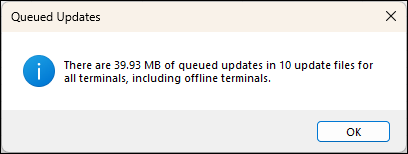
- Calculate Size of Queued Updates - Once selected a prompt will be displayed requesting whether this is to include offline Touch POS devices. Select Yes or No, to have the queue size and number calculated and displayed.
- TCP Logs - Select to open the TCP Event Log screen and view the logs.
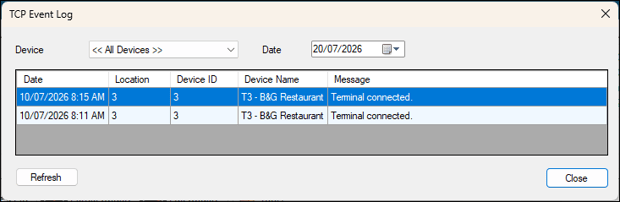
Used to view TCP Traffic logs specific to a selected Touch device. Generally used when requested by Swiftpos support for troubleshooting.
Select a Touch device from the Device drop-down list and a date from the Date drop-down calendar to further limit the data displayed in the grid.
- Unlock Device - Select to Unlock the selected device. Once selected this will change the status of the selected device from Locked to Offline. When started the device should be operational again.
- Lock Device - Select to open the Lock Out device screen and lock the selected device. This feature was originally designed to provide a franchisor the ability to lock out a specific franchisee if they have not paid their account.
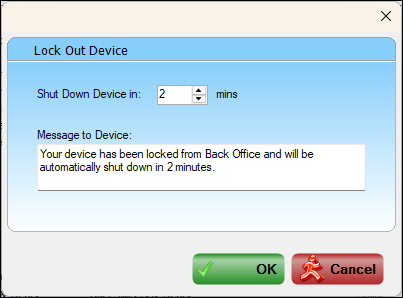
- Shut Down Device in X mins - Displays/Enter the number of minutes to lapse before the selected device will be shut down.
- Message to Device - Displays/Enter the message that will be displayed at the selected device warning them of an imminent shutdown.
- OK - Select to initiate the Lock Out (Shut down) of the selected device.
- Cancel - Select to exit without locking out the selected device.
- Options - Select to open the Settings screen and configure the Touch device.
- Attach/Change Table Tracking Database - Select to connect to a Table Tracking database or change an existing connection.
- Open Door - Select to open the door in the Access Control. Refer HERE for more information.
- Process Corrected Sales At Touch - Select to attempt to reprocess errored sales at the selected device.
End of article ▲