
This provides an overview of the Hold/Recall (#20) POS Key.
Subjects ▲ ▼
About ▲ ▼
What Is Required? ▲ ▼
- Swiftpos v10+
- Ensure this POS Key is added to the appropriate Keyboard Layout using the Designer. Refer HERE for more information.
What To Consider? ▲ ▼
- If required, access to this POS Key can be restricted by the Clerk Security feature.
- When using a handheld device to take/hold orders/sales, while engaged in queue busting, a Kitchen printer must be enabled on the handheld device to ensure that when the order/sale is recalled and paid, the order is sent to the Kitchen printer.
- Held orders/sales are only visible in Touch terminals that make use of the same Table Tracking database and are in the same Location Group (Venue). This can be useful when EFTPOS is only available on one Touch terminal. Also, it can be useful in drive thru sales operations where the Self-Service Kiosk just places the order/sale on hold, to be later recalled at the payment window. If there is a requirement to hold an order/sale and open it in another Location, then make use of TABs.
When Is It Used? ▲ ▼
Used to place the current order/sale on hold and/or recall a previously held order/sale. When this POS Key is selected while an order/sale is in progress, then the order/sale will be placed on held. When this POS Key is selected when there is no order/sale is in progress, then the All Held Sales screen will be displayed listing all the held orders/sales that can be recalled.
How To? ▲ ▼
How To GET STARTED? ▲ ▼
- Review About and ensure the steps outlined HERE are addressed.
- In Keyboard Designer, select the Hold/Recall (#20) POS Key that has been added to a Layout.
- Ensure it is given an appropriate Caption. For example, Hold/Recall Sale.
- Select the More Settings option to display the Settings screen.
- Configure the POS Key by selecting the options available HERE.
- Once configured, ensure a Full Update is sent to all the Touch terminals that will be using the POS Key. Refer HERE for more information.
Screens ▲ ▼
All Held Sales Screen ▲ ▼
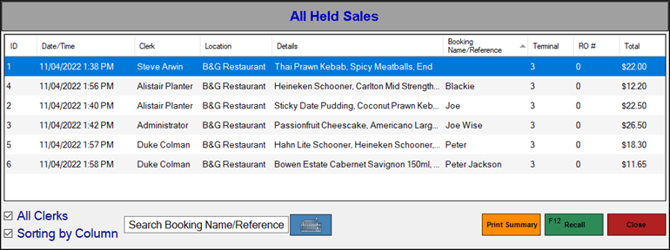
To access, select this POS Key when no order/sale is currently in progress. It lists all held orders/sales in descending order of most recent to oldest. By default, it will only show the orders/sales for the Clerk/Staff Member currently logged in. To view all Clerks/Staff, select the Show All Clerks option.
Grid Section
Lists the orders/sales that are currently held along with their ID, Date/Time, Clerk, Locations, Booking Name, Order # (Only displayed if the ) , RO # (Remote Order #) and Total (Sale amount).
Noteworthy
- Order # - Displays the Auto Number assigned to the order/sale. This will only be displayed when Enable Auto-Number setting is selected.
- RO # - Displays the Remote Order number assigned to the order/sale.
Notes ...
A Remote Order number is only assigned to the order/sale if the order/sale was first saved using the Save Order (#26) POS Key. Otherwise, a value of zero will be displayed.
Footer Section
- Show All Clerks - Select to show the currently held orders/sales for all Clerks/Staff.
- Search Booking Name/Reference - Select the Keyboard icon to enter a Name/Reference in order search the held orders/sales, by filtering the grid limited to the Name/Reference entered.
Notes ...
To ensure Booking Names/References are entered when an order/sale is held, ensure the Prompt for Booking Name/Reference option is selected.
- Allow Sorting by Column - Select to enable the sorting of the held orders/sales listed by selecting a column heading.
- Print Summary - Select to print a Held Sales Print Summary of all the held orders/sales listed in the grid. This will print on the Receipt printer.
- Recall - Select to recall the selected held order/sale and load it into the sales grid.
Settings Screen ▲ ▼
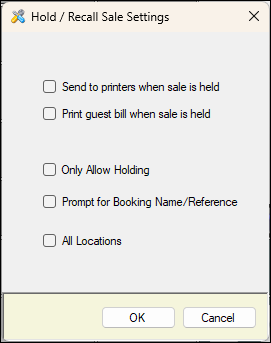
- Send to printers when sale is held - Select to print the order/sale when the order/sale has been placed on hold. Used for Drive Thru orders/sales.
- Print guest bill when sale is held - Select to print the order/sale when the order/sale has been placed on hold.
- Only Allow Holding - Select to only allow the holding of orders/sales and prevent held orders/sales from being Recalled. Mostly used at a Self-Service Kiosk to only allow Customers to place an order/sale.
- Prompt for Booking Name/Reference - Select to ensure a name or reference is entered whenever an order/sale is held. Once entered, the name/reference can then be used to search all held orders/sales using the Search Booking Name/Reference filter.
- All Locations - Select to ensure held orders/sales in all Locations within a Location Group (Venue) can be viewed in the All Held Sales screen (above) and recalled from any Location.
End of article ▲