
IMPORTANT
MYOB has made changes to strengthen its app ecosystem by upgrading integration endpoints to enhance data privacy and security.
Refer HERE for more information
Subjects ▲ ▼
About ▲ ▼
- What Is New?
- What Is Not Supported?
- What Is Required?
- What Is Supported?
- What To Consider?
- When Is It Used?
What Is New? ▲ ▼
In?
What's New In Swiftpos v10.80+? ▲ ▼
- The MYOB AccountRight interface includes updates to support:
- New API permissions - MYOB uses API permissions to control which areas of MYOB data an integration can access. Swiftpos 10.80 supports MYOB’s newer permission model so the MYOB AccountRight integration can continue operating as MYOB updates its API requirements. Refer HERE for more informaton
- Connection Information - The Connection tab in the Settings screen now displays status information for reference and support purposes. This includes Company File, API, Swiftpos Import/Sync Status and which export options have the Include in End of Day option.
- Venues must use a supported version of MYOB AccountRight for the Swiftpos integration. Venues should plan to remain on a compatible Swiftpos version before MYOB retires older connection permissions.
- Supported MYOB versions may change as MYOB releases SaaS updates.
- Swiftpos 10.80+ includes updates required for MYOB’s newer API permissions.
What Venues Need to Know?
- Confirm that your Venue is using a supported MYOB version.
- Contact Swiftpos Support if you are unsure which accounting interface options apply to your Venue.
- Before upgrading, plan any required review or testing with your Swiftpos representative before relying on the updated export workflow in production.
-
- Confirm which accounting interface your site uses.
- Ensure users responsible for accounting exports understand the updated Xero export layout.
- Confirm MYOB AccountRight compatibility if your site uses the MYOB AccountRight integration.
- Plan any required review or testing of your accounting interface before relying on the updated export workflow in production.
What Is Not Supported? ▲ ▼
- The MYOB AccountRight interface NO LONGER SUPPORTS the Local connection type from Swiftpos v10.79.8+. Only the Cloud type is available. This also means the MYOB Add-On Connector is no longer required.
- The MYOB AccountRight interface DOES NOT currently export Job Code data, as is done using the MYOB Export interface.
What Is Required? ▲ ▼
- Venues will need to be registered for the Swiftpos MYOB AccountRight. Email registrations@swiftpos.com.au to obtain the appropriate registration.
- The computer used to authorise the MYOB AccountRight connection requires the Microsoft Edge WebView2 Runtime. This is generally available with Windows 10 or 11. If the MYOB Authorisation window opens blank, refer HERE for more information.
-
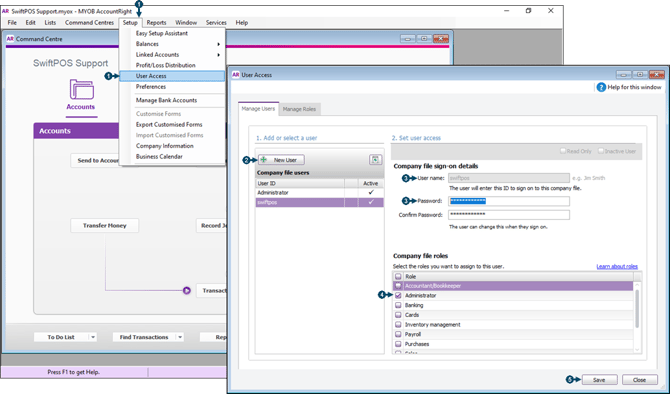
We recommend the Venue's accountant provide the login credentials of a user that is configured in MYOB AccountRight with administrator rights. This is to ensure that a successful connection can be established via the API and that all necessary functions can be carried out between Swiftpos and MYOB AccountRight using the MYOB AccountRight API. Alternatively, a new user (for example, Swiftpos) can be configured in MYOB AccountRight in support of establishing a connection between Swiftpos and MYOB AccountRight. This can be achieved as follows:
- In MYOB AccountRight select the Setup menu and the User Access menu item.
- Select the New User button.
- Enter a User Name and Password.
- Select the Administrator role.
- Select Save and Close.
- We recommend continued ...
- When prompted to login (for example, when importing the Chart of Accounts) to MYOB AccountRight use the User credentials entered above.
- Ensure that the Post Financial Data option is selected for those Locations for which General Journal, Purchase Journal and Terminal Cash Off related data is to be exported.
Notes ...
This does NOT apply to Stock Transfers between Locations. These will always be exported regardless of the whether this option is selected or not.
- In Swiftpos:
- For sales of GST Free items, the following will need to be considered:
- Create 1 or more Master Groups for GST Free Product Groups.
- Create 1 or more Product Groups for GST Free Products.
- Assign the Product Groups, created above, to the appropriate GST Free Master Group.
- Assign all Products that are assigned to Categories that are GST Free (see Tax Setup) to the GST Free Product Groups created above. That will also need to include SYSTEM PLUs (especially, Rounding).
- In the Data Portal > MYOB AccountRight > Settings, ensure the mappings in the Sales Accounts and Inventory Accounts tabs for the new Master Groups are correctly mapped. That is, in the case of the Sales Accounts tab the GST Free Master Groups need to be mapped to a GST Free Sales account (with a Tax Code of FRE) created in MYOB AccountRight above.
- For sales of GST Free items, the following will need to be considered:
- In MYOB AccountRight:
- For sales of GST Free items, the following will need to be considered:
- Create GST Free Accounts (with a Tax Code of FRE) to ensure that ultimately, the GST Free Master Groups created above can be mapped to these.
- Ensure a Freight account has been linked to Purchases. This can be done in MYOB AccountRight via the Setup > Linked Accounts > Purchases Accounts - Make sure a Freight account is selected in the I pay freight on purchases > Expense or Cost of Sales Account for Freight field.
- For sales of GST Free items, the following will need to be considered:
- Establishing Connection the first time:
- Using a Local Connection:
- Select the Local option from the Connection Type drop-down list and Save the change.
- Select the select button to the right of the drop-down list.
- When the Select a Company File screen is displayed, select the appropriate company file from the list and select Ok.
- Select Save to save the changes.
- Select the Import Chart of Accounts button.
- At the Login prompt, login using the User configured above, and select Ok.
- At the Confirmation prompt select Yes.
- Once the Import is completed, an Information prompt confirming the successful Import will be displayed.
- Using a Cloud Connection:
- Select the Cloud option from the Connection Type drop-down list and Save the change.
- Select the select button to the right of the drop-down list.
- At the MYOB Sign In prompt, login using your MYOB AccountRight account credentials.
- Enter the generated Authentication Code from the Authentication App. The Google Authenticator App will need to be downloaded onto your smartphone.
- When the Select a Company File screen is displayed, select the appropriate company file from the list and select Ok.
- Select Save to save the changes.
- Select the Import Chart of Accounts button.
- At the Login prompt, login using the User configured above and select Ok.
- At the Confirmation prompt select Yes.
- Once the Import is completed, an Information prompt confirming the successful Import will be displayed.
- Using a Local Connection:
- Follow the steps outlined in GET STARTED before commencing with the export of any data.
- Ensure MYOB AccountRight is backed up before exporting/importing. In the event something goes wrong, then at least the MYOB AccountRight data can be restored from the backup.
- It is recommended that all types of transactions are tested and exported.
- It may be necessary to enlist the assistance/expertise of an accountant to ensure that from the MYOB AccountRight end, all transactions are posted correctly.
What Is Supported? ▲ ▼
-
The Swiftpos MYOB AccountRight export feature supports the following export options:
- General Journals - When selected Swiftpos will export transaction data associated with the following:
- Sales - All Sales, Refunds, Account Charges/Payments, etc.
- General Journals - When selected Swiftpos will export transaction data associated with the following:
Notes ...
With regards to account Charges/Payments, Journals will be posted in MYOB AccountRight to a single Debtors account rather than to individual accounts (Debtors).
-
- General Journals continued ...
- Stock Movements - All Stock Adjustments, Damages, Receipts, Returns, Transfers, Wastage and Stocktakes.
- Purchase Journals - When selected Swiftpos will export transaction data associated with the following:
- Supplier Invoices - All completed Invoices.
- General Journals continued ...
Notes ...
The Import/Sync Suppliers will ensure all Suppliers in MYOB AccountRight are imported/synced with Swiftpos Suppliers. Refer HERE for more information.
-
-
Terminal Cash Offs - When selected Swiftpos will export transaction data associated with the following:
- All Cash Offs that have been saved/committed in the Back Office and for which a variance was recorded.
-
Notes ...
Cash Offs that balance will NOT be exported.
-
The Swiftpos MYOB AccountRight export feature supports the following import options:
- End of Day Processing - The export of Swiftpos data to MYOB AccountRight can be configured to run as part of the End of Day process. Refer HERE for more information.
-
Import Chart of Accounts - When selected and the appropriate connection to MYOB AccountRight has been established, the MYOB AccountRight Chart of Accounts will be imported to enable the assigning/mapping of Accounts.
-
Import/Sync Suppliers - When selected and the appropriate connection to MYOB AccountRight has been established, the MYOB AccountRight Suppliers will be imported / synced to enable the exporting of Supplier Invoices. Refer HERE for more information.
What To Consider? ▲ ▼
- All assigning/mapping tabs MUST HAVE Accounts assigned/mapped in all rows. The assigning/mapping tabs are:
- Clearing Accounts
- Sales Accounts
- Inventory Accounts
- Freight Charges
- Rounding/Misc Accounts
- Use the Exclude from Export Account (listed as the first entry in the Account drop-down lists in the mapping tabs) to ensure specific Location/Media, Location/Master Group and Location entries are excluded from being exported.
When assigning/mapping to the Exclude from Export account, it can potentially result in unbalanced Journals being generated and these will NOT successfully import into MYOB AccountRight.
- Stock transfers between Locations that exist in different Venues, is supported when exporting to a single MYOB AccountRight company file. Obviously, MYOB AccountRight accounts will need to be configured for the Locations in question.
- For Venues that have the Track Individual Location Costs option selected, transfers between Locations will be exported, with the value of the transfer calculated based on the cost of the Products in the From Location (at the time of the Transfer).
- Any errors encountered when exporting data into MYOB AccountRight, can be viewed in the Event Logs > Swiftpos Applications > Swiftpos SQL Application.
When Is It Used? ▲ ▼
Used to export Swiftpos Sales, Stock Movements, Supplier Invoices and Terminal Cash Off variance related data to MYOB AccountRight using the MYOB AccountRight API. It integrates with both local and cloud based MYOB AccountRight company files.
How To? ▲ ▼
- Assign/Map MYOB AccountRight Accounts?
- Configure The MYOB AccountRight Export To Run As Part Of The EOD?
- GET STARTED?
- Import The Chart Of Accounts Into Swiftpos?
- Import/Sync Suppliers?
How To GET STARTED? ▲ ▼
Do as follows:
- Review About and ensure the steps outlined HERE are addressed.
- In Back Office:
- Navigate to the Settings screen.
- Select the Connection tab.
- Select from the Connection Type drop-down list the appropriate option.
- Locate and select the Venues MYOB AccountRight company file.
- Select the Accounts tab.
- Select the Import Chart of Accounts option to import the MYOB AccountRight accounts.
- Once imported, confirm the accounts are listed in the grid section.
As a guide and at a minimum the accounts needed to be available/configured in MYOB AccountRight are as follows:
| Category | Type | Account | Purpose | Tax Code |
| Asset | Bank | Undeposited Funds | Used for posting Cash payments/refunds from sales made. | N-T |
| Clearing Account | Used as a default account for the assigning/mapping of Swiftpos Location/Media combinations. | N-T | ||
| Accounts Receivable | Trade Debtors | Used to post Customer/Member account Charges/Payments. | N-T | |
| Other Asset | Inventory | Used to post Stock Sales generated transaction data. | N-T | |
| Income | Income | Sales | Used to credit income/revenue from sales made. | GST |
| Cost of Sales | Cost of Sales | COGS | Used to post the Cost of Goods from sales. | N-T |
| Freight |
Used to post Supplier Invoice related Freight Charges. (Freight can also be an Expense type account. Also ensure that in MYOB AccountRight a Linked account has been configure for Purchases that references your MYOB AccountRight Freight account. Refer HERE for more information.) |
GST | ||
| Stock Adjustments | Used to post Stocktake and Stock Adjustments (Receipts, Adjustments, Damaged Goods, Returns, Promotions and Wastage) generated transaction data. | N-T | ||
| Expense | Expense | Discounts / Rounding / Surcharges | Used to post Supplier Invoice related Surcharges, Discounts, Rounding and Misc Charges. | N-T |
| Unders & Overs | Used to post variances in POS Terminal Cash Offs. | N-T |
Notes ...
For Venues with multiple Locations, they may choose to create Location specific Accounts. Obviously this list will vary from Venue to Venue and will also be dependent on the Venue's specific Chart of Accounts. Liaise with Accountants to ensure the Accounts required are configured correctly.
-
In Back Office continued ...
- Using the Account Assignment/Mapping tabs assign/map the imported MYOB AccountRight accounts to the Swiftpos Location/Media, Location/Master Group combinations and Locations where appropriate. Refer HERE for more information.
TIP
* It may be necessary to enlist the assistance/expertise of an accountant to ensure that in MYOB AccountRight, all Accounts are correct and appropriately configured for the Venue. Also, that all account assignments/mappings done in the Account Assignment/Mapping tabs are correct.
Notes ...
All grid entries in each of the tabs MUST BE assigned/mapped to a MYOB AccountRight account. Use the Exclude from Export account (listed as the first entry in the Account drop-down lists in the assigning/mapping tabs) to ensure specific Location/Media, Location/Master Group and Location entries are excluded from being exported.
When assigning/mapping to the Exclude from Export account, it can potentially result in unbalanced Journals being generated and these will NOT successfully import into MYOB AccountRight.
- In Back Office continued ...
- Lastly, ensure that Swiftpos Suppliers in Swiftpos are Imported/Synced with those in MYOB AccountRight. Suppliers are matched using the Swiftpos MYOB AR Card ID field and the Card ID field in MYOB AccountRight.
Screens ▲ ▼
Export Screen ▲ ▼
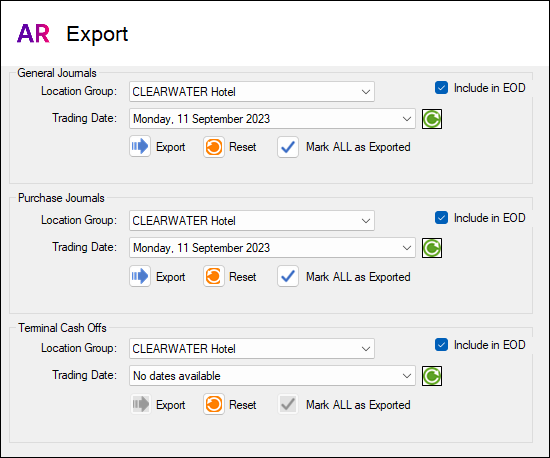
To access select the Export option in the MYOB AccountRight Basic menu in Data Portal. Provides a Venue with the ability to export General Journal, Supplier Invoice and Terminal Cash Off related data from Swiftpos and import them directly into MYOB AccountRight using MYOB AccountRight's API. General Journal data includes both Sales and Stock Movement transaction data. Supplier Invoice data refers to completed Supplier Invoices. Terminal Cash Offs refers to committed Terminal Cash Offs that have recorded a variance.
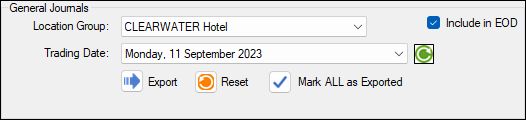
Used to export Sales and Stock Movement transaction data to MYOB AccountRight
- Venue - Select from the drop-down list the Venue for which data will be exported.
- Include in EOD - Select to ensure the export of data is included as part of the End of Day (EOD) process.
- Location - Select from the drop-down list the Location for which data will be exported.
- Trading Date - Select from the drop-down list of dates the date for which data will be exported and uploaded into MYOB AccountRight using MYOB AccountRight's API.
Notes ...
Once exported, the data will be flagged as exported and the date will be removed from the Trading Date drop-down list. This will ensure that the same data is NOT exported multiple times. It is important to note that even though the export for a specific Trading Date may NOT be completely successful, the Trading Date will still be removed from the drop-down list. It is therefore VERY IMPORTANT to always review the Event Logs to ensure that any ERRORS are investigated and resolved in an appropriate manner.
- Export - Select to invoke the export. Once completed a prompt will be displayed confirming completion. All exported Journals can be viewed in the Event Logs.
Notes ...
If no prompt is displayed and the export appears to have completed without the selected Trading Date being removed from the list of available dates, this may point to a failure of being able to connect to MYOB AccountRight. Check the Event Logs > Swiftpos Applications > Swiftpos SQL Application for any logging that may have occurred. Refer to Troubleshooting for more information.
- Reset - Select a Trading Date to ensure that General Journal related transactions for that date are flagged as NOT exported, so that they can be exported again. Select to display the following prompt:
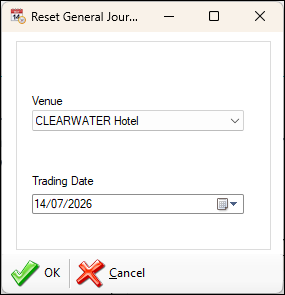
- Reset continued ...
- Venue - Select from the drop-down list the Venue for which data will be reset.
- Trading Date - Select from the drop-down list the Trading Date for which General Journal related transactions will be reset.
Notes ...
When resetting and exporting again, be sure that they DO NOT result in duplicates when imported into MYOB AccountRight.
- Mark ALL as Exported - Select to display the following prompt and thereby ensure ALL General Journal related data in the selected Venue is flagged as exported.
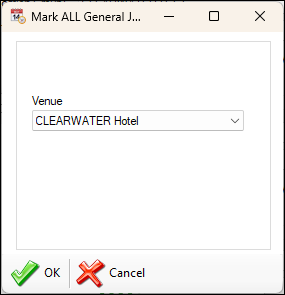
- Mark ALL as Exported continued ...
- Venue - Select from the drop-down list the Venue for which data will be flagged as exported.
Notes ...
This is usually recommended when initially configuring Swiftpos to export to MYOB AccountRight for the first time and also, when there is a requirement that all existing General Journal related transactions for a selected Location need to be flagged as exported.
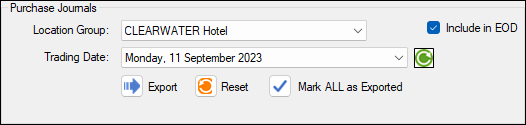
Used to export completed Supplier Invoice data to MYOB AccountRight
Notes ...
Invoices completed and having the same Posting Date as that of the selected Trading Date, will be selected for export. Also, DO NOT enter Credit Notes into Swiftpos as negative Supplier Invoices. These DO NOT export to MYOB AccountRight successfully. Instead raise a Credit Note using the Credit Note Type option available when entering Supplier Invoices.
- Venue - Select from the drop-down list the Venue for which data will be exported.
- Include in EOD - Select to ensure the export of data is included as part of the End of Day (EOD) process.
- Location - Select from the drop-down list the Location for which data will be exported.
- Trading Date - Select from the drop-down list of dates the date for which data will be exported and uploaded into MYOB AccountRight using MYOB AccountRight's API.
Notes...
Once exported, the data will be flagged as exported and the date will be removed from the Trading Date drop-down list. This will ensure that the same data is NOT exported multiple times. It is important to note that even though the export for a specific Trading Date may NOT be completely successful, the Trading Date will still be removed from the drop-down list. It is therefore VERY IMPORTANT to always review the Event Logs to ensure that any ERRORS are investigated and resolved in an appropriate manner.
- Export - Select to invoke the export. Once completed a prompt will be displayed confirming completion. All exported Invoices can be viewed in the Event Logs.
Notes ...
If no prompt is displayed and the export appears to have completed without the selected Trading Date being removed from the list of available dates, this may point to a failure of being able to connect to MYOB AccountRight. Check the Event Logs > Swiftpos Applications > Swiftpos SQL Application for any logging that may have occurred. Refer to Troubleshooting for more information.
- Reset - Select a Trading Date to ensure that Supplier Invoice related transactions for that date are flagged as NOT exported, so that they can be exported again. Select to display the following prompt:
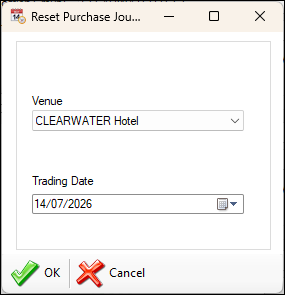
- Reset continued ...
- Venue - Select from the drop-down list the Venue for which data will be reset.
- Trading Date - Select from the drop-down list the Trading Date for which General Journal related transactions will be reset.
Notes ...
When resetting and exporting again, be sure that they DO NOT result in duplicates when imported into MYOB AccountRight.
- Mark ALL as Exported - Select to display the following prompt and thereby ensure ALL Supplier Invoice related data in the selected Venue is flagged as exported.
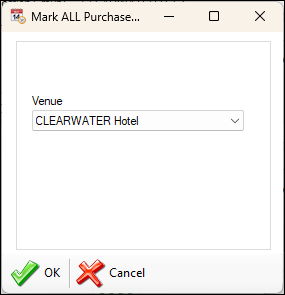
- Mark ALL as Exported continued ...
- Venue - Select from the drop-down list the Venue for which data will be flagged as exported.
Notes ...
This is usually recommended when initially configuring Swiftpos to export to MYOB AccountRight for the first time and also, when there is a requirement that all existing Supplier Invoice related transactions for a selected Location need to be flagged as exported.
Terminal Cash Offs Section ▲ ▼
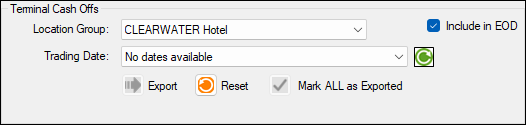
Used to export committed Terminal Cash Off data to MYOB AccountRight
Notes...
Terminal Cash Offs that have not recorded a variance will NOT be available for export.
- Venue - Select from the drop-down list the Venue for which data will be exported.
- Include in EOD - Select to ensure the export of data is included as part of the End of Day (EOD) process.
- Location - Select from the drop-down list the Location for which data will be exported.
- Trading Date - Select from the drop-down list of dates the date for which data will be exported and uploaded into MYOB AccountRight using MYOB AccountRight's API.
Notes...
Once exported, the data will be flagged as exported and the date will be removed from the Trading Date drop-down list. This will ensure that the same data is NOT exported multiple times. It is important to note that even though the export for a specific Trading Date may NOT be completely successful, the Trading Date will still be removed from the drop-down list. It is therefore VERY IMPORTANT to always review the Event Logs to ensure that any ERRORS are investigated and resolved in an appropriate manner.
- Export - Select to invoke the export. Once completed a prompt will be displayed confirming completion. All exported Invoices can be viewed in the Event Logs.
Notes...
If no prompt is displayed and the export appears to have completed without the selected Trading Date being removed from the list of available dates, this may point to a failure of being able to connect to MYOB AccountRight. Check the Event Logs > Swiftpos Applications > Swiftpos SQL Application for any logging that may have occurred. Refer to Troubleshooting for more information.
- Reset - Select a Trading Date to ensure that Terminal Cash Off related transactions for that date are flagged as NOT exported, so that they can be exported again. Select to display the following prompt:
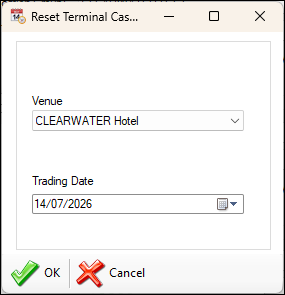
- Reset continued ...
- Venue - Select from the drop-down list the Venue for which data will be reset.
- Trading Date - Select from the drop-down list the Trading Date for which General Journal related transactions will be reset.
Notes...
When resetting and exporting again, be sure that they DO NOT result in duplicates when imported into MYOB AccountRight.
- Mark ALL as Exported - Select to display the following prompt and thereby ensure ALL Terminal Cash Off related data in the selected Venue is flagged as exported.
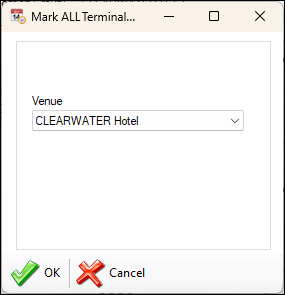
- Mark ALL as Exported continued ...
- Venue - Select from the drop-down list the Venue for which data will be flagged as exported.
Notes...
This is usually recommended when initially configuring Swiftpos to export to MYOB AccountRight for the first time and also, when there is a requirement that all existing Terminal Cash Off related transactions for a selected Location need to be flagged as exported.
MYOB Authorisation Screen ▲ ▼
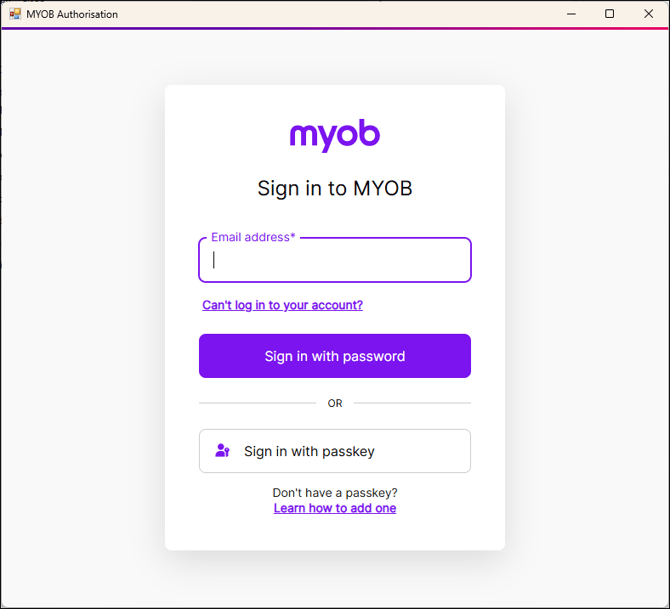
To access, select the Reset option in the Connection tab and then select the Test option. HERE. Used to enter a user's login credentials in order to be able to establish a connection to a Venue's MYOB AccountRight company file via the MYOB AccountRight API.
Select a Company File Screen ▲ ▼
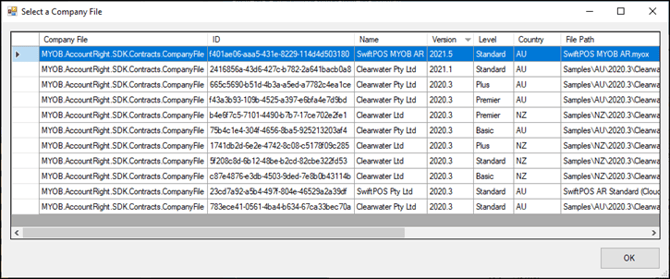
To access, select HERE. Used to select a MYOB AccountRight company File for the purposes of establishing a connection and exporting data to via the MYOB AccountRight API.
Settings Screen ▲ ▼
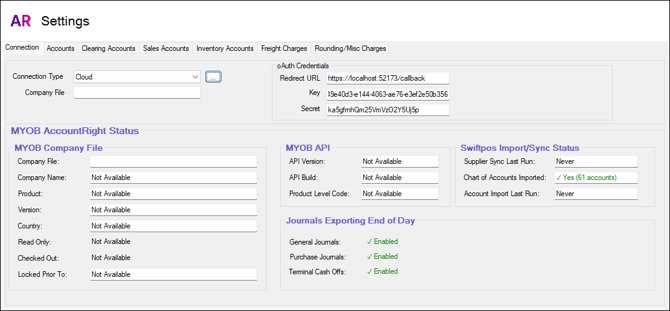
To access, select the Settings option in the MYOB AccountRight menu in Data Portal. Provides a Venue with the ability to configure the settings required to establish a connection to MYOB AccountRight, as well as import the Chart of Accounts and Import/Sync Suppliers from the Venue's MYOB AccountRight application. Also, MYOB AccountRight accounts can be assigned/mapped these to Location/Media, Location/Master Group combinations and Locations.
Tabs ▲ ▼
Connection Tab ▲ ▼
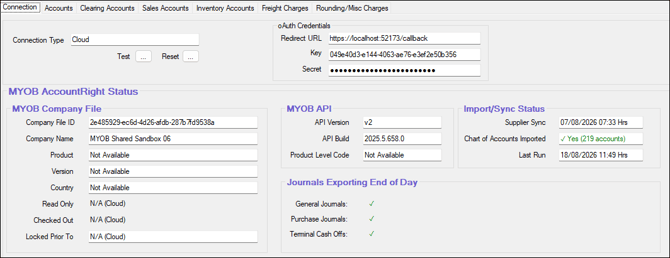
Used to establish a connection to the Venue's AccountRight application and their company file.
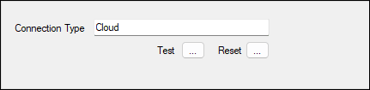
- Connection Type - Displays the type of connection currently supported.
- Test - Select to test the connection to the MYOB AccountRight application.
- Reset - Select to reset the connection credentials and force the user to login by displaying the MYOB AccountRight login prompt the next time the Test option is selected.
oAuth Credentials Section
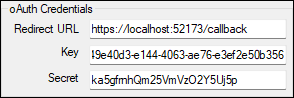
Used to display as well as allows for the entry of the following credentials, which MYOB provides to establish a connection to the Venue's AccountRight application and select their company file.
- Redirect URL
- Key
- Secret
MYOB AccountRight Status Section
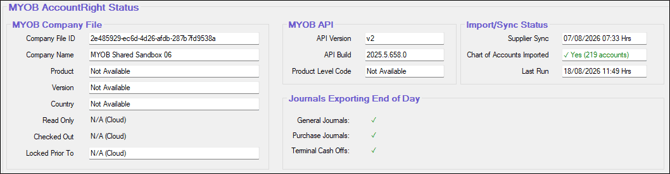
Displays information relating to the Venue's MYOB AccountRight application that may prove to be useful when required to provide information for support purposes.
Accounts Tab ▲ ▼
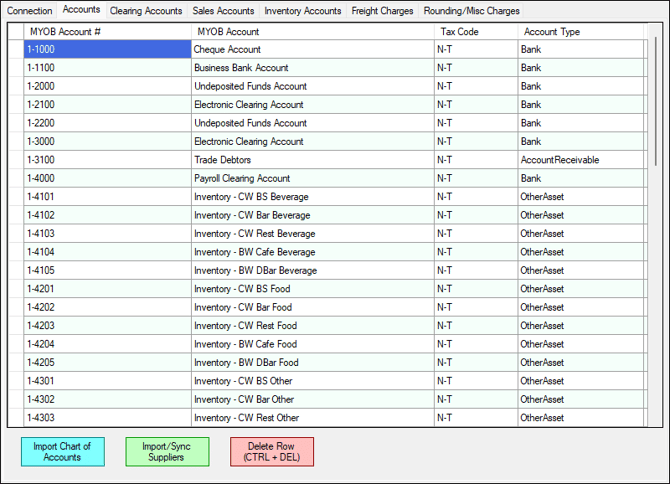 Example of the Accounts tab after importing the Chart of Accounts from MYOB AccountRight.
Sections ▲ ▼
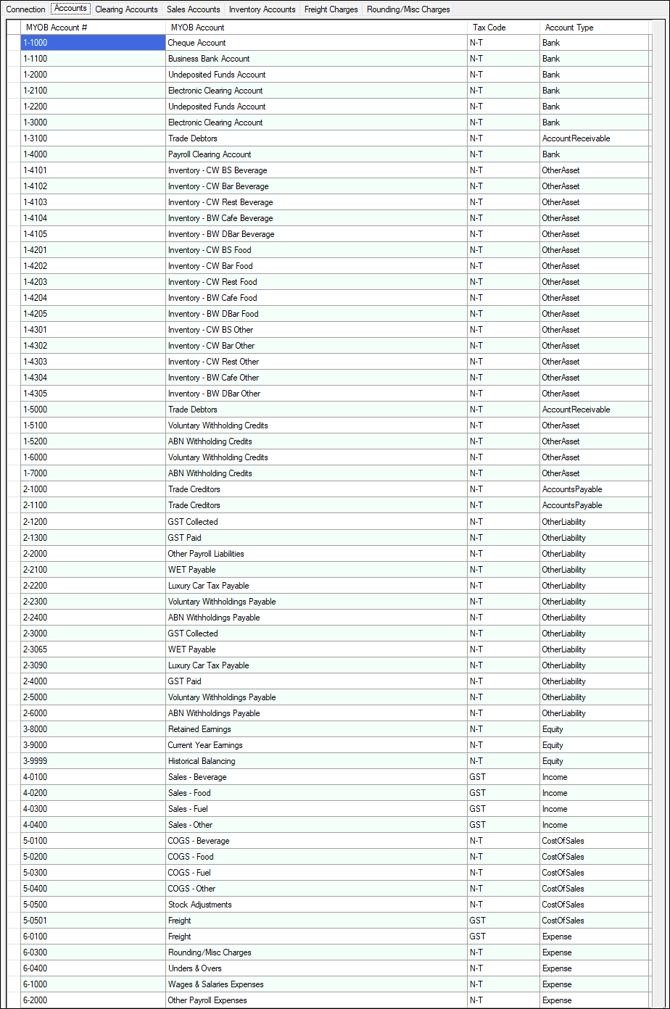
Lists the MYOB AccountRight accounts along with their MYOB Account #, MYOB Account, Tax Code and Account Type.
Notes ...
The values of the Account attributes listed above are as they were when last imported from MYOB AccountRight. To view the most up to date values, re-import the Chart of Accounts.

- Import Chart of Accounts - Select to import the Chart of Accounts from MYOB AR.
- Import/Sync Suppliers - Select to Import / Sync Suppliers from MYOB AR. Refer HERE for more information.
- Delete Row - Select to delete the currently selected row.
Account Assignment / Mapping Tab ▲ ▼
Notes ...
It is recommended that all rows, in each of the tabs, be assigned/mapped to an account or to the Exclude from Export account. Use the Exclude from Export account (listed as the first entry in the Account drop-down lists in the assigning/mapping tabs) to ensure specific Location/Media, Location/Master Group and Location entries are excluded from being exported.
When assigning/mapping to the Exclude from Export account, it can potentially result in unbalanced Journals being generated and these will NOT successfully import into MYOB AccountRight.
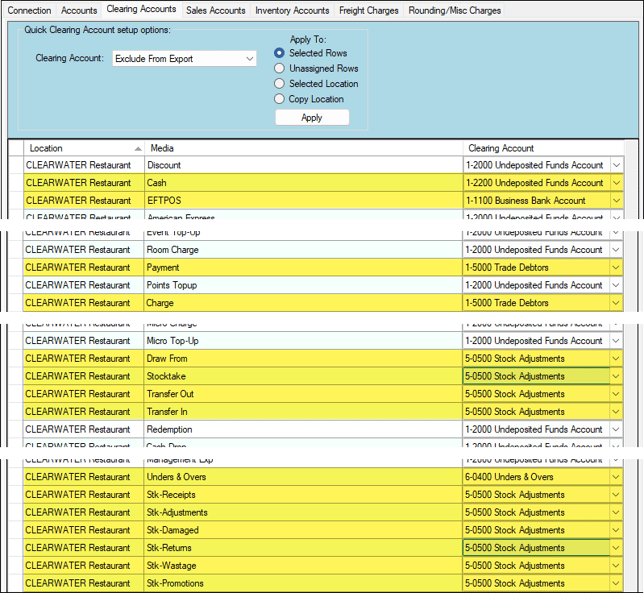 Example of account assignments/mappings for one Location
Used to assign/map MYOB AccountRight accounts to Location/Media combinations.
Header Section
- Filters
- Clearing Account - Select from the drop-down list the MYOB AccountRight account that will be used to assign/map to the Location/Media combination.
- Apply To - Use to assign/map the selected MYOB AccountRight account to the rows in the grid by using one of the following options:
- Selected Rows - Select to assign/map to all rows that are currently selected in the grid.
- Unassigned Rows - Select to assign/map to all rows that are currently DO NOT have an account assigned/mapped in the grid.
- Selected Location - Select to assign/map to all rows in the grid that are associated with a selected Location.
- Copy Location - Select to copy the assignments/mappings of a selected Location to another.
Grid Section
Displays a list of Location/Media combinations that are required to be assigned/mapped to a MYOB AccountRight account.
- Location - Displays the Location.
- Media - Displays the Media.
- Clearing Account - Displays/Select the MYOB AccountRight account from the drop-down list that is to be assigned/mapped to the Location/Media combination.
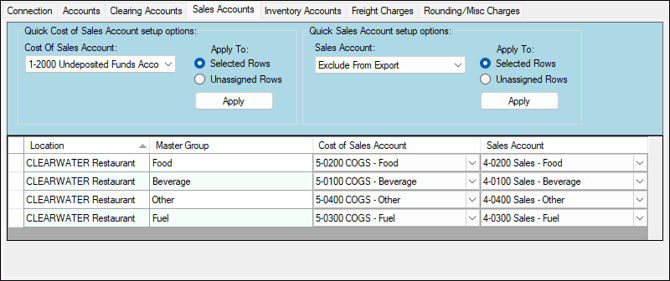 Example of account assignments/mappings for one Location
Used to assign/map MYOB AccountRight Sales Accounts to Location/Master Group combinations and used when exporting General Journals.
The Accounts assigned/mapped in the Cost of Sales Account column above, will be used when exporting General Journals. Cost of Sales Accounts are normally referred to as Direct Cost accounts in MYOB AccountRight and are used to post the Cost of Goods sold.
The Accounts assigned/mapped in the Sales Account column above, will be used when exporting General Journals. Sales Accounts are normally referred to as Revenue accounts in MYOB AccountRight and are used to post the value of revenue for goods sold.
Notes ...
If the Exclude from Export Account is used to assign/map a Location/Master Group combination, then it MUST be selected in both columns for the same entry. That is, select in both the Cost of Sales and Sales Account columns.
Header Section
Grid Section
Displays a list of Location/Master Group combinations that are required to be assigned/mapped to a MYOB AccountRight Sales account.
- Location - Displays the Location.
- Master Group - Displays the Master Group.
- Cost of Sales Account - Displays/Select the MYOB AccountRight Cost of Sales account from the drop-down list that is to be assigned/mapped to the Location/Master Group combination.
- Sales Account - Displays/Select the MYOB AccountRight Sales account from the drop-down list that is to be assigned/mapped to the Location/Master Group combination.
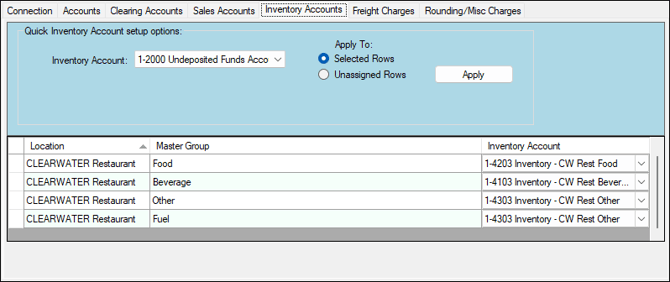
Example of account assignments/mappings for one Location
Used to assign/map MYOB AccountRight Inventory accounts to Location/Master Group combinations and used when exporting General Journals and Supplier Invoices.
Header Section
Grid Section
Displays a list of Location/Master Group combinations that are required to be assigned/mapped to a MYOB AccountRight Inventory account.
- Location - Displays the Location.
- Master Group - Displays the Master Group.
- Inventory Account - Displays/Select the MYOB AccountRight Inventory account from the drop-down list that is to be assigned/mapped to the Location/Master Group combination.
An example of the setup of an Inventory Account in MYOB AccountRight can be seen below:
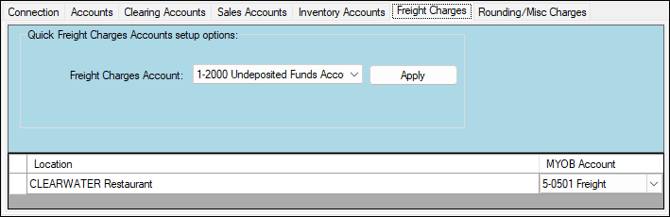 Example of account assignments/mappings for one Location
Used to assign/map MYOB AccountRight Freight accounts to Locations and used when exporting Supplier Invoices.
Header Section
Grid Section
Displays a list of Location/Master Group combinations that are required to be assigned/mapped to a MYOB AccountRight Freight account.
- Location - Displays the Location.
- MYOB Account - Displays/Select the MYOB AccountRight Freight account from the drop-down list that is to be assigned/mapped to the Location.
Rounding/Misc Charge Accounts Tab ▲ ▼
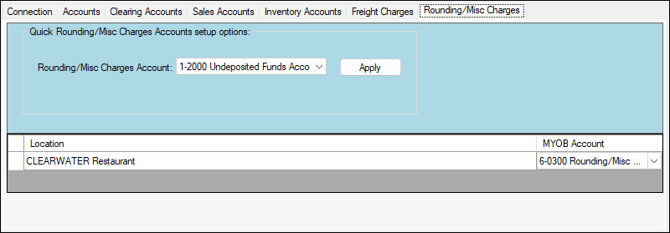 Example of Account assignments/mappings for one Location
Used to assign/map MYOB AccountRight Rounding/Miscellaneous Charge Accounts to Locations and used when exporting Supplier Invoices.
Header Section
Grid Section
Displays a list of Locations that are required to be assigned/mapped to a MYOB AccountRight Rounding/Miscellaneous Charge account.
- Location - Displays the Location.
- MYOB Account - Displays/Select the MYOB AccountRight Rounding/Miscellaneous Charge account from the drop-down list that is to be assigned/mapped to the Location.
Troubleshooting ▲ ▼
- A Blank MYOB Authorisation Prompt
- A CONNECTION was NOT able to be ESTABLISHED with MYOB AR
- MYOB AccountRight returned the following error: 401 Unauthorised
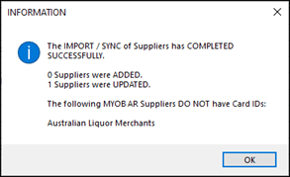
- The IMPORT / SYNC of Suppliers has COMPLETED SUCCESSFULLY
- The remote server returned an error: (404) Not Found
- The remote server returned an error: (500) Internal Server Error
- Trading Dates were NOT able to be LOADED / REFRESHED
- 210 Supplier has not supplied ABN number
A Blank MYOB Authorisation Prompt ▲ ▼
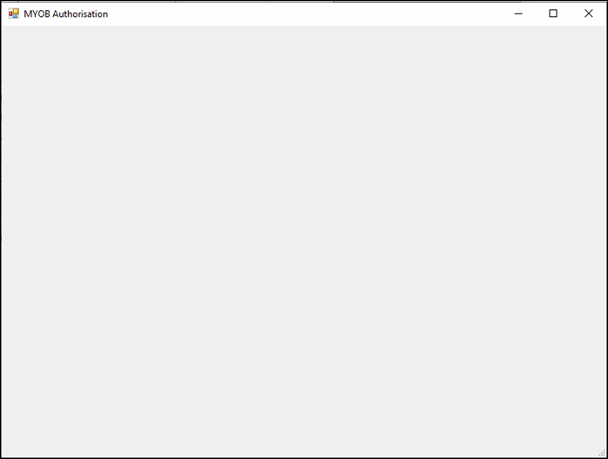
Occurs
When establishing a Cloud connection to MYOB AccountRight, the MYOB Authorisation / Sign In window opens but the page is blank and the MYOB login form is not displayed.
Explanation
The Microsoft Edge WebView2 Runtime required to display the MYOB authentication page is not installed on the computer running Swiftpos Back Office.
The WebView2 Runtime is commonly already installed on standard Windows 10 and Windows 11 workstations, but may not be present on some Windows Server, Windows IoT, LTSC or other managed/minimal Windows environments.
Action To Be Taken
- Close Swiftpos Back Office.
- Download and install the Microsoft Edge WebView2 Evergreen Bootstrapper:
https://go.microsoft.com/fwlink/p/?LinkId=2124703 - Reopen Swiftpos Back Office.
- Retry the MYOB AccountRight connection.
- The WebView2 Runtime only needs to be installed on the computer where the MYOB connection/authentication is being initiated.
- Check if WebView2 is installed. If required, the WebView2 Runtime can be checked using PowerShell:
$paths = @( |
- If WebView2 is installed, a version number will be returned in the pv field. If no result is returned, install the Evergreen Bootstrapper above.
A CONNECTION was NOT able to be ESTABLISHED with MYOB AR ▲ ▼
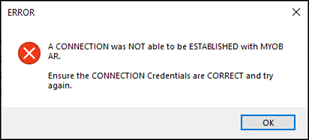
Error
A CONNECTION was NOT able to be ESTABLISHED with MYOB AR.
Occurs
When attempting to establish a connection with MYOB AccountRight using a Local Connection Type, and after entering the MYOB AccountRight User credentials in the Login prompt.
Explanation
This error is usually returned by MYOB AccountRight when the MYOB Add-On Connector is NOT running.
Action To Be Taken
Ensure the MYOB Add-On Connector is running and try again. Refer HERE for more information.
MYOB AccountRight returned the following error: 401 Unauthorised ▲ ▼
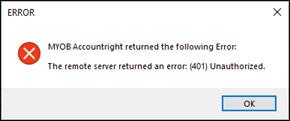
Error
MYOB AccountRight returned the following error: 401 Unauthorised
Occurs
When attempting to establish a connection with MYOB AccountRight using a Local Connection Type, and after entering the MYOB AccountRight User credentials in the Login prompt.
Explanation
This error is returned by MYOB AccountRight when an attempt is being made to login into MYOB AccountRight via the API and the login details provided are incorrect or the user is insufficiently authorised.
Action To Be Taken
Ensure the correct login details are provided and/or the user name entered has the correct permissions within MYOB AccountRight. Refer HERE for more information.
The IMPORT / SYNC of Suppliers has COMPLETED SUCCESSFULLY ▲ ▼
Error
MYOB AccountRight returned the following error: 401 Unauthorised
Occurs
After Importing/Syncing of Suppliers
Explanation
This Information prompt is displayed as a result of the Importing/Syncing of Suppliers, and provides the results of the Import/Sync process.
Action To Be Taken
None, if NO Suppliers are reported that could NOT be SYNCED. If Suppliers are reported, then those Suppliers will need to be configured in MYOB AccountRight so that the Suppliers can be Imported/Synced and subsequently their Invoices exported. Once configured try importing/syncing Suppliers again.
Notes ...
Suppliers created in MYOB AccountRight and imported into Swiftpos for the first time (that is, they are also created in Swiftpos via the Importing/Syncing of Suppliers process, will need to be flagged as Active in Swiftpos in order to be able to be able to receipt goods from them.
The remote server returned an error: (404) Not Found ▲ ▼
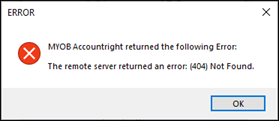
Error
The remote server returned an error: (404) Not Found.
Occurs
When:
-
Exporting General Journals
- Explanation - An account does not exist in MYOB AccountRight for a Journal that is being exported. This can be caused by an account being deleted in MYOB AccountRight and the account is still mapped in Swiftpos, and thus the export is attempting to export a Journal that is using the account that can't be found in MYOB AR.
- Action To Be Taken - It is recommended to ensure that all mappings currently used are mapped to Accounts in MYOB AccountRight that currently exist. If the account in question is not easily identified, then it may be necessary to take drastic measures and do the following (However, this should only be done as a last resort, and should only be done in a TEST environment first):
- Backup the Swiftpos database.
- Delete all Accounts listed in the Data Portal > MYOB AccountRight > Settings > Accounts tab using the Delete Row button below the grid.
- Once all Accounts are deleted in the Accounts tab, exit the Data Portal and reopen it.
- Import the Chart of Accounts.
- Re-map all the remaining tabs in the Settings screen to ensure that all entries in all tabs (to the right of the Accounts tab) are mapped to a MYOB AccountRight account.
- Retry exporting the General Journal again.
- Exporting Purchase Journals
- Explanation - A Supplier has not been configured in MYOB AccountRight for an Invoice that is being exported.
- Action To Be Taken:
- Identify the Supplier in question and add it to MYOB AR.
- Ensure the Supplier in MYOB AccountRight is given a Card ID that is equivalent to the Swiftpos Supplier's MYOB AR Card ID field.
- Import/Sync Suppliers.
- Retry exporting the Purchase Journal again.
The remote server returned an error: (500) Internal Server Error ▲ ▼
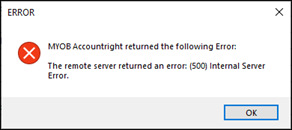
Error
The remote server returned an error: (500) Internal Server Error
Occurs
When sometimes trying to connect to a company file using AccountRight 2020.3, when a previous version of AccountRight hasn't been installed before.
Explanation
Since AccountRight version 2020.2 release, SQL CE (Compact Edition) 3.5 is no longer bundled with AccountRight versions since 2020.2. Instead, it is now bundled with SQL CE 4.0. However, the Add-On Connector still requires some aspects of SQL CE 3.5 to function correctly.
Action To Be Taken
It is recommended to download and install SQL CE 3.5 from HERE. If this fails to resolve the issue, we recommend that you download and install AccountRight 2020.1. This can be installed alongside 2020.3 and does not need to be used. This version will install the necessary SQL CE 3.5 components.
Trading Dates were NOT able to be LOADED / REFRESHED ▲ ▼
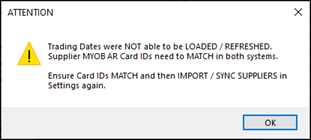
Error
Trading Dates were NOT able to be LOADED / REFRESHED. Supplier MYOB AR Card IDs need to MATCH in both systems.
Occurs
- When the Export option is selected in the Data Portal > MYOB AccountRight menu, OR
- When the Refresh Trading Dates option in the Purchase Journals section of the Data Portal > MYOB AccountRight > Export screen is selected.
Explanation
The prompt is displayed when Suppliers in Swiftpos do NOT have a MYOB AR Card ID value set, and for which Invoices have been found that have not been exported.
Action To Be Taken
- If Purchase Journals are NOT required to be exported, then this prompt can be ignored.
- If Purchase Journals are required to be exported, then ensure the following is done:
- Ensure all Suppliers in Swiftpos, that have Invoices, have a MYOB AR Card ID value set. This value should be exactly the same as the Suppliers Card ID set in MYOB AccountRight.
- In Data Portal > MYOB AccountRight > Settings > Accounts tab - Import/Sync Suppliers again.
- Now once this has been done for all Suppliers that have Invoices that have not been exported, this prompt should not be displayed anymore.
210 Supplier has not supplied ABN number ▲ ▼
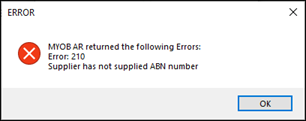
Error
Error: 210 Supplier has not supplied ABN number
Occurs
When sometimes trying to export Purchase Journals.
Explanation
When a Supplier Invoice has been selected for export (when exporting Purchase Journals) and the Supplier associated with the Invoice does not have an ABN number configured in MYOB AR.
Action To Be Taken
Ensure that all Suppliers associated with the Invoices being exported have ABN numbers configured in MYOB AR. Refer HERE for more information.
End of article ▲