
Subjects ▲ ▼
About ▲ ▼
What To Consider? ▲ ▼
- It is STRONGLY RECOMMENDED that backups are configured and scheduled for all Swiftpos installations, so that these can then be stored off site to mitigate risk in the event of fire, flooding, etc.
- It is not essential to close down the Swiftpos Back Office application prior to performing a backup. Use of the software is allowed while a backup is in progress.
When Is It Used? ▲ ▼
Used to backup the Swiftpos SQL database to a file.
Example ▲ ▼
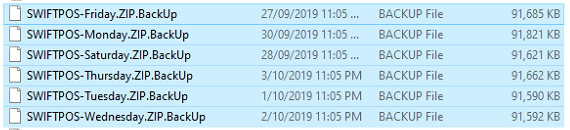
Example of how backups will look, and each week the same files will be replaced.
Screens ▲ ▼
Backup Database Screen ▲ ▼
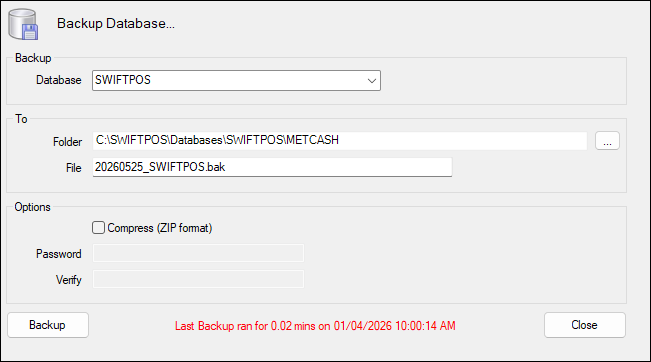
To access, select the Backup Database option in the SQL Tools menu. Used to backup the Swiftpos SQL database to a file.
Sections ▲ ▼
Backup Section ▲ ▼

-
Database - Select from the drop-down list of available database(s), the database to backup. To backup the Swiftpos Back Office database select SWIFTPOS.
To Section ▲ ▼

- Folder - Displays/Set the folder in which the backup file will be created.
- File - Displays/Enter the name to be given to the backup file.
Options Section ▲ ▼

- Compress (ZIP format) - Select to ensure the backup file is saved as a .zip file and optionally provide a password:
- Password - Enter a password to ensure the backup file is password protected.
- Verify - Enter the password entered above to verify.
Notes ...
Ensure the password is recorded for safe keeping, so that the backup can be restored at a future date.
- Verify Password - Re-enter the password entered above.
Footer Section ▲ ▼

- Backup- Select invoke the backup process.
- Last Backup information - Displays the date/time and duration the last time a backup was made.
- Close - Select to exit the screen.
End of article ▲