
This outlines How To Import / Sync Suppliers with MYOB AccountRight in Back Office.
Subjects ▲ ▼
About ▲ ▼
What Is Required? ▲ ▼
- For Venues with Suppliers configured in both Swiftpos and MYOB AccountRight:
- When setting up an existing Swiftpos site for the first time to export Invoice related data to MYOB AccountRight, we recommend the following:
- Identify all Suppliers in Swiftpos that will require Invoice data to be exported to MYOB AccountRight. These are generally all currently Active Suppliers in Swiftpos.
- For each of the Suppliers identified above and for which a corresponding Supplier exists in MYOB AccountRight, ensure that the value of the Swiftpos MYOB AR Card ID field is the same as the Card ID field held against the same Supplier's Card details in MYOB AccountRight. This will ensure Suppliers are matched in both systems and will not result in duplicate Suppliers being created in Swiftpos.
- For each of the Suppliers identified above and for which NO corresponding Supplier exists in MYOB AccountRight, ensure the Supplier is created in MYOB AccountRight and has a Card ID field value the same as the Supplier's MYOB AR Card ID field in Swiftpos.
- When setting up an existing Swiftpos site for the first time to export Invoice related data to MYOB AccountRight, we recommend the following:
- For Venues where Swiftpos is being installed for the first time:
- When setting up a new Swiftpos site or the first time to export Invoice related data to MYOB AccountRight, we recommend the following:
- Run the Import/Sync Suppliers process. This will add Suppliers into Swiftpos for all MYOB AccountRight Active Suppliers that have a Card ID value set.
- When setting up a new Swiftpos site or the first time to export Invoice related data to MYOB AccountRight, we recommend the following:
- An internet connection is required to download software updates from the Web. For Venues that do not have internet connections, software updates can be downloaded in the form of an install file from the Web where there is internet connection and then installed manually at the Venue.
What To Consider? ▲ ▼
- Please be aware that the Import/Sync Suppliers process will NEVER add/update Supplier related information in MYOB AccountRight.
- Suppliers that are flagged as Inactive in MYOB AccountRight will NOT be Imported/Synced with Swiftpos Suppliers.
- The Card ID value in MYOB AccountRight associated with a Supplier is used to match with the MYOB AR Card ID field associated with Suppliers in Swiftpos. Active Suppliers in MYOB AccountRight with a Card ID, that cannot be matched to a Swiftpos Supplier (using the MYOB AR Card ID) will be added (by the Import/Sync Suppliers process) in Swiftpos along with the address details, etc.
- Supplier Name and Address details will ONLY be imported/updated in Swiftpos when a Supplier is found in MYOB AccountRight and does not exist in Swiftpos and is imported for the first time, or when a Supplier is matched in both applications. Supplier Name and Address details will NOT be updated in MYOB AccountRight as a result of the Import/Sync Suppliers process. Only Swiftpos Supplier Name and Address details will be updated.
When Is It Used? ▲ ▼
Used to Import / Sync Suppliers from MYOB AccountRight.
How To? ▲ ▼
- Review About and ensure the steps outlined HERE are addressed.
- Import Suppliers?
- Sync Suppliers?
How To Import Suppliers? ▲ ▼
The importing part of the Import/Sync Suppliers process refers to the importing of Suppliers into Swiftpos from MYOB AccountRight. These Suppliers must meet the following criteria to be imported:
- The Supplier is flagged as an Active Supplier in MYOB AccountRight.
- The Supplier has a Card ID value set.
- The Supplier has not been imported into Swiftpos before.
Once a Supplier has been identified as being eligible for importing, the Name, Card ID and Address details relating to that Supplier will be imported.
How To Sync Suppliers? ▲ ▼
The syncing part of the Import/Sync Suppliers process refers only to the updating/syncing of the Suppler Name, MYOB AR Card ID and Address details in Swiftpos to ensure these are in sync with MYOB AccountRight. Card ID values associated with MYOB AccountRight Suppliers are updated in the corresponding MYOB AR Card ID field in Swiftpos. Suppliers must meet the following criteria to be synced:
- The Supplier is flagged as an Active Supplier in MYOB AccountRight.
- The Supplier has a Card ID value set.
- The Supplier previously existed in Swiftpos and has the same Card ID value set in the MYOB AR Card ID field.
- The Supplier was previously imported into Swiftpos as part of a previous MYOB AccountRight Import/Sync Suppliers process, and therefore a link now exist between the two application for that Supplier.
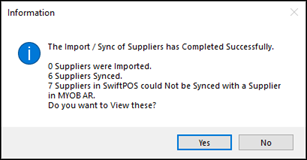
Once the Import/Sync process has completed, an Information prompt will be displayed similar to the one below:
 |
|
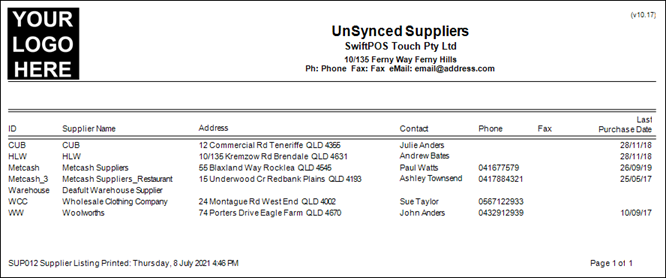
x Suppliers were Imported - Refers to the number of Suppliers for which NO match was found in Swiftpos and as a result was imported from MYOB AccountRight. x Suppliers Synced - Refers to the number of Suppliers for which a match was found between Swiftpos and MYOB AccountRight. based on the matching of the Swiftpos MYOB AR Card ID field and the MYOB AR Card ID field. x Suppliers in Swiftpos could Not be Synced with a Supplier in MYOB AccountRight - Refers to the number of Active Swiftpos Suppliers for which a no match was found in MYOB AccountRight. These Suppliers should be added to MYOB AccountRight or made Inactive in Swiftpos. To view a list of these, select Yes in the prompt. A sample of the report generated can be seen below. |
End of article ▲