
This outlines How To Import The Chart Of Accounts Into Swiftpos for either the XERO Basic Or XERO Advanced interfaces.
Subjects ▲ ▼
About ▲ ▼
What Is Required? ▲ ▼
- The Venue for which the Chart of Accounts is to be imported, must be listed in the Venue Settings tab for XERO Basic and for XERO Advanced.
When Is It Used? ▲ ▼
When:
- Venues are implementing either the XERO Basic Or XERO Advanced interface in Back Office for the first time, to interface with their XERO application.
- Venues are already using either the XERO Basic Or XERO Advanced interface, and require an up to date version of XERO's Chart of Accounts to be imported into Swiftpos.
How To Import The Chart Of Accounts Into Swiftpos? ▲ ▼
Do as follows:
- In the Venue Settings tab, for XERO Basic and for XERO Advanced do as follows:
- Select the Import Chart of Accounts button.
- At the prompt select Yes.
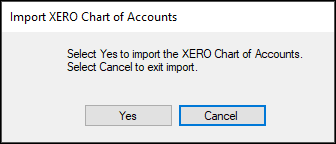
- Continued ...
- The importing of the Chart of Accounts will commence.
- Once completed, the following notification will be displayed:
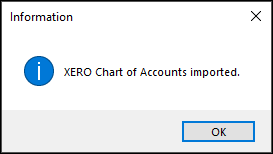
- Continued ...
- The imported Chart Of Accounts can be reviewed by selecting the Accounts tab in either XERO Basic Or XERO Advanced.
End of article ▲