
This outlines the information and the steps that are needed to familiarise oneself with the eBet Evolve interface.
Subjects ▲ ▼
About ▲ ▼
What Is It? ▲ ▼
The eBet Evolve integration enhances the existing Metropolis (eBet) NetPOS integration by introducing contactless NFC member identification at the Point of Sale.
What Is Required? ▲ ▼
- Swiftpos v10.79.18+
- Venues must have a current Software Enhancement Licence to use this feature.
- Venues will need to be registered for the Swiftpos Metropolis (eBet) and eBet Evolve interfaces in order to gain access to this feature. Email registrations@Swiftpos.com.au to obtain the appropriate registration.
- Venue specific specific encryption keys and identifiers supplied by eBet. For example:
- Google Smart Tap - Collector ID (for example, 85364537) and Private Key file.
- Apple VAS - Pass Type Identifier (for example, pass.dev.au.com.cherrypay) and Private Key file.
- Venues must have dedicated smart-wallet NFC reader available, that is certified for Apple VAS and Google Smart Tap. For example:
- Primary Recommended Reader - ACS WalletMate II (ACR1552U-MW)
- Native USB CCID / PC/SC compliant.
- Officially supported by the SwiftPOS integration using ACSVasApi.dll.
- Alternative Reader - Elatec TWN4 MultiTech 2 BLE.
- Primary Recommended Reader - ACS WalletMate II (ACR1552U-MW)
Notes ...
Standard NFC readers (such as the ACS ACR122U) only support reading unencrypted UID or physical MIFARE Classic NDEF records. They cannot decrypt Apple VAS or Google Smart Tap passes and are not suitable for mobile wallet rollouts.
What Is Supported? ▲ ▼
- Supported NFC Formats & Record Payloads - When a Member taps their card or mobile device, the reader delivers a formatted text string to Swiftpos. For example:
|
Credential Type |
Technology / Protocol |
Payload Format |
Example Payload |
|---|---|---|---|
|
Physical Card |
MIFARE Classic (UTF-8 NDEF Text) |
|
|
|
Apple Wallet |
Apple VAS |
|
|
|
Google Wallet |
Google Smart Tap |
|
|
- Member ID - The primary 10-digit magnetic card number configured in eBet (combining Venue prefix, expiry/sub year, card count, and Member badge number).
- Type Identifier - Identifies the medium (p = physical card, a = Apple Wallet, g = Google Wallet).
- Extensibility - Any optional or reserved fields (such as id:text or future tags) are automatically ignored by SwiftPOS without interrupting transaction processing.
When Is It Used? ▲ ▼
Used to extend the Metropolis (eBet) interface, and allows Members to tap their physical eBet Evolve NFC membership card or present their digital pass in Apple Wallet or Google Wallet to an approved NFC reader connected to SwiftPOS Touch POS device, rather than swiping a magnetic stripe card or scanning a barcode
Key Points
-
Extends Existing Functionality - This is an addition to the standard Metropolis (eBet) interface, not a standalone replacement. All downstream Member validation, point balances, promotions, rewards, and redemption workflows continue to operate through the standard eBet POS Gateway.
-
Seamless Ingestion - The NFC reader decrypts the credentials and sends the standard 10-digit magnetic card number into the existing eBet lookup workflow.
-
Dual Wallet Support - Supports both Apple VAS (Value Added Services) and Google Smart Tap protocols.
How To? ▲ ▼
How To GET STARTED? ▲ ▼
- Review About and ensure the steps outlined HERE are addressed.
- Before connecting the NFC reader to a Touch POS device, venue keys provided by eBet must be loaded into the reader hardware using the ACS NFC Config Tool (VASTestToolUsbSerial.exe).
Notes ...
Initial pilot Venues may share test keys, but each production Venue will receive unique keys and Collector IDs from eBet. Ensure the correct venue keys are extracted locally prior to configuration.
- Configure Google Smart Tap (Slot 0)
- Configure Apple VAS (Slot 1)
- Configure The NetPOS Service
- Configure The Touch POS Device
Configure Google Smart Tap (Slot 0) ▲ ▼
Do as follows:
- Connect the ACS WalletMate II reader to the configuration PC via USB.
- Launch the VASTestToolUsbSerial.exe application and select Connect.
- Select Google Smart Tap.
- Browse to and select the Venue's Google Private Key file.
- Enter the Venue's Collector ID (for example, 85364537).
- Set LTPK Version to 1.
- Set Slot to 0.
- Select Save to changes to the NFC reader's firmware.
Configure Apple VAS (Slot 1) ▲ ▼
Do as follows:
- In the same tool (with reader connected), select Apple VAS.
- Browse to and select the Venue's Apple Private Key file.
- Enter the Venue's Pass Type Identifier (for example, pass.dev.au.com.cherrypay or Venue-specific certificate ID).
- Set Slot to 1.
- Select Save to changes to the NFC reader's firmware.
Configure The NetPOS Service ▲ ▼
- In Back Office, navigate to the NetPOS Registration screen. Refer HERE for more information.
- Verify that the Metropolis (eBet) interface is appropriately configured. For examole, it has the correct Host Name and Port Number. Refer HERE for more information.
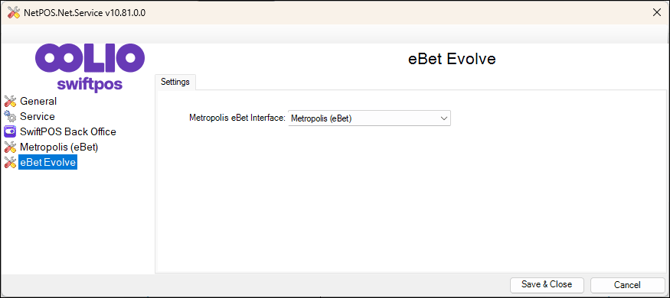
- Ensure that the eBet Evolve interface has been added and configured appropriately. Refer HERE for more information.
Configure The Touch POS Device ▲ ▼
Do as follows:
Configure the NFC Card Reader ▲ ▼
- Connect/Plug in the NFC Card Reader device to the Touch POS device.
- In Touch POS, navigate to the Peripherals and Devices screen.
- Add the NFC Card Reader as a new peripheral to Touch POS. Refer HERE for more information.
- Once added configure the NFC Card Reader peripheral as follows:
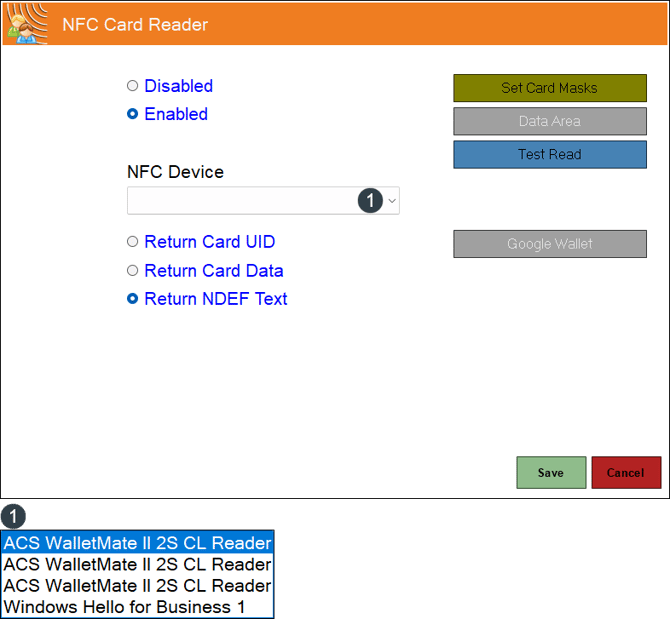
- Select the Enabled option to enable the NFC Card Reader.
- Select the appropriate option from the NFC Device drop-down list.
- Select the Card Mask option to configure the Venue's card format to capture and route the 10-digit number to NetPOS. For example, (2007)#####X@@@@@@@@@@.
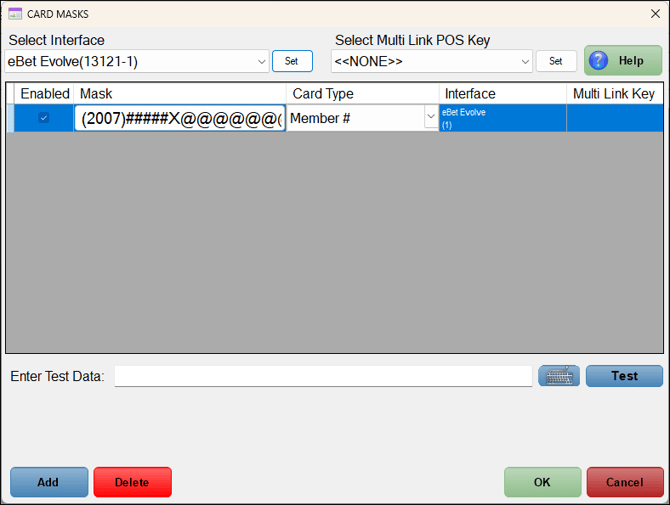
- Select OK to save the changes and exit.
Configure the Customer (#102) POS Key ▲ ▼
- Navigate to the Keyboards screen in Back Office and locate the Layout that has the Customer (#102) POS Key, or add the Customer (#102) POS Key to an appropriate Layout.
- With the Customer (#102) POS Key selected the More Settings option to display the Customer Settings screen.
- Ensure the Selected Interface Type option has the eBet Evolve option set. For example:
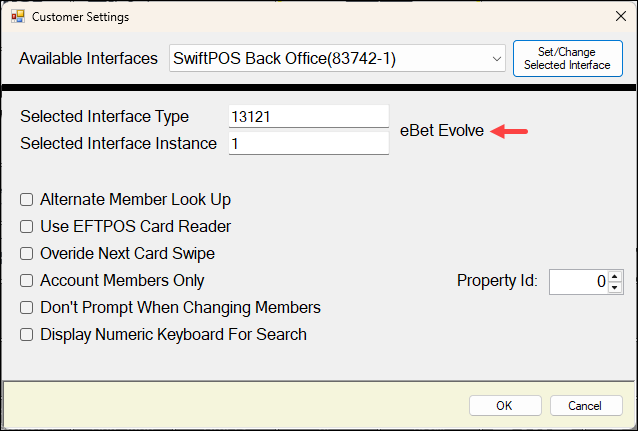
- Configure any remaining settings as is required by the Venue.
- Select the OK option to save the changes and exit.
- Ensure a Full Update is sent to all the Touch POS devices that will be using the POS Key. Refer HERE for more information.
How To Lookup An eBet Member? ▲ ▼
In Touch POS, do as follows:
-
Add items/products to the sales grid.
- The Member presents either their:
- eBet Membership Card - Tap the physical card against the NFC Card Reader device.
- Apple Wallet or Google Pay App - Hold their mobile phone or other device (smartwatch) near the NFC Card Reader device.
- Once their Card or App has been validated, the Member's details (for example, their name, tier, available points, etc.) will be displayed in the sales grid. If the Member cannot be validated, a Cannot find Member in eBet message will be presented to the Touch POS operator.
Screens ▲ ▼
eBet Evolve Settings Screen ▲ ▼
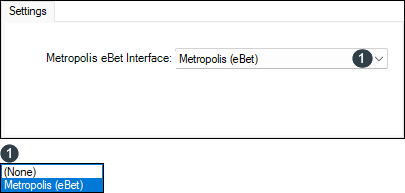
To access, refer to HERE. Used to configure the NetPOS settings required to implement the eBet Evolve interface for Member Lookups.
- Metropolis eBet Interface - Select from the drop-down list the required interface.
Troubleshooting ▲ ▼
- Cannot find Member in eBet
- Interface / Registration Error
- Multiple passes prompt on mobile device
- Reader does not respond to Apple/Google Wallet
- Touch crashes or fails to initialize reader
Cannot find Member in eBet ▲ ▼
Cause
Member card number not provisioned in eBet, or card mask mismatch.
Action To Be Taken
Verify the Member's 10-digit mag card number exists in the eBet venue database. Check that the Card Mask in Touch Peripherals matches the venue's numbering scheme.
Interface / Registration Error ▲ ▼
Cause
Missing NetPOS registration.
Action To Be Taken
Both Metropolis (eBet) and eBet evolve licenses must be active. Confirm registration under SwiftPOS Back Office registration settings.
Multiple passes prompt on mobile device ▲ ▼
Cause
Shared test Collector ID across multiple venue passes.
Action To Be Taken
Normal in multi-pass test environments sharing a test Collector ID. In production, venues use unique Collector IDs preventing device prompt conflicts.
Reader does not respond to Apple/Google Wallet ▲ ▼
Cause
Missing keys or incorrect slot assignment in reader.
Action To Be Taken
Re-run VASTestToolUsbSerial.exe. Confirm Google is saved to Slot 0 and Apple is saved to Slot 1 with correct venue credentials.
Touch crashes or fails to initialize reader ▲ ▼
Cause
Missing runtime DLL.
Action To Be Taken
Confirm ACSVasApi.dll exists in the SwiftPOS Touch installation folder. Re-run the SwiftPOS v10.79.18+ updater if absent.
End of article ▲