
IMPORTANT
The current recommendation when it comes to ordering and deliveries is:
-
Venues Implement the Swiftpos Orderaway solution to simplify and improve the ordering experience they offer to customers and patrons.
-
For delivery charges/fees, these can be configured HERE for Cloud based applications like Orderaway. Alternatively, Venues can make use of Doshii integration to handle deliveries, with direct connections to the likes of DoorDash, Uber Eats, etc.
Given the recommended solutions above, the content outlined in this article is outdated but remains applicable. However, again we strongly advise Venues to consider the above recommendations instead.
Subjects ▲ ▼
About ▲ ▼
What To Consider? ▲ ▼
- Consideration should be given to adding the following POS Keys to a Keyboard Layout to support ordering in Touch:
- Finalise Paid Order (#28)
- New Order (#25)
- Order Info (#27)
- Order Type (#19)
- Save Order (#26)
When Is It Used? ▲ ▼
A Venue offering a delivery service may want to charge patrons a delivery fee when they make use of this service. Delivery charges/fees can be charged either as a:
-
Fixed value - This option is used when a delivery charge/fee is added to an order as a fixed price or open price amount. The delivery charge/fee is added to Swiftpos as a PLU/Product.
-
Percentage value - This option is used when a delivery charge/fee is added as a percentage of the total value of the order. This option is often used when deliveries are outsourced to food delivery service companies. For example, Uber Eats, etc. It is highly recommended that Venues opting for this solution, make use of Doshii integration to handle this, with Uber Eats connected directly.
How To? ▲ ▼
-
Configure?
- Use?
Configure? ▲ ▼
Do as follows:
-
To charge the Delivery Charge/Fee:
In Back Office, create a PLU/Product for the Delivery Charge and price it accordingly. That is enter a price that will represent the fixed charge/fee for the delivery service or set the price at -$0.01 to ensure it is configured as an open price and therefore prompts for the price to be entered in Touch when added to a sale.
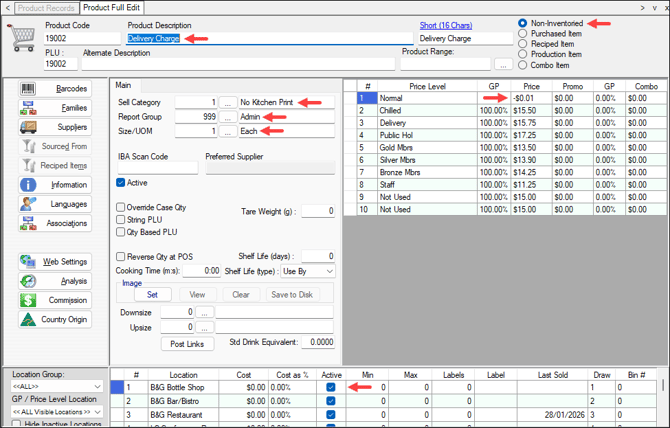
- To capture
- In Back Office continued ...
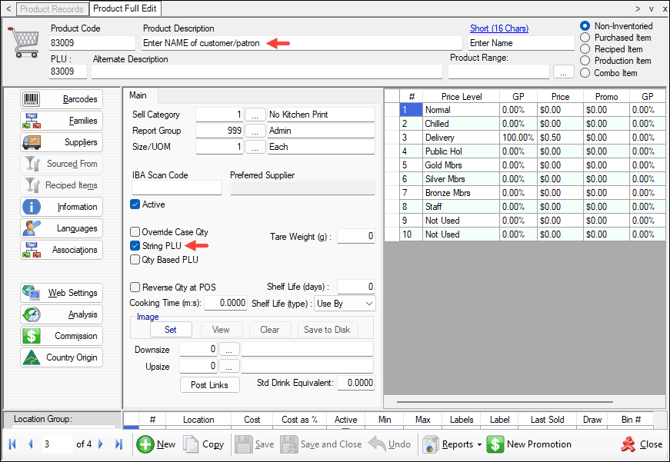
- Create a PLU/Product with the String PLU option selected for each of the following prompts:
- Enter NAME of customer/patron
- Enter CONTACT NUMBER of customer/patron
- Enter DELIVERY ADDRESS of customer/patron
- Create a PLU/Product with the String PLU option selected for each of the following prompts:
- In Back Office continued ...
- Ensure that each of the PLU/Products created above, are flagged as Active in the appropriate Locations.
- In Keyboard Designer, ensure a Multi Link (#999) POS Key is added to a Layout.
- Ensure it is Captioned appropriately. For example, Delivery Order.
- Select the Multi Link Events option to add links to link it to the following:
- A Function POS Key linked to the Order Type (#19) POS Key with:
- The Delivery option selected against the Order Type.
- The text Delivery entered as a Caption.
- A Product POS Key linked to the Delivery Charge PLU/Product created above.
- A Product POS Key linked to the following PLUs/Products that were created above:
- Enter NAME of customer/patron
- Enter CONTACT NUMBER of customer/patron
- Enter DELIVERY ADDRESS of customer/patron
- A Layout POS Key linked to the first Layout that facilitates the ordering process. For example, the Food layout.
- A Function POS Key linked to the Order Type (#19) POS Key with:
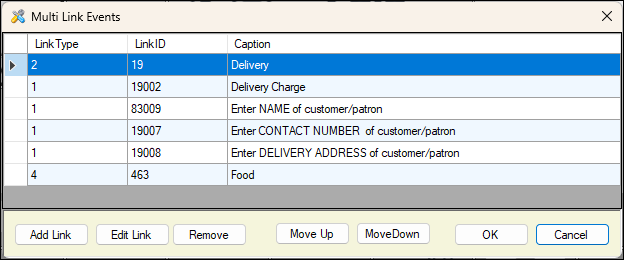
Example of Multi Link Events configured for a Delivery Order POS Key with a fixed or open price value
- Once configured, ensure a Full Update is sent to all the Touch terminals that will be using the POS Key. Refer HERE for more information.
- In Touch:
- Ensure the {Order Type} Print field is added to the relevant printers where necessary. For example, Kitchen printer, Order printer, Receipt printer, etc.
Use? ▲ ▼
In Touch:- Select the Delivery Charge captioned Multi Link (#999) POS Key created above.
- If an Enter Amount prompt is displayed enter the delivery charge amount applicable to the order.
- At the Enter NAME of customer/patron prompt, enter a name.
- At the Enter CONTACT NUMBER of customer/patron prompt, enter a phone number.
- At the Enter DELIVERY ADDRESS of customer/patron prompt, enter an address.
- Add items/products to the order.
- Finalise the order/sale.
End of article ▲