
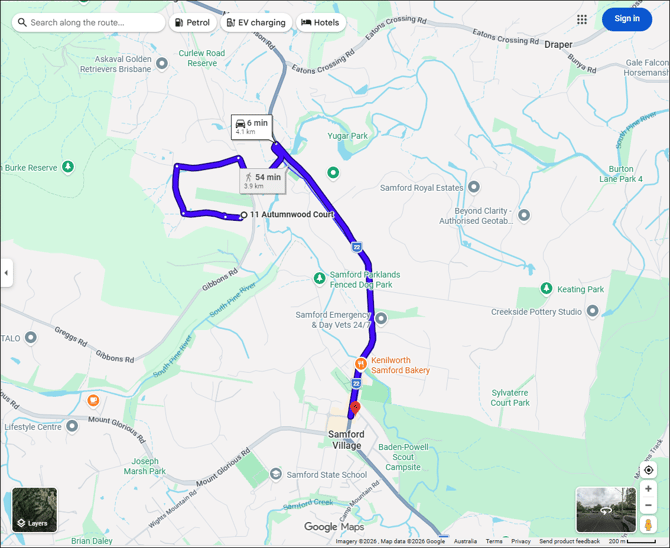
This outlines How To Show Directions For A Delivery Order in Touch.
Subjects ▲ ▼
About ▲ ▼
When Is It Used? ▲ ▼
Used to display the directions in Google maps, to a patron's address associated with an order saved in Touch.
How To? ▲ ▼
How To Configure? ▲ ▼
SMS Alerts can be configured
- In Back Office:
- Ensure an address is recorded against the Location HERE.
-
In Touch:
-
In the Orders tab of the Table Tracking settings:
-
Ensure the Use Company Address for Delivery Directions option is selected.
-
-
How To Show Directions For A Delivery Order? ▲ ▼
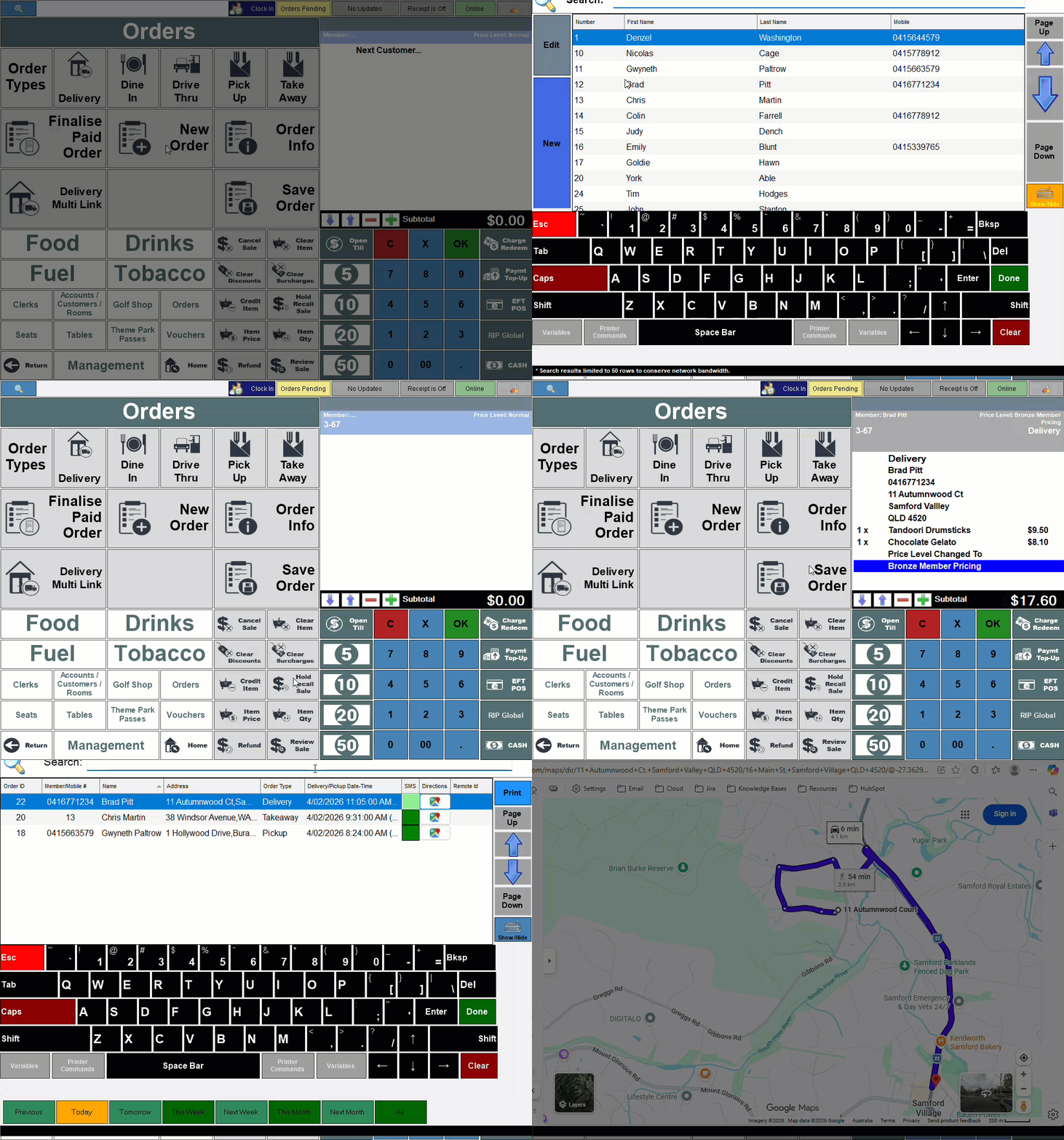
Directions can be displayed in Touch as follows:
- Create a Phone Order for a delivery for an existing Customer/Member that has address details recorded in Back Office. Refer HERE for more information.
- Save the Order using the Save Order (#26) POS Key.
- Select the Pending Orders option to open the Phone / Web Orders screen.
- Locate the order for which directions are to be viewed.
- Select the icon in the Directions column opposite the order to open Google maps in a browser.
End of article ▲