
This outlines the How To Create A Floor Plan Layout For Touch.
How To? ▲ ▼
-
Scan the floor plan from the Venue's building plans to create a digital image of the plan.
- In Back Office, using the Floor Plans screen:
- Add the scanned image as an image using the Add Scenery option.
-
Optionally plants and other elements can be added as images using the Add Scenery option. These must not be larger than 250x250 pixels.
- Create a background image that can be used for other layouts if needs be. To do this, do as follows:
- Select the Print Preview option to open the Preview screen.
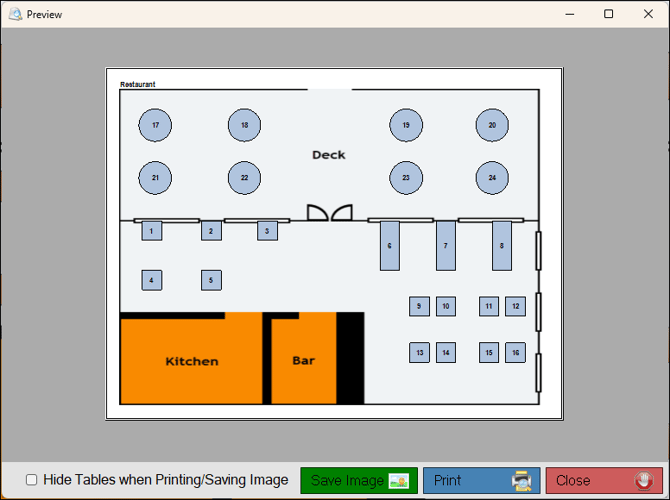
- Select the Hide Tables when Printing/Saving Image option to ensure the image created does not include Tables and/or Bar Seats.
- Select the Save Image option to save the image as a jpg file.
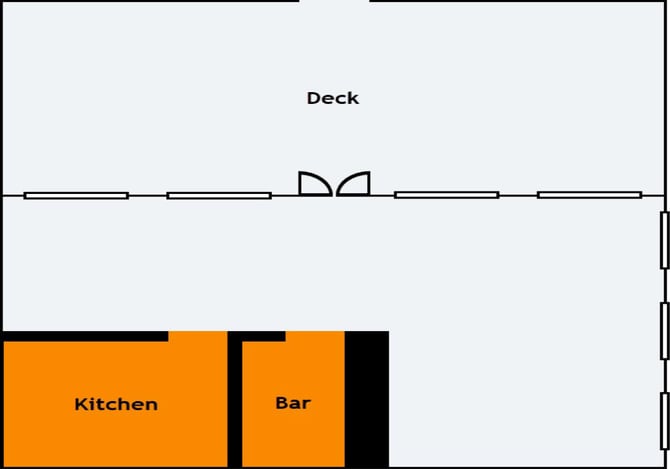
- An example of the background image created base on the preview image above is:
- Select the Print Preview option to open the Preview screen.
- Select the Save option to save the Floor Plan Layout.
End of article ▲