
Subjects ▲ ▼
About ▲ ▼
What Is Required? ▲ ▼
- Touch will need to be installed and operational.
- Ensure the Voucher Printer Alternate has been added as a peripheral to Touch. Refer HERE for more information.
What To Consider? ▲ ▼
- It is recommended that Venues with more than one Touch terminal, configure their print devices in the Back Office HERE.
When Is It Used? ▲ ▼
Used to configure the printer settings for printing vouchers. Used to configure the settings for the Vouchers Printing Alternate print device. This device is used as an alternate print device to print vouchers in Touch.
Screens ▲ ▼
Voucher Printer Alternate Screen ▲ ▼
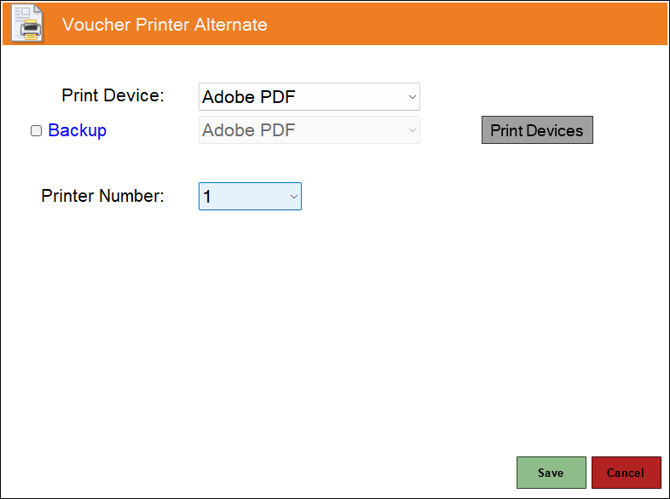
To access, select the Voucher Printer Alternate option from the Peripheral Type drop-down list in the Add New Peripheral screen, and then enter an appropriate Description for the peripheral being added (For example, Voucher Printer Alternate) and select OK. The above screen will then be displayed. Used to configure/manage/view Voucher Printer Alternate print devices for Touch.
- Print Device - Select from the drop-down list the print device for printing vouchers.
- Backup - Select from the drop-down list the print device to be designated as the backup print device. Refer HERE for more information.
- Printers - Select to open the Print Devices screen to configure settings.
- Printer Number - Displays/Enter the number identifying the print device for printing vouchers.
End of article ▲