
Refer HERE for Internal and Reseller support information.
Subjects ▲ ▼
About ▲ ▼
What Is Required? ▲ ▼
- Touch will need to be installed and operational.
- The appropriate Third Party Vending Machine peripheral will need to be added in Touch.
- Where required products will need to created/imported into Swiftpos and:
- Be priced appropriately.
- Be made available to Touch to ensure they can be selected and sold. That is they are active in the appropriate Location.
- SOH values will need to be current.
What Is Supported? ▲ ▼
The following is a list of Third Party Vending Machines that are currently supported:
- Free Wifi
- Range Express
- Range Servant
- Range Servant 2
- VDMS Dispenser
- VDMS Live
- Brunswick Lanes
- Intercard
When Is It Used? ▲ ▼
Used to dispense/sell items/products provided by Third Party Vending Machines and used in conjunction with Dispense Vending Product (#97), Get Vending Code (#73), View Vending Codes (#72) and View Vending Products (#98) POS Keys. Examples of Third Party Vending Machines are Free Wifi, Range Express, Range Servant, Range Servant 2, VDMS Dispenser, VDMS Live, Brunswick and Intercard.
How To? ▲ ▼
How To GET STARTED? ▲ ▼
- Review About and ensure the steps outlined HERE are addressed.
- Depending on the type of Third Party Vending Machine being added, refer below for:
How To GET STARTED With Free Wifi? ▲ ▼
- Create a Product that will be added to a sale in Touch in order to issue the Wifi access numbers.
- In Keyboard Designer, ensure the Dispense Vending Product (#97) POS Key is added to a Layout.
- Ensure it is given an appropriate Caption. For example, Free Wifi.
- Select the More Settings option to display the Settings screen and configure the POS Key as required.
|
|
- Once configured, ensure a Full Update is sent to the Table tracking Master terminal. Refer HERE for more information.
- Rename the file provided from *.csv to freewifi.csv.
-
Place the file in the Swiftpos Touch Outbox folder of the Table tracking Master terminal, by right clicking on the terminal in the Touch POS Terminals screen in the Swiftpos Back Office. Then select the Open terminal folder for browsing option and select the Outbox folder listed in the drop-down list. This will now populate the Tables in Table Tracking.
- In Touch:
- Configure a Ticket via the Tickets menu option in Terminal Settings and add the Vending Code variable to your Ticket setup (Graphical Only).
- Add the Product (created in the first step) to a sale.
- Select the Dispense Vending Product (#97) POS Key to issue the Access Numbers.
- Finalise the sale.
How To GET STARTED With Range Express? ▲ ▼
- Create a Product that will be added to a sale in Touch in order to sell golf balls.
- Ensure the sell price of the added Product is correctly set.
- In Keyboard Designer, ensure the Dispense Vending Product (#97) POS Key is added to a Layout.
- Ensure it is given an appropriate Caption. For example, Range Express.
- Select the More Settings option to display the Settings screen and configure the POS Key as required.
|
|
- Once configured, ensure a Full Update is sent to the Table tracking Master terminal. Refer HERE for more information.
How To GET STARTED With Range Servant? ▲ ▼
- Create a Product that will be added to a sale in Touch in order to sell golf balls.
- Ensure the sell price of the added Product is correctly set.
- In Keyboard Designer, ensure the Dispense Vending Product (#97) POS Key is added to a Layout.
- Ensure it is given an appropriate Caption. For example, Range Servant.
- Select the More Settings option to display the Settings screen and configure the POS Key as required.
|
|
- Once configured, ensure a Full Update is sent to the Table tracking Master terminal. Refer HERE for more information.
- Configure the RS232 details for communication with the Range Servant machine.
How To GET STARTED With Range Servant 2? ▲ ▼
- Refer HERE for more information.
How To GET STARTED With VDMS Dispenser? ▲ ▼
Notes ...
Product Codes are sent to the Vending Machine as the Barcodes are subject to change.
- Create Products that will be added to a sale in Touch in order to sell tobacco products.
- Ensure the sell price for each added Product is correctly set.
- In Keyboard Designer, ensure the Dispense Vending Product (#97) POS Key is added to a Layout.
- Ensure it is given an appropriate Caption. For example, VDMS Dispenser.
- Select the More Settings option to display the Settings screen and configure the POS Key as required.
|
|
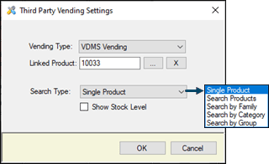
- Once configured, ensure a Full Update is sent to the Table tracking Master terminal. Refer HERE for more information.
How To GET STARTED With VDMS Live? ▲ ▼
- Sync items/products that are provided by the Vendor and are to be made available for sale in Touch. This can be done by selecting the settings icon in the top right-hand corner of the Vendor Items/Products Popup screen and then selecting the Sync option. Refer HERE for more information.
Notes ...
Vendor items/products are linked to Swiftpos products using the barcode.
- In Keyboard Designer, ensure the Dispense Vending Product (#97) POS Key is added to a Layout.
- Ensure it is given an appropriate Caption. For example, Cigarettes.
- Select the More Settings option to display the Settings screen and configure the POS Key as required.
|
|
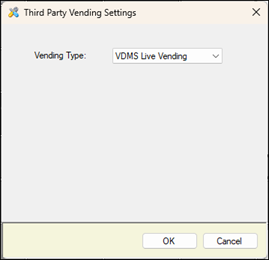
- Once configured, ensure a Full Update is sent to the Table tracking Master terminal. Refer HERE for more information.
How To GET STARTED With Brunswick? ▲ ▼
- Create a Product that will be added to a sale in Touch in order to sell the hire of a Bowling Lane.
- Ensure the sell price of the added Product is correctly set.
- In Keyboard Designer, ensure the Dispense Vending Product (#97) POS Key is added to a Layout.
- Ensure it is given an appropriate Caption. For example, Brunswick.
- Select the More Settings option to display the Settings screen and configure the POS Key as required.
|
|
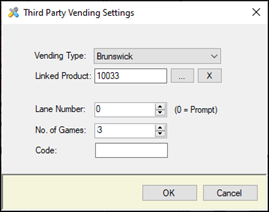
- Once configured, ensure a Full Update is sent to the Table tracking Master terminal. Refer HERE for more information.
- In Touch:
- Select the Dispense Vending Product (#97) POS Key.
- If required select the Lane Number.
- Finalise the sale.
How To GET STARTED With Intercard? ▲ ▼
- Create Products that will be added to a sale in Touch in order to sell arcade games or rides.
- Ensure the sell price for each added Product is correctly set.
- In Keyboard Designer, ensure the Dispense Vending Product (#97) POS Key is added to a Layout.
- Ensure it is given an appropriate Caption. For example, Intercard.
- Select the More Settings option to display the Settings screen and configure the POS Key as required.
|
|
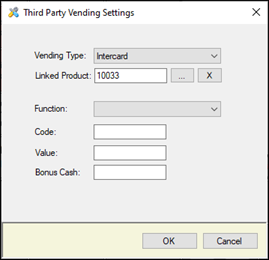
- Once configured, ensure a Full Update is sent to the Table tracking Master terminal. Refer HERE for more information.
Screens ▲ ▼
Settings Screen ▲ ▼
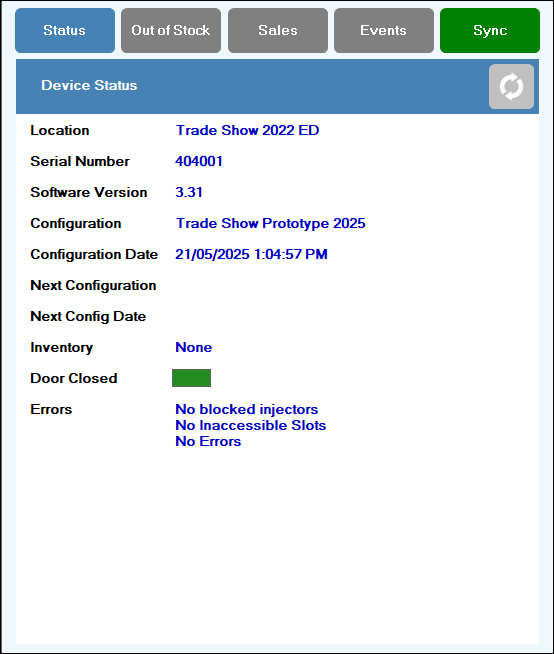
To access, select the settings icon in the top right-hand corner of the Vendor Items/Products Popup screen. Used to manage, sync and view vending product information.
Third Party Vending Machine Screen ▲ ▼
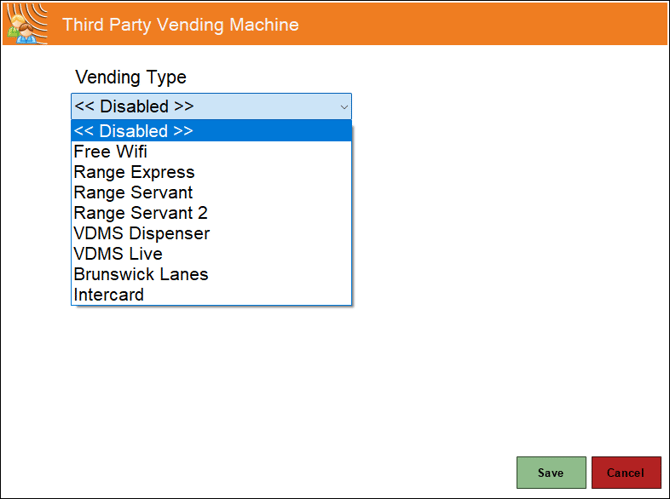
To access, select the Third Party Vending Machine option from the Peripheral Type drop-down list in the Add New Peripheral screen, and then enter an appropriate Description for the peripheral being added (For example, Range Express) and select OK. The above screen will then be displayed. Used to manage/view Peripherals in Touch.
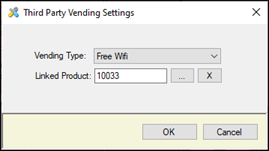
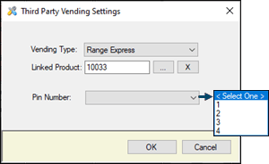
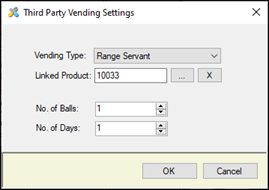
- Vending Type - Select from the drop-down list the appropriate type that is being added. Refer HERE for more information. Once selected the configuration options specific to the type selected will be displayed. These are:
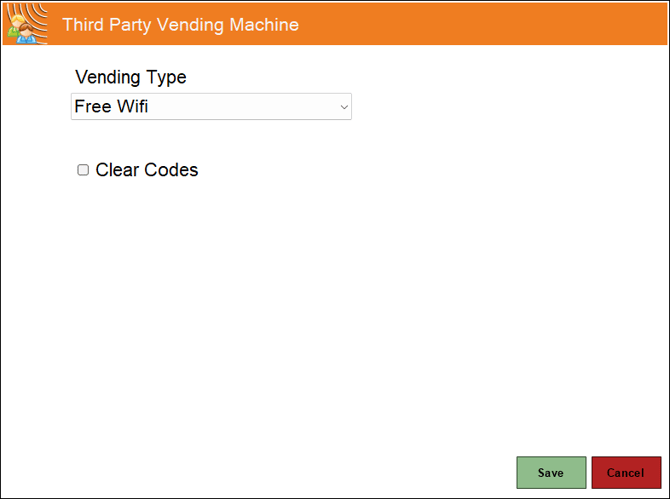
Used to configure Free WiFi offerings for Cafes/Restaurants/Retail/etc. Refer HERE for more information.
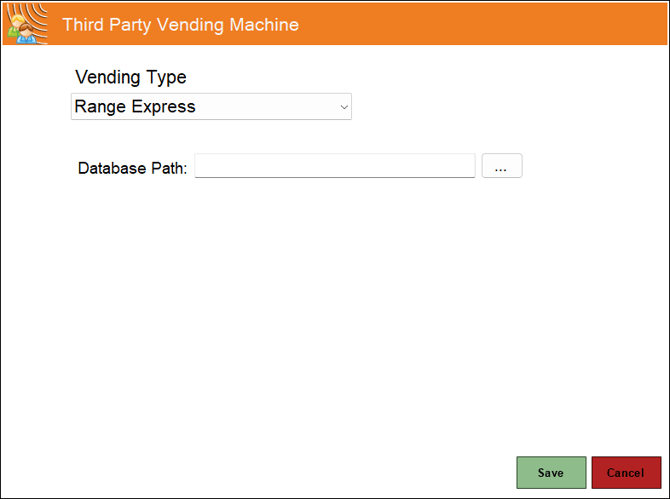
Used at Golf Clubs to integrate with Golf Ball Vending Machine provided for patrons to redeem golf balls. Refer HERE for more information.
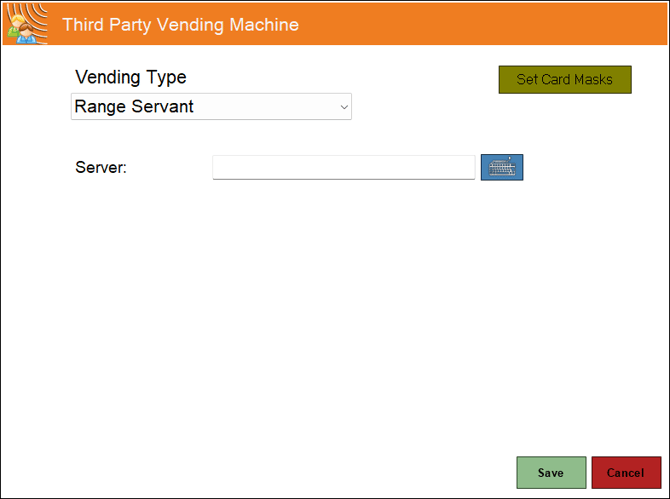
Used at Golf Clubs to integrate with Golf Ball Vending Machine provided for patrons to redeem golf balls. Refer HERE for more information.
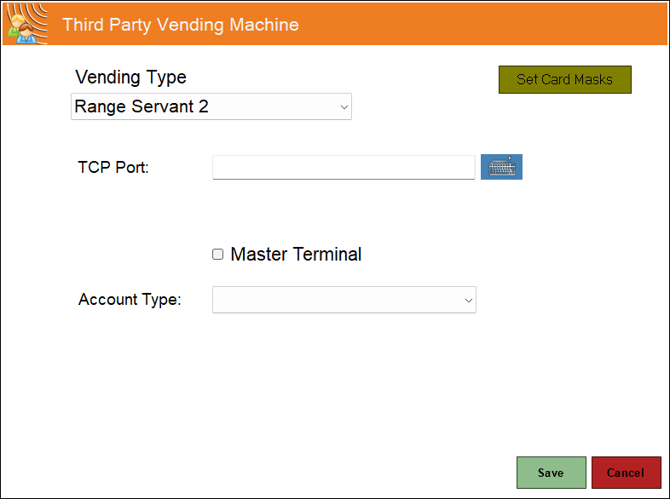
Used at Golf Clubs to integrate with Golf Ball Vending Machine provided for patrons to redeem golf balls. Refer HERE for more information.
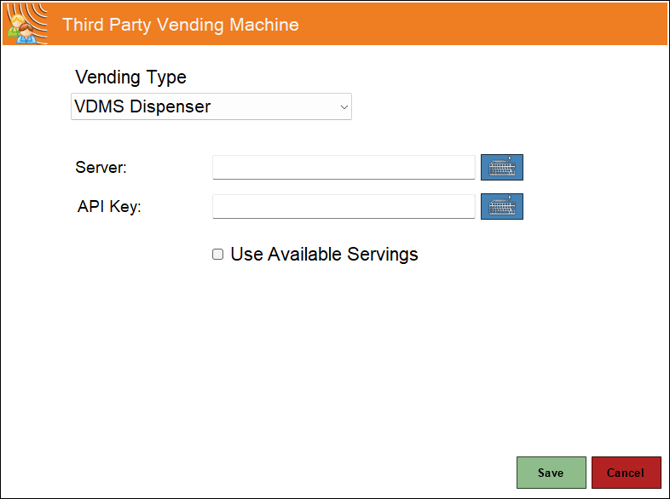
Used mainly for the dispensing of Tobacco Products. Refer HERE for more information.
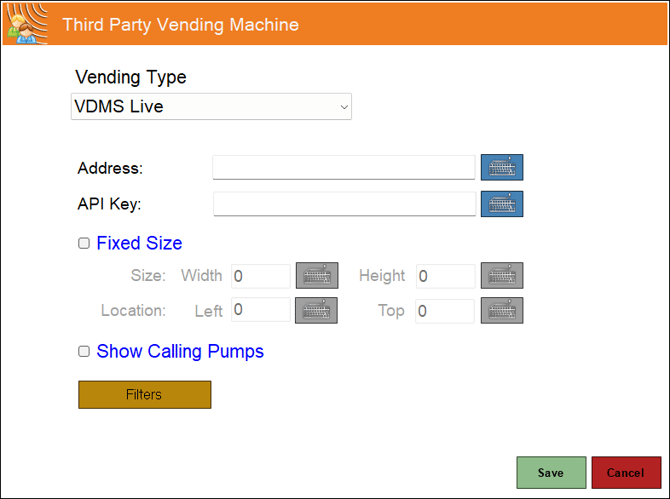
Used to configure the Third Party Vending Machine peripheral for the VDMS Live Vending Type. Refer HERE for more information.
- Address - Enter the URL provided.
- API Key - Enter the key provided.
-
Fixed Size - Select set the Size (Width and Height) and Location (Left and Top) in pixels to customise the Vendor Items/Products Popup screen that will display the items/products.
Notes ...
If NOT selected the Vendor Items/Products Popup screen displayed will default to the size and location of the Touch screen.
Also, the Vendor Items/Products Popup screen is displayed when the Dispense Vending Product (#97) POS Key is configured for the VDMS Live Vending option selected in the Vending Type drop-down list.
- Show Calling Pumps - Select to display a popup displaying calling pumps. This option is only applicable to Venues that are registered for Fuel.
- Filters - Select to open the VDMS Filters screen to manage the filters.
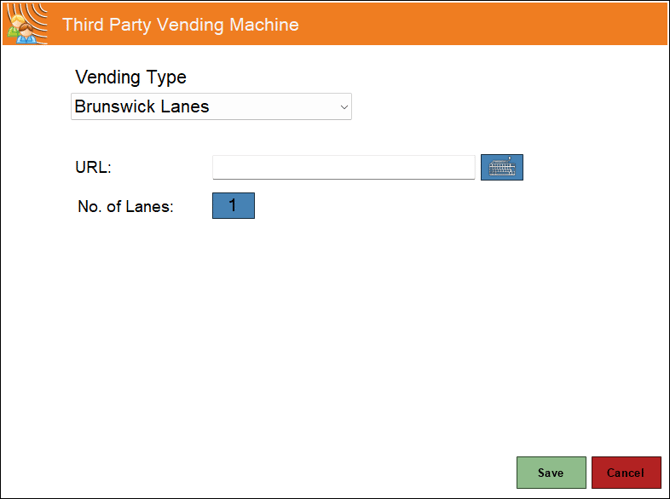
Used at Bowling Alleys to integrate with Brunswick. Refer HERE for more information.
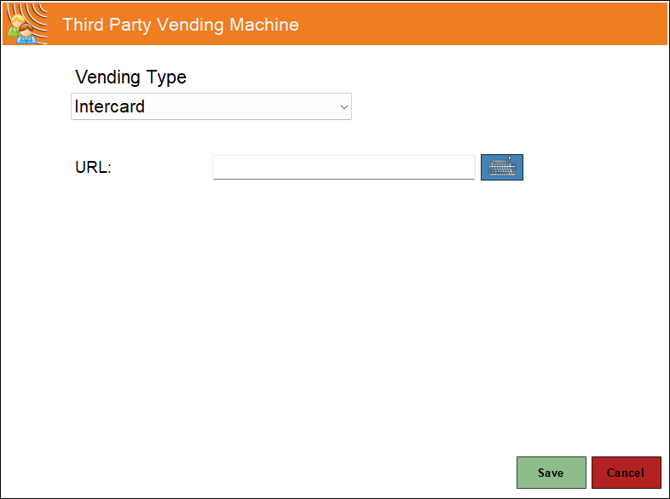
Used at Arcade Gaming venues to sell games/rides etc. Refer HERE for more information.
VDMS Filters Screen ▲ ▼
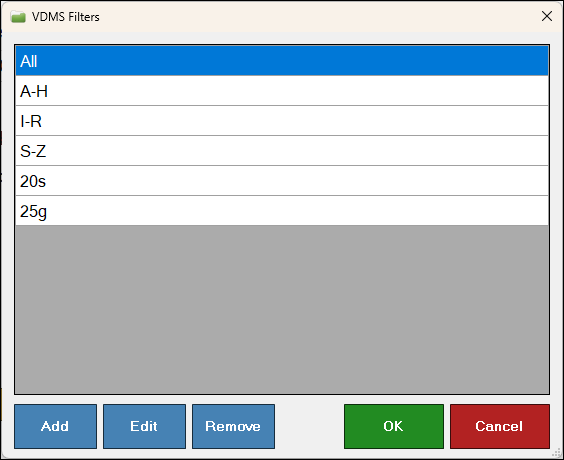
To access, select the Filters option in the Third Party Vending Machine screen with the VDMS Live option selected in the Vending Type drop-down list. Used to manage filters that are then displayed as filtering options HERE.
Vendor Items/Products Popup Screen ▲ ▼
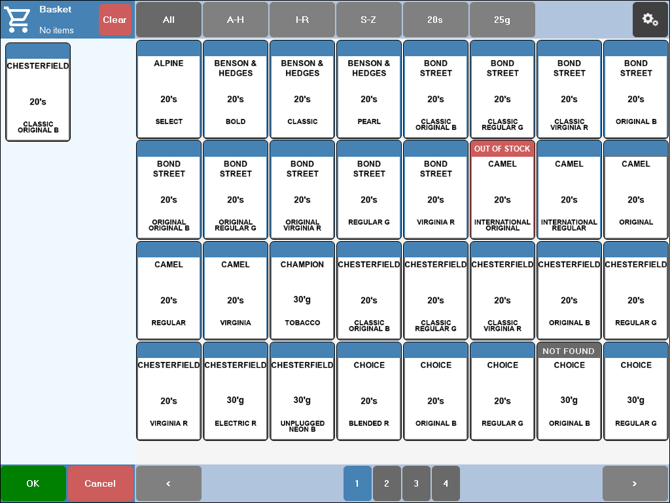
To access, select the Dispense Vending Product (#97) POS Key that is configured with the VDMS Live Vending option selected in the Vending Type drop-down list. Used to select vendor items/products and add them to a sale.
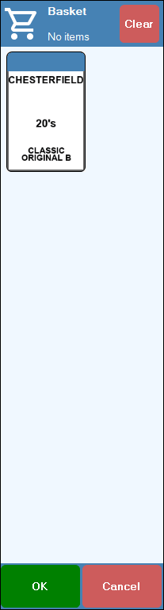
Lists the items/products that have been selected in the Vendor Items/Products section and added to the shopping basket.
- Clear - Select to remove all items/products in the shopping basket.
- OK - Select to add the items/products listed in the shopping basket to a sale in Touch and return to Touch.
- Cancel - Select to exit.
Vendor Items/Products Section ▲ ▼
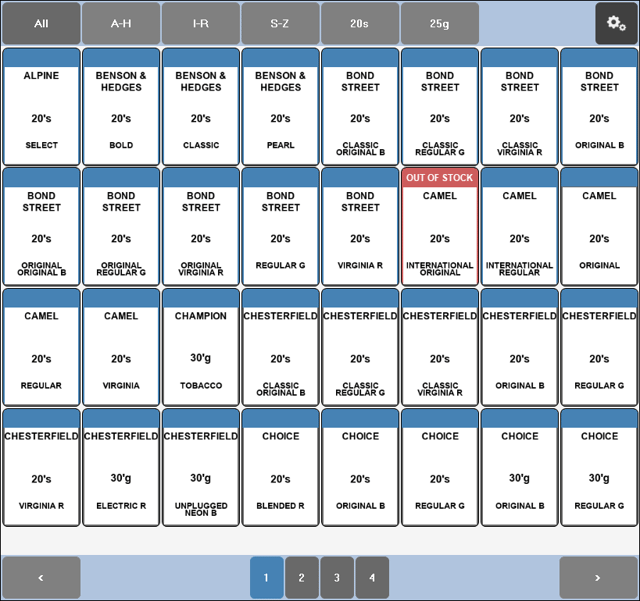
Lists the vendor items/products that are currently available for selling.

Displays the filters managed HERE as options to select in order to limit the number of items/products listed in the grid.
-
Settings - Select the settings option in the top right-hand corner of the screen to access the Settings popup screen.
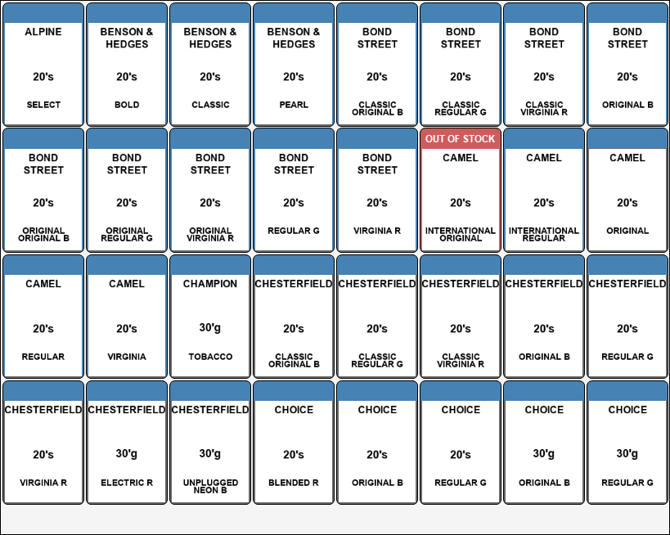
Example of the grid section
Lists the vendor items/products returned as a result of the filter options selected HERE.

Used to navigate the screens of vendor items/products if multiple screens exist.
End of article ▲