
Subjects ▲ ▼
About ▲ ▼
What Is Required? ▲ ▼
- Touch will need to be installed and operational.
- Ensure the Label Printer has been added as a peripheral to Touch. Refer HERE for more information.
- Ensure the Label Mode (#561) POS Key is added to the appropriate Layout using the Keyboard Designer.
What To Consider? ▲ ▼
- It is recommended that Venues with more than one Touch terminal, configure their print device in the Back Office HERE.
- Prices of items/products assigned to a Special/Promotion or Happy Hour cannot be changed.
When Is It Used? ▲ ▼
Used to configure the settings for printing item/product/price labels from Touch. Can be used to print item/product/price labels for items/products such as deli, fish, fruit, meat, poultry, vegetables, etc. That is, items/products generally sold over the counter.
Screens ▲ ▼
Label Design Screen ▲ ▼
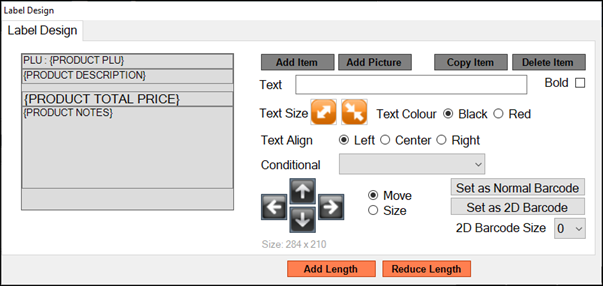
To access, select the Label Design option HERE. Used to design the label layout required. For more information refer HERE.
Label Printer Screen ▲ ▼
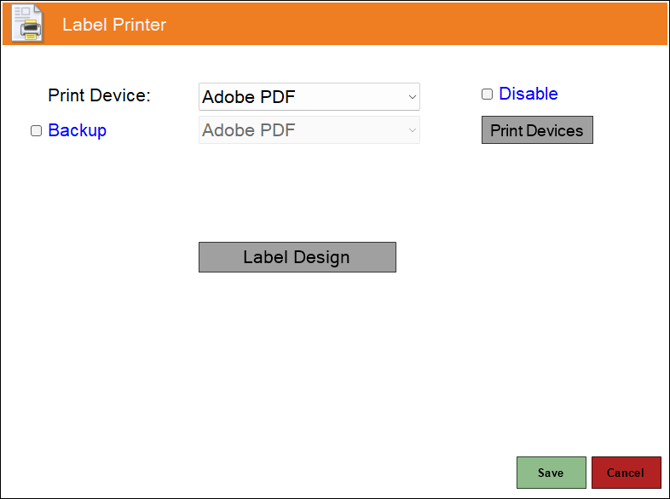
To access, select the Label Printer option from the Peripheral Type drop-down list in the Add New Peripheral screen, and then enter an appropriate Description for the peripheral being added (For example, Label Printer) and select OK. The above screen will then be displayed. Used to configure/manage/view Label print devices for Touch.
- Print Device - Select from the drop-down list the print device for printing item/product/price labels.
- Disabled - Toggle select to enable/disable the print device.
- Backup - Select from the drop-down list the print device to be designated as the backup print device. Refer HERE for more information.
- Printers - Select to open the Print Devices screen to configure settings.
- Label Design - Select to open the Label Design screen to configure item/product/price label layouts.
End of article ▲