
This outlines How To Configure And Send SMS Alerts in Touch using the New Order (#25) POS Key.
Subjects ▲ ▼
About ▲ ▼
When Is It Used? ▲ ▼
SMS alerts can be sent to patrons to notify them of the status of their order.
How To? ▲ ▼
How To Configure? ▲ ▼
SMS Alerts can be configured in Touch as follows:
-
In the SMS tab of the Terminal settings:
- Select the appropriate provider from the SMS Provider drop-down list.
- Complete the details presented with the details provided by the provider.
- Ensure the appropriate international phone country code is entered in the Country Code field. For example, 61 for Australia.
- Enter an appropriate message or greeting in the Message field. For example, Hello.
- Select the Prompt for Additional Message option to ensure a message can be entered at the time an SMS alert is being sent.
- Select the Test SMS option to test and make sure the above configuration is correct and a SMS alert is successfully sent.
- Select Save to save the changes.
- Exit the settings screens and return to Touch.
How To Send SMS Alerts? ▲ ▼
SMS Alerts can be sent in Touch as follows:
- Create a Phone Order and be sure to enter the patron's Mobile phone. Refer HERE for more information.
- Save the Order using the Save Order (#26) POS Key.
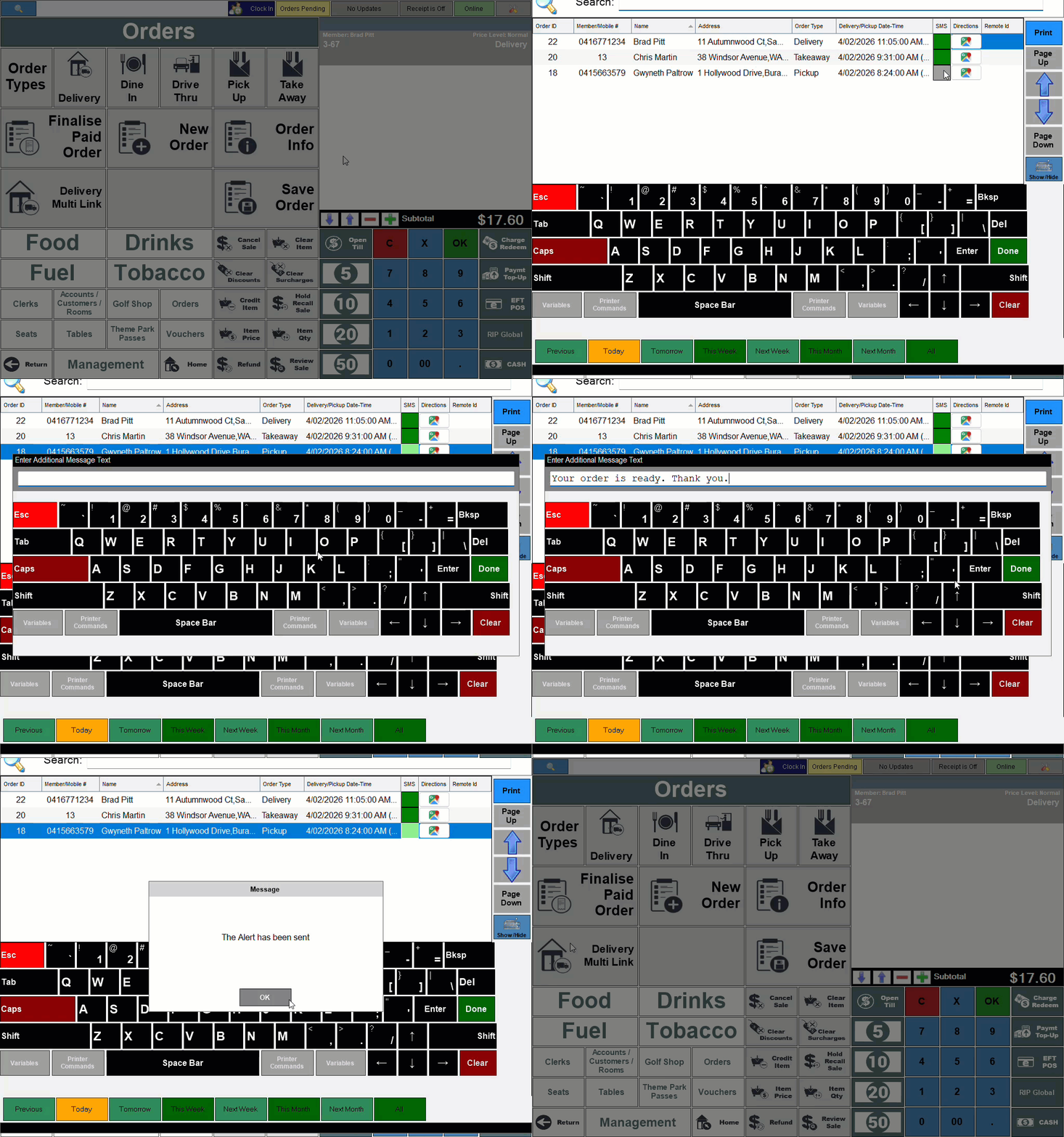
- Select the Pending Orders option to open the Phone / Web Orders screen.
- Select the green SMS square option opposite the order for which an alert is to be sent.
- An Enter Customer's Mobile Number prompt will be displayed to confirm the patron's mobile phone number. Change it if required. Select Enter.
- If the Prompt for Additional Message option was selected, an Enter Additional Message Text prompt will be displayed to allow for the entry of an order specific message.
- Once entered, select Done.
- A confirmation message of the SMS alert having been sent will be displayed.
End of article ▲