
This outlines the information and the steps required when implementing Product Level Blocking (PLB) at a Swiftpos Venue. as well as how it is managed and supported in Swiftpos.
Subjects ▲ ▼
About ▲ ▼
- Terms & Concepts
- What Is It?
- What Is Not Supported?
- What Is Required?
- What Items Are Restricted?
- What Is New?
- What To Consider?
Terms & Concepts ▲ ▼
- DXC - Services Australia's System Integration Partner to deliver PLB. Refer HERE for more information.
- eIM - enhanced Income Management. The enhanced Income Management (eIM) program is an initiative of the Australian Commonwealth Government administered by Services Australia. Refer HERE for more information.
- Product Level Blocking (PLB) - A feature that can be implemented in Swiftpos to detect eIM restricted items purchased with a SmartCard. Refer HERE for more information.
- Restricted Items - Items that are prohibited from being purchased with an eIM SmartCard. Refer HERE for more information.
- Services Australia - An Australian Government agency that supports Australians by efficiently delivering high-quality, accessible services and payments on behalf of the government. Services Australia has operational responsibility for eIM and PLB. Refer HERE for more information.
- SmartCard - A multi-network VISA and eftpos debit card issued on behalf of Services Australia to eIM participants. Refer HERE for more information.
What Is It? ▲ ▼
Product Level Blocking (PLB) is a feature on point-of-sale (POS) systems that prevents the sale of eIM restricted items using a SmartCard. It's designed to ensure eIM restricted items are not purchased by individuals using the SmartCards as payment. Refer HERE for more information.
The Swiftpos PLB solution makes use of the PLB Sales - based reporting API and the Central Platform Communications API.
Automatic Detection
PLB identifies eIM restricted items in a Product range and automatically alerts the POS system.
Payment Options
If an eIM restricted item is detected, the system can:
- Cancel the payment.
- Allow the operator to remove the eIM restricted item from the basket.
- Allow the customer to choose alternative payment methods
OR
Pay unrestricted subtotal with SmartCard and restricted subtotal with non-SmartCard.
Example
If a customer tries to use a SmartCard to buy alcohol, PLB will prevent the transaction and offer alternative options like paying with cash or a different card (non-SmartCard).
Purpose
PLB aims to simplify operations for merchants and provide more choice for participants when using SmartCards as payment.
What Is Not Supported? ▲ ▼
-
Previously, the EFT14 - PC-EFTPOS EFTPOS peripheral was used to support Product Level Blocking (PLB), However, this peripheral is no longer supported. Instead, Venues MUST switchover to use the EFT33 - Linkly (Food and Bev) EFTPOS peripheral.
-
Over Tendering MUST NOT be enabled when paying with a SmartCard. Hence, it is recommended that the Allow Over Tender option is NOT selected in the Main Settings tab in the settings of the EFTPOS (#2) POS Key.
- Cash Outs CANNOT be processed when using a SmartCard. Refer HERE for more information.
- Store Credits CANNOT be processed when using a SmartCard.
- There is no process in Swiftpos to validate the original SmartCard when processing a refund.
When refunding a sale, a Venue should ensure the refund is performed back to the original card.
- Venues should NOT issue (trigger) free Vouchers that allow for the redemption of eIM restricted items.
- Pre-authorised payments against Tables and Tabs will NOT be available to SmartCards.
What Is Required? ▲ ▼
- Swiftpos v10.78.10+
Notes ...
When coming from a Swiftpos version prior to v10.78.10, the DXC Sales Interface settings in Touch will need to be reconfigured to ensure a connection is established with the Sale-Based Reporting API and Central Platform Communications API using new URLs, ID, and Keys. This replaces the PLB Transaction API. Refer HERE for more information.
- Venues MUST make use of the EFT33 - Linkly (Food and Bev) EFTPOS peripheral to support Product Level Blocking (PLB)
- Swiftpos Touch MUST be scheduled to restart daily to ensure a Client Secret expiry check is done.
- Venues which are not currently PLB-live will need to onboard to the program as a PLB merchant. Venues can visit the PLB Merchant Portal to learn about the Product Level Blocking (PLB) program and sign up via an MPA (Merchant Participation Agreement). It is recommended that Venues contact the Merchant Engagement Team at Services Australia for further queries. Refer HERE for FAQ information.
- Refer HERE for How To GET STARTED information.
What Items Are Restricted? ▲ ▼
The items that are considered restricted under eIM Product Level Blocking (PLB), are:
- Alcohol
- Cash-like Products, including digital money and some gift and pre-paid cards.
- Gambling
- Pornography
- Store Credit
- Tobacco
Refer HERE for restricted items information and HERE for SmartCard information.
What Is New? ▲ ▼
- Swiftpos will integrate with the PLB Sale API (Sale-based reporting) and Central Platform Communications API. This replaces integration with the PLB Transaction API (Transaction-based reporting).
- When coming from a Swiftpos version prior to v10.78.8, the DXC Sales Interface settings in Touch will need to be configured to include new URLs, Endpoints and IDs.
-
If a barcode is scanned, that barcode is sent to Central Platform. Otherwise, the barcode in the database is used (If there is more than one barcode in the database it seems to use the first (oldest). Otherwise, the PLU is used.
- Venues should NOT issue (trigger) free Vouchers that allow for the redemption of eIM restricted items.
What To Consider? ▲ ▼
-
It is recommended that the EFTPOS POS Key, that is associated with EFT33 - Linkly (Food and Bev) interface, is used as the last Media when finalising a Sale.
Notes ...
Once the EFTPOS POS Key is used in a sale, price changes as a result of Campaigns, Discounts, Members Prices, Mix n Matches, etc will be blocked. Once a sale has been partially finalised using a SmartCard, then any subsequent attempt to do one of the following will be blocked:
-
Apply a Discount
-
Apply a Surcharge
-
Change Price Levels
-
Sell at Members Price
-
Splitting Balances
-
Top ups of Gift Cards, etc.
-
Transferring Table Items
-
Trigger Campaigns
-
Trigger a Mix n Match
-
Swiftpos allows a payment to be made to a TAB/Table before any items/products are sold. However, this EFTPOS payment is NOT integrated EFTPOS, therefore this process would need to be enforced manually by the Venue. That is, not to process a manual payment via SmartCard at the EFTPOS terminal when it is NOT integrated to Swiftpos Touch.
-
What Venues Need To Know?
- Swiftpos Touch MUST be scheduled to restart daily to ensure a Client Secret expiry check is done.
- Cashout is NOT allowed when using a SmartCard. To ensure this Venues MUST ensure the Allow Over Tender option is NOT selected.
- Cash Outs CANNOT be processed when using a SmartCard. Refer HERE for more information.
- Store Credits CANNOT be processed when using a SmartCard.
- Venues MUST ensure that any Reciped items that include one or more eIM restricted items, must be assigned to the PLB Restricted Family.
- Venues MUST ensure that any Combos, that include one or more eIM restricted items, must be assigned to the PLB Restricted Family.
- Venues may want to consider making weekly backups of logs to allow for the potential post interrogation of Central Platform API and bearer token endpoint error responses for at least the previous 30 days.
When Is It Used? ▲ ▼
When a Venue sells eIM restricted items and wants to ensure payment for these are blocked when a SmartCard is offered as tender, and instead alternative payment options are offered to the patrons instead. For example, Cash or other media such as Discounts, Vouchers, Account payments etc.
How To? ▲ ▼
- GET STARTED?
- Sell Both Restricted And Non-Restricted Items?
- Sell Non-Restricted Items Only?
- Sell Restricted Items Only?
- Upgrade?
How To GET STARTED? ▲ ▼
IMPORTANT
Product Level Blocking (PLB) is supported in Swiftpos using the EFT33 - Linkly (Food and Bev) EFTPOS peripheral.
Venues previously using the EFT14 - PC-EFTPOS peripheral MUST switch over to use
the EFT33 - Linkly (Food and Bev) EFTPOS peripheral instead.
The EFT14 - PC-EFTPOS is no longer supported.
- Review About and ensure the steps outlined HERE are addressed.
- Install the Linkly Client service.
- In:
- Ensure the Linkly Client service is running. Refer HERE for more information.
- Ensure a Family is created that contains all items, that can be sold at a Touch terminal, and which are considered eIM restricted items. Refer HERE for more information. items/products to be included in this Family should be items/products that can be selected and sold via Touch. That means:
- For Combos, that would be the parent item that can be selected and sold.
- For Reciped Items, that would be the parent item that can be selected and sold.
- For items/products, that would be any Product that can be selected and sold. That includes those that are part of a Combo and/or are part of a Reciped Item.
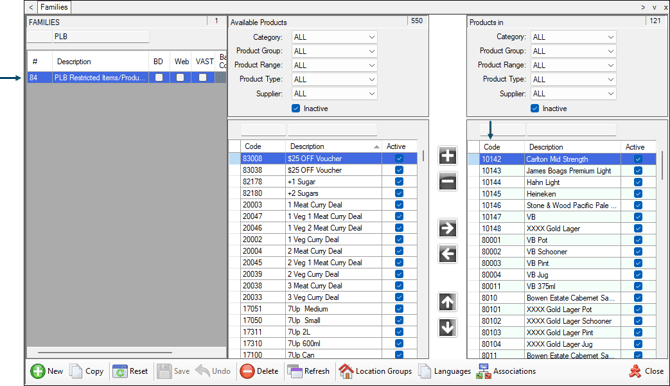
- Ensure the Family created above is selected in the PLB Restricted Family drop-down list in Global Preferences in Back Office. Refer HERE for more information.
- Ensure a Full Update is sent to all Touch terminals that need to cater for the processing of a SmartCard.
- Ensure a Full Update is sent to all the Touch terminals that need to cater for the processing of a Services Australia SmartCard. Refer HERE for more information.
IMPORTANT
- Ensure the EFTPOS (#2) POS Key is added to a Touch Keyboard and appropriately configured. That includes the following:
- Ensure the Allow Over Tender option is NOT selected in the Main Settings tab of the POS Key's settings.
- Ensure the Enable EFT Integration option is selected in the EFT tab of the POS Key's settings.
- Ensure the Normal EFTPOS option is selected in the EFT System drop-down list.
- Ensure the Enable Cash Out option is selected, if customers are to be given the option of withdrawing cash as part of the EFTPOS transaction. Cash Outs CANNOT be processed using a SmartCard.
Notes ...
When a Venue wants to offer a Cash Out option to patrons, ensure the Enable Cash Out option is used and NOT the Allow Over Tender option. However, it must be noted that amounts entered as Cash Out will not be listed as a restricted item and CANNOT be processed using a SmartCard. They will need to be processed using an alternate Media.
- Ensure the EFT33 - Linkly (Food and Bev) EFTPOS peripheral is added to Touch. Do as follows:
- Add a new Peripheral in Touch. Refer HERE for more information.
- In Peripherals in Touch, select the EFT33 - Linkly (Food and Bev) option from the EFTPOS Type drop-down list, to display the EFTPOS - EFT33 Linkly (Food and Bev) configuration screen.
- Once selected, configure as is appropriate. This usually means ensuring:
- The Enable Event Logging option is selected when testing.
- A Card Surcharge PLU is specified.
- A Surcharge Media is specified.
- Then select the Configuration option display the PC-EFTPOS TCP Settings screen. Configure as is appropriate. For example, ensure the:
- TCP Hostname is set to 127.0.0.1.
- TCP Port is set to 2011.
- The Local option is selection for the Connection.
- Print at POS option is selected.
- Save the changes and exit Touch settings.
- If required, configure the Linkly Client for Surcharges. Refer HERE for more information.
- Ensure the DXC Interface is added to Touch and configured appropriately. Refer HERE for more information.
- Touch alerts can also be configured, if required. Refer HERE for more information.
How To Add The DXC Interface? ▲ ▼
- Add an interface to the Interface List.
- Enter an appropriate description for the Interface being added in the Description setting.
- Select the Sales Export option from the Interface Type drop-down list.
- Select the DXC option from the Available drop-down list.
- Select OK to save and open the DXC Sales Interface screen.
- Select the DXC option from the Type drop-down list to display it's configurations settings
- Configure the settings as follows:
- Ensure the Enabled option is selected.
- Configure the remaining settings with the details provided. Use the following table as a guide.
|
Configuration Value |
Required Value |
|
Auth URL (includes tenant id) |
https://login.microsoftonline.com/<tenantid>/oauth2/token Replace <tenantid> with the site’s tenant id. Reseller should have tenant idvalue already from the existing PLB-live store. Reseller can verify this value by logging into the PLB Portal using their PLB Portal log-in details. |
|
Base URL |
|
|
Sale-Based Reporting Endpoint: |
sale/v1 |
|
Communications Test Endpoint: |
posProvider/v1/merchantSiteCommsTest |
|
Secret Expiry Check Endpoint: |
posProvider/v1/merchantCredential |
|
Secret Renewal Endpoint: |
posProvider/v1/merchantCredential |
|
Resource Id |
For existing sites, use existing value in Swiftpos configuration. Reseller can verify this value by logging into the PLB Portal using their PLB Portal log-in details. If it is a new store going live with PLB for the first time, reseller can log-in to the PLB Portal, create a new entry to obtain this value. |
|
Client Id |
For existing sites, use existing value in Swiftpos configuration. Reseller can verify this value by logging into the PLB Portal using their PLB Portal log-in details. If it is a new store going live with PLB for the first time, reseller can log-in to the PLB Portal, create a new entry to obtain this value. |
|
Client Secret |
For existing sites, use existing value in Swiftpos configuration. Reseller can verify this value by logging into the PLB Portal using their PLB Portal log-in details. If it is a new store going live with PLB for the first time, reseller can log-in to the PLB Portal, create a new entry to obtain this value. |
|
Merchant Site Key |
DXC Technology will reach out to the individual reseller to provide this value. For existing sites, we understand this will change from the existing value in Swiftpos configuration. |
|
POS Provider Key |
DXC Technology will reach out to the individual reseller to provide this value. For existing sites, we understand this will change from the existing value in Swiftpos configuration. |
|
Card Prefixes |
438875,50773899 For existing sites, it is likely the Six-digit BIN value is already there. Also add the Eight-digit token prefix value. Using comma separated values. |
-
- Configure the settings continued ...
- When testing, use the settings found HERE.
- Select the PLB Communications Test option to ensure the configuration is tested and successful.
- Select OK to save and exit the DXC screen.
- Select Save to save and exit the POS Interfaces screen.
- Configure the settings continued ...
How To Configure Touch Alerts? ▲ ▼
Alerts can be configured in Touch for the following alert types:
For the above alerts, multiple actions can be added as is preferred. However, we recommend the Email action. With this in mind, the following would be entered into the settings of the Email Action screen:
|
Alert Type |
Email Address |
Subject |
Message |
|---|---|---|---|
|
PLB Credentials Failed |
Enter email addresses, separated by a semi-colon (;) |
PLB Client Secret cannot be renewed. |
Review logs for more details. |
|
PLB Export Failed |
Enter email addresses, separated by a semi-colon (;) |
PLB Export Failed |
Review logs for more details. |
To configure alerts in Touch refer HERE for more information.
Sell Both Restricted And Non-Restricted Items? ▲ ▼
Notes ...
If testing using the, Linkly Virtual Pinpad, ensure either the VISA PLB or VISA PLB2 option is selected in the Swipe Card drop-down list.
Also, amounts entered as Cash Out will not be listed as a restricted item and CANNOT be processed using a SmartCard. They will need to be processed using an ANOTHER CARD or Cash.
- In Touch, add both eIM restricted items and non-restricted items to a sale.
- Select the EFTPOS POS Key.
- Swipe with the SmartCard.
- The transaction will be declined. When the Restricted Items Processing screen is displayed, select either the:
- Clear Remaining Restricted Items From Sale option - To remove the restricted items from the sale and proceed to finalise the sale (non-restricted items only) using the SmartCard.
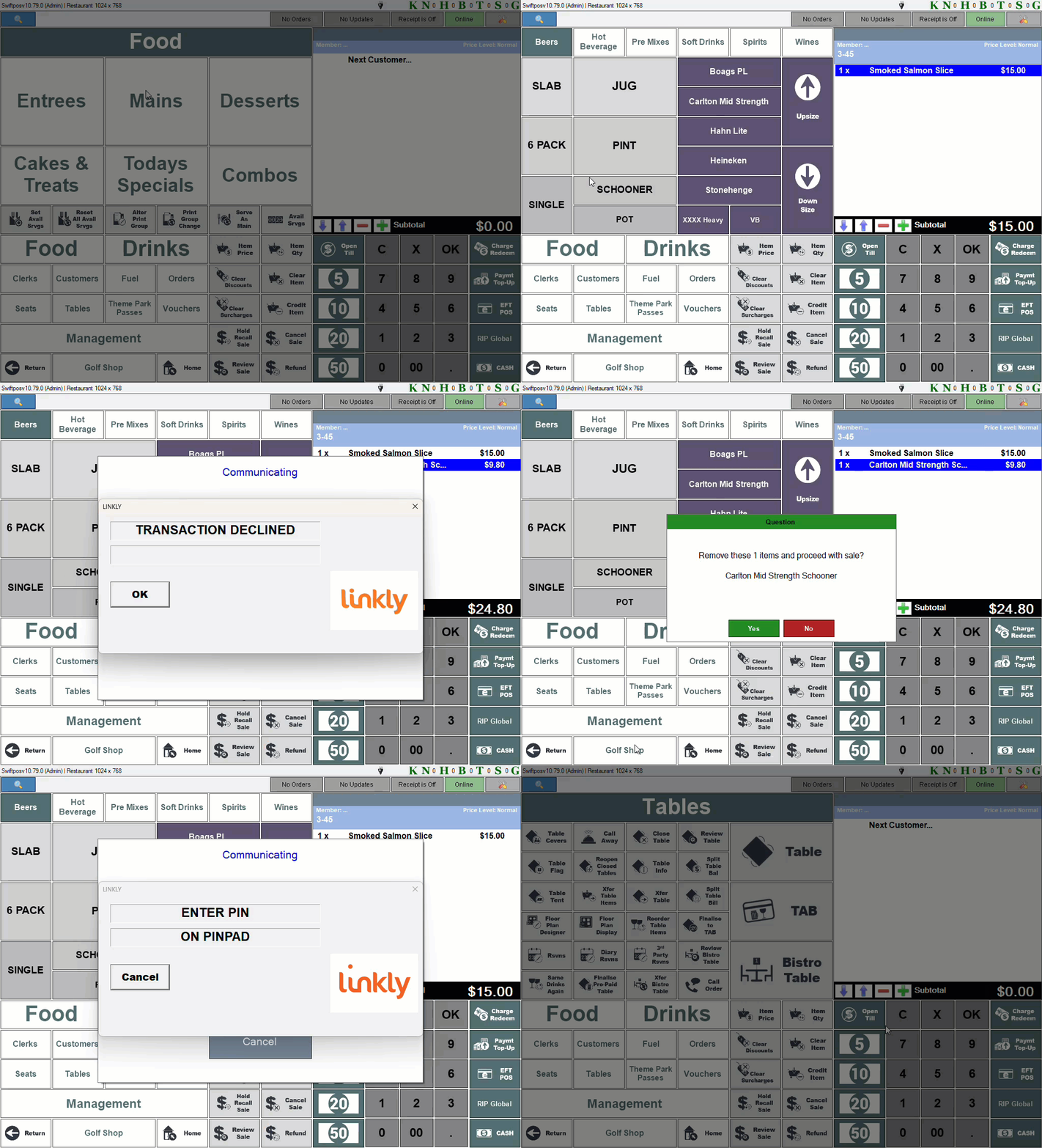
In this example, the beer (restricted item) is removed from the sale and ONLY the Smoked Salmon Slice (non restricted item) is paid with the SmartCard.
OR - Move Remaining Restricted Items to a Separate Sale option - To move the restricted items to a separate sale and proceed with finalising the sale (non-restricted items only) using the SmartCard. and then the separated sale (restricted items) using an ANOTHER CARD or Cash.
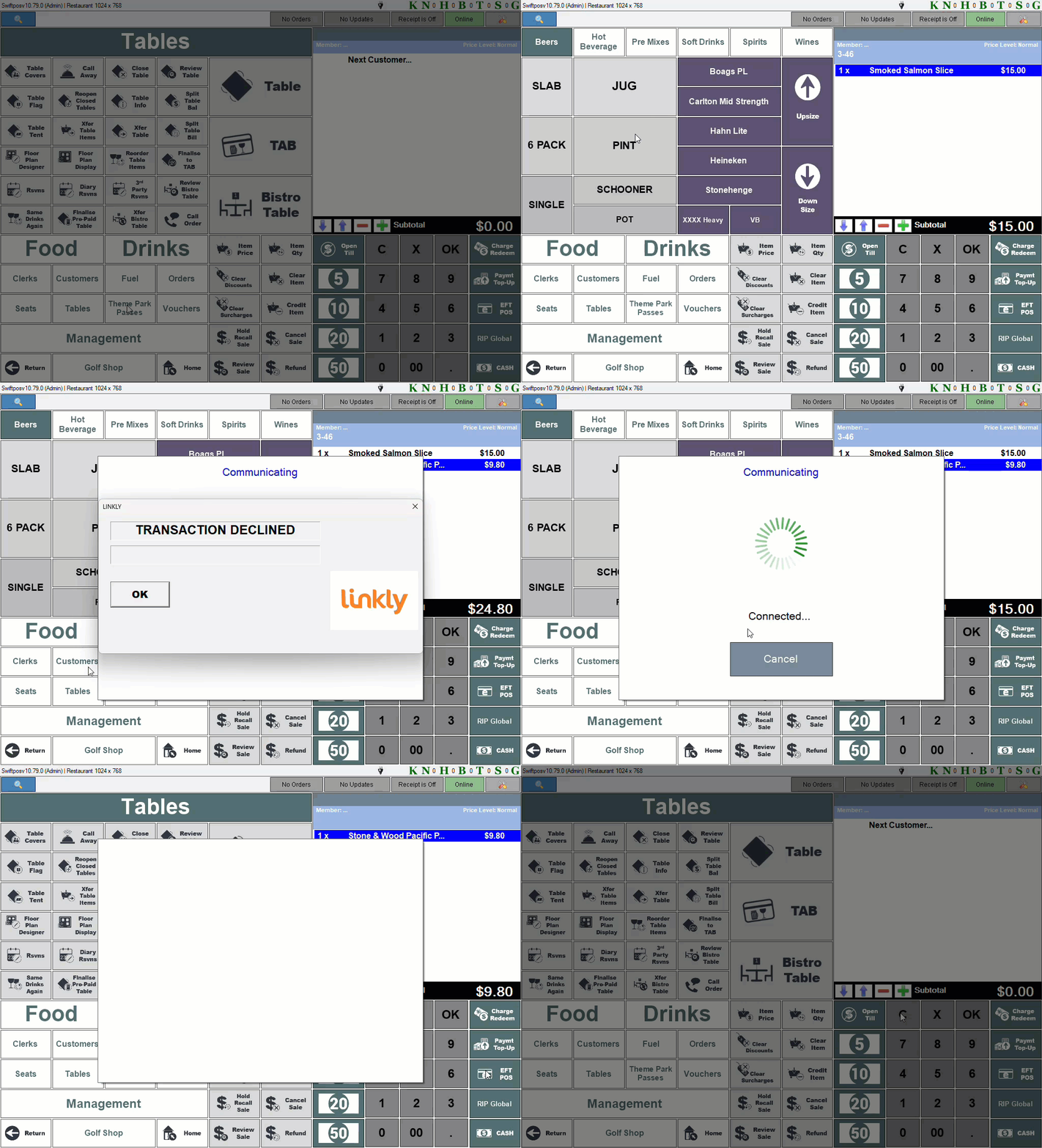
In this example, the beer (restricted item) is paid with ANOTHER CARD and NOT the SmartCard.
- Clear Remaining Restricted Items From Sale option - To remove the restricted items from the sale and proceed to finalise the sale (non-restricted items only) using the SmartCard.
Sell Non-Restricted Items Only? ▲ ▼
Notes ...
If testing using the, Linkly Virtual Pinpad, ensure either the VISA PLB or VISA PLB2 option is selected in the Swipe Card drop-down list.
Also, amounts entered as Cash Out will not be listed as a restricted item and CANNOT be processed using a SmartCard. They will need to be processed using an alternate Media.
- In Touch, add non-restricted items to a sale.
- Select the EFTPOS POS Key.
- Enter the Cash Out amount when the Enter Cash Out prompt is displayed.
- Swipe with the SmartCard.
- The transaction is declined and the Restricted Items Processing screen is displayed. The Cash Out amount will NOT be listed as a restricted item and CANNOT be processed using the SmartCard.
- Select the Complete Transaction option in the Restricted Items Processing screen to complete the sale.
- Select Enter when the Enter Cash Out prompt is displayed. No Cash Out amount is entered.
- Swipe with the SmartCard.
- The transaction is approved as it now does not include the Cash Out amount.
- Complete sale.
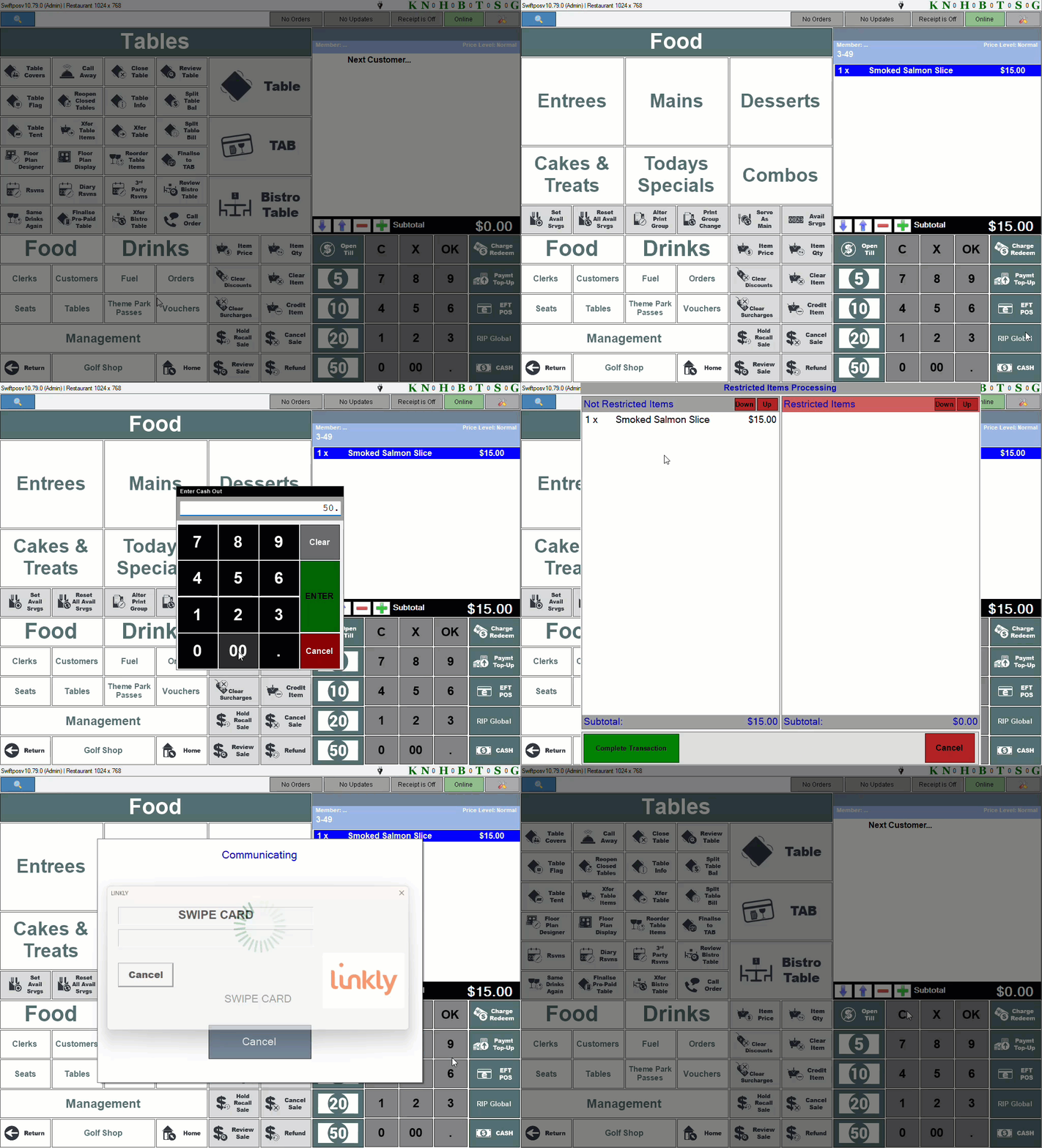
In this example, the Cash Out is declined and ONLY the Smoked Salmon Slice (non restricted item) is paid with the SmartCard.
OR
- Select the Cancel option in the Restricted Items Processing screen to complete the sale.
- In Touch, add non-restricted items to a sale.
- Enter the Cash Out amount when the Enter Cash Out prompt is displayed.
- Pay with an ANOTHER CARD or pay with Cash.
- Complete the sale.
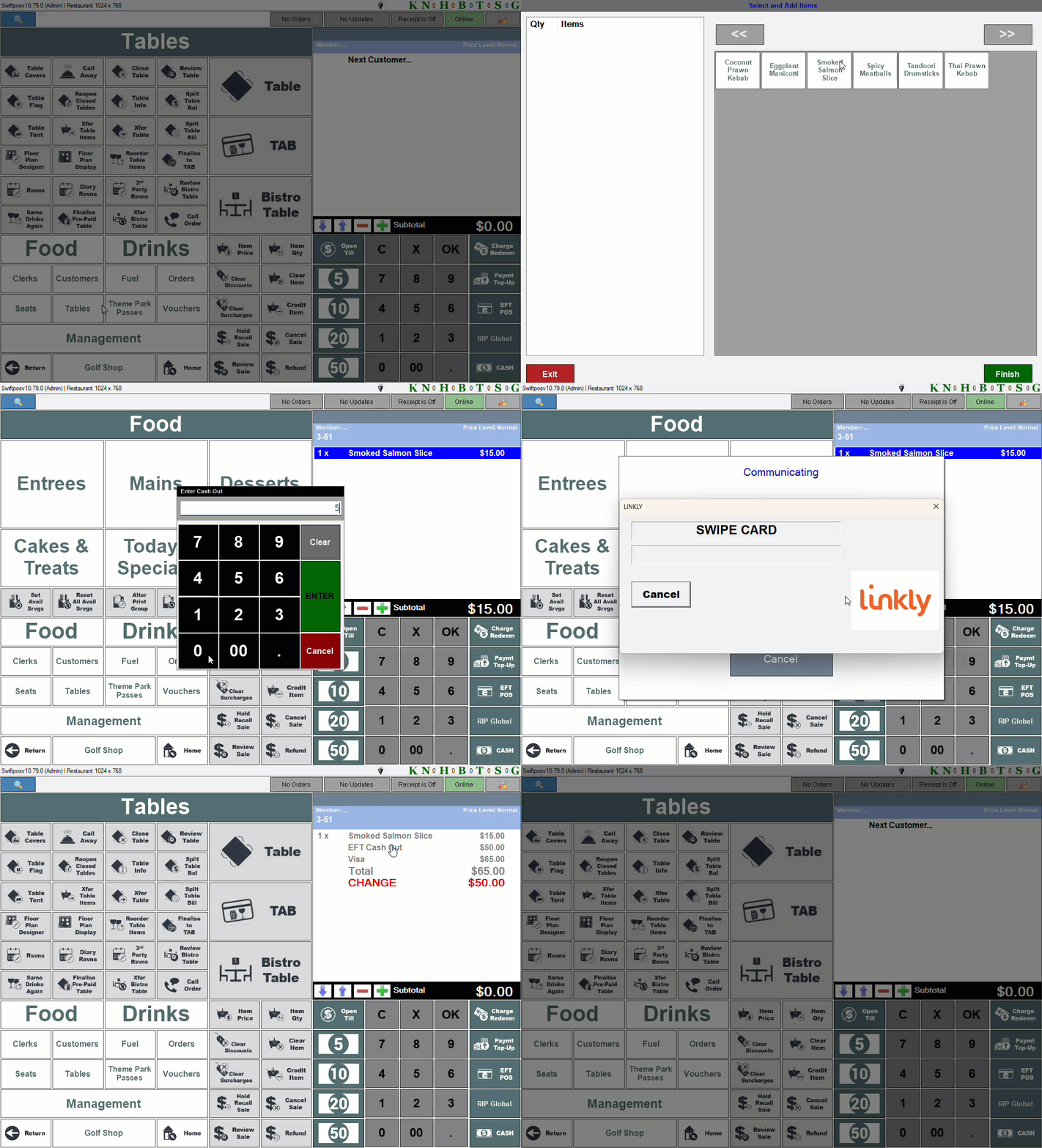
In this example, both the Smoked Salmon Slice (non restricted item) and the Cash Out are paid with ANOTHER CARD and NOT the SmartCard.
- In Touch, add non-restricted items to a sale.
- Select the EFTPOS POS Key.
- Select Enter when the Enter Cash Out prompt is displayed. No Cash Out amount is entered.
- Swipe with the SmartCard.
- Complete the sale.
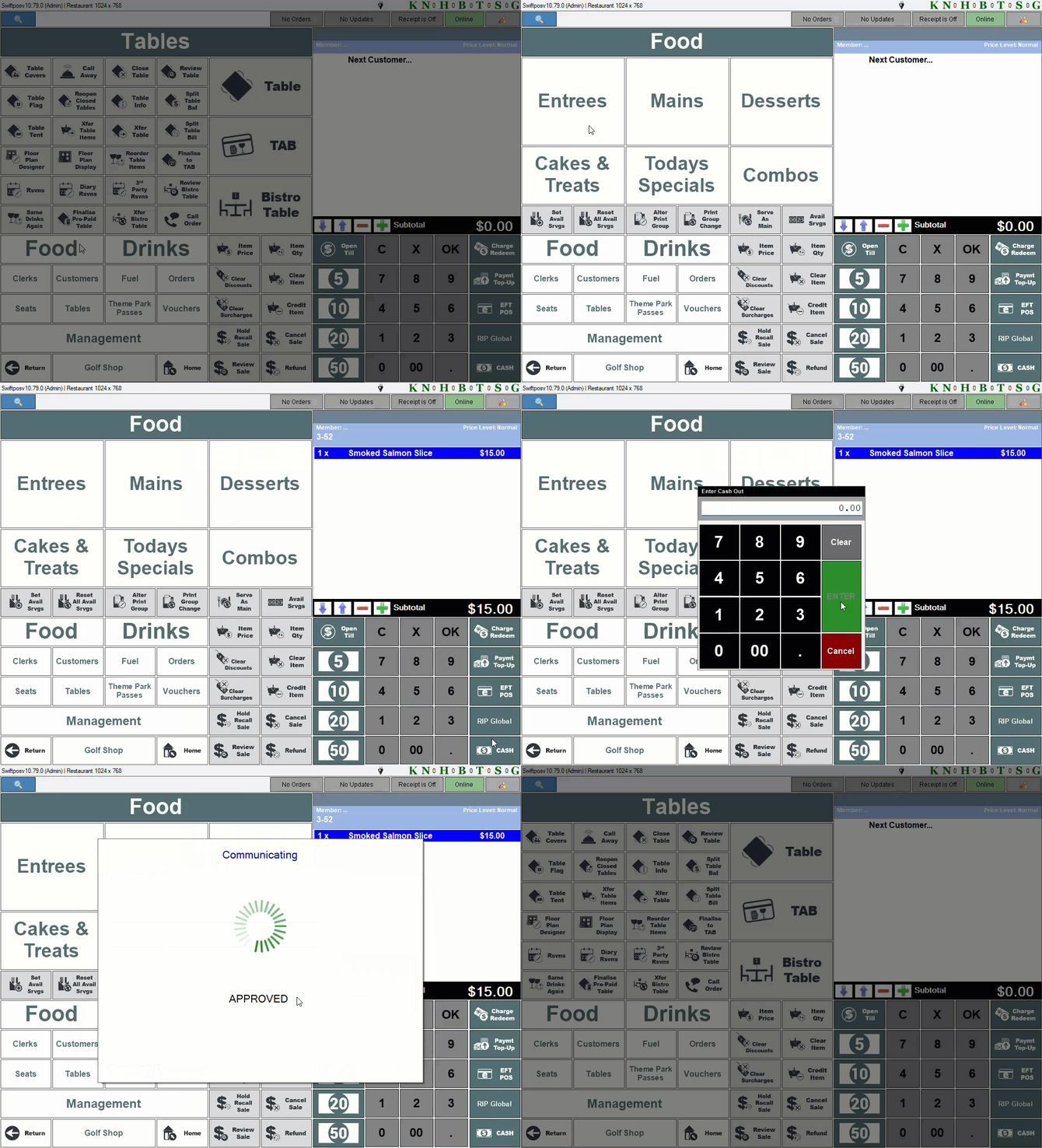
In this example, the NO Cash Out amount is entered and the Smoked Salmon Slice (Non Restricted item) is paid with the SmartCard.
Sell Restricted Items Only? ▲ ▼
Notes ...
If testing using the, Linkly Virtual Pinpad, ensure either the VISA PLB or VISA PLB2 option is selected in the Swipe Card drop-down list.
Also, amounts entered as Cash Out will not be listed as a restricted item and CANNOT be processed using a SmartCard. They will need to be processed using an alternate Media.
- In Touch, add only eIM restricted items to a sale.
- Select the EFTPOS POS Key.
- Select Enter when the Enter Cash Out prompt is displayed. No Cash Out amount is entered.
- Swipe with the SmartCard.
- When the Restricted Items Processing screen is displayed select the Cancel option to cancel the payment using the SmartCard.
- Pay with an ANOTHER CARD or pay with Cash.
- Complete the sale.
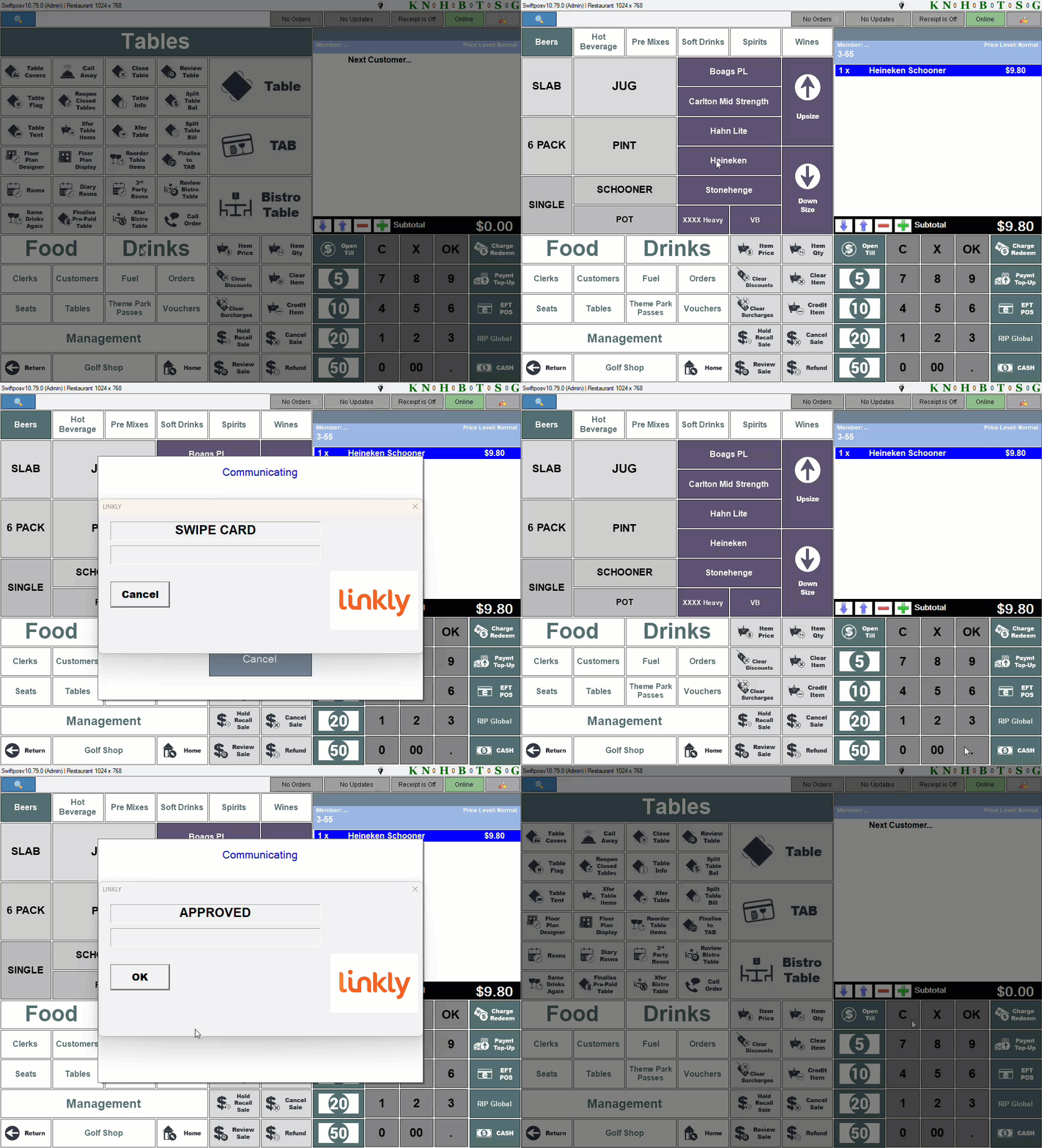
In this example, the beer (restricted item) is paid at first with the SmartCard. This is declined. It is then paid with ANOTHER CARD.
How To Upgrade? ▲ ▼
- Review About and ensure the steps outlined HERE are addressed.
- Ensure the Sales Interfaces screen is configured correctly. Use the table HERE as a guide.
- Select the PLB Communication Test option to test the configuration settings and ensure a Successful Comms Test Response is returned.
- Ensure Touch is scheduled to restart daily to for a Client Secret expiry check to be done.
-
The Swiftpos DXC Sales Interface now integrates the Sale-Based Reporting API and the Central Platform Communications API. This replaces the integration with the Transaction-Based Reporting API.
-
The Sales Interface screen has changed.
-
References to Cashless Debit Card (CDC) have been removed.
-
When a new version of Swiftpos, that is, v10.78.10+, is installed, reconfiguration MUST be done, to ensure PLB functions as expected. If a Venue fails to reconfigure Swiftpos, then:
-
Sales with eIM card purchases will FAIL to report to Services Australia.
-
Restricted items/products will still be BLOCKED for purchase when using eIM cards.
- The following PROMPT will be displayed:
-
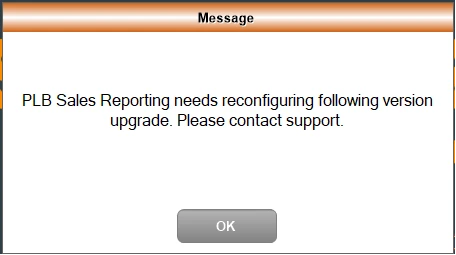
When this prompt is displayed, it indicates a Venue has upgraded to a Swiftpos version v10.78.10+ without reconfiguring the Sales Interface screen.
- When a new version of Swiftpos continued ...
-
The above prompt will be displayed for 30 seconds when the Enabled option is selected, and the Merchant Site Key is blank.
-
Notes ...
For Venues operating without having reconfigured Swiftpos. sales with eIM card purchases will be stored locally. These can then be resent once configuration is complete by selecting Resend Failed option in the Sales Interface screen:
When Is An Upgrade Required? ▲ ▼
In Swiftpos v10.78.10+, the Transaction-Based API has been replaced with the Sale-Based Reporting API and the Central Platform Communication API. Venues making use of PLB on an earlier version of Swiftpos will need to upgrade to a Swiftpos version v10.78.10+. Once upgraded, they will need to reconfigure Swiftpos to ensure it is compatible with the new Sale-Based Reporting API and the Central Platform Communication API. To do this, refer HERE for more information.
DXC Technology will be in touch separately to provide the Merchant Site Key and POS Provider Key values required for the configuration.
Screens ▲ ▼
Restricted Items Processing Screen ▲ ▼
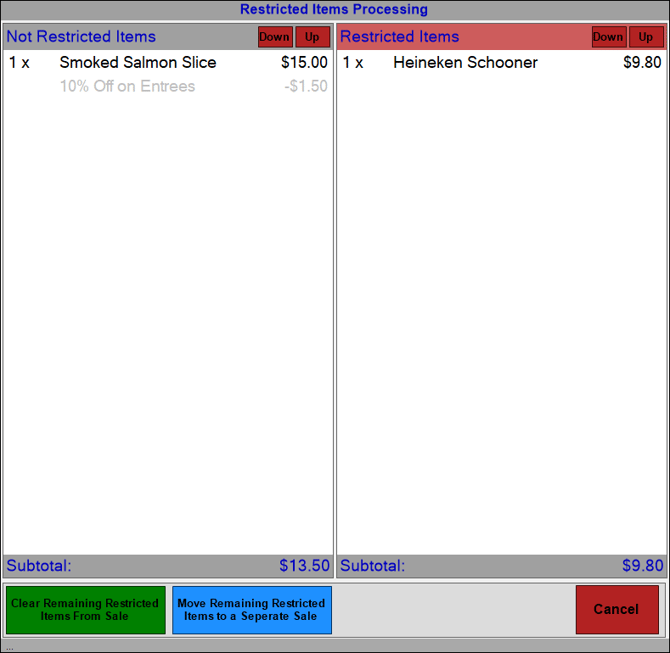
To access, add an eIM restricted item to a sale, and then attempt to pay for it using a SmartCard. Used to manage the selling of eIM restricted items in Touch.
- Not Restricted Items - Lists the items that CAN be purchased with a SmartCard.
- Restricted Items - Lists the items that CANNOT be purchased with a SmartCard.
- Clear Remaining Restricted Items From Sale - Select to clear the items listed in the Restricted Items column from the sale.
- Move Remaining Restricted Items to a Separate Sale - Select to move the items listed in the Restricted Items column to a separate sale, so these can be paid for using a Media other than the SmartCard.
End of article ▲