
This provides an overview of the Customer Alerts (#580) POS Key.
Subjects ▲ ▼
About ▲ ▼
What Is Required? ▲ ▼
- Swiftpos v10+
- Ensure this POS Key is added to the appropriate Keyboard Layout using the Designer. Refer HERE for more information.
What To Consider? ▲ ▼
- If required, access to this POS Key can be restricted by the Clerk Security feature.
- If customer alerts are to be handled by KVS, then:
- Ensure a KVS Peripheral is be added to the Touch terminal. Refer HERE for more information.
- Ensure the Send To KVS option is set to True.
- Ensure the Customer Alerts settings for KVS are configured correctly.
Notes ...
The Customer Alert Type selected in KVS must be the same as that set against this POS Key. That is, if the Email option is selected in KVS, then the Email Address option must be selected for this POS Key.
When Is It Used? ▲ ▼
Used to alert a Customer/Member that their order is ready. Alerts can be sent via a mobile phone, email or pager.
How To GET STARTED? ▲ ▼
- Review About and ensure the steps outlined HERE are addressed.
- In Keyboard Designer, select the Customer Alerts (#580) POS Key that has been added to a Layout.
- Ensure it is given an appropriate Caption. For example, Customer Alert.
- Select the More Settings option to display the Settings screen and configure the POS Key as required.
- Once configured, ensure a Full Update is sent to all the Touch terminals that will be using the POS Key. Refer HERE for more information.
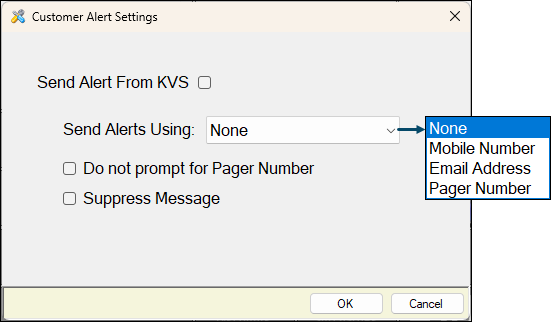
To access, select the More Settings option in Keyboard Designer. Used to configure the settings for this POS Key.
- Send Alert from KVS - When:
- Selected - An alert is sent to the patron when the entire order is bumped in KVS.
- Not Selected - An alert is sent to the patron immediately when the order/sale is completed in Touch POS.
- Send Alerts Using - Select from the drop-down list the method in which alerts will be sent.
- Do not prompt for Pager Number - Select to ensure the prompt to specify the Pager number is NOT displayed.
Notes ...
This option should only be enabled when supported by the paging system being used. This option only applies when:
- The Send Alerts Using option is set to Pager Number
AND - The Send Alert From KVS option is selected.
- Suppress Message - Select to suppress the Touch POS confirmation advising that the patron alert will be sent from KVS when the entire order is bumped. It does not prevent the alert from being stored or sent.
End of article ▲