
Subjects ▲ ▼
About ▲ ▼
What To Consider? ▲ ▼
- Discounts are applied in descending order as they are numbered in the Order columns in the grid section.
- If a discount has been applied to an item/product, then NO further discounts will be applied to the same item/product. This ensures multiple discounts cannot be applied to a single item/product in a sale.
- Changes to discounts will require a Full Update is sent to all Touch terminals. Refer HERE for more information.
- When the Subtotal POS Key is selected and then the Discount POS Key, and then the Table is saved, the discount is removed. This is because if the table is opened and an item/product is added to it, the subtotal changes.
- If a Predefined Discount is used and the Sale Discount option is selected, then the Table is saved, the discount is saved.
When Is It Used? ▲ ▼
Used to quickly and easily configure Discounts. Once configured they can be applied to POS sales or vouchers.
Examples ▲ ▼
Fuel Discount Example ▲ ▼
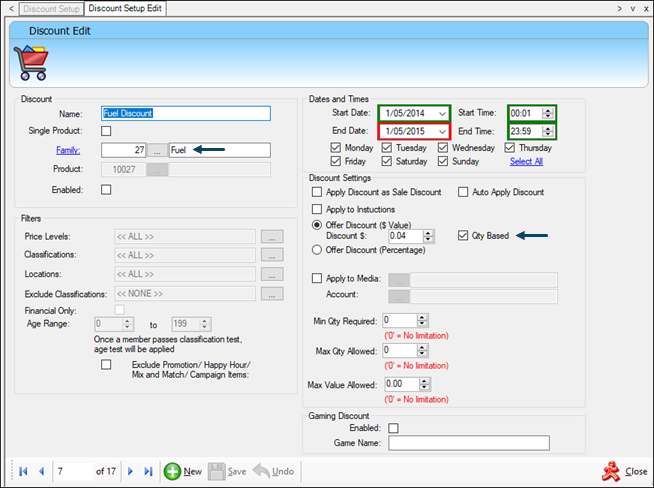
Example of the Discount Setup required for a 4c/litre discount offered on the sale of fuel. Fuel, being a Qty based PLU Product. Selecting the Qty Based setting ensures the discount is calculated on the quantity sold rather than the value sold.
How To? ▲ ▼
Screens ▲ ▼
Discount Setup Screen ▲ ▼
To access, select the Discount Setup menu option in the Vouchers/Discounts menu in Back Office. Used to quickly and easily configure discounts. Once configured they can be applied to POS sales or vouchers.

Provides filters to limit the number of discounts listed in the grid. Once all filters have been selected, select the Apply option to apply them. Otherwise, select the Reset option to clear all filter selections.
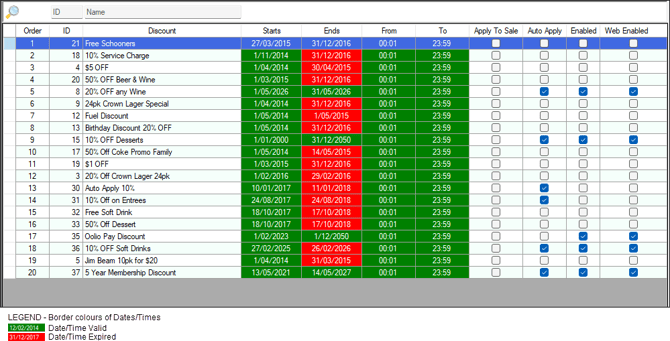
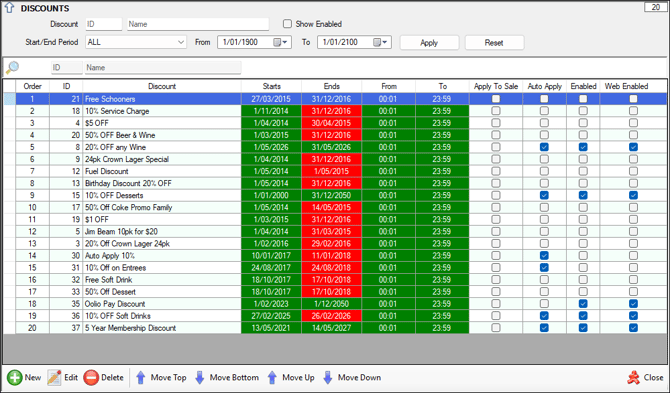
List the discounts currently configured, along with their ID, Discount, Starts/Ends dates, From/To times, Apply To Sale, Auto Apply, Enabled and Web Enabled indicaters.
Notes ...
Discounts with a date displayed with a red background in the End Date are considered to have expired.

- New - Select to add a Discount.
- Edit - Select to edit the selected row.
- Delete - Select a delete the selected row.
- Move Top/Bottom or Up/Down - Select to re-order how the Discounts appear in the grid. The order determines how the Discounts are applied.
Discount Setup Edit Screen ▲ ▼
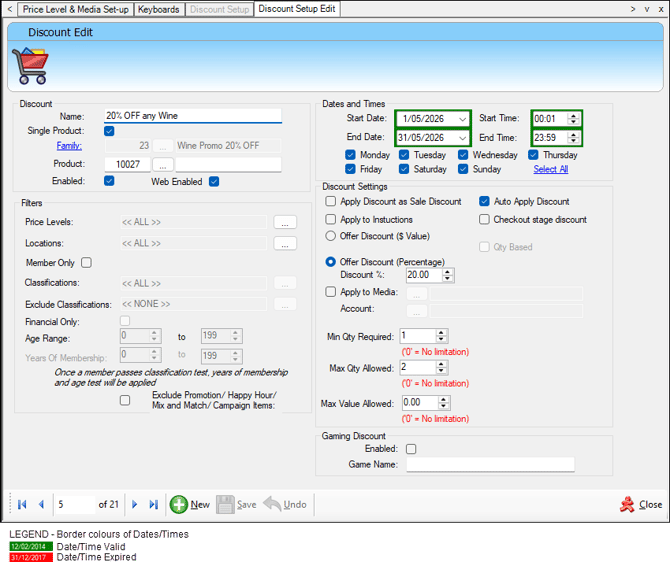
To access, select either the New or Edit option in the footer section of the Discount Setup screen. Used to configure and edit discounts.
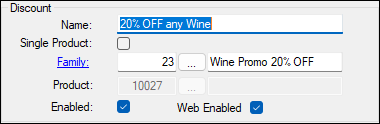
- Name - Displays/Enter the name of the discount. A maximum of 50 characters is allowed to be entered.
- Single Product - Select to ensure the selection of an item/product is enabled. Unselected ensures the selection of a Family is enabled.
- Family - Select to open the Search Families screen to select the Family the discount will be applied to. To apply a discount to ALL items/products enter a zero (0) in this field. This will result in the ALL Family being selected. Select the label Family to open the Families screen.
- Product - Enter the item's/product's PLU or select the search option to open the Search Products screen to select a single item/product the discount will be applied.
- Enabled - Select to ensure the discount is activated and enabled for Touch.
- Web Enabled - Select to ensure the discount is activated and enabled for Orderaway and Touchmini via the Web API.
Notes ...
Refer HERE for an up-to-date overview of the availability of features in relation to orders/sales placed and/or vouchers redeemed.
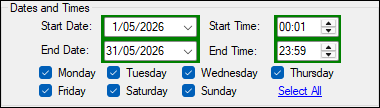
- Dates and Times - Displays/Set the period in days the discount is active. This is done by selecting the Start/End Dates/Times, and by selecting the days in the week the discount is to apply.
Notes ...
A start and end time set to 00:01 and 23:59 respectively, will mean all day.
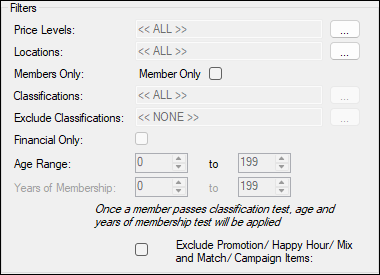
- Price Levels - Select to limit the application of the Discount to the Price Level selected. The default is all.
- Classifications - Select to limit the application of the Discount to the Classification selected. The default is all.
- Locations - Select to limit the application of the Discount to the Location selected. The default is all.
- Members Only - Selected ensures the rule is only triggered when sales are made to Customer/Members.
- Exclude Classifications - Members in this classification will be excluded from the discount even if they are also in an included classification above.
Notes ...
This makes the discount Members Only to prevent excluded classifications not swiping their card so they still get the discount.
- Financial Only - Only enabled when the Members Only option is selected. Selected limits the application of the Discount to Customer/Members that are considered to be financial. The default is no financial check is applied.
- Age Range - Only enabled when the Members Only option is selected. Used to provide access to discounts for Members that are within the configured age range. For example, for senior citizens aged 65+. When the Member swipes their membership card and they fall within the age range, they get access to the discount.
- Years of Membership - Only enabled when the Members Only option is selected. Used to provide discounts for Members that have joined as a Member within the range specified.
Notes ...
The Years of Membership is based on the Member's Join date. For example, a Years of Membership range configured for 0 to 5 will give access to the discount to those Members that became a Member in the last 5 years.
- Exclude Promotion/Happy Hour/Mix n Match/Campaign items - Select to ensure the Discount will NOT be applied to Products included in Promotions, Happy Hours, Mix n Match and Campaigns.
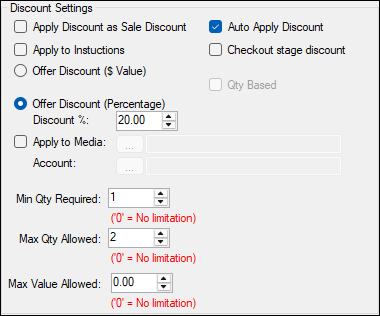
Determines the type and value of Discount to be applied.
- Apply Discount as a Sale Discount - Select to ensure the discount is applied to all the qualifying items in the sale and not individual items. A sale discount is much the same as selecting the Subtotal POS Key and then selecting the Discount POS Key. This results in a discount being calculated based on the total value of qualifying items in the sale. A Sale Discount line will appear in the sales grid when the discount is applied to the sale.
Notes ...
The Discount POS Key will need to be added to the Keyboard with the Predefined option and discount selected.
- Auto Apply Discount - Select to ensure the discount is applied automatically and therefore mitigating the need for a Discount POS Key. When selected and making an order/sale for a Customer/Member, the Customer/Member must be added to the order/sale first, prior to the items/products being added. This will ensure the discount is applied.
- Apply to Instructions - Select to ensure the discount is also applied to any instructions that are associated with the items/products to which the discount is to be applied. For example, a main meal that attracts a discount, will also mean that any sauces or side dishes (that attract a charge) that accompany the main meal are also discounted.
- Checkout Stage Discount - Select to ensure this discount is applied at the checkout stage in Touch and is applied depending on the payment Media the patron chooses to use when paying for the order/sale. For example, Cash or Card (EFTPOS).
- Offer Discount Options - Select one of the following options:
- Offer Discount ($ Value) / Discount $ - Select to specify the dollar amount the items/products are to be discounted by in the order/sale.
- Qty Based - Only enabled if the Offer Discount ($ Value) setting is selected. Ensures the Discount $ amount entered is applied to the quantity of the item/product sold and not the value. Generally used in relation to the selling of Fuel.
Notes ...
QTY based discounts are not available with subtotal discount option, they must be selected against individual items.
- Offer Discount Options continued ...
- Apply to Media - Select to ensure the discount will be allocated to the media selected.
Notes ...
To report on discounts with this option selected run the Detailed Transaction Media (SLM007) report. Unfortunately, discounts issued with this option selected will not appear in discount related reports but will appear in Media related reports. Also, with this option selected the full item's/product's GP% is maintained. That is, the discount does NOT affect the GP as it is no longer considered a discount.
- Account - Select an account that the discount is to be applied to. This could be used to track the value of promotional items/products to claim a GST credit on promotions.
Notes ...
The Media will need to be set to Account Charge (Media 90).
- Min Qty Required - Displays/Set the minimum number required to be sold before the discount is applied.
- Max Qty Allowed - Displays/Set the maximum number required to be sold after which the discount will NOT be applied.
Notes ...
When Qty Based is selected and either the Min Qty Required or Max Qty Allowed has a value greater than zero, then discount sale lines will NOT be split.
- Max Value Allowed - Displays/Set a maximum value that can be discounted. For example, in the screenshot example above a 20% discount is applied to a maximum value of $50.

- Enabled - Select to enable.
- Game Name - Displays/Enter the name of the gaming.

End of article ▲