
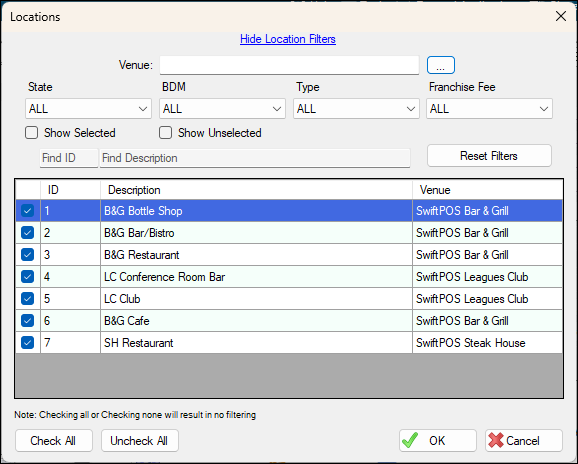
Used throughout Back Office to search for and select one or more Locations.
Sections ▲ ▼
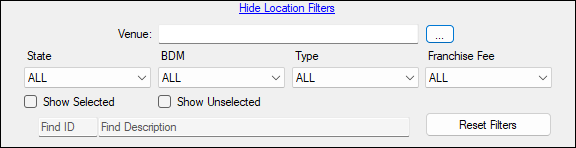
- Hide/Show Location Filters - Select to hide/show the filters.
Filers Section
Use the available filters to limit the number of Locations displayed in the grid.
- Venue - Select from the drop-down list the Venue to limit number of Locations displayed in the grid.
- Location Sub Filters - Select from the drop-down list the Sub Filters to limit number of Locations displayed in the grid.
- Show Selected - Select to only show the selected Locations.
- Show Unselected - Select to only show the unselected Locations.
- Find Fields - Enter text to do a wildcard search of the rows listed in the grid. Entering a value into in any one of the Find fields will cause the closest matching row to be highlighted.
- Reset Filters - Select to reset the filters entered to the default setting.
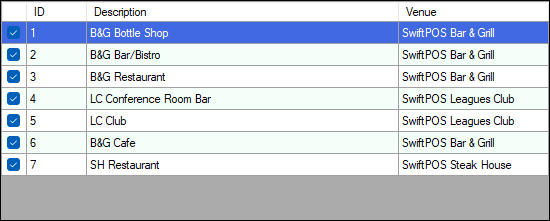
Lists Locations along with their ID, Description and Venue.
Notes ...
By default, the Locations initially displayed in the grid will be those for which the currently logged in Clerk/Staff Member has access to.
Locations can be selected by either:
- Selecting the individual checkboxes in the first column, OR
- Selecting the Check All option in the footer.

- Check All - Select to select all Locations listed.
- Uncheck All - Select to unselect all Locations listed.
- OK - Select to save selection and exit.
- Cancel - Select to exit without saving the selection.
End of article ▲