
Refer HERE for Reseller & Support information.
This outlines the information and the steps that are needed to familiarise oneself with the International Gaming Technology (IGT) interface.
Screens ▲ ▼
International Gaming Technology (IGT) Screen ▲ ▼
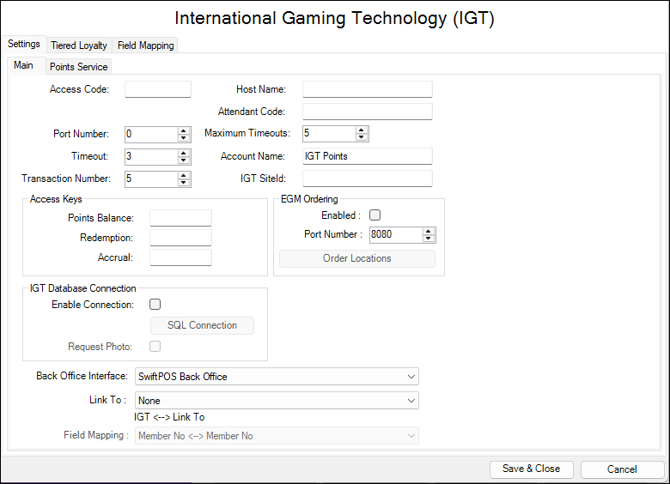
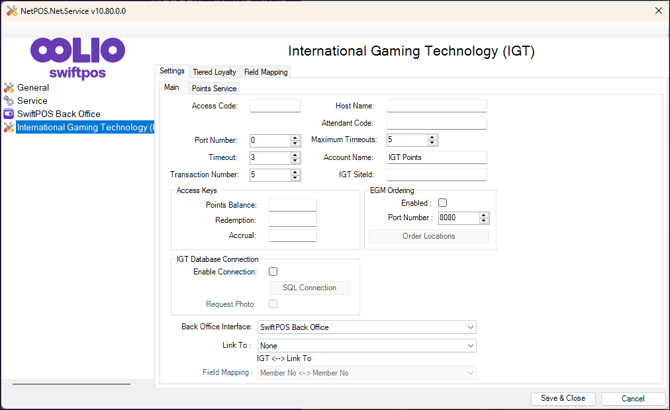
To access, refer HERE. A NetPOS Registration for the International Gaming Technology (IGT) interface will be required in order to access this screen. Used to configure the settings required to implement the International Gaming Technology (IGT) interface.
Tabs ▲ ▼
Settings Tab ▲ ▼
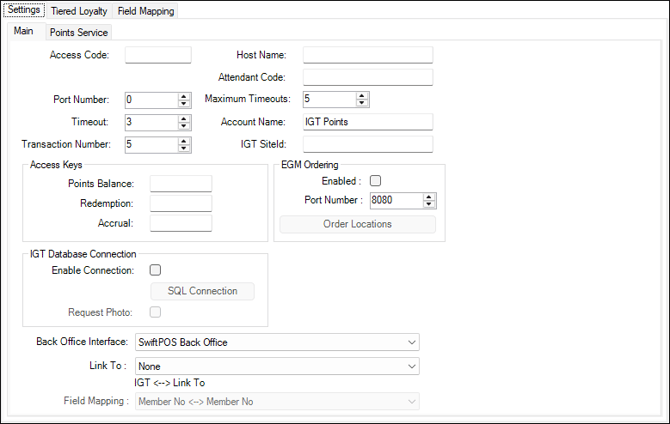
Tabs ▲ ▼
Main Tab ▲ ▼
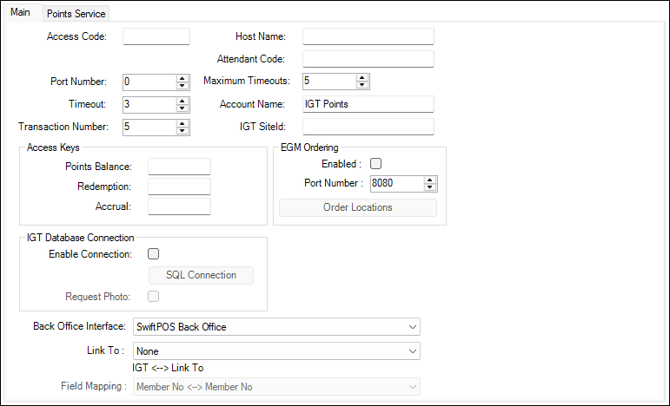
- Access Code - Default is blank. If you are running multiple sites on a single server, you can add a unique Access Code here that must match the same access code in Touch.
- Host Name - Enter the Host Name or IP Address of the server hosting IGT.
- Attendant Code - Displays/Enter the attendant code.
- Port number - Displays/Set the number of the port to communicate with IGT.
- Maximum Timeouts - Displays/Set the number of retries on a timeout before it fails.
- Timeout - Displays/Set the timeout in seconds.
- Account Name - Displays/Enter the account name.
- Transaction Number - T.b.a.
- IGT Site ID - Displays/Enter the Venue's IGT site ID.
Access Keys Section
- Points Balance - Displays/Enter the access key for Points Balance.
- Redemption - Displays/Enter the access key for Redemption.
- Accrual - Displays/Enter the access key for Accrual.
EGM Ordering Section
- Enabled - Select to enable.
- Port Number - Displays/Set the number of the port to communicate with EGM.
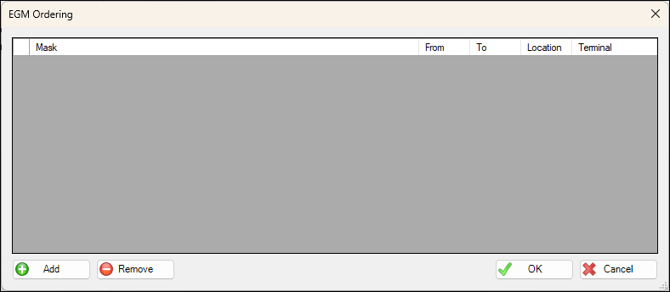
- Other Locations - Select to open the EGM Ordering screen and configure as required.
IGT Database Connection
-
Enable Connection - Select to enable. Once enabled the SAQL Connection option will be enabled for selection.
-
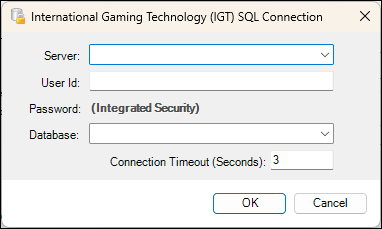
SQL Connection - Select to open the International Gaming Technology (IGT) SQL Connection screen.
-
Request Photo - Select to enable.
-
Back Office Interface - Select from the drop-down list the Swiftpos Back Office interface.
-
Link To - Link to another supported interface.
-
Field Mapping - Select from the drop-down list the mapping option to use with the Link To interface.
Points Service Tab ▲ ▼
-
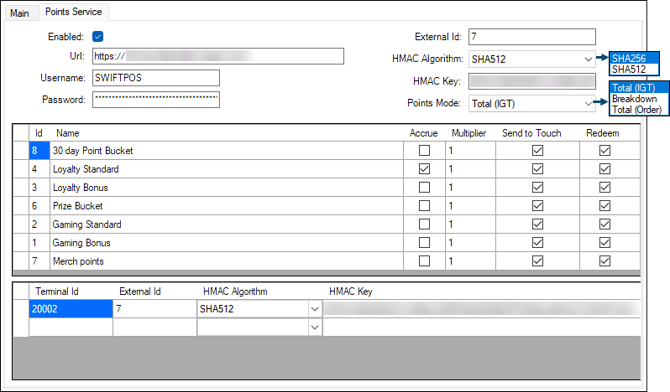
Enabled - Select to enable.
-
External Id - Displays/Enter the External ID.
-
URL - Displays/Enter the URL.
-
HMAC Algorithm - Displays/Select from the drop-down list the appropriate option.
-
Username - Displays/Enter the username.
-
HMAC Key - Displays/Enter the HMAC key.
-
Password - Displays/Enter the password.
-
Points Mode - Displays/Select from the drop-down list the appropriate option.
- Breakdown – Select to send individual pointTypeId redemptions to SwiftPOS Touch and IGT.
- Total – Select to aggregate all available points across multiple Points accounts and presents them as a single balance in Touch. Redemptions are sent to IGT without a pointTypeId, relying on IGT-side configuration to determine which Points Account is charged.
- Total (Order) - Select to allow Touch to determine the required redemption breakdown based on the order specified in the Order column and send multiple, ordered redemption requests back to IGT using explicit pointTypeId values.
Grid Top Section
Displays depending on the Points Mode selected.
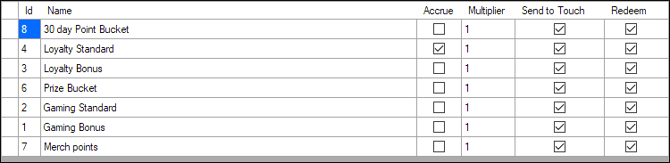
| With Total (IGT) or Breakdown Points Mode options selected |
 |
| With the Total (Order) Points Mode option selected |
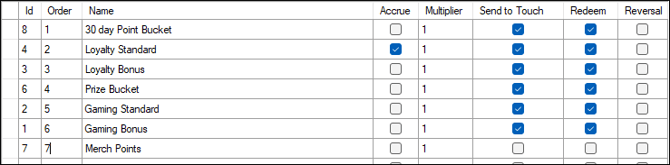
With the Total (Order) Points Mode option selected, the grid includes the Order and Reversal columns. Refer below for more information.
|
Lists the points accounts along with their ID, Name, Accrue indicator, Multiplier ratio, Send To Touch indicator and the Redeem indicator.
Noteworthy
- Order - Displays/Enter the order in which points are redeemed across the Points accounts listed. This allows redemptions to be deducted from the correct Points accounts in a predictable, configurable order within a single transaction.
-
Accrue - Select the Points account to which points will be accrued.
- Reversal - Displays/Select the Points account to which refunds and reversals are credited to. Only one Points account can be selected.
Grid Bottom Section

Lists the Terminals along with their ID, External Id, HMAC Algorithm and HMAC Key.
End of article ▲