
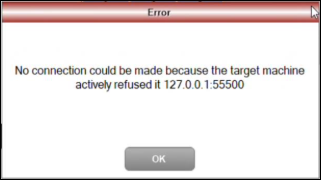
Cause ▲ ▼
This issue may arise as a result of one of the following:
- An attempt was made to establish a connection with the Swiftpos Back Office and Back Office is not aware of the Touch device. This usually happens when a Touch device was previously connected to another Swiftpos Back Office instance and is now attempting to connect with a different Swiftpos Back Office.
Action To Be Taken ▲ ▼
- Firstly:
- Secondly:
- In Back Office:
- Select the POS Devices option of the Device Settings menu:
- Delete the Touch device's entry in the grid.
- Re-add the device by selecting the Add option.
- Exit the screen.
- Select the POS Devices option of the Device Settings menu:
- In Back Office:
-
-
- Select the Devices option in the Administration menu.
- Ensure the Active option is selected against the device's entry in the grid.
- Save the changes and exit the screen.
- Select the Devices option in the Administration menu.
- In Touch:
- If the device has not already come online, try to connect the Touch device by selecting the Offline menu option in the toolbar.
- If it comes online, you are good to go. If not, try the following:
-
- Thirdly:
- In Back Office:
- Select the POS Devices option of the Device Settings menu:
- Delete the Touch device's entry in the grid.
- Exit the screen.
- Select the Devices option in the Administration menu.
- Ensure the Active option is selected against the device's entry in the grid.
- Save the changes and exit the screen.
- Select the POS Devices option of the Device Settings menu:
- In Back Office:
-
-
- Restart the Connect service.
- Select the POS Devices option of the Device Settings menu:
- Re-add the device by selecting the Add option.
- Exit the screen.
-
-
- In Touch:
- If the device has not already come online, restart Touch.
- It should now be online.
- In Touch:
End of article ▲