
Notes...
It is highly recommended to ensure backups are made of the swiftpos Touch Database and the Settings prior to any changes being made.
To access, refer HERE. Used to access tools relating to Table Tracking in Touch.
-
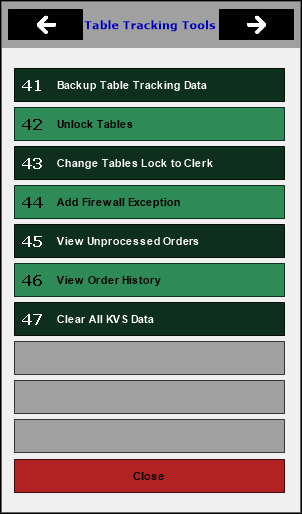
Backup Table Tracking Data - Select to open the Back Up Database screen to backup the Table Tracking database. Refer HERE for more information.
- Unlock Tables - Select to unlock a Table that is currently locked. If unlocking the Table using the terminal that has it locked is not possible then try from another terminal, then use this menu item to unlock the Table in question.
When a Table is opened by a terminal it is locked to that terminal so that no other terminal can access the Table until the original terminal saves the Table. If a terminal went offline or was shutdown while it had a Table open the Table would remain locked to that terminal. If another terminal needs to gain access to the Table then it must be unlocked from the tools menu if the other terminal is unable to open it and save it back to the Table tracking database.
Tables are locked by other Touch terminals because staff forget to close/save the table after serving a patron. It is recommended to set the Auto Save Table after Seconds of inactivity option to 45 seconds of inactivity if this is a problem with waiter stations that are not closing/saving the tables.
Notes ...
Please be aware this menu item should only be used when it is absolutely certain that the Table is not in use by another terminal. It is recommended to use Security so that only the manager has access to this feature.
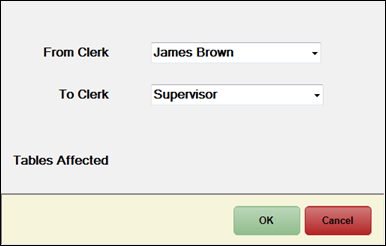
- Change Tables Lock to Clerk - Select to re-assign locked Tables to another Clerk/Staff Member.
Notes ...
Please be aware this menu item should only be used when it is absolutely certain that the Table is not in use by another terminal. It is recommended to use Security so that only the manager has access to this feature.
- Add Firewall Exception - Select to add.
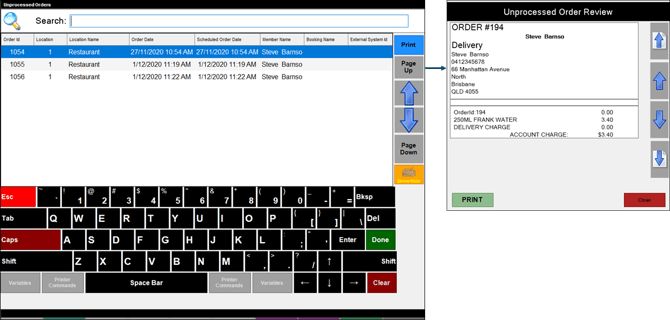
- View Unprocessed Orders - Select to open the Unprocessed Orders screen and select an order to preview the Unprocessed Order Review.
Notes ...
These are Orders that have been received by the Swiftpos Touch terminal but have not been processed as there is no Order Master POS Terminal setup for Orders to be processed.
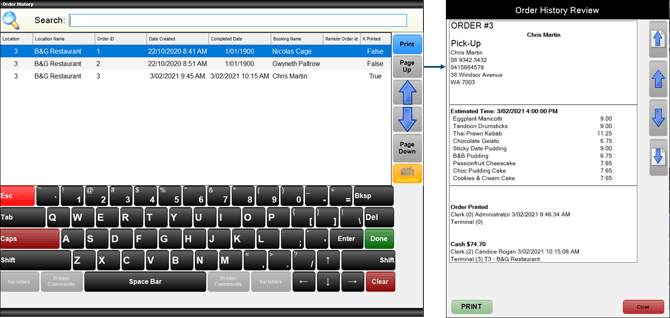
- View Order History - Select to open the Order History screen and select an order to preview it in the Order History Review.
End of article ▲