
| Fast Clerks Login | Manual Login | Touch |
|
|
|
To access, open the SwiftPOS.Touch.exe file generally located in the C:\SwiftPOSTouch folder. Used primarily by staff to carry out Point of Sale (POS) operations in a Venue.
Types ▲ ▼
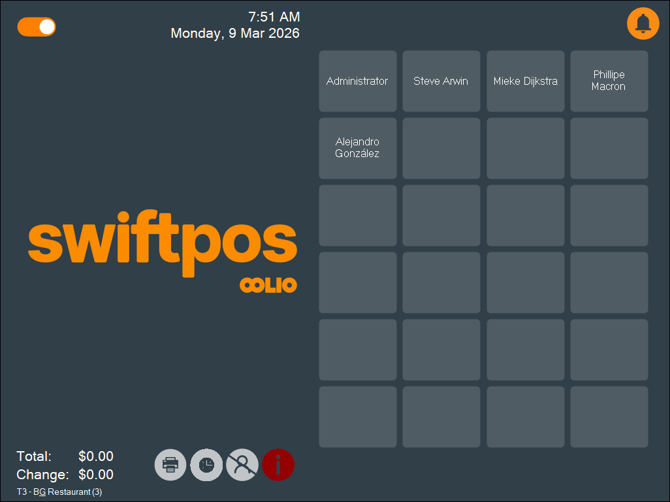
Fast Clerks Login Screen ▲ ▼
Displays when the Fast Clerks option is selected. The Fast Clerks Login screen will automatically display when a sale is finalised. Otherwise in all other instances select either one of the following to return to the Fast Clerk Login screen:
- The Clerk Menu in the Tool bar
- The Clerk Login (#101) POS Key is selected.
Sections ▲ ▼

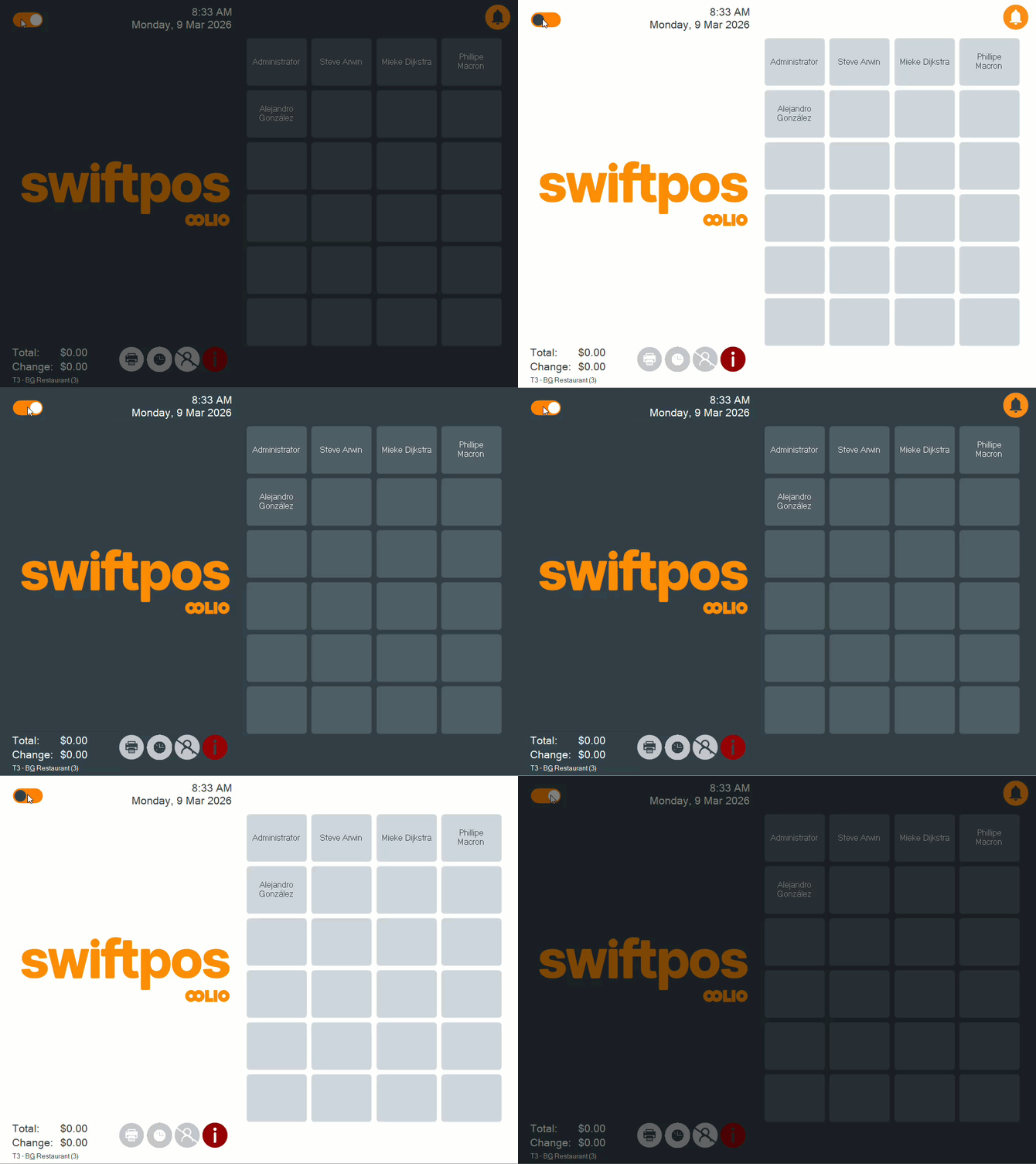
- Dark/Light Mode - Toggle select to switch between the light and dark modes. For example:
Notes ...
This toggle switch can be disabled and a default mode selected to ensure toggling between dark and light modes is not possible. Refer HERE for more information.
- Date & Time - Displays the current date and time.
- Alert Notification icon - Select to display notifications that may require the attention of Touch operators. For example:
 |

Notes ...
The alert notification icon is only displayed when there are notifications.
- Apply Pending Updates - Displays when Updates are pending and can be selected to ensure updates are downloaded and applied.
- Orders Pending - Displays when Orders are Pending. Pending Orders can be viewed via the Orders Menu after logging in.
- Call Waiting - Displays when a call comes in.
Notes ...
This is only displayed if a Caller ID Peripheral has been configured and is in use.
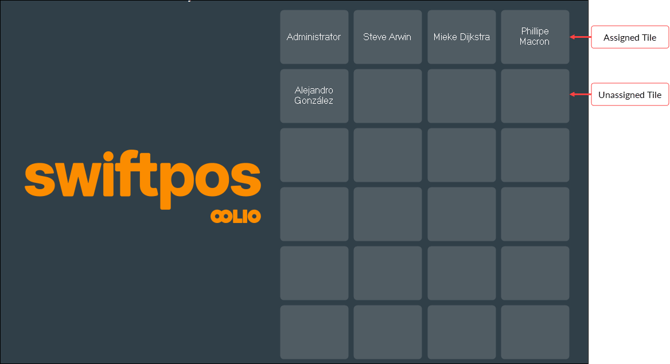
- Logo - Displays the logo. This section can be reduced in width to accommodate more Fast Clerk tiles by selecting the Reduce Logo Width option.
- Tiles - Displays tiles assigned to Clerks/Staff that have logged in and tiles that have not as yet been assigned.

- Total - Displays the total of the last sale.
- Change - Displays the change to be returned to the patron from the last sale.
- Icons - Displays one or more of the following icons:
 |
Select to display the Change PIN screen and change the PIN of the currently active Clerk/Staff Member. |
Notes ...
This icon will NOT be displayed if the Don't Prompt for Pin option is selected.
 |
Select to display the Clock In Out screen to record the start/ending of shifts and breaks. |
 |
Select to display the Information screen. |
Notes ...
The background colour of the above icon will change to red to alert the Clerk/Staff Member that something requires attention. Select the red icon to find out what that might be.
 |
Select to Log Off a Clerk/Staff Member. |
 |
Select to reprint the receipt for the last sale. |
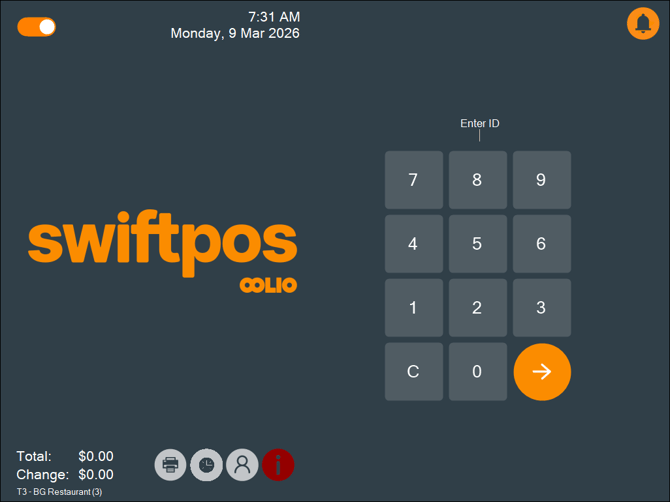
Manual Login Screen ▲ ▼
Displays when either:
- The Manual Log In/Out or Log off when sale finalises option is selected.
- An empty tile on Fast Clerk screen has been selected.
- The Clerk Login (#101) POS Key is selected.
Sections ▲ ▼
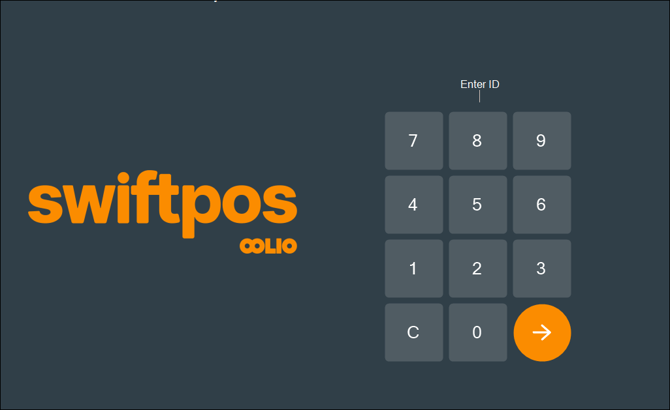
- Logo - Displays the logo. This section can be reduced in width to accommodate more Fast Clerk tiles by selecting the Reduce Logo Width option.
- Keypad - Displays a numeric keypad that can be used to enter a Clerk's/Staff Member's ID or PIN when prompted.
Touch Screen ▲ ▼
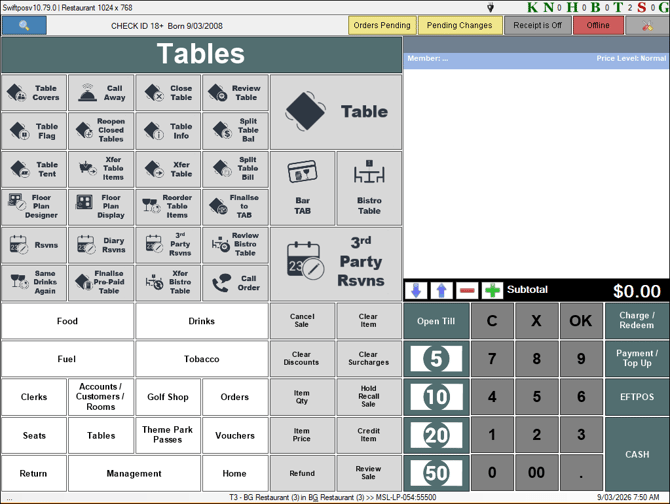
Displays when the No Clerk log in required option is selected or when a Clerk/Staff Member has logged in.
Sections ▲ ▼
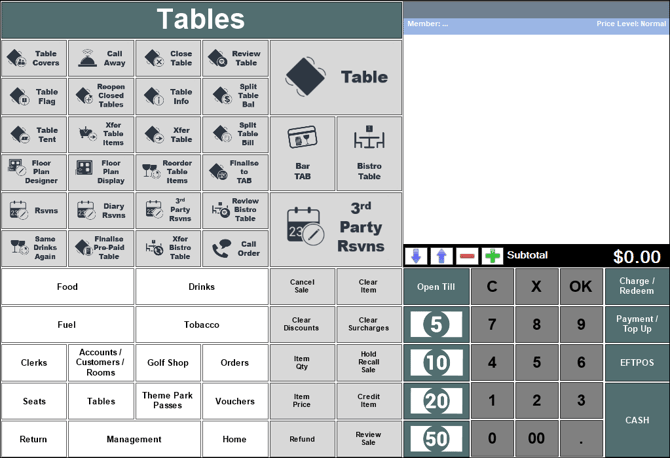
Displays the Keyboard Layout that has been designated as the Home Layout. Refer HERE for more information. Keyboards and Layouts are created and configured in Back Office HERE.

Displays the Touch terminal, Location and Host/ IP address of the server to which Touch is currently connected, as well as the current date/time.
End of article ▲