

This provides an overview of the Get EFTPOS Status (#716) POS Key.
Subjects ▲ ▼
About ▲ ▼
What Is Required? ▲ ▼
- Swiftpos v10.80+ for EFT48 - N-Genius (Network International).
- Swiftpos v10.79.7+ for EFT47 - Verifone Cloud & EFT42 - Oolio Pay (Adyen).
- Ensure this POS Key is added to the appropriate Keyboard Layout using the Designer. Refer HERE for more information.
What To Consider? ▲ ▼
- If required, access to this POS Key can be restricted by the Clerk Security feature.
When Is It Used? ▲ ▼
Used to test the current EFTPOS connection and log the result in the Touch POS device's logs. Introduced to provide:
- Standardize Feedback: Introduced a consistent response across all supported peripherals, using clear icons and messaging to indicate if the EFTPOS device is Ready, requires Attention, or if the Connection Failed.
- Improve Visibility & Logging: Every status request and its outcome is now recorded in the Touch POS device's logs, ensuring visibility for troubleshooting even when "Full Debug" mode is not enabled.
- Future-Proof Foundation: The implementation provides a reusable framework, making it easier to add status-check capabilities to other EFTPOS peripherals in future updates.
How To? ▲ ▼
How To GET STARTED? ▲ ▼
- Review About and ensure the steps outlined HERE are addressed.
- In Keyboard Designer, select the Get EFTPOS Status (#716) POS Key that has been added to a Layout and then select the More Settings option to display the Settings screen.
- Ensure it is given an appropriate Caption. For example, Get EFTPOS Status.
- Configure the POS Key by selecting the options available HERE.
- Once configured, ensure a Full Update is sent to all the Touch terminals that will be using the POS Key. Refer HERE for more information.
Screens ▲ ▼
Settings Screen ▲ ▼
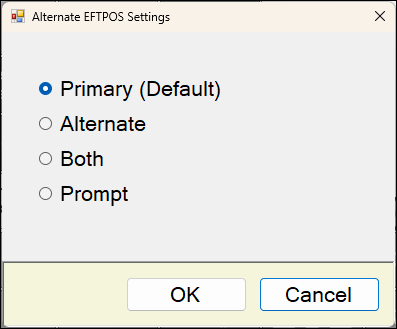
To access, select the More Settings option in Keyboard Designer. Used to configure the settings for the Get EFTPOS Status (#716) POS Key.
End of article ▲