
This outlines the How To Do A Filtered Search using the Filtered Search (#107) POS Key.
How To? ▲ ▼
How To Do A Filtered Search? ▲ ▼
To explain the operation of a Filtered Search using the Filtered Search (#107) POS Key, the example of a specially configured POS Key with the caption Specials of the Day is outlined below:
- In Back Office:
- Create a Specials of the Day captioned Filtered Search (#107) POS Key and add it to the appropriate Layout using the Keyboard Designer.
- Create a Family called Specials of the Day and move items/products in and out of this Family as required.
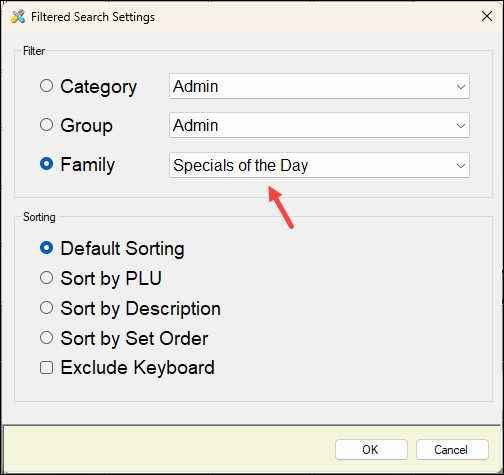
- Configure the POS Key to ensure the Specials of the Day Family is selected. For example:
- Ensure a Full Update is sent to all the Touch terminals that will be using the POS Key. Refer HERE for more information.
- In Touch:
- Select the Specials of the Day captioned Filtered Search (#107) POS Key.
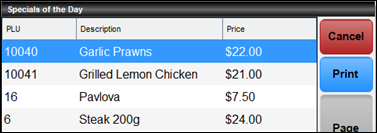
- The items/products assigned to the Specials of the Day Family will be displayed. For example:
-
- Select the Print option to print all the items/products and their notes that are on special. For example:
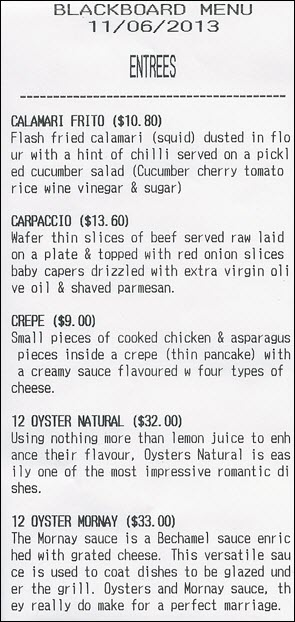
- Select the Print option to print all the items/products and their notes that are on special. For example:
End of article ▲