
This provides an overview of the Clear Item (#2) POS Key.
Subjects ▲ ▼
About ▲ ▼
What Is Required? ▲ ▼
- Swiftpos v10+
- Ensure this POS Key is added to the appropriate Keyboard Layout using the Designer. Refer HERE for more information.
What To Consider? ▲ ▼
- If required, access to this POS Key can be restricted by the Clerk Security feature.
- If required, enforcing Clerks/Staff to provide reasons for the clearing of items/product in an order/sale can be achieved by ensuring that the Enforce Reason Code option has been selected.
- Ensure this POS Key is added to the appropriate Keyboard Layout using the Designer. Refer HERE for more information.
- This POS Key will only clear a Media type item/product when it is a Media in the range of 1-29.
- The Show Cleared Items option must be selected in order for cleared items/products to be displayed in the order/sale.
When Is It Used? ▲ ▼
Used to clear an item/product in the order/sale and if necessary, enforce the entry of Reason Codes. The value of the cleared items/products will be recorded for Back Office Audit Reporting.
This POS Key appends the text [Clear] to the description of the item/product and sets the selling price to zero. It is primarily used to clear an item/product from an order/sale that has either been incorrectly added or the Customer/Member has changed their mind and does not want to proceed with the purchase of the item/product. In contrast. items/products are credited in order to correct an order/sale. For example, when a Customer/Member has already received an item/product and is not happy, then the item/product can be credited in order to appease the Customer/Member.
How To? ▲ ▼
How To GET STARTED? ▲ ▼
- Review About and ensure the steps outlined HERE are addressed.
- In Keyboard Designer, select the Clear Item (#2) POS Key that has been added to a Layout.
- Ensure it is given an appropriate Caption. For example, Clear Item.
- Select the More Settings option to display the Settings screen.
- Once configured, ensure a Full Update is sent to all the Touch terminals that will be using the POS Key. Refer HERE for more information.
Screens ▲ ▼
Settings Screen ▲ ▼
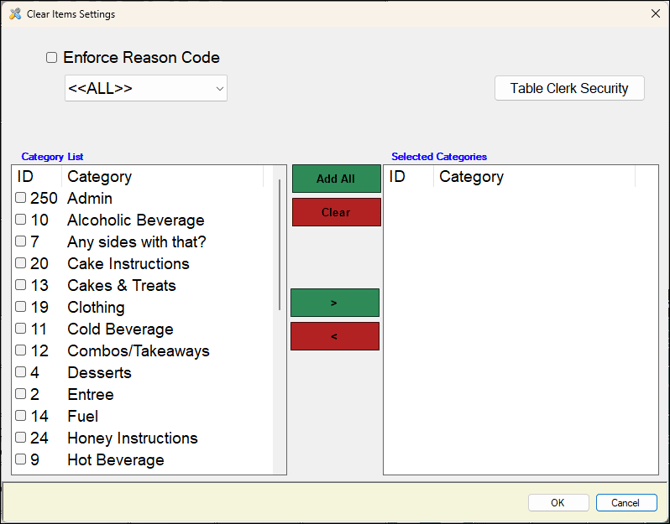
To access, select the More Settings option in Keyboard Designer. Used to configure the settings for the Clear Item (#2) POS Key.
- Enforce Reason Code - Select to enforce the Clerk/Staff Member to select/enter a Reason for cancelling the current sale. Refer HERE for more information.
- Category List - Select from the Category List the Categories for which this POS Key will be applied to. Use the Add All, Clear, < and > buttons to populate the Selected Categories list to the required Categories.
Notes ...
This feature can be used to restrict Clerks/Staff to only be able to clear food items/products and not drinks. To be able to clear a Payment / Top Up (#152), then ensure no Categories appear in the Selected Categories section.
- Table Clerk Security - Select to open the Clerk Groups screen and select the Clerk/Staff Groups that will have access to this POS Key.
End of article ▲